Home
» PC Tips
»
How To Compare Columns In Google Sheets
How To Compare Columns In Google Sheets
Google Sheets is Google’s powerful and easy-to-learn cloud-based spreadsheet application. Sheets competes with Microsoft Excel in the spreadsheet market, it doesn’t have the same breadth or depth of features.
Google Sheets, Google Docs, and Google Slides are all part of the web-based office suite offered by Google for free. These applications integrate with Google Drive, Google’s file storage, and synchronization service.
One of those routine spreadsheet tasks is the comparison of information in different columns. Sheets is more than capable of performing this kind of comparison.
In this how-to article, I’ll show you how you can compare data between columns in Google Sheets, and I’ll also describe one approach to doing the same thing with Microsoft Excel. If you’re an Excel user who’s considering switching and is concerned about having comparable features, this article should ease your concerns. You can get it done with Sheets!
Google Sheets Compare Columns
Compare two columns in Google Sheets
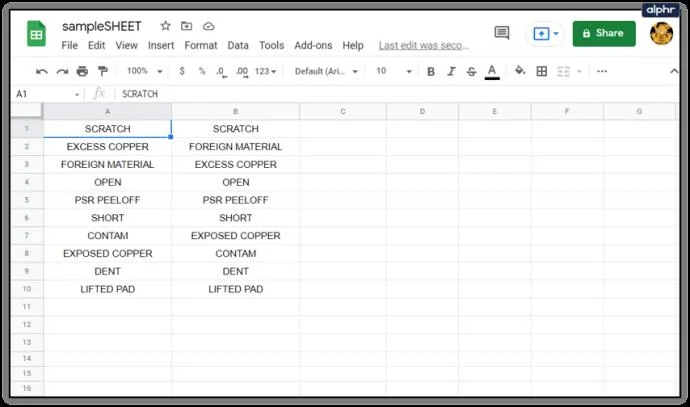
One simple approach to comparing columns in Sheets is to use a formula. Let’s say that we have two columns of data, column A and column B. If we want to compare the columns and make a note of any differences, we can use a formula.
The IF formula is a powerful tool in Sheets (as well as in Excel). In the IF statement, there are three arguments.
The first argument is the test to be performed, the second argument is the result to return if the test is nottrue, and the third argument is the result to return if the test istrue. This is fairly easy to understand, but hard to read in the formula, so let’s step through it.
Open your Sheet on the page that you want to compare.
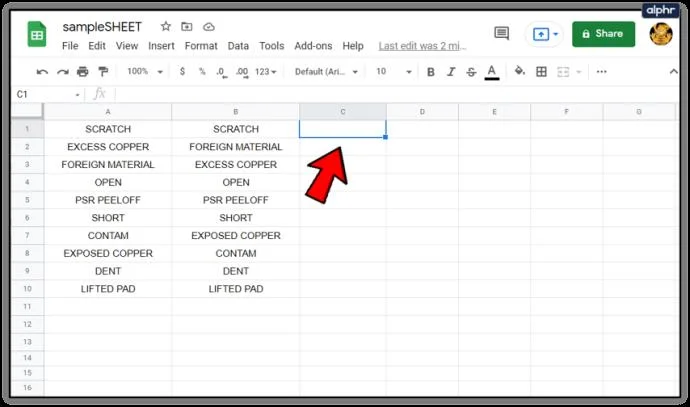
With data in columns A and B, highlight cell C1.
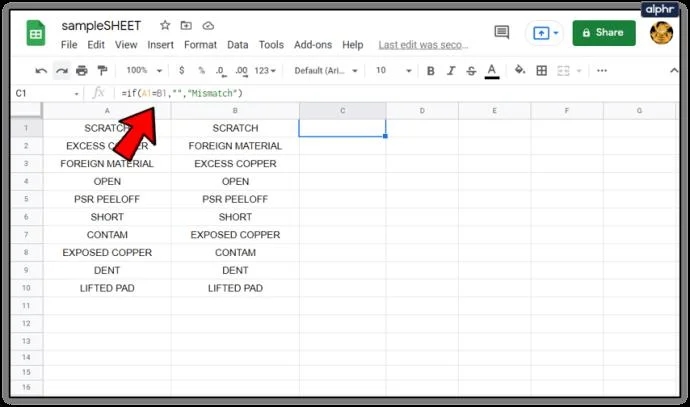
Paste =if(A1=B1,"","Mismatch") into cell C1. The logic is this: if A1 and B1 are the same (i.e., A1=B1), the formula returns an empty string, and if they are not the same (A1 does not equal B1), the formula returns “Mismatch”.
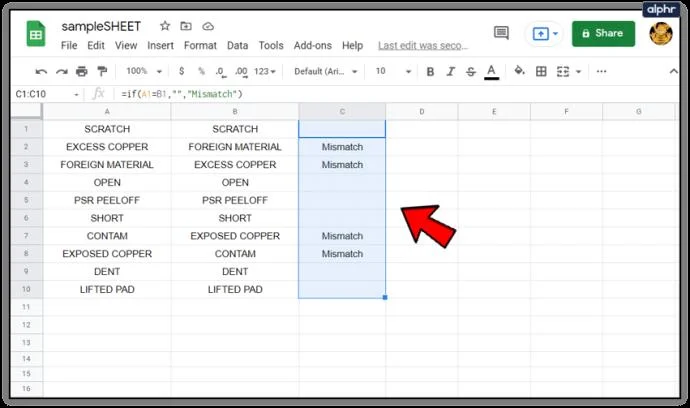
Left-click on the bottom right corner of cell C1 and drag downwards. This copies the formula in C1 into all the cells of column C.
Now for each row in which A and B are not identical, column C will contain the word “Mismatch”. If you see a blank cell then the formula returned nothing indicating the columns match.
Comparing multi-column data
Comparing data between two columns is fine and useful…but what if you have multiple columns of data and need to do comparisons? Well, Sheets can handle that as well, using a function called ARRAYFORMULA. This is a fairly advanced formula and I’m not going to get deep into the weeds on how it works, but it will allow us to do some multi-column data comparisons.
In Sheets and other spreadsheets, you can use an array formula to calculate a column in or row of subtotal values by placing it in a row of cells or you can calculate a single value in a single cell.
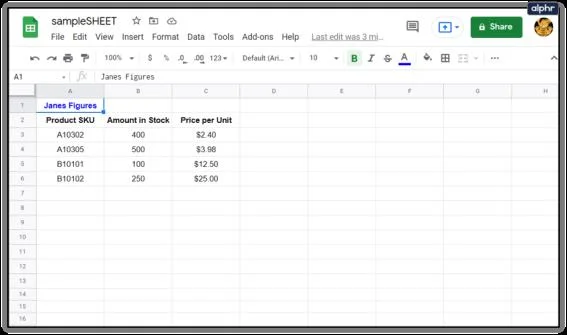
Let’s say we have two sets of data. Each data set has an index value – may be a part number or a serial number. There are also a couple of columns of data associated with each index value – product colors, maybe, or the quantity on hand. Here’s what one of those data sets might look like.
So we have Jane’s data. But then Bob sends in his figures for the same set of information, and we suspect that there might be some differences between the two data sets. (In this example, you could easily visually identify the differences, but assume a spreadsheet with thousands of entries.) See below for Jane and Bob’s figures side by side.
If we want to check to see whether the price per unit figures reported by Jane and Bob are the same, we can use ARRAYFORMULA to do it. We want to report any differences and print them out starting in cell I3, so in I3 we type this formula:
This results in a multi-column comparison that looks like this:
Now we can see that SKU A10305 has a difference and we can figure out who has the right information and who’s got an error.
Using Power Tools to compare columns
Another approach is to use a comparison tool in one of the add-on packs for Google Sheets. One tool is known as ‘Power Tools, a very useful collection of add-ons to extend the functionality of Google Sheets. It is one of many such tools that greatly extend the basic functionality and take a lot of the work out of creating spreadsheets.
While they used to be free indefinitely, Power Tools now requires a subscription once the free trial period is over. I’d say that Power Tools is worth the price for heavy spreadsheet users at $29.95/year or $89.95 for a lifetime subscription.
Power Tools has many powerful functions, but we’ll just take a look at its method of column comparing here.
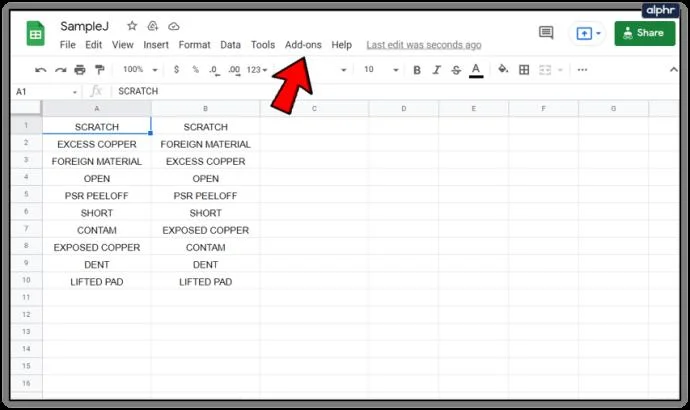
Once Power Tools is added to your Google Sheets, go to the Add-Ons pull-down menu
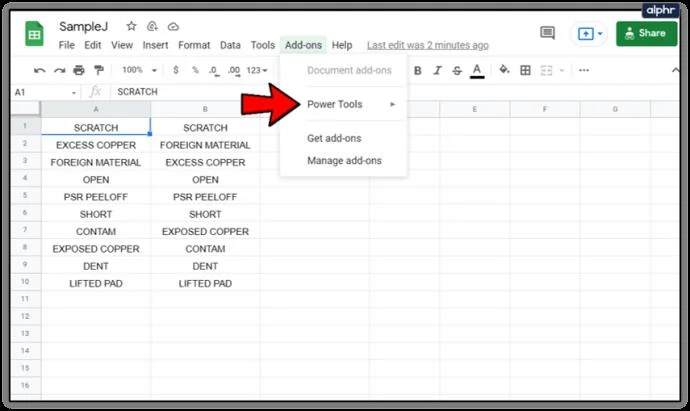
Select Power Tools
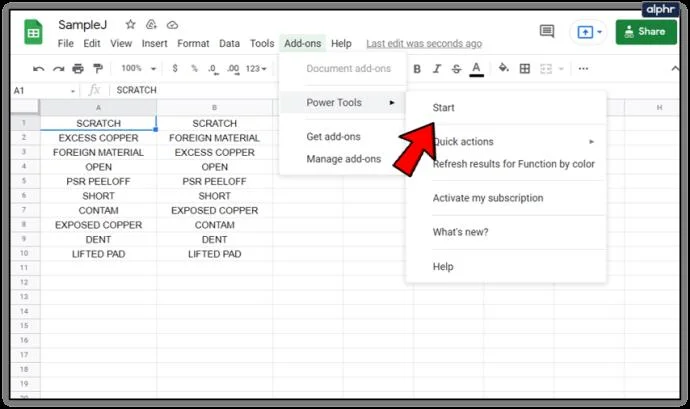
Then select Start
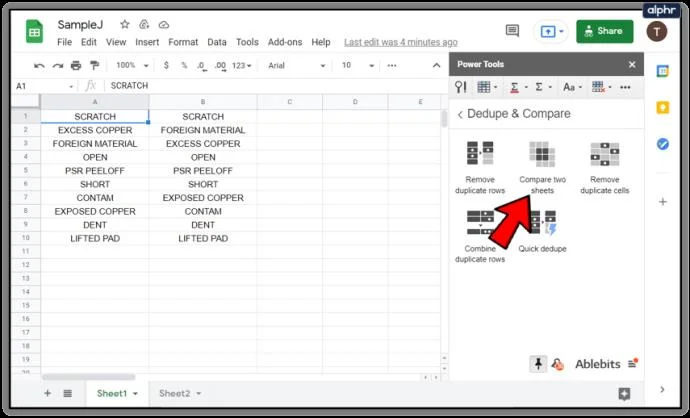
Click the ‘Dedupe & Compare’ menu option then select ‘Compare two sheets’
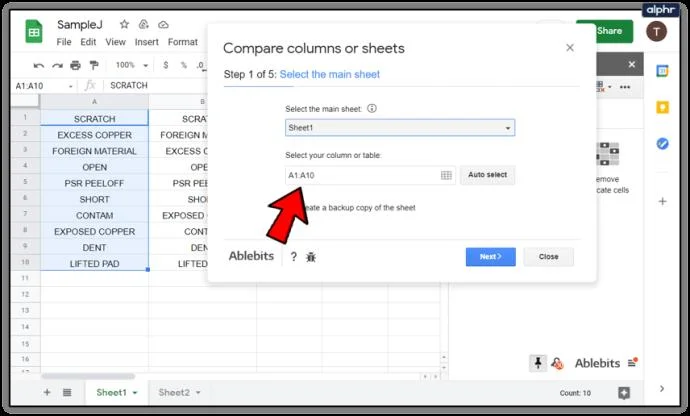
Enter the ranges of the columns you want to compare. Note that you can compare multiple columns at a time, and even compare across different sheets!
Select whether you want to find unique values or duplicate values.
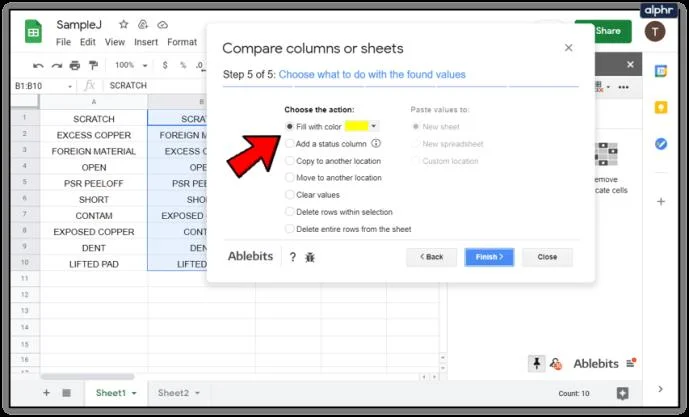
Select how you want Power Tools to indicate the results of the comparison. You can choose to have it color in the duplicate or unique cells, to move or copy data to new columns, and other choices.
A quick way to compare differences between text or spreadsheets
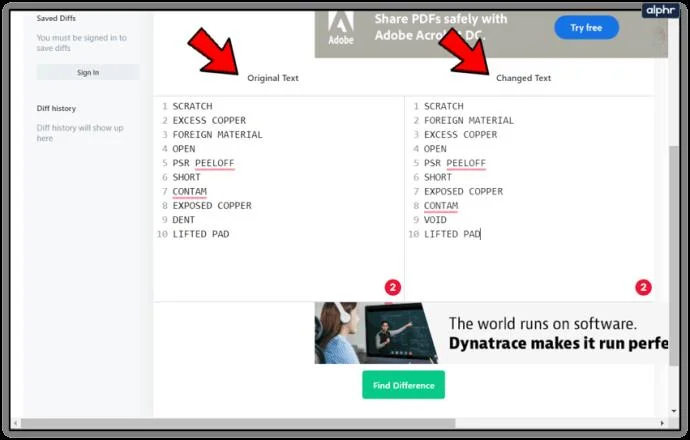
If you don’t want the hassle of writing formulas or using an add-on and just want to quickly compare values or text between two documents, there is a free online tool that does the heavy lifting for you. It is called Diffchecker and seems to work well. It is even recommended for use on the Google Docs forum.
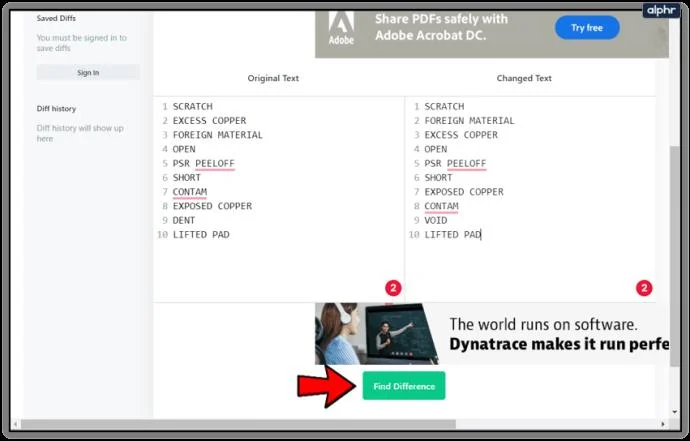
Paste one set of text or values into the left pane and the other column or text into the right.
Select Find Difference!
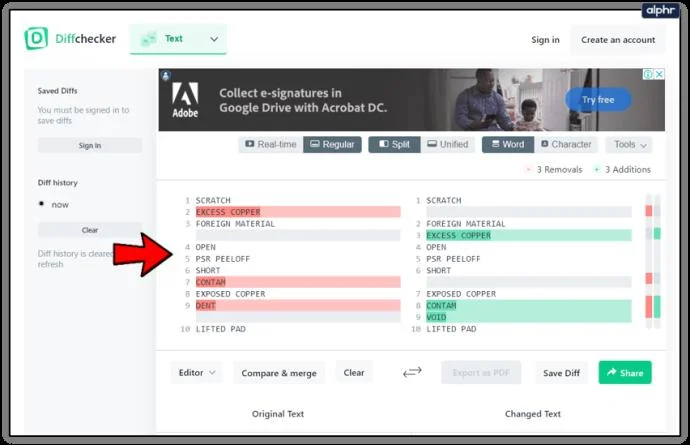
The site will compare the two panes and highlight any differences.
Diffchecker is useful if you are trying to differentiate between columns and only need the results.
So how about if you use Excel, can you compare columns using that tool? Well of course you can!
Compare two columns in Microsoft Excel
I flip between Google Sheets and Microsoft Excel depending on what I am trying to do. While Sheets is very good, it doesn’t have quite as many features as Excel and so falls short in some key areas.
Method 1 to compare columns for duplicates in Excel:
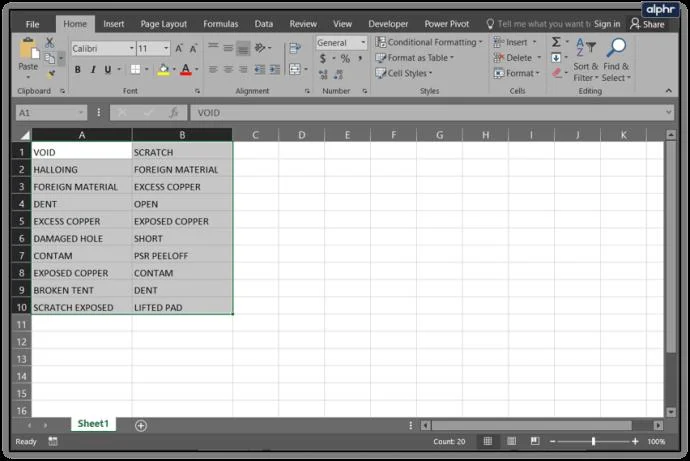
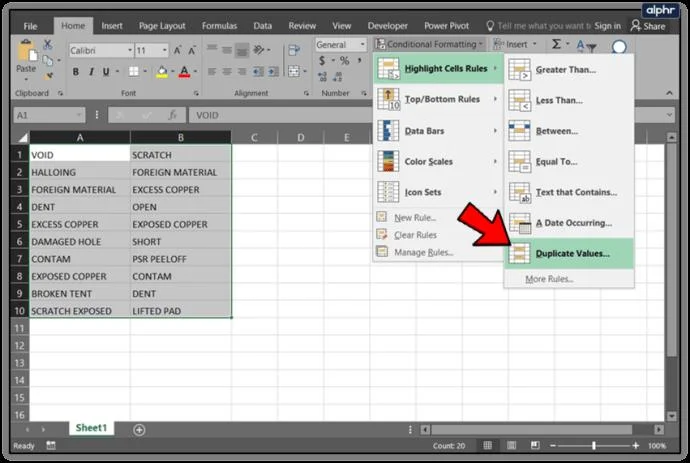
Highlight the two columns you want to check.
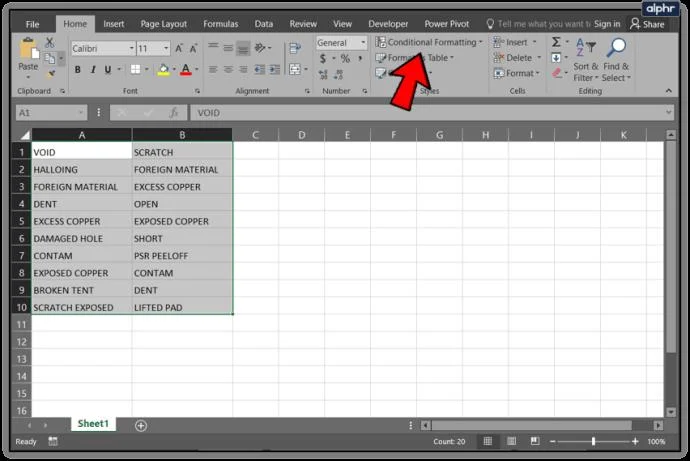
Select Conditional Formatting from the Home ribbon.
Select Highlight Cell Rules and Duplicate Values.
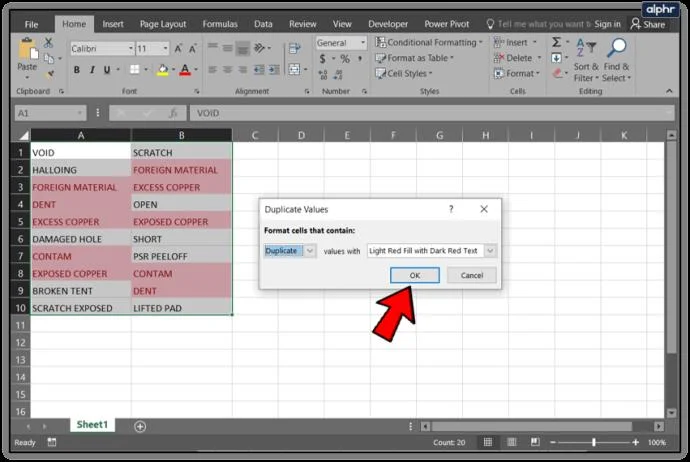
Select a format to display and select OK.
Method 2 to compare columns for differences in Excel:
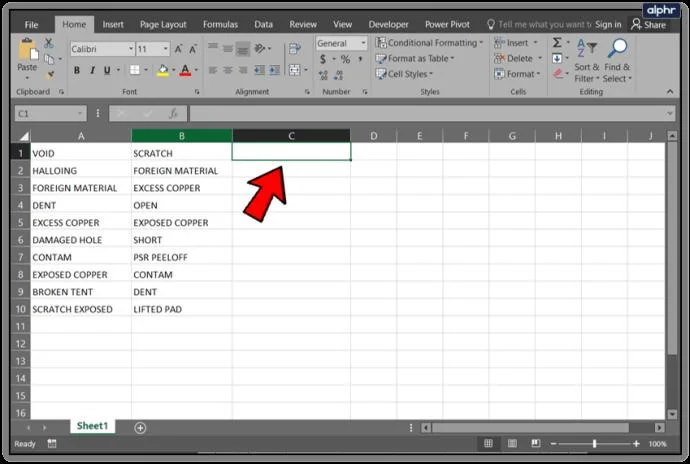
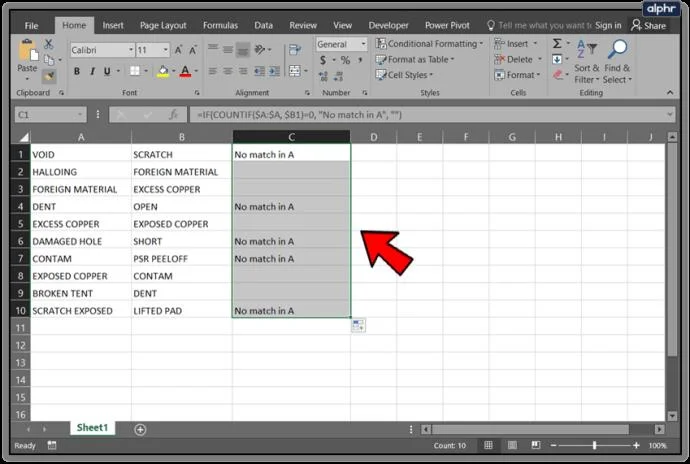
Highlight cell 1 in column C.
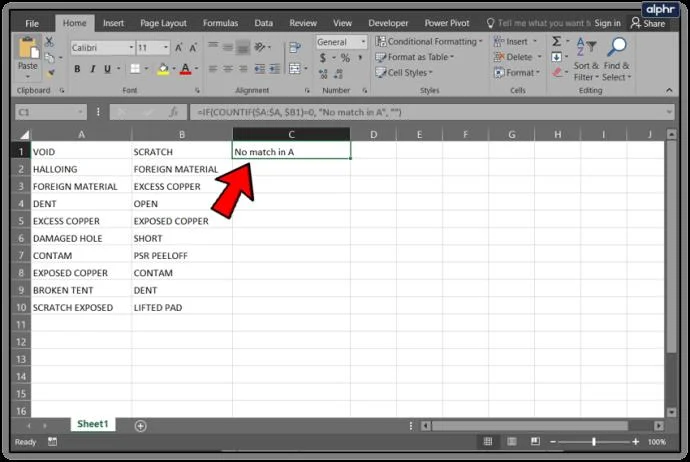
Paste =IF(COUNTIF($A:$A,$B1)=0,"No match in A","") into the formula bar.
You should see ‘No match in A’ in column C wherever the two columns differ.
You should see those cells with differences as there should be a label in the corresponding row telling you ‘No match in A’. You can, of course, modify this to say anything you like. You can also change the column letters or the order in which you compare the two accordingly.