Clear Stuck Nextcloud Maintenance Mode Safely With OCC
Use OCC to restore Nextcloud access, verify database migration status, and choose the right command for archive, Docker, or Snap installs.
If Nextcloud still shows “maintenance mode” after an update or maintenance task, first check whether the database upgrade is complete. When occ status reports needsDbUpgrade: false, run occ maintenance:mode --off as the web-server user in the correct Nextcloud installation; if it reports true, finish occ upgrade before reopening the site.
Disabling the flag restores logins, but it does not repair a failed upgrade. The goal is to bring the instance back online with both the maintenance flag and upgrade state verified.
Connect to the host or container that serves the affected Nextcloud URL. For a manual Linux installation, change to the Nextcloud directory (often /var/www/nextcloud) and inspect status as the HTTP user:
cd /var/www/nextcloud
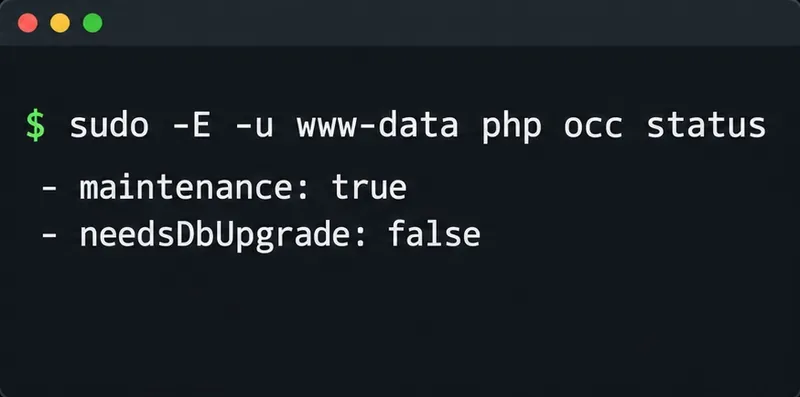
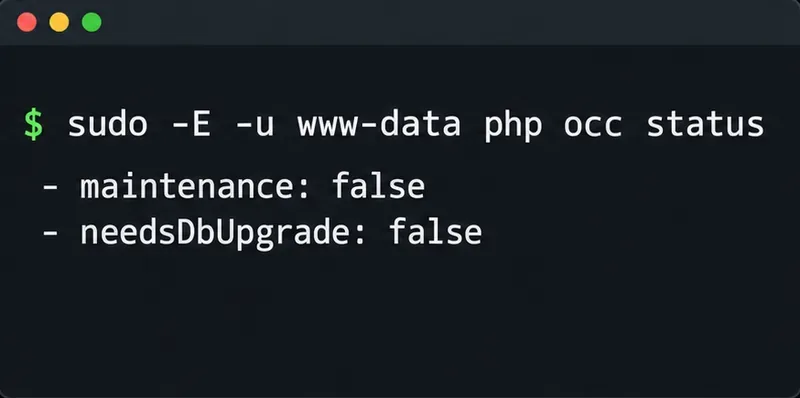
sudo -E -u www-data php occ status
Look for maintenance and needsDbUpgrade. A typical safe-to-disable state is maintenance: true with needsDbUpgrade: false. If maintenance is already false, the browser may be showing a stale page or reaching a different backend. If needsDbUpgrade is true, do not turn maintenance mode off yet.
Nextcloud requires OCC to run as the HTTP user so file ownership remains consistent. On Debian or Ubuntu that is usually www-data; other distributions may use apache, http, or wwwrun. Check your installation’s service account before substituting the user in a command. The current Nextcloud OCC documentation lists the user differences and status command.
For an archive or package installation, run the command from the directory containing the correct occ script:
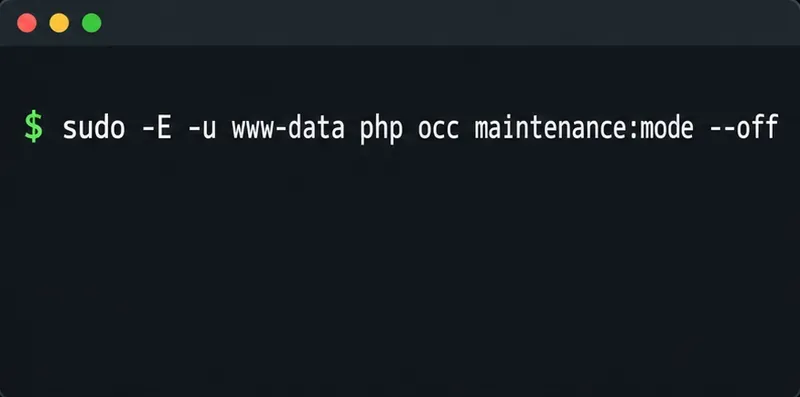
sudo -E -u www-data php occ maintenance:mode --offThe command should report that maintenance mode is disabled. The --off option changes the maintenance state; it does not run migrations, fix permissions, or undo an interrupted file replacement.
Use the wrapper that matches your installation. For the official Nextcloud Docker image, the project documents both docker exec and Docker Compose examples. Replace the sample container or service name with yours:
# Docker Compose; "app" is an example service name
docker compose exec --user www-data app php occ maintenance:mode --off

# Docker; replace CONTAINER_ID with the Nextcloud container
docker exec -it --user www-data CONTAINER_ID php occ maintenance:mode --off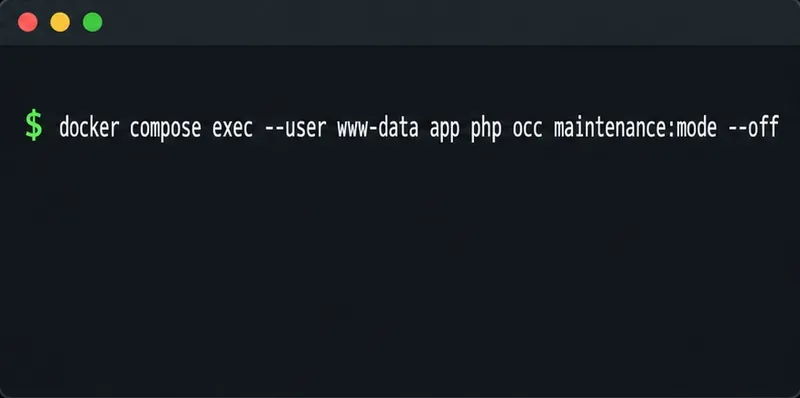
For the Nextcloud Snap, use its host-side OCC wrapper rather than entering the snap’s internal directories:
sudo nextcloud.occ maintenance:mode --offThe snap project notes that /snap/bin/nextcloud.occ may be needed if that directory is not in the shell’s PATH. See its maintenance-mode instructions for Snap. The official Nextcloud Docker image README documents the container command pattern.
When status reports needsDbUpgrade: true, Nextcloud is signaling that code and database migration are not in sync. This commonly occurs after an updater replaced the code but the migration phase did not finish. In that state, a limited set of OCC commands may be available, and maintenance mode may be intentionally left on to keep users out during the upgrade.
Use the upgrade path for your installation type and review the updater’s error before proceeding. For a standard archive-based installation, after confirming the intended Nextcloud code version is present and taking a fresh database and file/config backup if you do not already have one, run:
sudo -E -u www-data php occ upgradeLet the command complete and resolve any reported failure. Do not repeatedly toggle maintenance mode to bypass a migration error. Nextcloud’s upgrade documentation explains that the database migration follows replacement of the server code, and recommends a fresh backup before an upgrade. Docker, Snap, and managed packages can have their own upgrade procedures; use those instructions if they differ from the archive-based example.
Once the upgrade has completed successfully and status no longer reports a pending database upgrade, run the appropriate maintenance:mode --off command above. Avoid editing config.php or using a direct database update as a shortcut. If OCC cannot write the setting, check that you selected the correct installation and HTTP user, and inspect any read-only configuration policy or filesystem permission error before changing permissions.
Run status again using the same installation path, container, and user:
sudo -E -u www-data php occ statusConfirm both maintenance: false and needsDbUpgrade: false. In Docker or Snap, repeat the check through the same wrapper used to disable the flag. The Nextcloud status command documents these fields; its machine-readable form is occ status --output=json_pretty.
Then reload the site in a fresh browser tab and test a normal login and file listing. Nextcloud notes that users who were logged in before maintenance mode may need to refresh their browser after the server comes back online. If OCC reports maintenance false but the site still shows the maintenance page, check that the hostname or load balancer routes to the same instance you changed; with multiple containers or nodes, another backend may still be in maintenance mode.
A successful fix is therefore more than a “disabled” command response: OCC status must show both flags clear, and the intended public URL must serve the working instance. If the upgrade flag remains true or the migration command fails, keep users out and resolve that upgrade error before reopening Nextcloud.
Use OCC to restore Nextcloud access, verify database migration status, and choose the right command for archive, Docker, or Snap installs.
Connect Nextcloud to LDAP or Active Directory, limit access with user and group filters, and verify secure authentication before rollout.
Enable a supported 2FA provider, prepare account recovery, then require two-factor authentication for everyone or selected Nextcloud groups.
Secure files edited in Collabora CODE by encrypting the storage layer, protecting temporary data, and verifying encryption and recovery.
Check your host architecture, confirm the CODE tag publishes ARM64, remove forced AMD64 settings, and separate image errors from permissions or memory issues.
Set up the WOPI connection between Collabora Online and ownCloud Infinite Scale, configure the right service URLs, and verify document edits save.
Prevent document exports in Collabora Online CODE by setting the WOPI DisableExport permission, then verify the host and editor enforce it.
Configure Nginx TLS termination, Collabora routes, and WebSocket headers, then test the public endpoints before opening real documents.
Trace a 10-minute CODE disconnect to its proxy, load balancer, or WebSocket path, then correct the timeout and verify the session stays connected.
Install the official Collabora Helm chart, configure WOPI access and ingress affinity, and verify the deployment without common setup mistakes.