Deploy Collabora CODE on Kubernetes with Helm

Install the official Collabora Helm chart, configure WOPI access and ingress affinity, and verify the deployment without common setup mistakes.
If a CODE document reliably disconnects at about 10 minutes, inspect the WebSocket path through every reverse proxy or load balancer first. A 600-second idle timeout is a common configuration clue, but the timing alone does not prove that the proxy is responsible; check which component closes the connection before changing settings. In most deployments, the practical fix is to preserve the Collabora WebSocket upgrade and set the proxy’s read and send timeouts longer than the longest expected editing session.
Collabora Online uses a browser connection to the CODE server while the document integration also relies on WOPI communication with the host, such as Nextcloud. Collabora’s reverse-proxy guidance and Nextcloud’s current Office examples document a separate WebSocket route for document sessions. If that route is missing, sent to the wrong upstream, or governed by an idle timeout, the editor can lose its live connection while the page itself remains reachable.
That is a verified architectural requirement. It does not mean every ten-minute failure has the same cause: a cloud load balancer, ingress controller, firewall, VPN, or another proxy may impose its own limit. Treat the repeatable interval as a lead, then check access and error logs at the moment of failure.
/ws under /cool/. Note its status and close code if the browser reports one.If the WebSocket ends at the same configured 600-second threshold, fix the proxy or intermediary that owns that threshold. If it ends at another interval or the logs show a WOPI or server error, follow that evidence instead. Nextcloud’s troubleshooting documentation specifically recommends checking connectivity in both directions and reviewing both Nextcloud and Collabora logs.
Before editing a proxy file, identify the active virtual host and the actual upstream scheme and port for CODE. Back up the configuration and validate syntax before reloading. The example below illustrates the required WebSocket behavior for an NGINX reverse proxy; it is not a complete Collabora virtual host. Merge it into the official configuration for your deployment, preserving its other location blocks, TLS settings, URI handling, and security rules.
map $http_upgrade $connection_upgrade {
    default upgrade;
    ''      close;
}

location ~ ^/cool/(.*)/ws$ {
    proxy_pass https://127.0.0.1:9980/cool/$1/ws;
    proxy_http_version 1.1;
    proxy_set_header Upgrade $http_upgrade;
    proxy_set_header Connection $connection_upgrade;
    proxy_read_timeout 36000s;
    proxy_send_timeout 36000s;
}
The Upgrade and Connection headers let the HTTP request switch to WebSocket. The longer read and send limits prevent this proxy from closing a quiet connection after a short default interval; they are not a command to keep a session open forever. Adjust the upstream address and TLS verification to match your installation, and do not disable certificate checks simply to make the example work.
Collabora’s official proxy examples are the authority for the complete, version-appropriate routing configuration. Their current guidance includes long proxy timeouts; Nextcloud’s current Docker example also has a dedicated /cool/(.*)/ws WebSocket mapping. Use those complete examples rather than replacing your whole virtual host with this small excerpt:
For NGINX, run nginx -t and reload only after the test succeeds. For Apache, use its configuration test before reloading. If CODE runs behind Kubernetes ingress or a cloud load balancer, changing NGINX on the CODE host will not fix a shorter timeout at the ingress or provider edge; update the component that the logs identify.
WebSocket traffic may pass through more than one intermediary: browser, CDN or firewall, external load balancer, ingress, host proxy, then CODE. A long timeout at one layer cannot override a shorter timeout at the next. Compare each layer’s idle or connection timeout and make the WebSocket route’s limit longer than the expected idle editing period, within the limits and policy of that platform.
Do not confuse a document’s idle-unload setting with the proxy’s network timeout. The former controls when an unused document process may be unloaded; it does not repair a WebSocket that an intermediary has already closed. Likewise, setting a very long timeout does not fix a bad upgrade route, blocked traffic, mismatched HTTP/HTTPS configuration, or a CODE process crash. After each change, confirm that the close time moves or that the logged cause disappears; this narrows the responsible layer without introducing unrelated changes.
Check that both the user’s browser and the WOPI host can reach the CODE service over HTTPS, and that CODE can reach the WOPI host. For a Nextcloud integration, its troubleshooting manual recommends checking the public /hosting/capabilities and /hosting/discovery endpoints from a browser and with curl, then checking the Nextcloud status endpoint from the CODE server. Those checks confirm basic reachability; they do not by themselves prove that an established WebSocket survives ten minutes.
/cool/.../ws connection remains open in the browser Network panel and that the document continues to save through the WOPI host.If it still disconnects, restore the recorded failure time and compare it with logs at each hop. A 600-second close at the ingress points to that ingress; a different close time or server-side error points elsewhere. The precise cause cannot be established from “10 minutes” alone, and timeout names and defaults vary across proxy products and releases. Keep the working configuration with the CODE version and proxy product documented so future upgrades can be checked against the current official examples.
Install the official Collabora Helm chart, configure WOPI access and ingress affinity, and verify the deployment without common setup mistakes.
Use browser requests, WOPI logs, and targeted proxy checks to find why Collabora opens a blank document—and choose a fix that fits the evidence.
Configure CODE Docker dictionaries and tag document passages correctly so English, French, and other supported languages receive the right spell-checking.
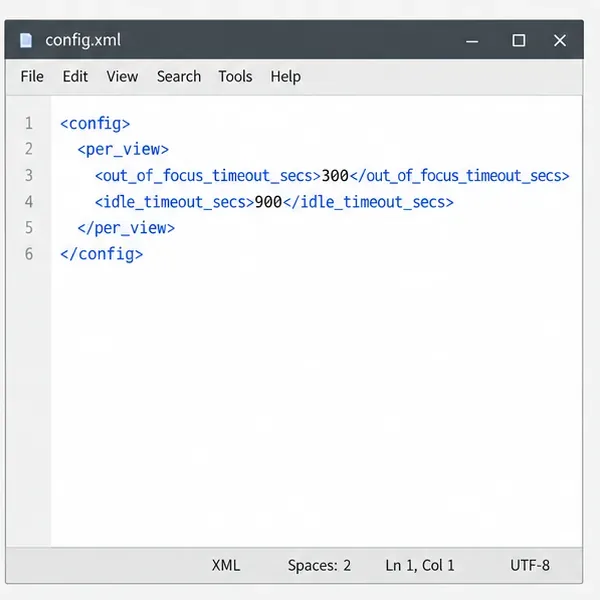
Adjust the per-view inactivity threshold in coolwsd and distinguish it from background-tab dimming, document unloading, autosave, and login expiration.
Stop scheduled CODE update checks, review optional remote services, and use outbound network controls without breaking document editing.
Enable secure document editing in Seafile by configuring Collabora’s discovery URL, HTTPS, and WOPI access for your deployment.
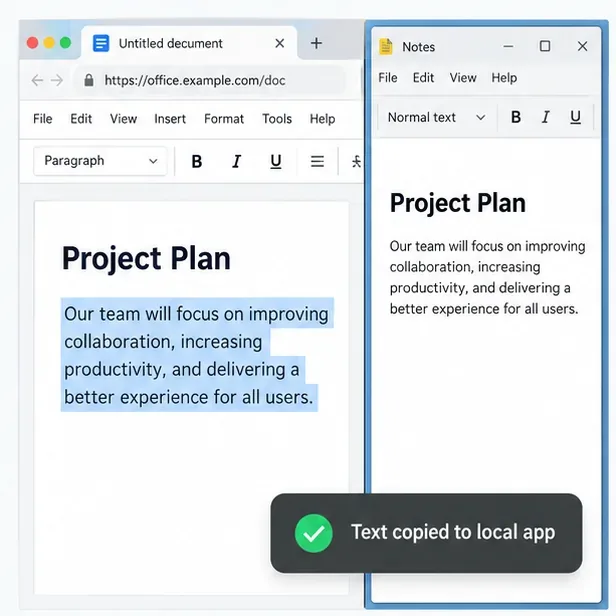
Test the system clipboard, adjust browser permissions, and identify when an embedded Collabora integration needs an iframe policy change.
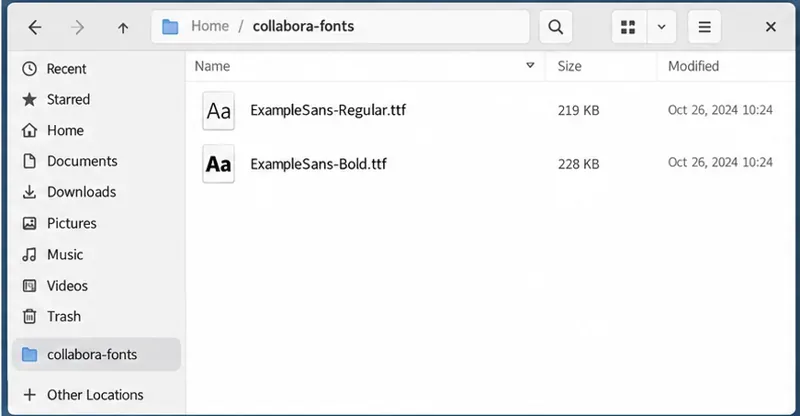
Mount font files into Docker and Collabora’s systemplate so custom typefaces appear in the editor and render correctly in documents.
Back up coolwsd.xml and its deployment sources, restore them safely, and verify CODE before users return to editing.
Allow the exact Nextcloud or other WOPI origin in CODE, then verify the active host allow-list and distinguish it from Nextcloud’s source-IP restriction.