Connect Seafile and Collabora with the Correct WOPI URL

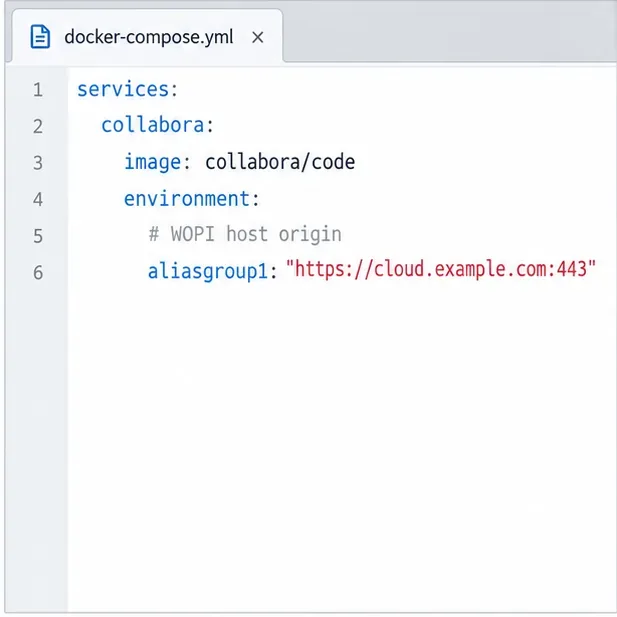
Enable secure document editing in Seafile by configuring Collabora’s discovery URL, HTTPS, and WOPI access for your deployment.
To change how long an open Collabora view can sit inactive before it dims and stops receiving updates, adjust per_view.idle_timeout_secs. The current upstream coolwsd.xml template sets this view-level timer to 900 seconds (15 minutes); for example, set it to 1800 for 30 minutes. This is not a sign-out timer or the timeout that unloads an idle document.
A view is one user’s open browser view of a document. In coolwsd, the web daemon that serves Collabora Online, the per_view setting idle_timeout_secs is the number of seconds before an inactive user view is dimmed and updates stop, even while the browser tab remains focused. The upstream template currently gives it a 900-second default. Your package or managed service may override that value, so check the configuration actually used by your deployment.
| Setting | What becomes idle | Current upstream template default |
|---|---|---|
per_view.idle_timeout_secs | User activity in a focused view | 900 seconds (15 minutes) |
per_view.out_of_focus_timeout_secs | Browser view after its tab loses focus | 300 seconds (5 minutes) |
per_document.idle_timeout_secs | Document with no active views before unloading | 3600 seconds (1 hour) |
Use the first setting when users want the focused editing view to remain live longer while they read or pause. Use the second only if background tabs dim too soon. The third is server-side cleanup after a document has no active views; changing it does not change the inactivity behavior of a view that remains open. Autosave and idlesave settings control when modified content is saved, not how long a view remains active.
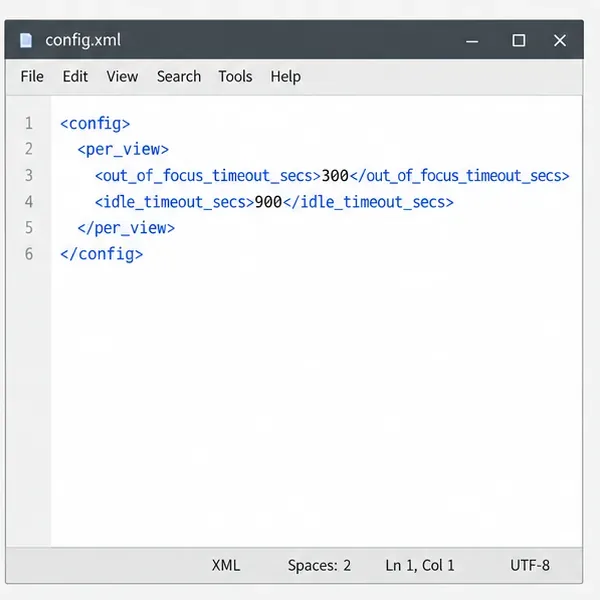
Pick a duration that fits your workflow, then convert it to seconds: 20 minutes is 1200, 30 minutes is 1800, and 45 minutes is 2700. The example below uses 30 minutes; it is only an example, not a universal recommendation. Longer values keep idle views live longer and may retain document processes and update activity longer as well.
Before editing, identify how Collabora is installed. Docker CODE, a Linux package, a Helm deployment, and a hosting provider can each expose configuration differently. Back up the active configuration or save a copy of your Compose file. If an integration manages the server for you, use its supported configuration mechanism rather than editing a container’s temporary filesystem.
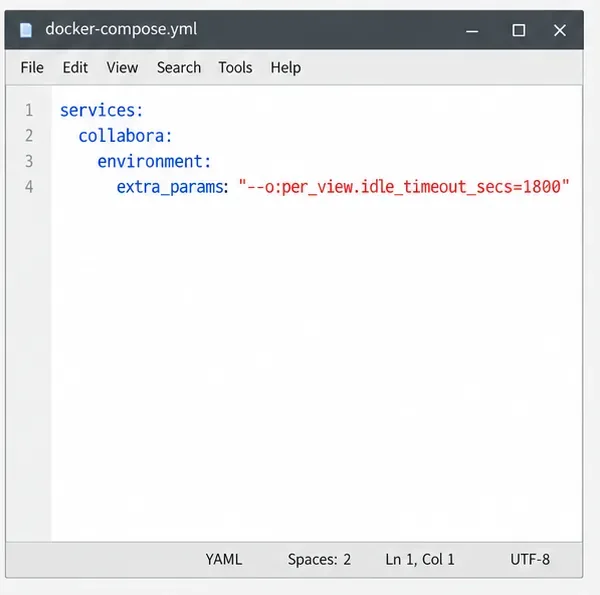
Add the option to the existing extra_params value for the Collabora service:
services:
  collabora:
    environment:
      extra_params: "--o:per_view.idle_timeout_secs=1800"
If extra_params already contains options, append this one to the same value instead of defining the key twice. Keep your existing SSL, proxy, and host settings. The Docker image passes --o: options to coolwsd; the official CODE Docker documentation describes this configuration method.
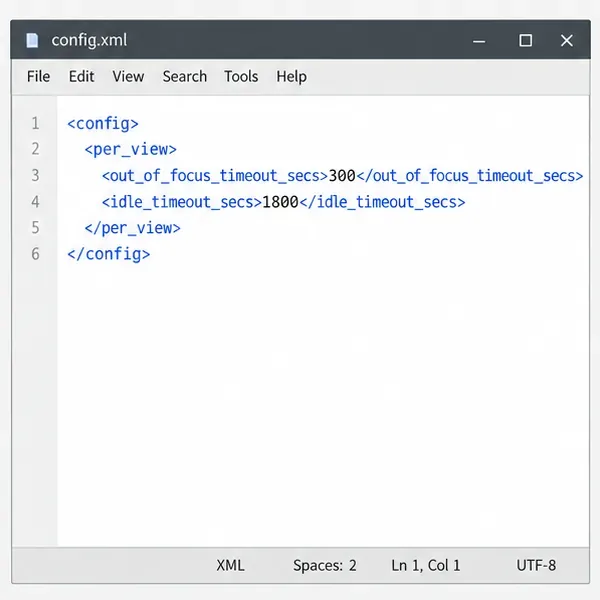
Edit the active coolwsd.xml file and change the value inside its existing <per_view> section. Preserve the surrounding configuration and any attributes in your file:
<per_view>
  <out_of_focus_timeout_secs>300</out_of_focus_timeout_secs>
  <idle_timeout_secs>1800</idle_timeout_secs>
</per_view>
Do not paste a second <per_view> block or edit the source template coolwsd.xml.in as if it were the running configuration. The correct file path and configuration owner can differ by package and deployment.
Apply the setting by restarting or recreating the Collabora service. For a typical Compose service named collabora, run:
docker compose up -d --force-recreate collaboraReplace the service name with the one in your Compose file. For a package installation managed by systemd, restart the service after editing its active configuration, for example sudo systemctl restart coolwsd. Reopen the document in a fresh browser tab so the test uses a newly created view.
out_of_focus_timeout_secs, if that workflow matters.After restart, some builds log a list of non-default configuration values. If your startup log shows it, look for per_view.idle_timeout_secs: 1800. If the behavior still matches the old value, verify that you edited the file or Compose service used by the running process, that you applied the change, and that an environment or command-line option is not overriding the XML.
If a document disappears only after a longer period with no open views, review per_document.idle_timeout_secs instead. If users are being signed out, check the host platform’s authentication or session policy. These are different layers and are not controlled by per_view.idle_timeout_secs. Do not shorten the document-unload setting just to make a view dim sooner.
For the current setting names and upstream defaults, consult the Collabora Online configuration template. For Docker’s extra_params method, see the CODE Docker image documentation. Verify the exact behavior against the version and packaging you run, because defaults and configuration delivery can vary.
Enable secure document editing in Seafile by configuring Collabora’s discovery URL, HTTPS, and WOPI access for your deployment.
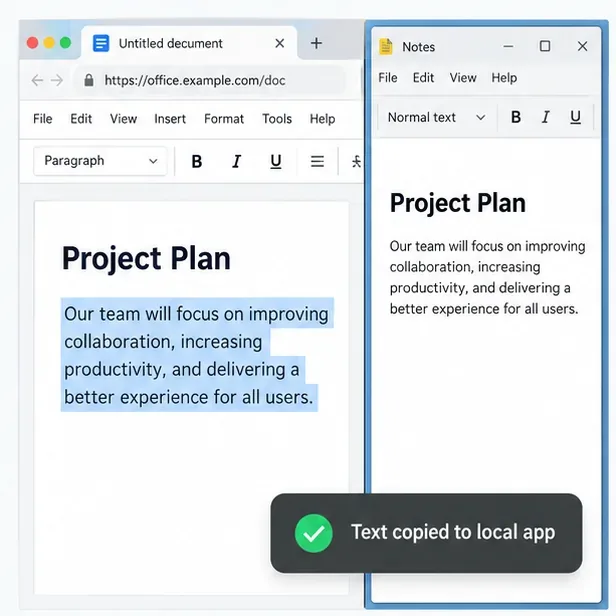
Test the system clipboard, adjust browser permissions, and identify when an embedded Collabora integration needs an iframe policy change.
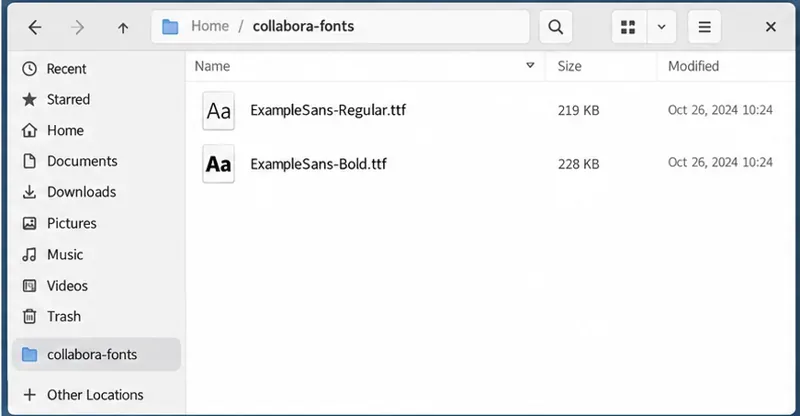
Mount font files into Docker and Collabora’s systemplate so custom typefaces appear in the editor and render correctly in documents.
Back up coolwsd.xml and its deployment sources, restore them safely, and verify CODE before users return to editing.
Allow the exact Nextcloud or other WOPI origin in CODE, then verify the active host allow-list and distinguish it from Nextcloud’s source-IP restriction.
Trace Collabora’s browser, WOPI, and WebSocket connections to find why a document will not open, then apply the fix that matches your Nextcloud setup.
Deploy Collabora CODE replicas with Helm, keep each document on one pod through WOPI affinity, and verify ingress, node placement, and Nextcloud editing.
Trace a failed socket handshake from browser to coolwsd, then match the reverse-proxy route to your Collabora version, including the CODE 26.04 Apache change.
Trace Collabora WOPI proof failures to mismatched keys, stale discovery data, clock drift, or proxy URL changes—without weakening validation.
Reset browser zoom, test a clean session, and identify when a malformed size menu needs a Collabora server update.