Connect Seafile and Collabora with the Correct WOPI URL

Enable secure document editing in Seafile by configuring Collabora’s discovery URL, HTTPS, and WOPI access for your deployment.
To connect Seafile with Collabora Online, enable HTTPS on Seafile, deploy Collabora, and point Seafile’s Office integration to Collabora’s discovery endpoint. If both services run on the same Docker network, Seafile’s current integration guide uses the internal URL http://collabora:9980/hosting/discovery; if Collabora runs on a separate host, use its public HTTPS URL instead.
The current Seafile Admin Manual documents a dedicated collabora.yml Compose integration and settings in seahub_settings.py. The exact deployment files can differ by Seafile version, so use the manual matching your installed release when adapting these examples.
seahub_settings.py.Seafile and Collabora communicate using WOPI. Seafile supplies document access information, and Collabora requests the file from Seafile. The discovery URL tells Seafile which Collabora service to use and which editor capabilities it advertises.
Open Seafile in a browser and confirm its normal address begins with https:// and its certificate is valid. For Seafile’s Docker deployment, its current manual shows setting SEAFILE_SERVER_PROTOCOL=https in the .env file, then completing the HTTPS setup through the configured reverse proxy. Do not proceed with a public plain-HTTP Seafile endpoint.
# In the Seafile deployment .env file
SEAFILE_SERVER_PROTOCOL=https
Keep the actual certificate and private key under the control of your TLS proxy or certificate manager. This setting alone does not issue a certificate or configure a reverse proxy; finish the HTTPS steps for your deployment before enabling online office editing.
For the documented same-host Docker setup, use the Collabora Compose file supplied by Seafile rather than assembling an unrelated container definition. In the Seafile deployment directory, download the file for the matching manual version, and add collabora.yml to the existing COMPOSE_FILE list in .env. Preserve the Compose files already used by your installation.
# Example for a Seafile 14.0 deployment
wget https://manual.seafile.com/14.0/repo/docker/collabora.yml
Set the Collabora variables documented by Seafile in .env:
COLLABORA_IMAGE=collabora/code
COLLABORA_PORT=6232
COLLABORA_USERNAME=your_admin_username
COLLABORA_PASSWORD=use_a_long_unique_secret
COLLABORA_ENABLE_ADMIN_CONSOLE=true
COLLABORA_ENABLE_FILE_LOGGING=false
Use a unique strong password and restrict access to the .env file because it contains credentials. The example port is the exposed port in Seafile’s integration configuration; do not assume it is the public port on your reverse proxy. Follow the matching collabora.yml file and the proxy arrangement for your release.
Once the service is added to the deployment, start or update the Compose stack using your normal Seafile procedure. Avoid publishing Collabora’s internal port directly to the internet unless your design explicitly requires it and you have secured the endpoint.
Edit the active seahub_settings.py file and add the integration settings. For the same-host Compose setup, the Seafile manual uses the service name and internal Collabora port:
OFFICE_SERVER_TYPE = 'CollaboraOffice'
ENABLE_OFFICE_WEB_APP = True
OFFICE_WEB_APP_BASE_URL = 'http://collabora:9980/hosting/discovery'
WOPI_ACCESS_TOKEN_EXPIRATION = 30 * 60

OFFICE_WEB_APP_FILE_EXTENSION = (
    'odp', 'ods', 'odt', 'xls', 'xlsb', 'xlsm', 'xlsx',
    'ppsx', 'ppt', 'pptm', 'pptx', 'doc', 'docm', 'docx'
)

ENABLE_OFFICE_WEB_APP_EDIT = True
OFFICE_WEB_APP_EDIT_FILE_EXTENSION = (
    'odp', 'ods', 'odt', 'xls', 'xlsb', 'xlsm', 'xlsx',
    'ppsx', 'ppt', 'pptm', 'pptx', 'doc', 'docm', 'docx'
)
The http:// URL here is the internal service-to-service address in Seafile’s documented Docker network. The browser-facing Seafile site still needs HTTPS. Do not copy this internal address into a separate-host deployment.
For Collabora on a different host, configure Collabora behind HTTPS on the standard public port, with the reverse proxy forwarding requests to Collabora’s listening port. Set the base URL to your actual public hostname, for example:
OFFICE_WEB_APP_BASE_URL = 'https://office.example.com/hosting/discovery'
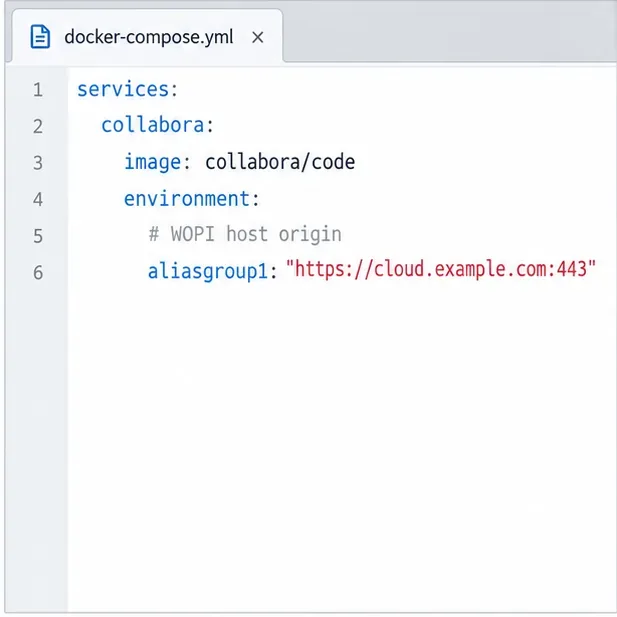
Make sure the hostname in the URL resolves and presents a valid certificate from the clients that need to open documents. Also configure Collabora’s WOPI allow-list to accept the Seafile server host. Collabora’s official Docker documentation describes the aliasgroup environment variable for declaring the permitted WOPI host; match the exact host and scheme used by Seafile, and avoid broad wildcard access on a production server.
Restart Seafile so Seahub loads the new Python settings. Use the restart procedure for your package, Compose stack, or Kubernetes setup; service names and commands vary across deployments. If you added a new Compose file, confirm the Collabora container is running before testing the browser workflow.
Open a supported Office document from Seafile’s web interface. The file should open in Collabora’s editor, show its content, and save a small test change back to Seafile. A document opening successfully is more useful than checking the discovery page alone because it exercises the browser, Seafile, Collabora, and WOPI file transfer.
OFFICE_WEB_APP_BASE_URL is reachable from the Seafile service. Use the internal Docker service name only when both containers share that network.OFFICE_WEB_APP_FILE_EXTENSION and OFFICE_WEB_APP_EDIT_FILE_EXTENSION. Keep these lists limited to formats your users need and that your Collabora deployment supports.seahub_settings.py and restarted the correct Seafile service.For a standalone Collabora node, Seafile specifically directs administrators to Collabora’s deployment documentation instead of using its bundled collabora.yml. The bundled file is intended for the same Docker host/network arrangement described above.
Enable secure document editing in Seafile by configuring Collabora’s discovery URL, HTTPS, and WOPI access for your deployment.
Test the system clipboard, adjust browser permissions, and identify when an embedded Collabora integration needs an iframe policy change.
Mount font files into Docker and Collabora’s systemplate so custom typefaces appear in the editor and render correctly in documents.
Back up coolwsd.xml and its deployment sources, restore them safely, and verify CODE before users return to editing.
Allow the exact Nextcloud or other WOPI origin in CODE, then verify the active host allow-list and distinguish it from Nextcloud’s source-IP restriction.
Trace Collabora’s browser, WOPI, and WebSocket connections to find why a document will not open, then apply the fix that matches your Nextcloud setup.
Deploy Collabora CODE replicas with Helm, keep each document on one pod through WOPI affinity, and verify ingress, node placement, and Nextcloud editing.
Trace a failed socket handshake from browser to coolwsd, then match the reverse-proxy route to your Collabora version, including the CODE 26.04 Apache change.
Trace Collabora WOPI proof failures to mismatched keys, stale discovery data, clock drift, or proxy URL changes—without weakening validation.
Reset browser zoom, test a clean session, and identify when a malformed size menu needs a Collabora server update.