Home
» How to
»
Restore Collaboras WebSocket Connection Through the Proxy
Restore Collaboras WebSocket Connection Through the Proxy
When Collabora Online reports that a socket connection closed unexpectedly, first check whether the browser’s WebSocket request reaches coolwsd through the reverse proxy. Match the proxy route to the Collabora version, preserve the WebSocket upgrade and URL path, then test one document while watching the browser’s Network panel and server logs. If the problem began after a CODE 26.04 upgrade behind Apache, check the Apache ProxyPass rules first: Collabora’s 26.04 release notes call out a change for the compact WebSocket URL.
A WebSocket is the long-lived, two-way connection Collabora uses between the browser and its server while a document is open. A reverse proxy is the service that accepts the public request and forwards it to Collabora. The error message points to that connection, but it does not prove that the proxy is the cause; a rejected WOPI host, incorrect public URL, TLS mismatch, or a wrong backend can also stop the session.
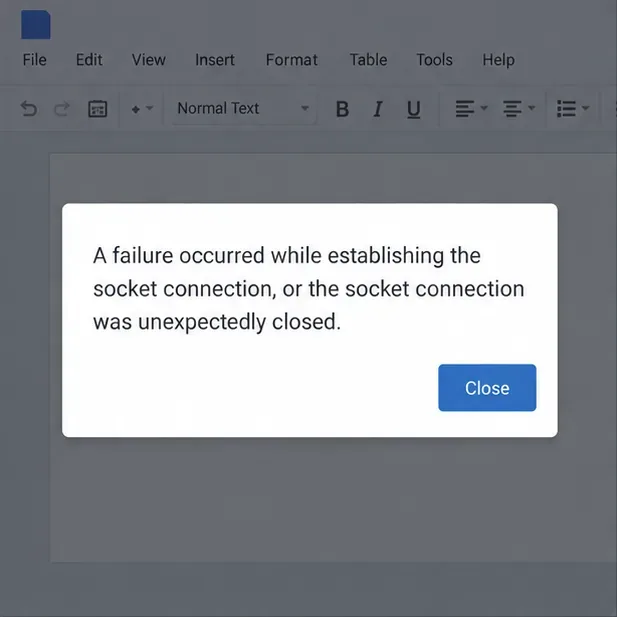
The dialog shows the socket-closed message that starts this troubleshooting check.
Before changing anything, identify your route
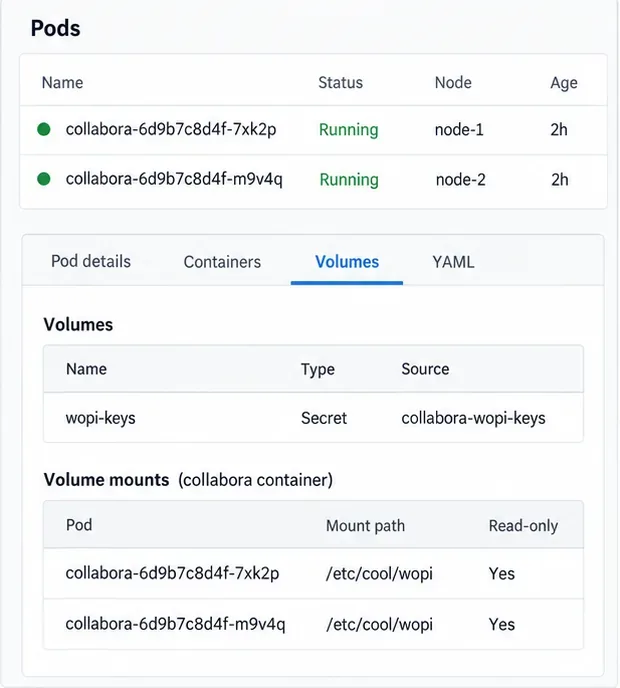
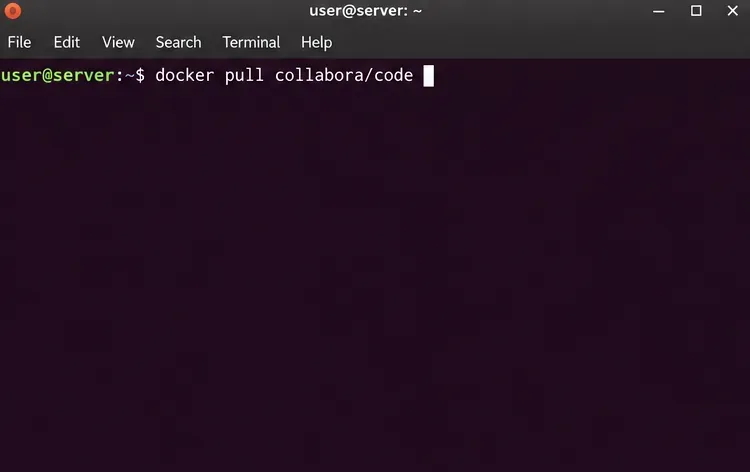
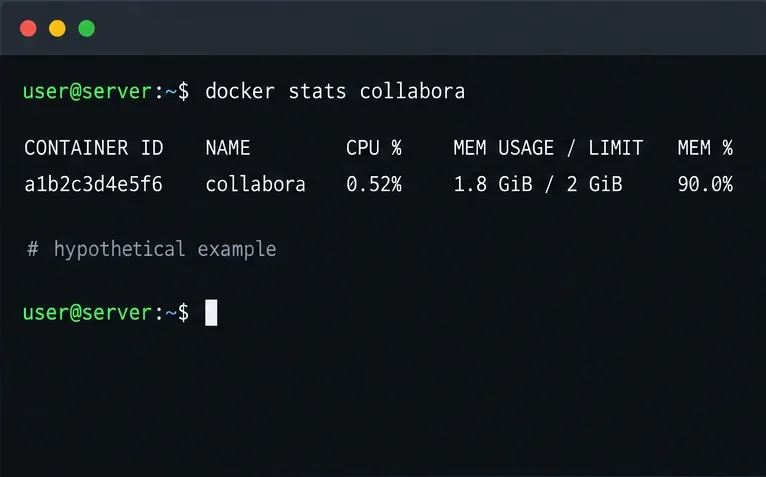
Write down the Collabora version or image tag, proxy software, public Collabora hostname, and whether TLS ends at the proxy or at Collabora. Check the service name and current image without changing the deployment:
Replace collabora with the service name in your Compose file. For a non-Compose container, use docker ps and docker inspect to identify the container and image. Do not assume that the latest tag still points to the same version you tested last week.
1. See where the WebSocket handshake stops
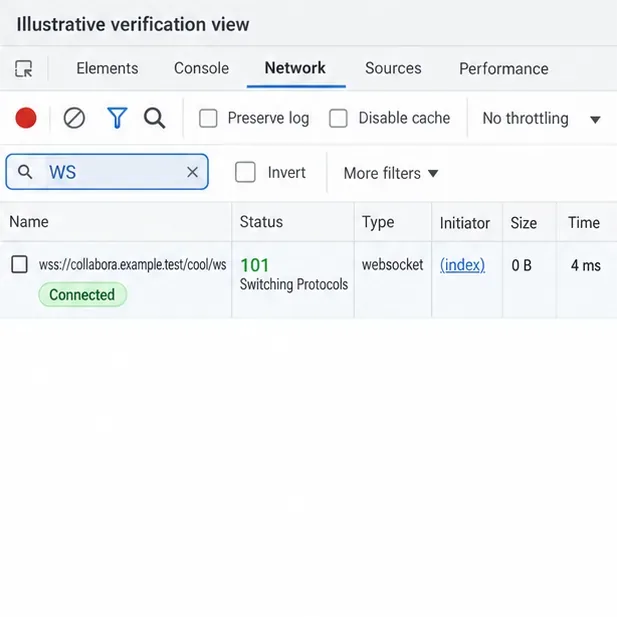
In the browser, open Developer Tools, select Network, filter for WS or WebSocket, and retry opening one document. The request URL should use wss:// when the public page is HTTPS. Select the failed request and note its status, URL path, and response headers. A successful handshake normally returns 101 Switching Protocols and remains open while the document session is active.
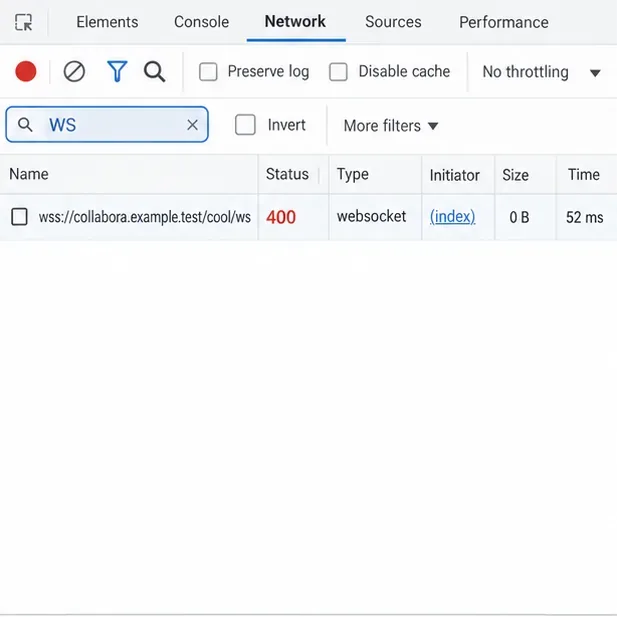
Use the WebSocket request’s status and path to locate the failing hop; this panel is an illustrative example.
No WebSocket request appears: check the integration app’s Collabora URL, browser console, DNS, and any redirect or mixed-content error before editing server rules.
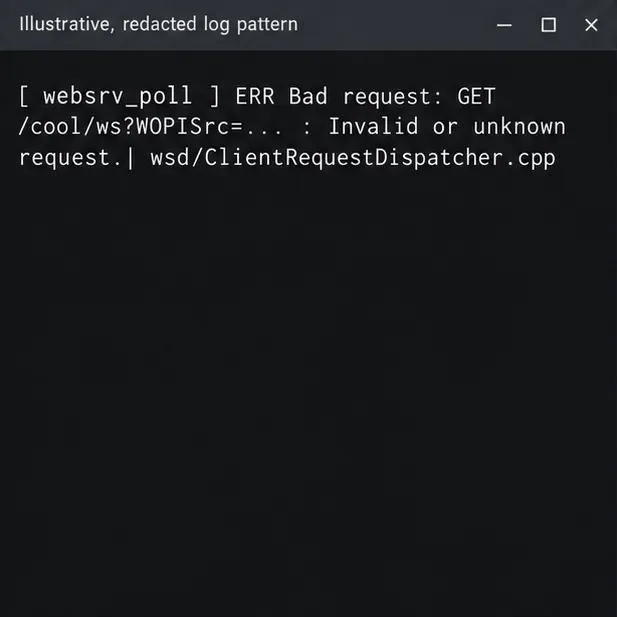
The request returns 400 or 404: compare the requested path with the route your proxy forwards and the route supported by the installed Collabora version. A 400 in coolwsd that says “Invalid or unknown request” can mean the request reached Collabora with a path it does not accept.
The request returns 502 or 504: check whether the proxy can reach the configured Collabora upstream, and whether the address and port point to the correct container or host.
The request returns 101, then closes later: inspect proxy, load-balancer, firewall, and client-network idle timeouts. A WebSocket is long-lived, so an intermediary that closes idle connections too soon can interrupt an otherwise successful opening.
2. Compare the proxy rule with your Collabora version
Use Collabora’s current reverse-proxy settings for the proxy software and version you run. Check that the WebSocket route is handled as a WebSocket, that the proxy forwards the upgrade headers, and that it preserves the path and encoded query string rather than redirecting or rewriting them. The proxy must also send the public host and scheme consistently with Collabora’s configured external server name and TLS-termination settings.
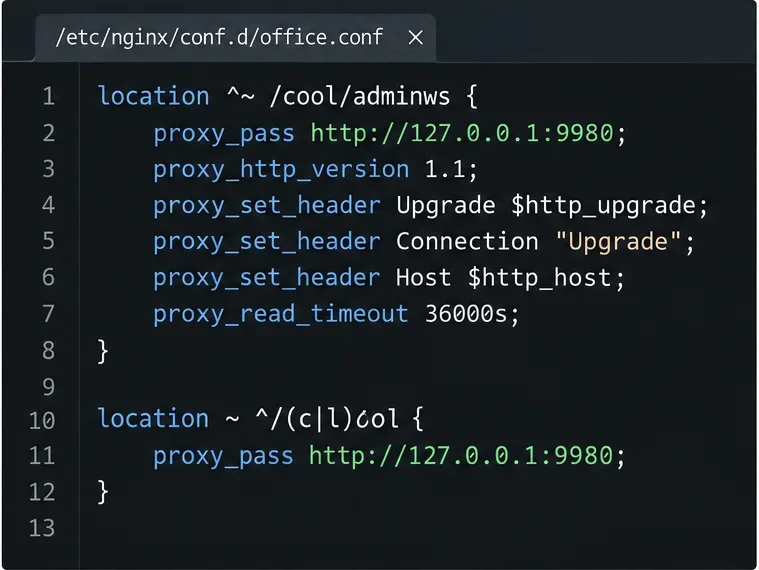
For Nginx, review the WebSocket-specific location and its HTTP/1.1, Upgrade, and Connection forwarding directives in Collabora’s current example. For Apache, compare the ProxyPass rule and ordering with the current example; do not paste an old /cool/…/ws match unchanged without checking what your installed release now requests.
This version check matters for CODE 26.04. Collabora’s release notes, published June 8, 2026, describe a more compact WebSocket URL and say Apache reverse-proxy users need to adjust ProxyPass for it. Later 26.04 work added fallback behavior for legacy URLs, so an older rule may still work on some builds; Collabora’s resolved 26.04 WebSocket report documents that follow-up. The fallback is not a substitute for matching the current proxy configuration to the installed version. Read the CODE 26.04 release notes and updated SDK example together.
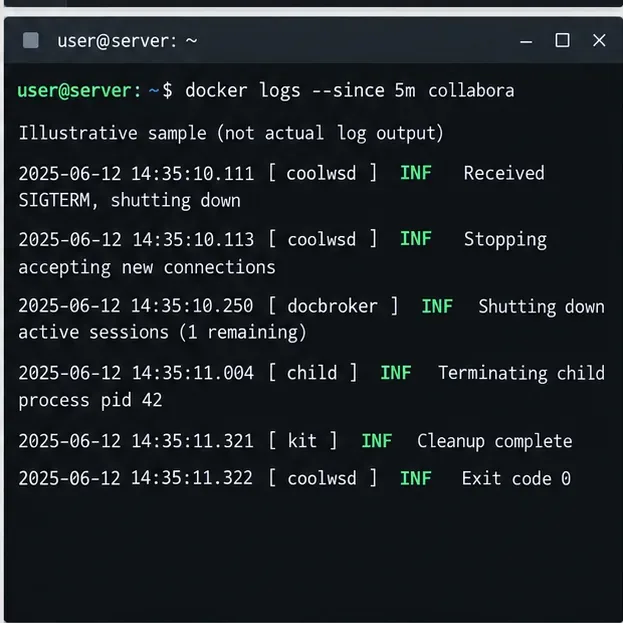
This redacted example shows the kind of invalid-request path to compare with the route your proxy forwards; it is not a live log capture.
3. Capture one failure and make one targeted change
Start a short log stream before retrying the document. Docker’s --since option limits the initial output, while --follow streams new lines; see the Docker Compose logs reference.
docker compose logs --since=2m --follow collabora
Record the time of the test and look for the same request in the Collabora and proxy logs. If the browser requests a path that the proxy routes to the wrong backend, update only that WebSocket route using Collabora’s version-matched example. If the request reaches Collabora but the host, origin, or scheme is rejected, compare the public hostname and port with the configured server name and forwarded headers. If the log instead shows a WOPI host rejection or a failed file-information request, check the integration server’s allowed host and its reachability from the Collabora container; that is a separate step from the browser WebSocket handshake.
Reload the proxy after validating its configuration with that proxy’s own syntax-check command. Avoid changing TLS termination, host allow-lists, and URL rewrites at the same time: changing one cause per test makes the next result interpretable. Do not turn off TLS verification or allow every WOPI host as a shortcut.
4. Verify the fix from the browser to the document
Retry the same document. In Developer Tools, confirm that its WebSocket request returns 101 Switching Protocols and stays open. Confirm that the document finishes loading, remains connected, and accepts a small edit that saves successfully. A healthy connection status alone is not enough if WOPI file access or saving still fails.
A 101 response and an open connection are the browser-side signs that the WebSocket handshake now succeeds.
If the handshake still fails, compare the browser request path, proxy access/error line, and the matching coolwsd log entry at the same timestamp. This three-point comparison shows whether the browser, proxy, Collabora route, or WOPI host is the next place to investigate. When asking for help, redact access tokens, document identifiers, usernames, and private hostnames from both browser details and logs.