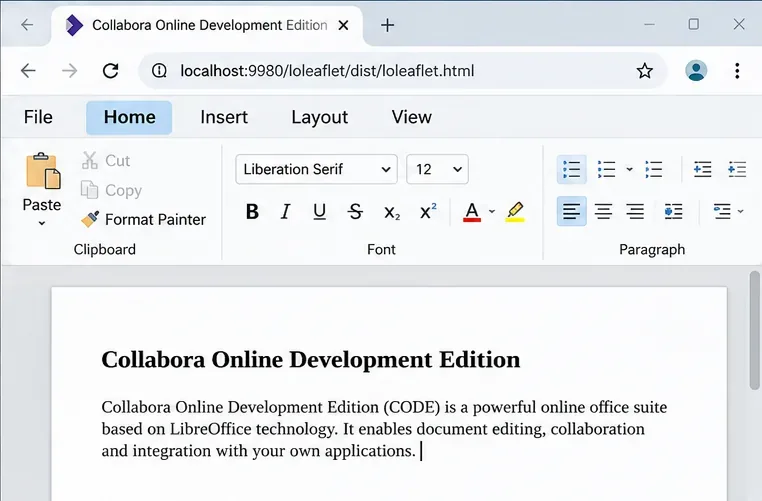
Fix a Misrendered Collabora Online Font Size Dropdown
Reset browser zoom, test a clean session, and identify when a malformed size menu needs a Collabora server update.
Set the Collabora Online Admin Console password in the way your server is deployed: for the CODE Docker image, configure its username and password environment variables; for a Linux package installation, run coolconfig set-admin-password. Then restart or recreate the service and sign in to the admin page to confirm the new credential works.
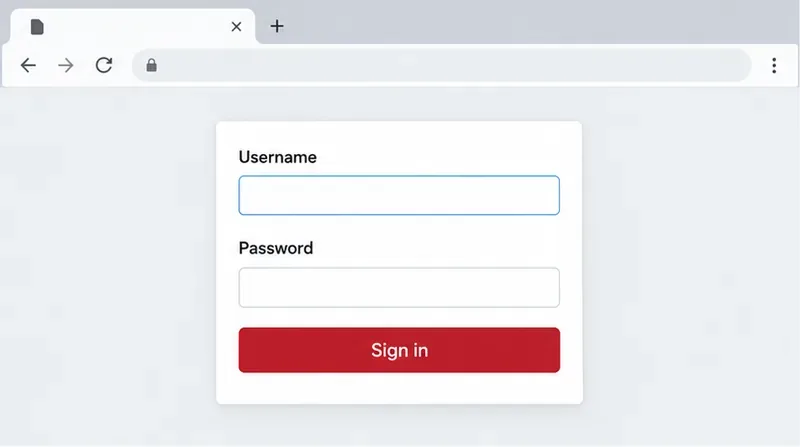
The Admin Console is Collabora Online’s service-management page. It is separate from the administrator account for Nextcloud or another storage platform, and changing its password does not change document-user logins or the credentials used by your platform to connect to Collabora. The Docker and package-based installations also use different configuration workflows, so identify your deployment before changing anything.
For CODE in Docker, Collabora documents username and password as container environment settings. For package-based installations, Collabora’s configuration tool can set the admin password interactively. The current configuration reference marks direct use of the admin_console.password setting as deprecated on most platforms and recommends PAM or coolconfig instead. See Collabora’s CODE Docker image documentation and Collabora’s configuration reference.
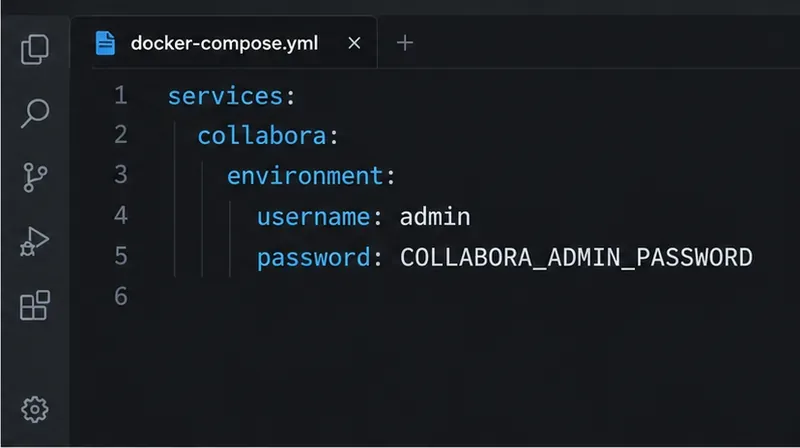
In the Compose service for Collabora, set the documented username and password variables. This example reads the password from a local .env file rather than putting the secret directly in the Compose file:
services:
  collabora:
    image: collabora/code
    environment:
      username: admin
      password: "${COLLABORA_ADMIN_PASSWORD:?Set it in .env}"
In the same project directory, place the secret in .env:
COLLABORA_ADMIN_PASSWORD=replace-with-your-unique-secretReplace the sample value with your real password, and do not commit .env to a shared repository. If the Compose service already exists, changing its environment on disk does not alter the environment of the running container. Recreate that service so the new setting takes effect:
docker compose up -d --force-recreate collaboraUse your actual Compose service name if it is not collabora. This restarts the Collabora container; it does not delete your documents, which are stored by your connected platform. If your deployment is managed by Kubernetes, Helm, or another control plane, change the corresponding secret or values there and apply that deployment’s normal rollout process rather than editing a running container by hand.
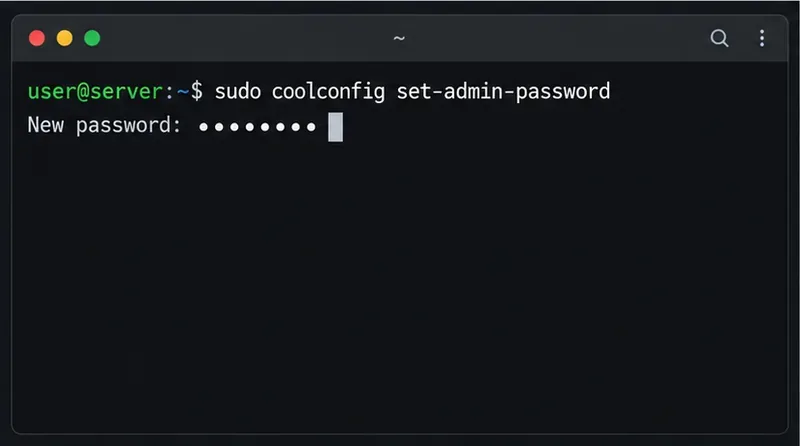
On a server where Collabora was installed as a system package, run the configuration tool on that server:
sudo coolconfig set-admin-passwordThe tool prompts for the new password so you do not need to include it in the shell command. Enter it at the prompt and repeat it if asked. Then restart the service so it loads the updated configuration:
sudo systemctl restart coolwsdNextcloud’s current Ubuntu installation example also uses coolconfig set-admin-password and restarts coolwsd after configuration. The exact package and service manager can differ on other distributions; consult that distribution’s Collabora installation instructions if the command or service name is unavailable. The Nextcloud example is documented in its Ubuntu 24.04 setup guide.
Open the admin console for the Collabora host, commonly at https://collabora.example.com/browser/dist/admin/admin.html, replacing the example host with your server’s public URL. Sign in with the configured admin username and the new password. A successful sign-in confirms that the console accepts the credential; it does not by itself verify that document editing or the WOPI connection is healthy.
username or password, and that you recreated the container after the change.coolwsd restarted successfully and that the browser is reaching the intended server. Check the service logs for configuration errors without copying secrets into a support post.admin_console.username and admin_console.password values are ignored. Use the PAM account and password configured for the host instead; changing the CODE Docker environment variables will not override PAM.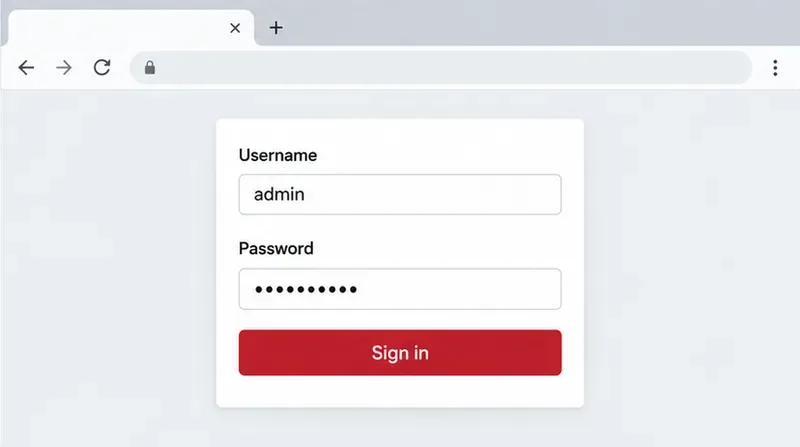
Do not confuse the Admin Console password with a Nextcloud administrator password, and do not paste the secret into a command such as docker run -e password=... if shell history or process inspection could expose it. For a Compose deployment, keep the secret in a protected environment file or an available secret manager and limit access to the Docker host. Also avoid editing coolwsd.xml directly as a first choice: Collabora identifies the legacy password setting as deprecated on most platforms.
If you cannot log in after following the right path, first confirm the instance and authentication mode, then verify that the new configuration was actually applied. That sequence distinguishes a stale container or wrong host from a password typo and gives you a clear next place to investigate.
Reset browser zoom, test a clean session, and identify when a malformed size menu needs a Collabora server update.
Deploy Collabora CODE with Docker, connect it securely to Nextcloud Office, and verify document editing with practical WOPI and proxy checks.
Temporarily raise coolwsd to debug, capture one failed open, and use the log sequence to separate WebSocket, WOPI, proxy, and container issues.
Configure the Collabora Online admin login for Docker or Linux, restart the right service, and verify the new password without exposing it.
Find out whether CPU load comes from active documents, idle worker processes, or server capacity before changing Collabora settings or restarting the service.
Check whether Docker is capping Collabora CODE, raise the Compose memory limit safely, and confirm the running container received the new cap.
Simplify Collabora CODE with Compact or Tabbed mode and WOPI PostMessage controls to hide selected buttons, commands, and tabs safely.
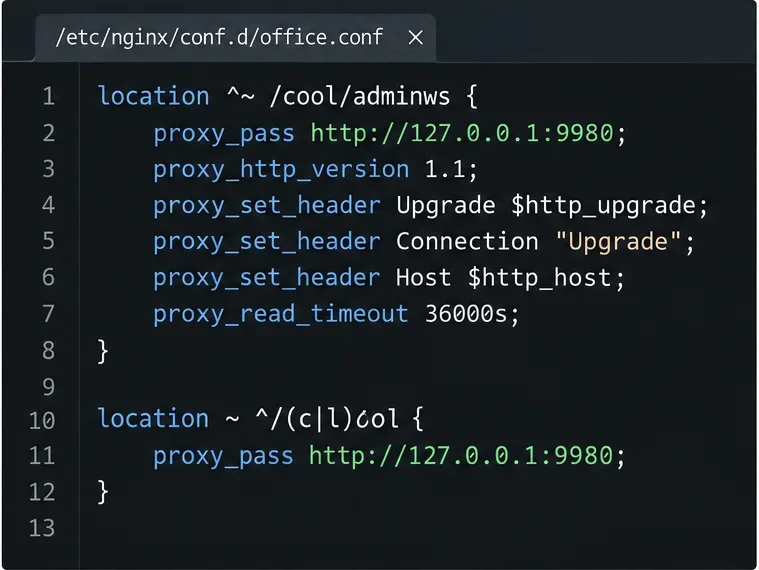
Put Nginx in charge of HTTPS for a Collabora CODE container, forward editing WebSockets correctly, and verify the public endpoint without exposing port 9980.
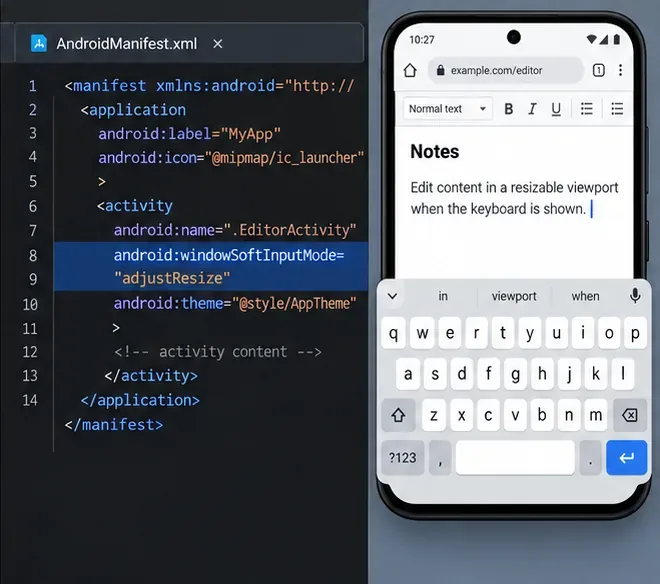
Troubleshoot a mobile browser keyboard covering text in Collabora Online, with quick workarounds and separate checks for browsers, embedded WebViews, and host pages.
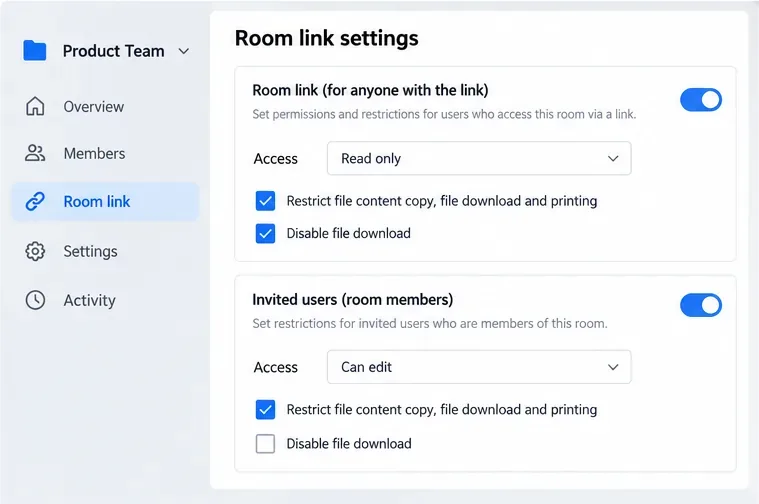
Set print and download limits for ONLYOFFICE links, room members, or Docs API sessions, then verify the restrictions from a recipient account.