Home
» How to
»
Keep Text Visible When the Collabora Mobile Keyboard Opens
Keep Text Visible When the Collabora Mobile Keyboard Opens
If the on-screen keyboard covers the active line in Collabora Online, first save your changes, dismiss the keyboard, and scroll the document until the caret is visible above it. If the problem returns, open the same file in a full mobile browser; this helps determine whether the cause is the browser, an embedded WebView, or the page that hosts Collabora.
There is no single user setting that fixes every mobile keyboard overlap. Collabora Online runs inside a browser or another product’s integration, so the available remedy depends on which layer is holding the editor at the wrong height. The checks below separate a temporary editing workaround from changes an administrator or app developer may need to make.
1. Recover the hidden line without risking edits
Wait for editing or synchronization to finish, then save if the host provides a save command.
Hide the keyboard with its down-arrow or the device’s Back control. Do not reload a document with unsaved edits.
Scroll the document so the active paragraph, table cell, or input field sits above the keyboard area.
Tap the intended insertion point again. If the keyboard covers it as soon as it opens, hide it and place the caret slightly higher in the document before continuing.
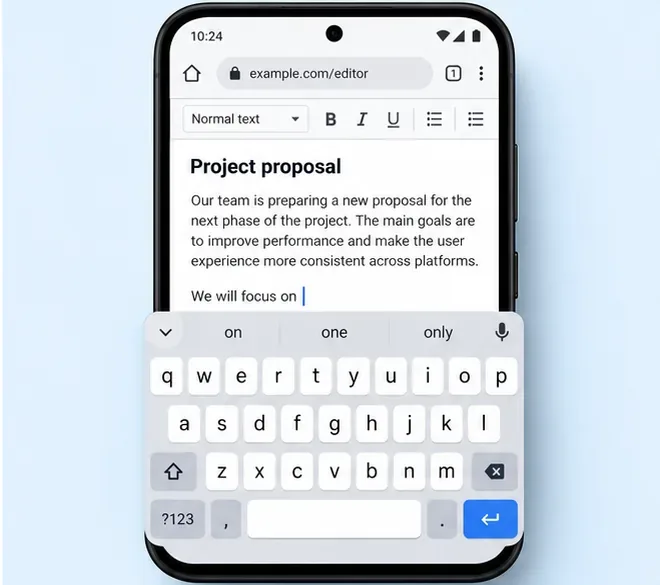
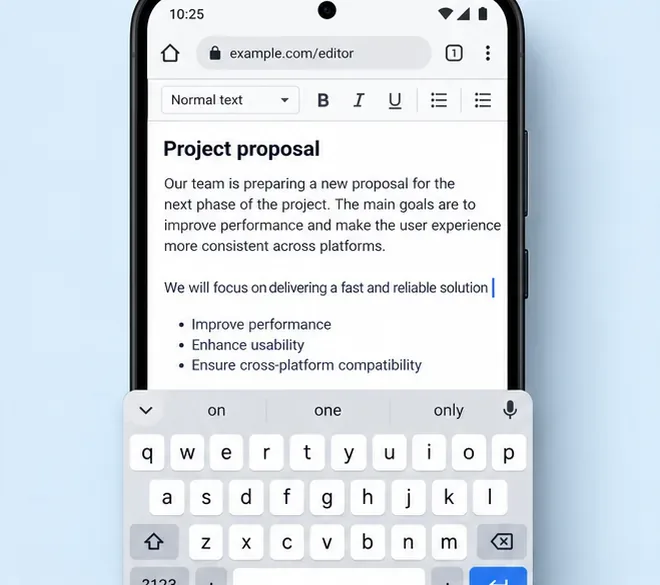
The symptom: the keyboard occupies the lower part of the phone screen while the document remains behind it.A temporary workaround: scroll the active line above the keyboard before continuing to type.
This changes the current view rather than correcting the layout. If the caret stays visible only until the next keystroke, or the page jumps when the keyboard opens, continue with the browser and host checks.
2. Identify which layer causes the overlap
Repeat the same editing action with the same file and note where it fails. Collabora describes Collabora Online as a responsive browser editor, and distinguishes it from the separate Collabora Office mobile app. Those paths can use different browser engines, host containers, and keyboard handling, so compare like with like before reporting a product defect.
Only one browser fails: update that browser and test the file in another current browser supported by your organization.
The host app fails, but its link works in the system browser: the app’s embedded WebView or its keyboard-resize configuration is a likely place for the app owner to investigate.
Both browser and host app fail on one device: note the device model, operating system version, browser version, and whether the page is portrait or landscape. This points to a device/browser viewport interaction, but does not by itself prove a Collabora defect.
The same failure occurs on several devices only in one service: ask that service’s administrator to inspect the embedded editor container and its mobile layout.
Collabora’s official FAQ describes responsive Collabora Online use in mobile browsers. Its mobile product overview separately discusses browser-based Collabora Online and the dedicated mobile app. Use that distinction when choosing which team should receive a bug report.
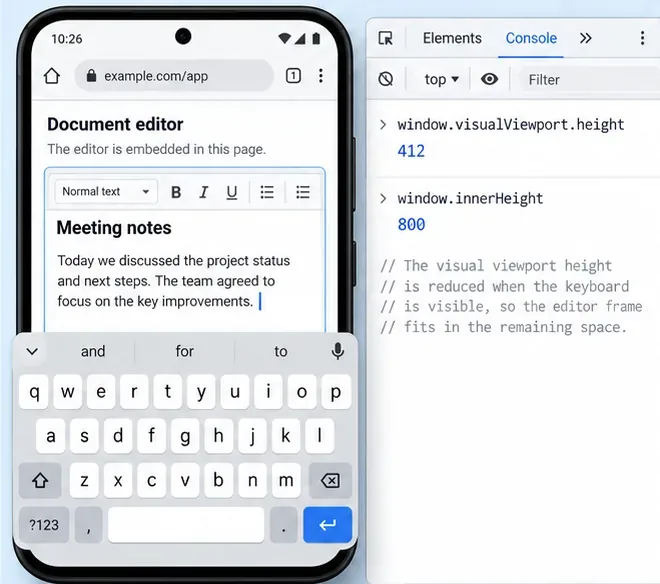
A host-page diagnostic illustration: the visible viewport can shrink while the outer page layout stays taller.
3. If you maintain the page that embeds Collabora
On mobile, the visual viewport is the part of a page currently visible on screen; the keyboard can shrink it without changing the page’s layout viewport. MDN notes that viewport behavior varies among browsers. In an embedded setup, the top-level host page may have useful visual-viewport measurements while the iframe’s own measurements do not represent the keyboard-adjusted screen in the same way.
Check that the host page responds when the keyboard opens: its editor frame should fit the available height, the caret should remain reachable, and the page should be able to scroll the frame into view. Avoid a fixed pixel height or a permanently full-screen frame that assumes the keyboard never changes the visible area. Use the outer page’s viewport resize and scroll events to recompute the space available to the editor, then test on the actual browsers and devices your users rely on. MDN documents the VisualViewport API and its resize events for this kind of visible-area change.
Some browsers also support the viewport setting interactive-widget=resizes-content, which asks the browser to resize page content when the virtual keyboard appears. It affects the host page’s layout and browser support is not uniform, so do not add it as a universal Collabora fix. Test the whole embedded experience, including menus, toolbar, scrolling, and keyboard dismissal, before deploying it. MDN documents this option in its viewport meta reference.
4. If Collabora opens inside an Android app
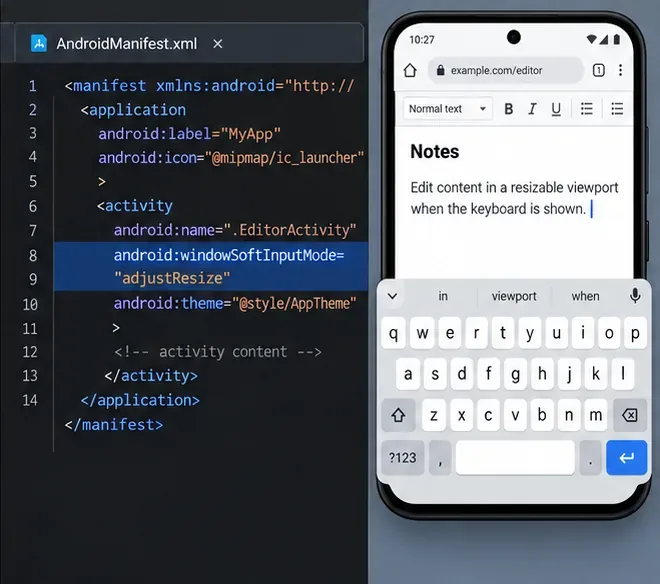
Ask the app developer to inspect the Activity that contains the WebView. Android’s official guidance says android:windowSoftInputMode="adjustResize" resizes the app layout to the space left by the keyboard, keeping content accessible when scrolling is needed. For an app that embeds Collabora, the Activity manifest may include:
The exact Activity name and existing manifest attributes depend on the app; merge this setting into the current declaration rather than adding a duplicate Activity. This Android setting applies to a native Android app or WebView host, not to a normal browser tab and not to iOS. See the Android keyboard visibility guide before changing an app build.
For an Android app embedding the editor, ask the developer to check the host Activity’s keyboard resize mode.
Verification checklist
With the keyboard open, the line or cell being edited remains visible, or the document can scroll far enough to reveal it.
Typing several lines does not move the caret behind the keyboard.
Hiding the keyboard restores the full document view without a blank gap or trapped scroll area.
Repeat the test after rotating the device and in each supported access path: direct browser, embedded app, or dedicated mobile app.
Confirm changes are saved, then report persistent failures with the file type, device and OS, browser or host-app version, and reproduction steps.
If the web page is controlled by your cloud-storage provider or organization, users may not be able to change its frame sizing. Send the checklist and reproduction details to that service’s administrator; only the owner of the host page or app can change its viewport or WebView configuration.