Raise the CODE Container’s Memory Cap Without Guessing
Check whether Docker is capping Collabora CODE, raise the Compose memory limit safely, and confirm the running container received the new cap.
High CPU from coolwsd or the older loolwsd process is not automatically a fault: Collabora creates document-processing workers, and opening or editing complex files can use CPU. First identify which process is consuming CPU, then correlate it with open documents and users in the Admin Console. If one document keeps a worker busy while idle, inspect the logs and cleanup settings before restarting anything; terminating workers can interrupt active editing.
Newer installations use the coolwsd name; older installations may still show loolwsd. Collabora’s 21.11 upgrade notes describe the one-time migration from /etc/loolwsd/loolwsd.xml to /etc/coolwsd/coolwsd.xml. Match the service and configuration names installed on your host instead of assuming every deployment is identical.
On a systemd host, check the service and then list processes by CPU use:
systemctl status coolwsd
ps -eo pid,ppid,%cpu,%mem,etime,cmd --sort=-%cpu | head -n 20
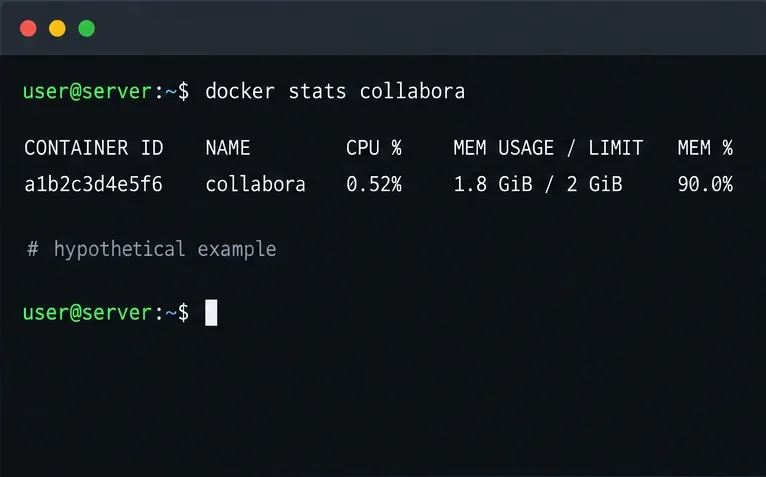
If the service is named loolwsd, substitute that name in the systemctl command. Review several readings over time with top rather than treating one short spike as a persistent problem. Inspect the process tree: CPU may be used by document worker processes beneath the daemon, not by the parent process itself. On Docker, check the container total with docker stats --no-stream CONTAINER_NAME; in Kubernetes, use the relevant pod resource metrics. These readings describe different scopes, so compare host, container, and worker values carefully.
Sign in to Collabora’s Admin Console and review connected users, open documents, resource usage, and recent graphs. Collabora’s official FAQ describes these monitoring capabilities. If load rises while a large spreadsheet, presentation, PDF, or document is opened or converted, observe whether it falls after that activity finishes. A temporary burst tied to a real workload calls for capacity planning or a smaller workload; it does not by itself prove a runaway process.
If one document remains associated with high CPU after users have closed it, verify that no browser session or integration is still holding it open. Record the document identifier shown in the console, the process ID, duration, memory, and whether the file was active or idle. Avoid placing personal or confidential document names in public support requests.
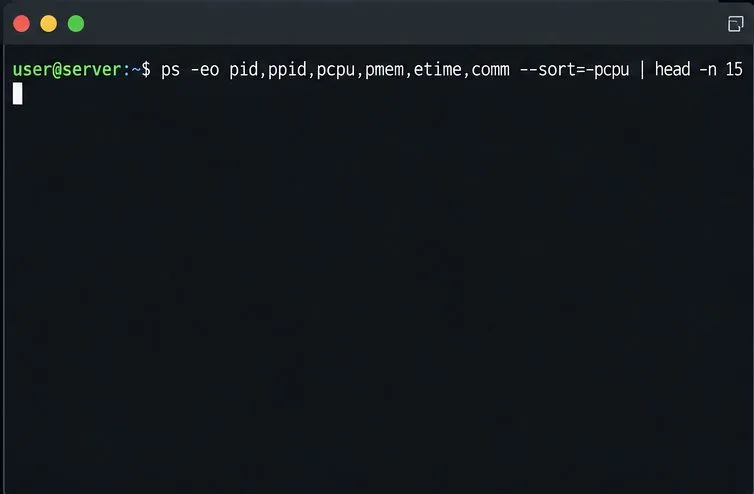
Compare the daemon with its child processes; the busiest worker may not be the coolwsd parent.
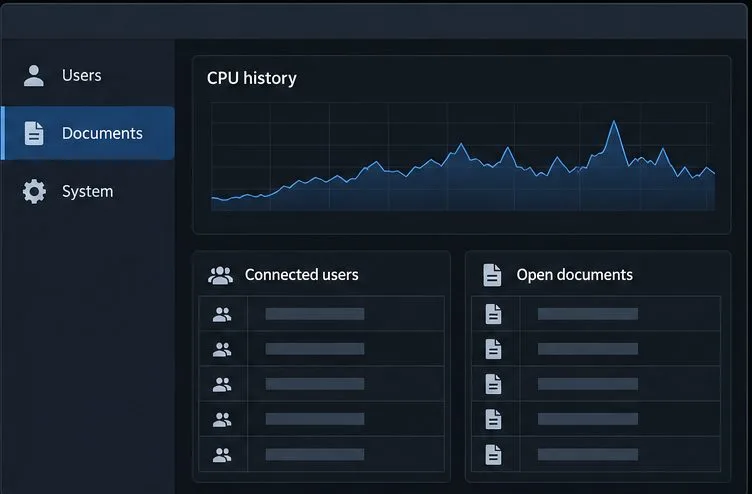
Correlate CPU history with active users and documents before changing server settings.
For a package-based systemd installation, inspect recent service messages:
journalctl -u coolwsd --since "15 minutes ago"
Use loolwsd if that is the service name on your system. Look for repeated document-load or conversion errors, worker restarts, and messages around the time CPU rises. If your deployment writes to a file instead of the system journal, use the configured log destination. For containers, inspect the Collabora container logs with your runtime’s log command. The relevant location and available messages vary by installation method and version.
A repeated error tied to a single file suggests isolating a copy of that file and testing whether the same pattern recurs. A broad increase across many documents suggests concurrency or server capacity instead. Update Collabora through the supported channel for your installation if logs point to a known defect; verify the release notes for your edition and version rather than applying an unrelated workaround.
Collabora’s configuration schema defines per_document.max_concurrency as the maximum number of threads used while processing a document. The current official coolwsd configuration template also documents cleanup checks for documents that remain idle and exceed configured resource thresholds. Exact defaults and available fields can differ by release, so inspect the coolwsd.xml or legacy configuration shipped with your installed version before making changes.
Reducing max_concurrency may limit CPU used by a single document but can make editing, loading, or conversion slower. It is not a cap on the number of users or documents. Change it only after correlating load with per-document work, make one adjustment at a time, and compare response time and CPU under a representative workload. Do not paste a snippet from another version directly into production without validating its structure and supported settings.
The cleanup configuration is intended to identify resource-consuming documents that have been idle for a configured period and, when its conditions remain met, terminate the associated document process. It is not a general CPU limiter and does not solve CPU use from active editing or repeated conversions. Review its enablement and thresholds against your installed configuration; an aggressive policy could close a session users still need. Back up the configuration and plan a controlled service restart if your change requires one.
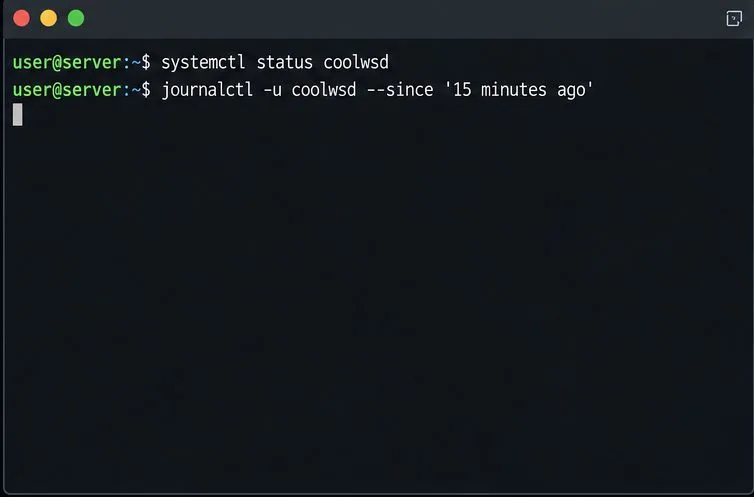
Compare service status with recent log messages to see whether the CPU rise coincides with errors or worker restarts.
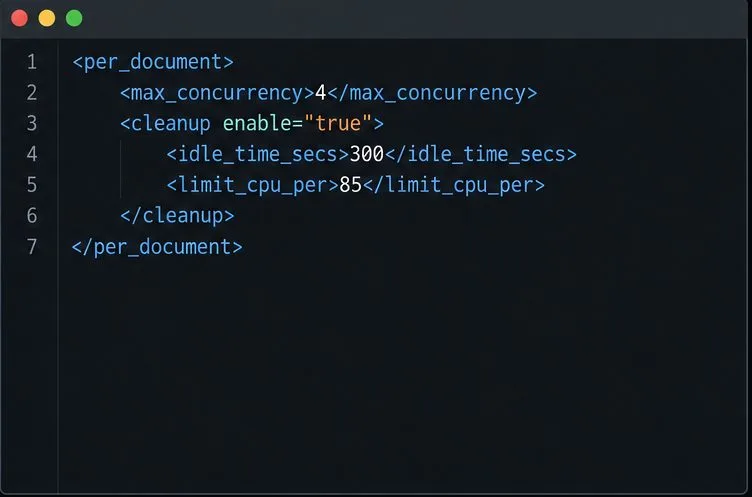
Check the installed version’s schema before changing concurrency or cleanup thresholds.
If CPU remains high with no active documents, persists after a controlled restart, or coincides with repeated crashes, collect the Collabora version, installation method, service/container logs, process tree, and sanitized document details for the maintainer or vendor. Avoid repeatedly killing child processes: Collabora manages those workers, and manual termination can disrupt users without fixing the underlying cause.
Check whether Docker is capping Collabora CODE, raise the Compose memory limit safely, and confirm the running container received the new cap.
Simplify Collabora CODE with Compact or Tabbed mode and WOPI PostMessage controls to hide selected buttons, commands, and tabs safely.
Put Nginx in charge of HTTPS for a Collabora CODE container, forward editing WebSockets correctly, and verify the public endpoint without exposing port 9980.
Troubleshoot a mobile browser keyboard covering text in Collabora Online, with quick workarounds and separate checks for browsers, embedded WebViews, and host pages.
Set print and download limits for ONLYOFFICE links, room members, or Docs API sessions, then verify the restrictions from a recipient account.
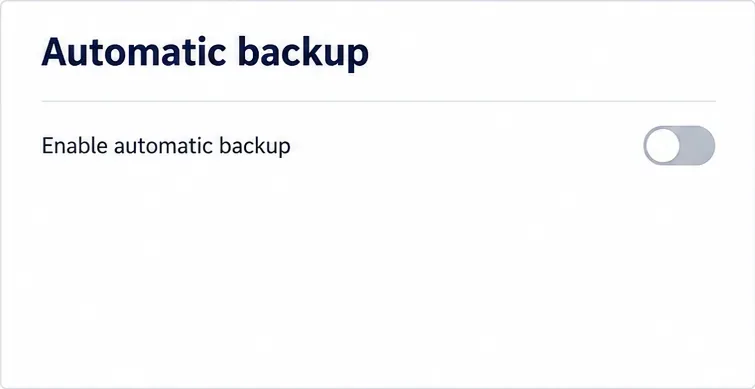
Set a backup destination, schedule, Mail coverage, and retention limit in ONLYOFFICE Workspace, then verify the archive is ready to restore.
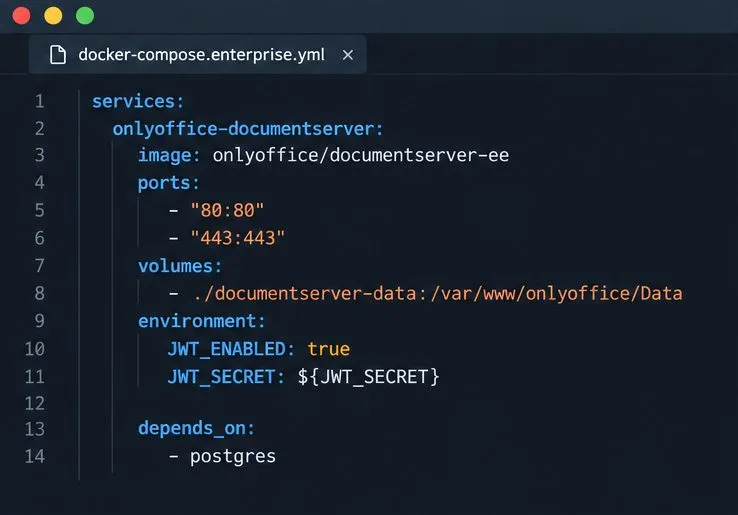
Start the Enterprise Docker Compose stack, persist its license and data, configure JWT safely, and confirm the editors are ready to integrate.
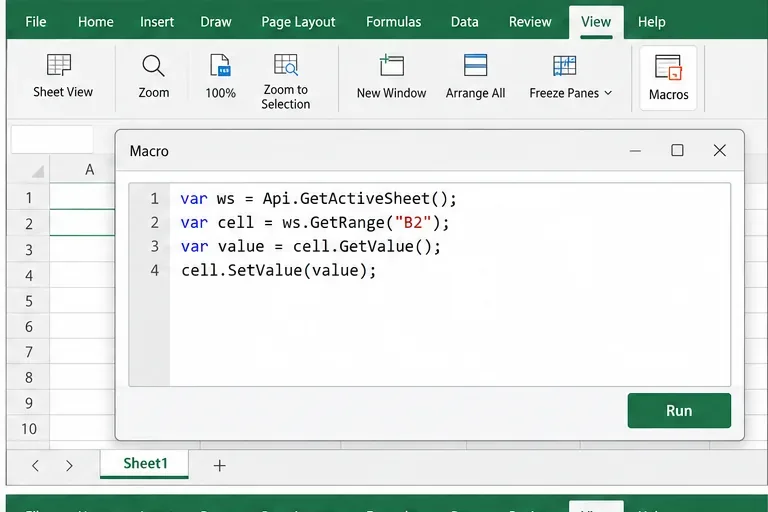
Use an ONLYOFFICE JavaScript macro to remove nonprinting characters and trim extra spaces from a defined spreadsheet range, with a safe review workflow.
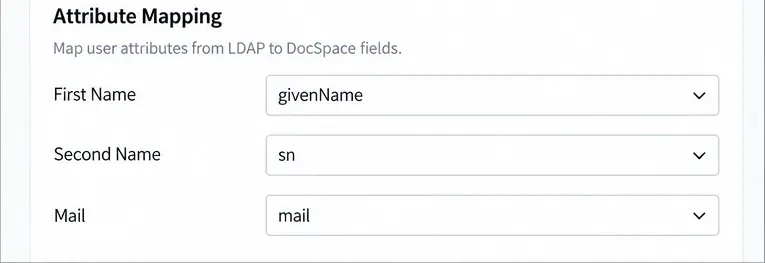
Connect ONLYOFFICE DocSpace to Active Directory or OpenLDAP, import users and groups safely, map account fields, and schedule reliable synchronization.
Move portal data from Disk Default to a supported cloud storage provider, or relocate Docker data safely by changing its host volume mapping.