Raise the CODE Container’s Memory Cap Without Guessing
Check whether Docker is capping Collabora CODE, raise the Compose memory limit safely, and confirm the running container received the new cap.
To give a Collabora Online CODE container more memory, raise the Docker limit in the configuration that creates it, then recreate the container and confirm the effective limit with docker inspect or docker stats. Increasing an application setting does not raise Docker’s container cap, and the host or Docker Desktop virtual machine must have enough memory available to honor a higher limit.
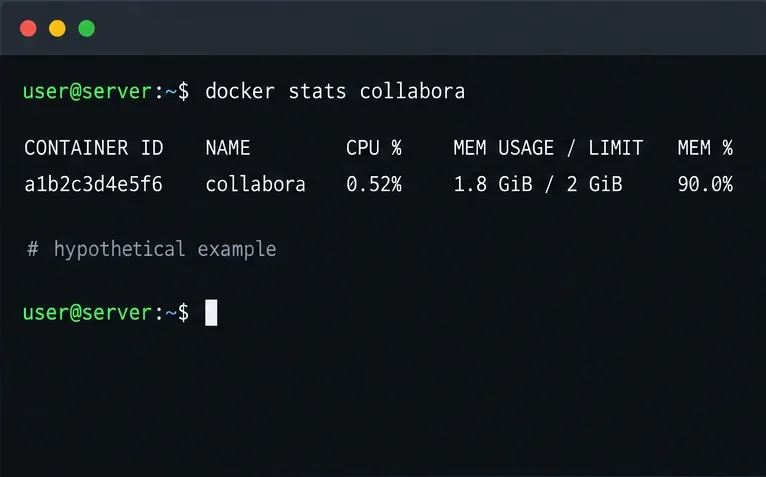
Hypothetical example used throughout: Riley administers a single-host Docker Compose deployment. Suppose docker stats shows a 2 GiB cap and usage near that ceiling while several documents are open. Riley is considering a 4 GiB cap. These numbers are examples only, not a Collabora sizing recommendation, performance claim, or tested result; your limit should come from observed load and host capacity.
Run these commands on the Docker host, replacing collabora with the actual container name:
docker stats --no-stream collabora
docker inspect --format 'Memory={{.HostConfig.Memory}} OOMKilled={{.State.OOMKilled}}' collabora
docker stats shows current use and the container limit. The inspect output reports the configured memory limit in bytes and whether Docker records the container as OOM-killed. An inspect value of 0 means Docker has no explicit hard limit for that container; it does not mean the machine has unlimited RAM. A high reading alone is not proof of an out-of-memory event, so compare it with restart history, logs, and the time users saw failures.
Before increasing the cap, check how much RAM remains for the operating system and other services. Docker’s resource guidance recommends testing application demand and running containers on hosts with adequate resources. With Docker Desktop, also check Settings > Resources: the memory assigned to the Docker VM is a separate ceiling shared by its containers. Raising CODE’s limit beyond that allocation cannot create more physical memory; see the Docker Desktop resource settings.
Edit the existing CODE service in your Compose file. Preserve its current image tag, ports, environment, volumes, networks, and restart policy; add or update only the memory setting. For Riley’s hypothetical 4 GiB example:
services:
  collabora:
    image: collabora/code:your-current-tag
    mem_limit: 4g
    # Keep the service’s existing settings below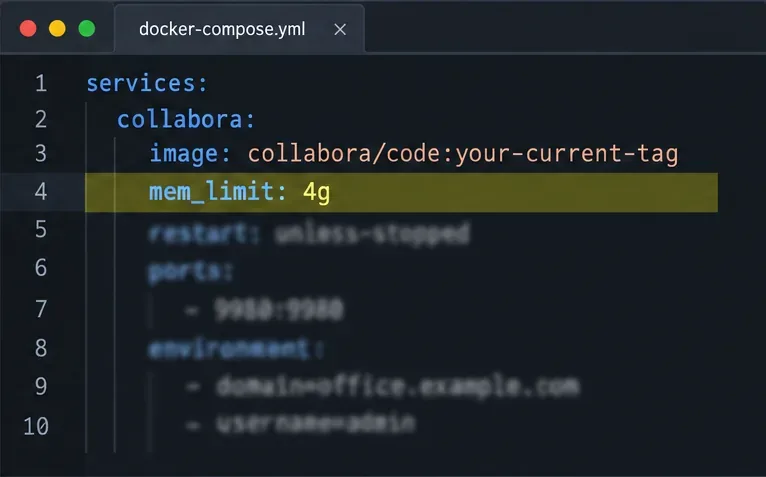
This example uses Collabora’s official CODE Docker image; keep the tag already used by your deployment. mem_limit is a hard ceiling, not a reservation: Docker can let the container use up to that amount, but the setting does not reserve that much RAM on the host. The Docker Compose service reference defines mem_limit and says it must agree with deploy.resources.limits.memory if both are present. If your deployment uses an orchestrator or a platform-managed Compose file, use that platform’s supported resource field and keep duplicate limit values consistent.
If you started CODE directly with docker run, recreate it from the original command with --memory=4g and retain all of its current options. For a quick runtime change to an existing Linux container, Docker also supports docker update --memory 4g <container_name>. Treat the Compose file or original run command as the source of truth so a later replacement does not restore the old cap. See the Docker container update reference.
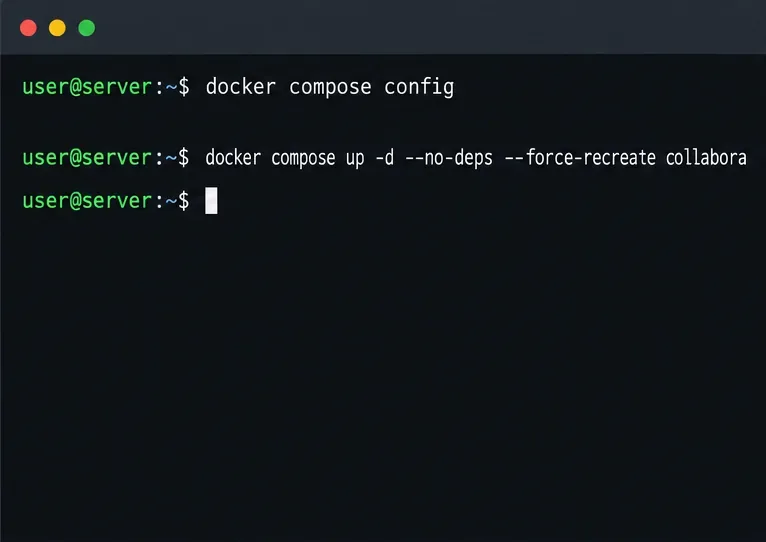
From the directory containing the active Compose file, validate the merged configuration, then recreate only the CODE service:
docker compose config
docker compose up -d --no-deps --force-recreate collabora
Use the service key from your file in place of collabora. Review the rendered configuration for the new limit before applying it. Recreating CODE briefly interrupts editing sessions that depend on that container, so schedule the change when a short service interruption is acceptable. Do not remove volumes or run docker compose down -v; those operations are unnecessary for a memory-limit change and can delete persistent data belonging to other services.
After the service returns, verify the actual container—not only the YAML file:
docker inspect --format 'Memory={{.HostConfig.Memory}} OOMKilled={{.State.OOMKilled}}' collabora
docker stats --no-stream collabora
For the example value 4g, the inspect output should represent about 4 GiB in bytes, and docker stats should show a limit near 4 GiB. The image below uses sample output for illustration only. Then observe CODE while opening the document types and approximate number of simultaneous sessions that matter to your deployment. Confirm that the container remains running, user-visible errors stop, and the host retains memory for its other processes.
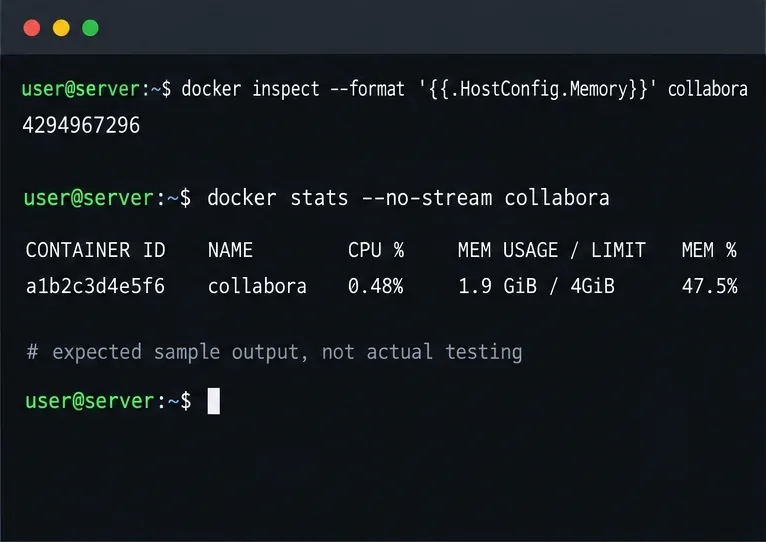
If the new cap is present but CODE still restarts, inspect docker inspect state, docker logs, and the host’s kernel or Docker events for an out-of-memory record. If the container stays healthy but document processing still triggers cleanup, Docker may not be the active bottleneck. Collabora’s own coolwsd configuration has memory-management behavior that is separate from the Docker cgroup limit; the project’s configuration template documents its server-side controls. Check the configuration for your installed CODE release before changing them.
Do not solve uncertainty by setting the container to unlimited memory or disabling the out-of-memory killer. Docker warns that an unbounded container can contribute to exhausting host memory and affecting unrelated services. If the host has no safe headroom, the real fix is to add host or Docker VM capacity, reduce concurrent workload, or distribute work—not to raise the cap beyond available RAM.
Check whether Docker is capping Collabora CODE, raise the Compose memory limit safely, and confirm the running container received the new cap.
Simplify Collabora CODE with Compact or Tabbed mode and WOPI PostMessage controls to hide selected buttons, commands, and tabs safely.
Put Nginx in charge of HTTPS for a Collabora CODE container, forward editing WebSockets correctly, and verify the public endpoint without exposing port 9980.
Troubleshoot a mobile browser keyboard covering text in Collabora Online, with quick workarounds and separate checks for browsers, embedded WebViews, and host pages.
Set print and download limits for ONLYOFFICE links, room members, or Docs API sessions, then verify the restrictions from a recipient account.
Set a backup destination, schedule, Mail coverage, and retention limit in ONLYOFFICE Workspace, then verify the archive is ready to restore.
Start the Enterprise Docker Compose stack, persist its license and data, configure JWT safely, and confirm the editors are ready to integrate.
Use an ONLYOFFICE JavaScript macro to remove nonprinting characters and trim extra spaces from a defined spreadsheet range, with a safe review workflow.
Connect ONLYOFFICE DocSpace to Active Directory or OpenLDAP, import users and groups safely, map account fields, and schedule reliable synchronization.
Move portal data from Disk Default to a supported cloud storage provider, or relocate Docker data safely by changing its host volume mapping.