Fix a Misrendered Collabora Online Font Size Dropdown
Reset browser zoom, test a clean session, and identify when a malformed size menu needs a Collabora server update.
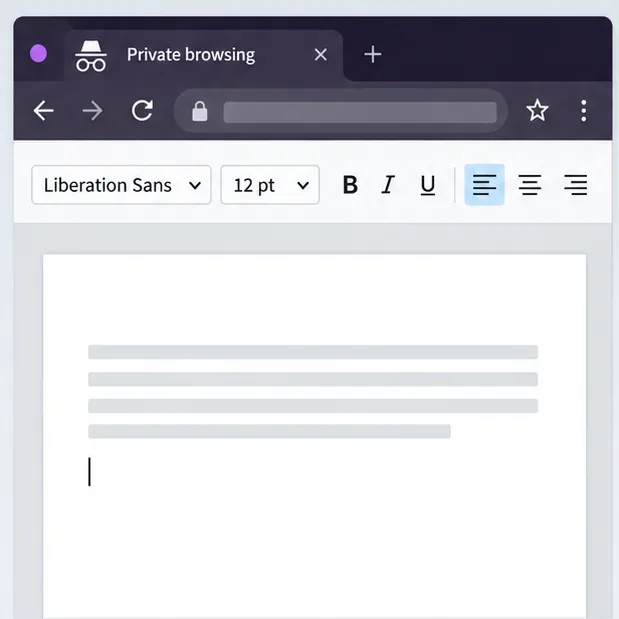
If the Collabora Online font-size box is clipped, unusually wide, blank, or opens in the wrong place, first reset browser zoom to 100%, reload the editor, and test a private window. If it stays malformed across browsers and documents, the fix may need to come from the Collabora server or its host integration. Collabora’s 26.04 release notes, published October 9, 2026, list recent dropdown and combo-box layout changes, but do not identify the font-size control as a specifically fixed bug.
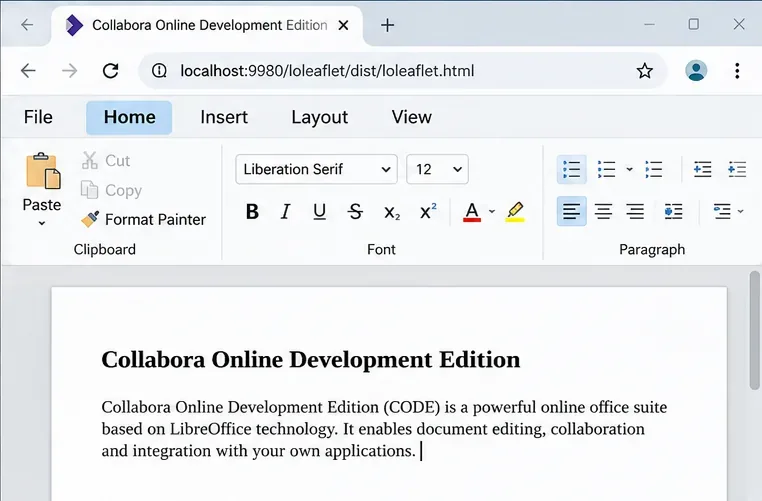
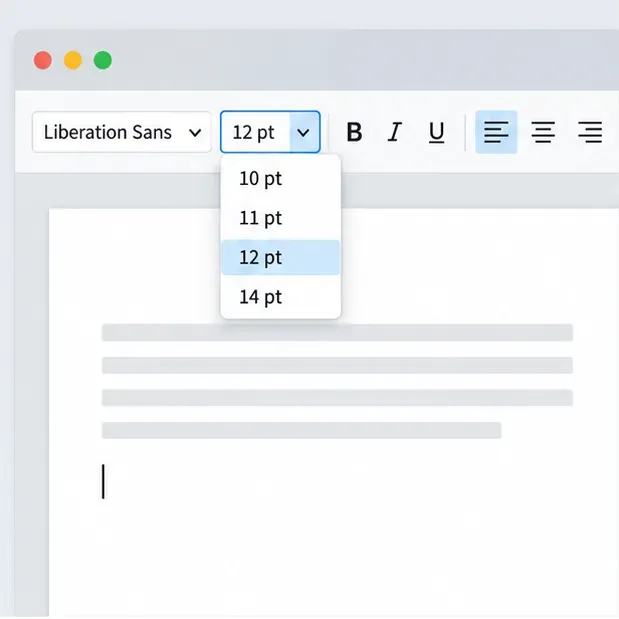
The goal is to restore a readable, usable size selector without changing document formatting by accident. The screenshots below are interface illustrations; browser chrome and toolbar layout vary by host product, document type, and Collabora version.
Save the document before troubleshooting. Click in a normal editable paragraph and inspect the font-size control. If the number is readable and selecting a different size changes the selected text, but the menu is clipped or stretched, the document formatting works and the problem is visual layout. If the value is readable but the text does not change, check whether you selected text, have edit permission, and are working in Writer rather than viewing a protected document. Those are different problems from a misdrawn dropdown.
Ctrl+0 on Windows or Linux, or Command+0 on macOS, to return browser zoom to 100%. Reopen the document and check whether the size field and its popup fit the toolbar. Browser zoom can affect the editor’s overall layout; it does not change the document’s font size.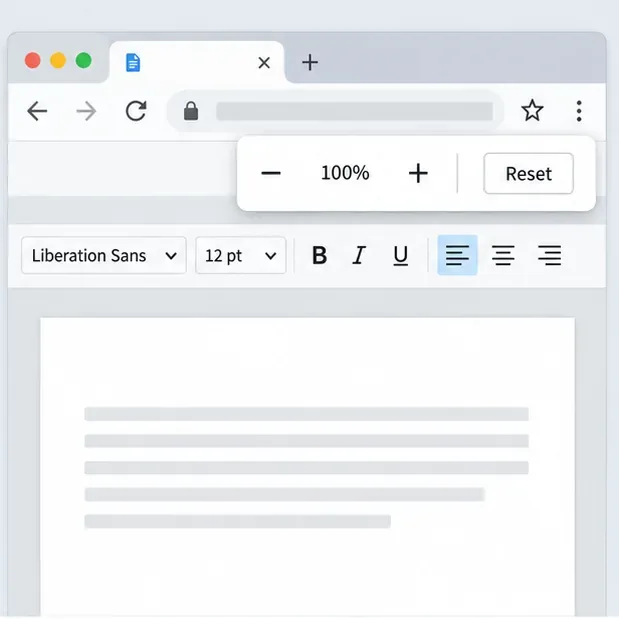
Collabora says Online supports modern browser versions that remain supported by their vendors; see its Collabora Online browser support information. If private mode changes nothing, try another current supported browser on the same device. Record whether the issue follows one browser, one device, or the server regardless of browser.
| What you see | What it suggests | Next step |
|---|---|---|
| Only the regular browser is affected | Browser zoom, an extension, or local cached interface data may be involved. | Keep zoom at 100%, isolate extensions, and reopen the editor. |
| The same document is broken in multiple browsers | The hosted editor or its integration is more likely than one browser profile. | Ask the Collabora or platform administrator to check the deployed version and integration. |
| Only one file or one document type is affected | The symptom may depend on that document view, permissions, or toolbar mode. | Compare another editable document of the same type before requesting a server change. |
| The menu is normal but changing size has no effect | This is a formatting or edit-permission problem, not a dropdown rendering issue. | Select editable text, confirm edit access, and check the document’s applied style. |
Ask the administrator to check the Collabora Online build and the connecting platform’s integration when the font-size menu remains distorted after the browser tests, especially if multiple users and documents show the same symptom. The Collabora Online 26.04 release notes describe a UI polish change in 26.04: dropdowns no longer change width as they open, and combo boxes have room for their value. This makes 26.04 relevant to check, but the notes do not say that every font-size dropdown defect is fixed by that release. Managed or hosted deployments may need the provider to schedule the update.
There is also a separate, open report, Collabora’s open issue about a stretched style selector, about a paragraph-style selector stretching across the toolbar in a Nextcloud-integrated CODE 26.04.2.4 setup. The report is marked unconfirmed and says the symptom persisted at 100% zoom, in private mode, and with extensions disabled. It concerns the style selector, not the font-size dropdown, so it does not establish the cause of your issue. It does show why successful browser checks should lead to a version and integration review rather than repeated cache clearing.
For a self-managed server, the admin should follow the deployment’s supported update path and review release notes before upgrading. Avoid injecting CSS or replacing editor files as a quick workaround: custom patches can break after updates and affect every user. For a hosted office service, send the provider a concise report instead of trying to change server settings you do not control.
The fix is effective when the font-size field displays its current value, the dropdown opens without covering or stretching across nearby controls, and choosing a size updates selected text in an editable document. Recheck one other document. If browser-only steps help, keep the browser setting or extension change that resolved it. If every clean browser shows the same malformed control, report the Collabora version, host integration, browser and operating system, affected document types, and a cropped screenshot with document contents hidden.
Reset browser zoom, test a clean session, and identify when a malformed size menu needs a Collabora server update.
Deploy Collabora CODE with Docker, connect it securely to Nextcloud Office, and verify document editing with practical WOPI and proxy checks.
Temporarily raise coolwsd to debug, capture one failed open, and use the log sequence to separate WebSocket, WOPI, proxy, and container issues.
Configure the Collabora Online admin login for Docker or Linux, restart the right service, and verify the new password without exposing it.
Find out whether CPU load comes from active documents, idle worker processes, or server capacity before changing Collabora settings or restarting the service.
Check whether Docker is capping Collabora CODE, raise the Compose memory limit safely, and confirm the running container received the new cap.
Simplify Collabora CODE with Compact or Tabbed mode and WOPI PostMessage controls to hide selected buttons, commands, and tabs safely.
Put Nginx in charge of HTTPS for a Collabora CODE container, forward editing WebSockets correctly, and verify the public endpoint without exposing port 9980.
Troubleshoot a mobile browser keyboard covering text in Collabora Online, with quick workarounds and separate checks for browsers, embedded WebViews, and host pages.
Set print and download limits for ONLYOFFICE links, room members, or Docs API sessions, then verify the restrictions from a recipient account.