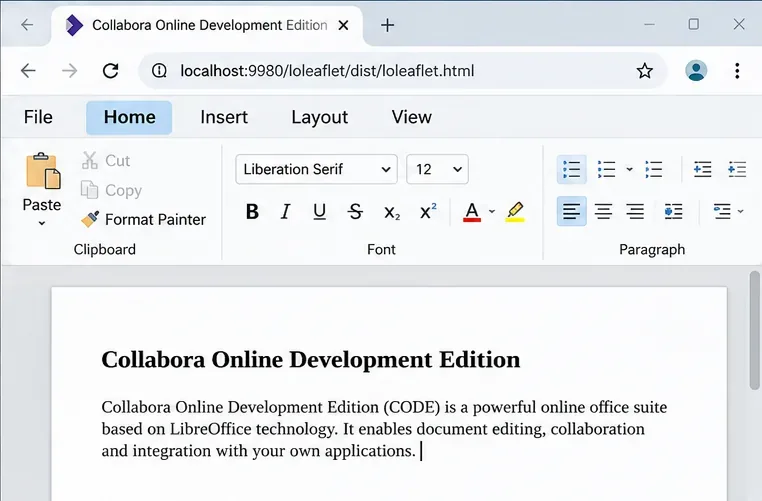
Fix a Misrendered Collabora Online Font Size Dropdown
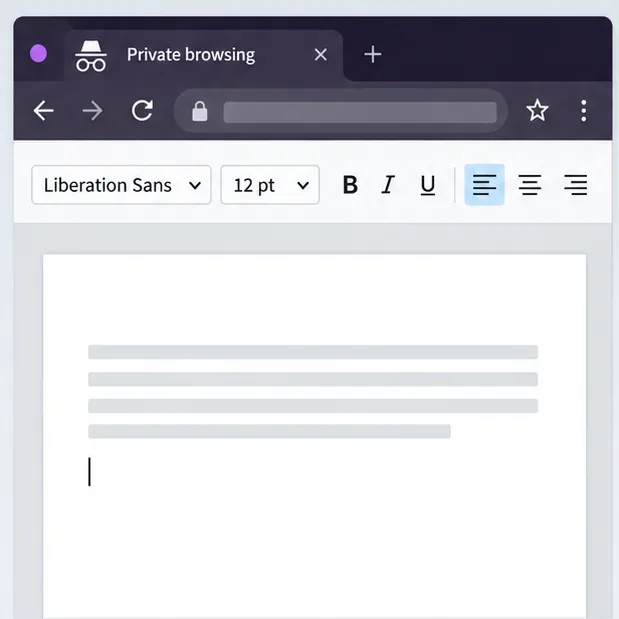
Reset browser zoom, test a clean session, and identify when a malformed size menu needs a Collabora server update.
To connect Nextcloud with a self-hosted Collabora Online Development Edition (CODE) container, run CODE on a separate host name, put it behind HTTPS, and enter its public URL in Nextcloud Office. The CODE container must also allow the Nextcloud site’s origin as a WOPI host. In the example below, Nextcloud is cloud.example.com and Collabora is office.example.com; replace both with your real host names.
You need a working Nextcloud installation, a Docker host that can run the CODE container, DNS records for the Nextcloud and Collabora host names, and valid HTTPS certificates for both public sites. The Nextcloud host and the Collabora server must be able to reach one another over the network. A dedicated Collabora server is intended to improve capacity over the built-in CODE option; it is still the development edition, so check Collabora’s current terms and release guidance before using it for a larger or business-critical deployment.
This walkthrough assumes a reverse proxy runs on the Docker host and forwards HTTPS traffic for office.example.com to the container’s local port. If your proxy runs in a different container or on another machine, do not copy the loopback port mapping unchanged: use a private Docker network or a private host address that the proxy can reach, and firewall the backend so it is not exposed publicly.
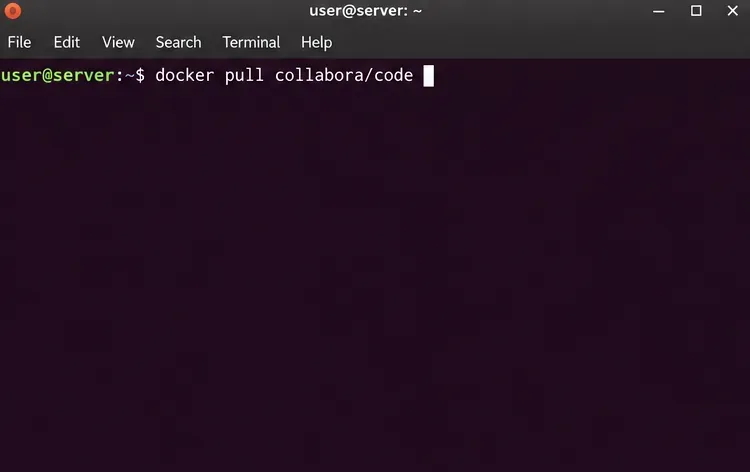
First, pull the image and start a container. In the alias setting, use the public origin of Nextcloud, including the protocol and port. Do not put the Collabora URL there. Nextcloud’s Docker installation example uses this pattern:
docker pull collabora/code
docker run -t -d -p 127.0.0.1:9980:9980 \
  -e 'aliasgroup1=https://cloud.example.com:443' \
  --restart always \
  --cap-add MKNOD \
  collabora/code
The loopback binding means port 9980 is reachable only from the Docker host, such as by a reverse proxy on that same host. The proxy gives browsers and Nextcloud a public HTTPS endpoint while keeping the container port private. If Nextcloud is served on a nonstandard port or through a different public hostname, make the alias match the origin users actually use. If you have multiple Nextcloud instances, configure each allowed WOPI host using Collabora’s documented syntax rather than broadly allowing arbitrary domains.
The command above follows the Nextcloud 35 administration manual’s Docker example. Before production use, review the current CODE image documentation and choose a release/tag update policy that fits your maintenance process. The default image reference can move as releases are published; plan updates, monitor the container, and retest document editing after upgrades.
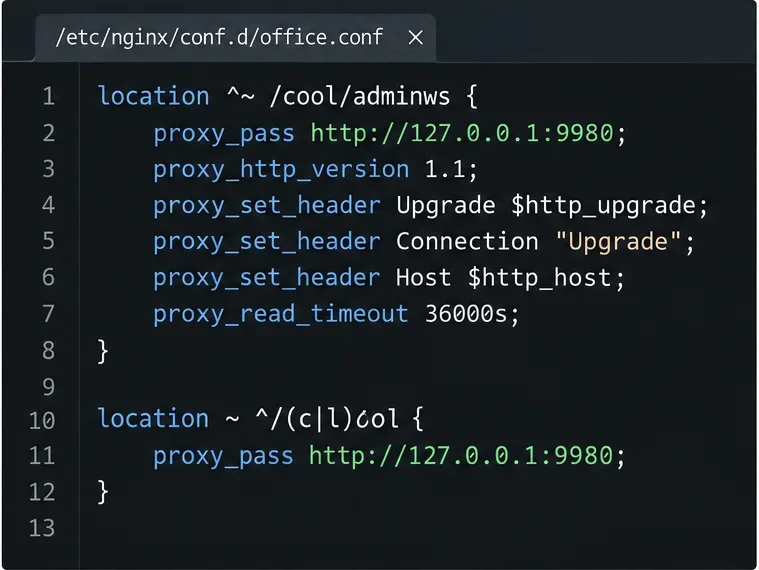
Configure your existing proxy to serve https://office.example.com and forward requests to the CODE service on 127.0.0.1:9980. Use Collabora’s current reverse-proxy configuration for your proxy software. The proxy must preserve the required paths and support WebSocket upgrades; the editor’s browser session depends on them. The Nextcloud Docker example includes routes for /browser, /hosting/discovery, /hosting/capabilities, and /cool, including the WebSocket endpoint. Some integrations also use the compatibility /lool route.
Do not treat a successful homepage load as proof that the proxy is complete. A proxy that handles ordinary HTTPS requests but fails to upgrade WebSocket connections can show the editor frame and then leave it loading or disconnected. Use a valid public certificate for the Collabora hostname. Keep port 9980 closed to the public internet when the proxy is intended to be the only entry point.
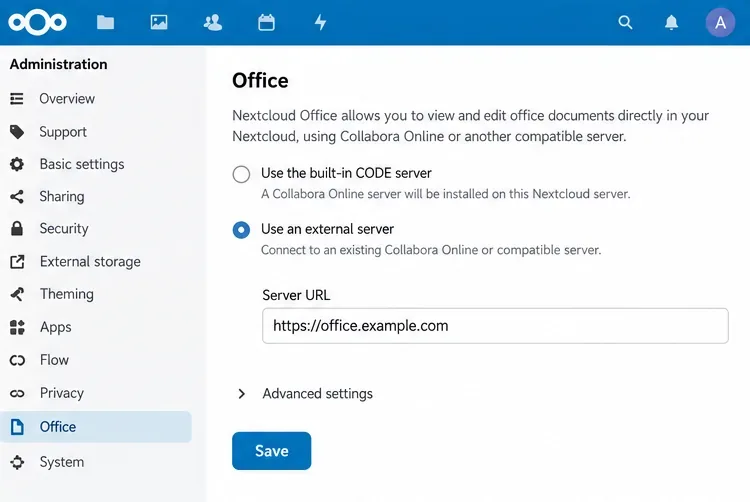
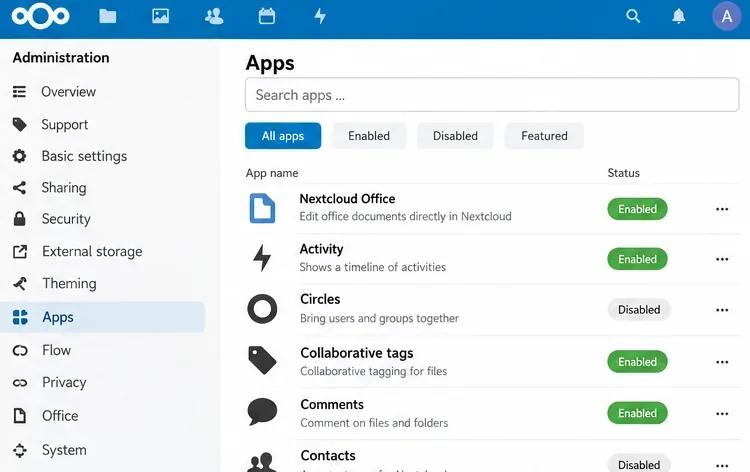
In Nextcloud, open Apps and install or enable Nextcloud Office (the richdocuments integration). Then open Administration settings → Office, choose the external Collabora server option, and enter https://office.example.com. Save the setting. Use the public URL, not localhost:9980: the Nextcloud server and users’ browsers need to resolve the same external Collabora endpoint.
Nextcloud’s administration manual says the configured server URL should use the same protocol as the Collabora installation and recommends HTTPS. After saving, Nextcloud may show a connectivity or discovery status. If it reports a certificate, DNS, or WOPI issue, resolve that specific check before trying to open a file.
WOPI is the protocol Nextcloud uses to give Collabora controlled access to a document. In Nextcloud’s Office administration settings, review the Allow list for WOPI requests and restrict requests to the IP addresses from which your Collabora service reaches Nextcloud. Also configure Collabora to accept only the intended WOPI host. The exact address can differ when containers, NAT, or a reverse proxy are involved, so use the source address Nextcloud actually sees in its logs rather than guessing.
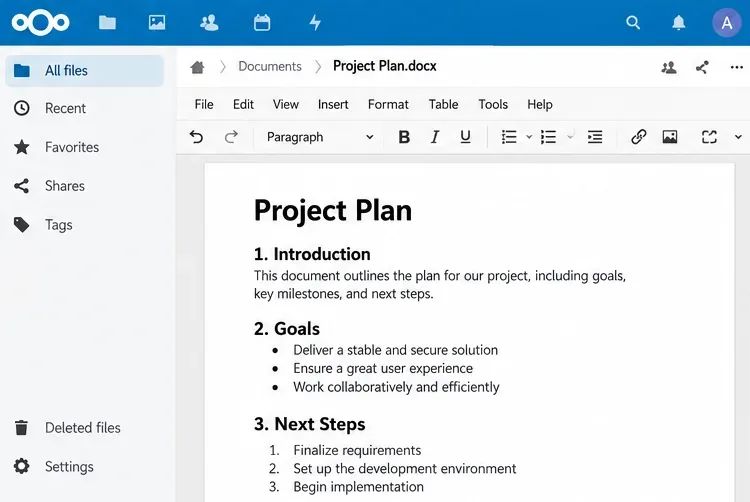
For a functional check, sign in as a normal Nextcloud user, create or upload a small DOCX or ODT file, and open it from Files. Confirm the editor loads, make a harmless change, wait for the save indicator, close the document, then reopen it and confirm the change remains. Test with each file type and user group that matters to your deployment; a successful DOCX test does not prove every format or permission path is configured.
office.example.com resolves from the Nextcloud server and the browser, that its certificate is valid, and that the proxy sends /hosting/discovery to CODE./cool routes. Review the proxy and container logs for rejected requests.aliasgroup1 with the exact public Nextcloud origin, including scheme and port. Check Nextcloud’s WOPI allow list against the Collabora source IP visible to Nextcloud.For diagnosis, compare your configuration with the official Nextcloud Docker installation example, its Office and WOPI configuration guidance, and Collabora’s CODE Docker image and reverse-proxy documentation. Those references are versioned and may change; the commands here reflect the Nextcloud 35 administration example available on October 10, 2026.
Reset browser zoom, test a clean session, and identify when a malformed size menu needs a Collabora server update.
Deploy Collabora CODE with Docker, connect it securely to Nextcloud Office, and verify document editing with practical WOPI and proxy checks.
Temporarily raise coolwsd to debug, capture one failed open, and use the log sequence to separate WebSocket, WOPI, proxy, and container issues.
Configure the Collabora Online admin login for Docker or Linux, restart the right service, and verify the new password without exposing it.
Find out whether CPU load comes from active documents, idle worker processes, or server capacity before changing Collabora settings or restarting the service.
Check whether Docker is capping Collabora CODE, raise the Compose memory limit safely, and confirm the running container received the new cap.
Simplify Collabora CODE with Compact or Tabbed mode and WOPI PostMessage controls to hide selected buttons, commands, and tabs safely.
Put Nginx in charge of HTTPS for a Collabora CODE container, forward editing WebSockets correctly, and verify the public endpoint without exposing port 9980.
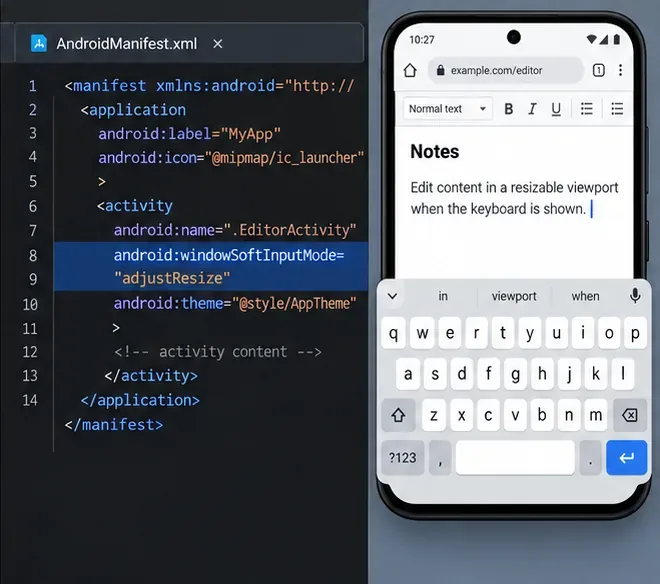
Troubleshoot a mobile browser keyboard covering text in Collabora Online, with quick workarounds and separate checks for browsers, embedded WebViews, and host pages.
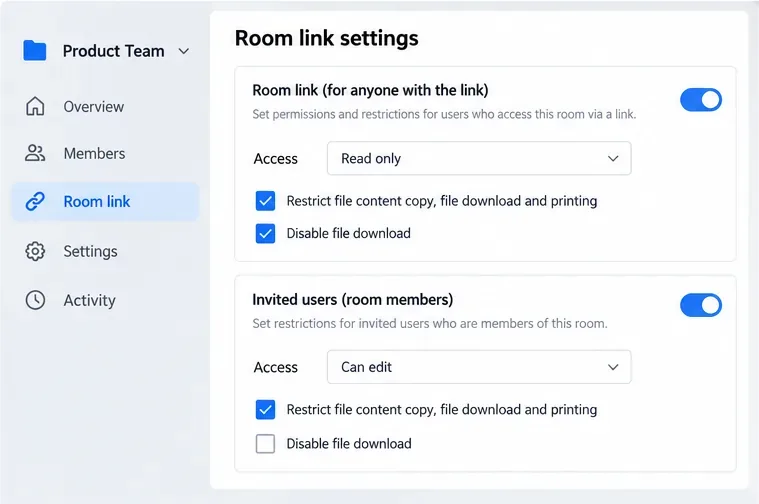
Set print and download limits for ONLYOFFICE links, room members, or Docs API sessions, then verify the restrictions from a recipient account.