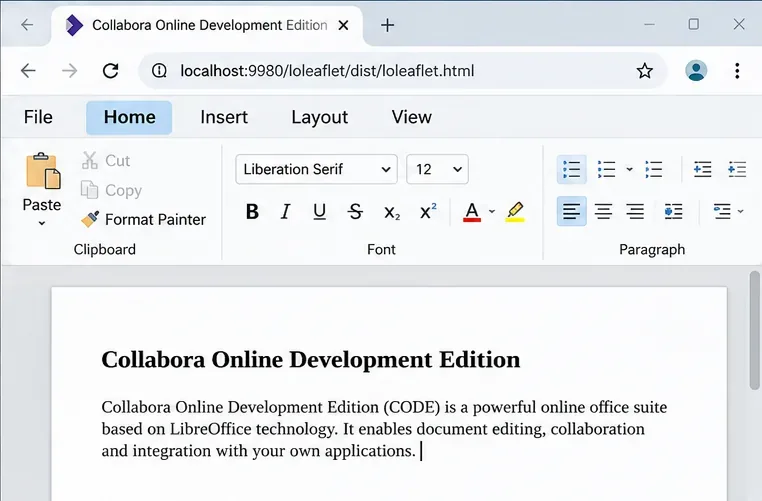
Fix a Misrendered Collabora Online Font Size Dropdown
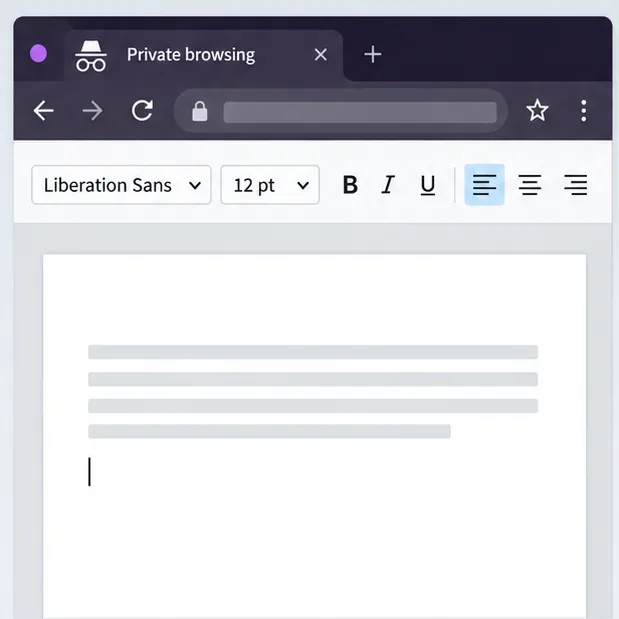
Reset browser zoom, test a clean session, and identify when a malformed size menu needs a Collabora server update.
For a Collabora Online Development Edition (CODE) container, raise coolwsd logging to debug, make sure the Socket and WebSocket areas are not disabled, then reproduce one failed document open while following the container logs. In Docker Compose, pass the settings through the CODE image’s extra_params environment variable and recreate the service. Use trace only if debug output does not show where the connection stops, and return to the previous level when you finish.
This method fits a Docker or Compose deployment where you can update the container configuration. A native package install uses /etc/coolwsd/coolwsd.xml and its service manager instead. The setting adds diagnostic detail; it does not repair a proxy, WOPI host, certificate, or network problem by itself.
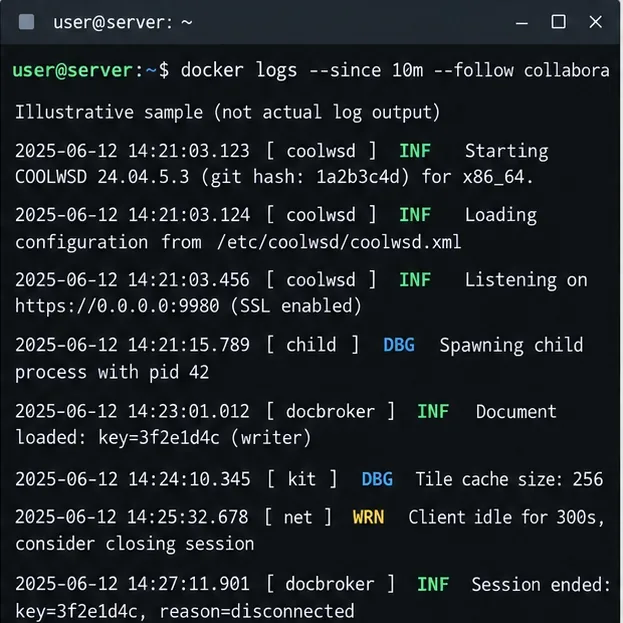
Pick one document and note the time you try to open it, the public Collabora URL, and the container or Compose service name. Avoid repeatedly refreshing several files: one attempt makes it easier to line up the browser symptom, proxy log, integration-server log, and coolwsd entries.
Check that the container is running and identify its name:
docker ps --format 'table {.Names} {.Status} {.Ports}'Replace collabora below with the container name shown on your host. Start following output shortly before reproducing the problem:
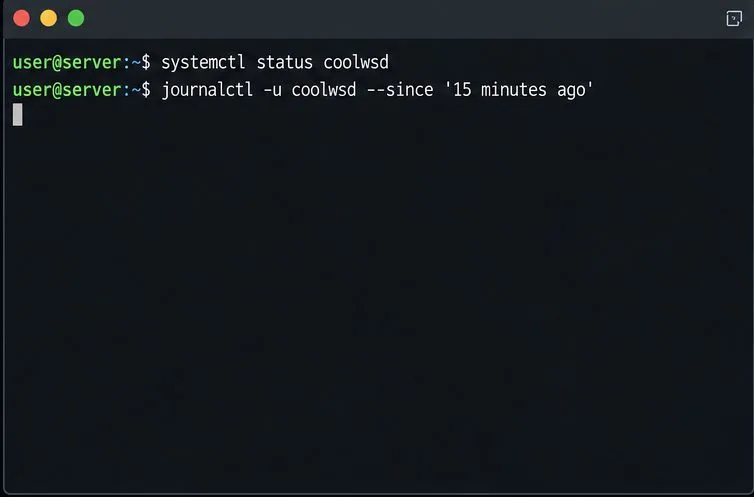
docker logs --since 2m --follow --timestamps collabora--follow streams new output, --since limits the initial history, and --timestamps adds Docker timestamps. Docker documents those options in its container logs reference. In Compose, you can use docker compose logs --since=2m --follow collabora, where collabora is the service key.
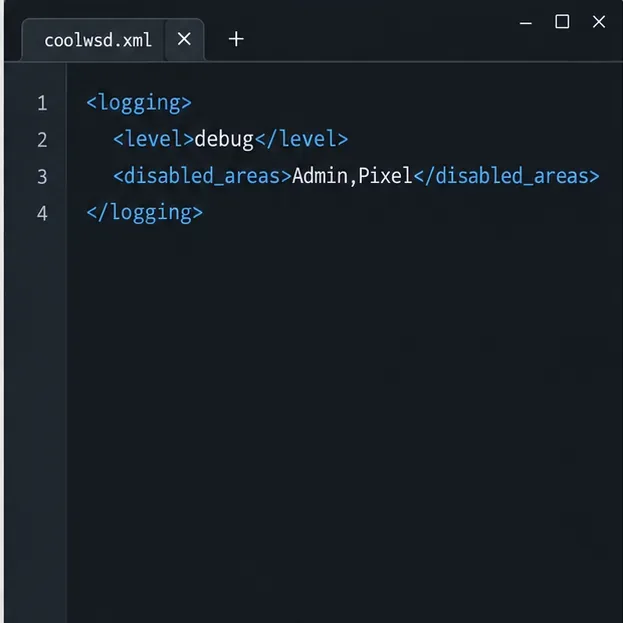
The Collabora configuration schema supports named levels including warning, notice, information, debug, and trace. It also defines disabled_areas; the documented default disables high-verbosity output from Socket and WebSocket, among other areas. This matters for connection troubleshooting: changing the level alone may still leave the most useful handshake details suppressed. These options are documented in the Collabora coolwsd configuration template and the Collabora Online SDK manual (Docker configuration section; checked October 2026).
For the official collabora/code image, add the two options to the service’s existing extra_params value. Preserve any options already required by your installation, such as SSL termination or server name:
services:
  collabora:
    environment:
      extra_params: "--o:logging.level=debug --o:logging.disabled_areas=Admin,Pixel"
The second option leaves Socket and WebSocket available for high-verbosity logging while keeping Admin and Pixel disabled. Do not add those two areas back to the disabled list during this test. The CODE image documentation describes extra_params as a way to pass command-line options to coolwsd. If your deployment uses a mounted configuration file or a vendor-managed image, follow that deployment’s configuration method instead.
Apply the Compose edit by recreating the service:
docker compose up -d --force-recreate collaboraUse your actual Compose service name. For a short-lived container started with docker run, update its run configuration and recreate it with the same volumes, networks, ports, and other options. The CODE manual says the image accepts extra_params at startup; don’t assume changing the environment of an already-created container changes the running coolwsd process.
Reproduce the failure once and review only that interval. Search the output for terms such as WebSocket, WOPI, ERR, and WRN, then compare timestamps. The exact wording and log areas vary by Collabora version, so treat these as categories to inspect rather than guaranteed literal messages.
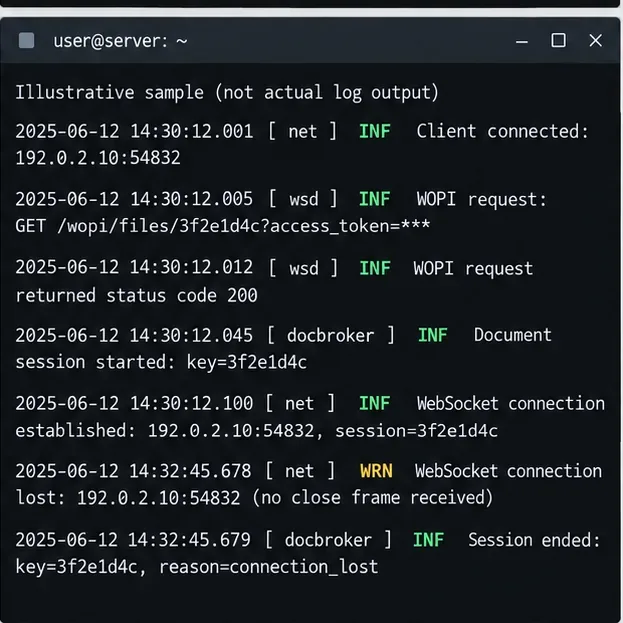
If Docker shows no output even though the service is active, check the logging configuration inside the container. Docker’s log command reads the container’s standard output and error streams; an installation configured to write to a file may instead use a path such as /var/log/coolwsd.log, as defined by its configuration. Inspect the actual file rather than assuming that path:
docker exec collabora sh -c 'grep -n -A25 "<logging>" /etc/coolwsd/coolwsd.xml'If file logging is enabled, use the configured path, for example:
docker exec collabora sh -c 'tail -n 200 /var/log/coolwsd.log'After the test, run a bounded read to confirm that the intended attempt produced fresh entries:
docker logs --since 5m --timestamps collaboraYou have a useful result when you can align the failed open with a coolwsd event or establish that the request never reached this container, then identify which connection stage needs follow-up. If you need to filter output, use a short time window first:
docker logs --since 5m collabora | grep -Ei 'coolwsd|WOPI|WebSocket|ERR|WRN'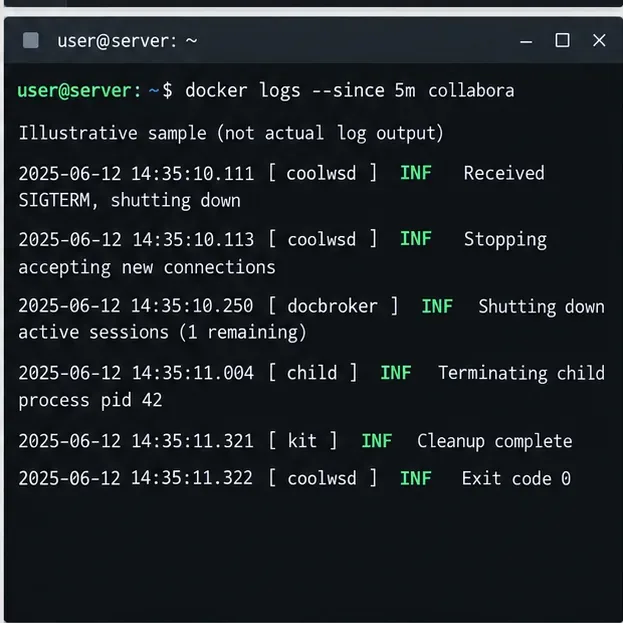
Restore the previous logging.level and disabled_areas values, then recreate the service again. Debug and trace levels can produce much more output and may include sensitive operational details. Before sharing logs, redact access tokens, document names, user identifiers, hostnames, and internal addresses. If the service is not the official CODE image, confirm its configuration path and supported parameters with that image’s maintainer.
Reset browser zoom, test a clean session, and identify when a malformed size menu needs a Collabora server update.
Deploy Collabora CODE with Docker, connect it securely to Nextcloud Office, and verify document editing with practical WOPI and proxy checks.
Temporarily raise coolwsd to debug, capture one failed open, and use the log sequence to separate WebSocket, WOPI, proxy, and container issues.
Configure the Collabora Online admin login for Docker or Linux, restart the right service, and verify the new password without exposing it.
Find out whether CPU load comes from active documents, idle worker processes, or server capacity before changing Collabora settings or restarting the service.
Check whether Docker is capping Collabora CODE, raise the Compose memory limit safely, and confirm the running container received the new cap.
Simplify Collabora CODE with Compact or Tabbed mode and WOPI PostMessage controls to hide selected buttons, commands, and tabs safely.
Put Nginx in charge of HTTPS for a Collabora CODE container, forward editing WebSockets correctly, and verify the public endpoint without exposing port 9980.
Troubleshoot a mobile browser keyboard covering text in Collabora Online, with quick workarounds and separate checks for browsers, embedded WebViews, and host pages.
Set print and download limits for ONLYOFFICE links, room members, or Docs API sessions, then verify the restrictions from a recipient account.