Fix WOPI Proof Errors by Checking Keys, Discovery, and URLs
Trace Collabora WOPI proof failures to mismatched keys, stale discovery data, clock drift, or proxy URL changes—without weakening validation.
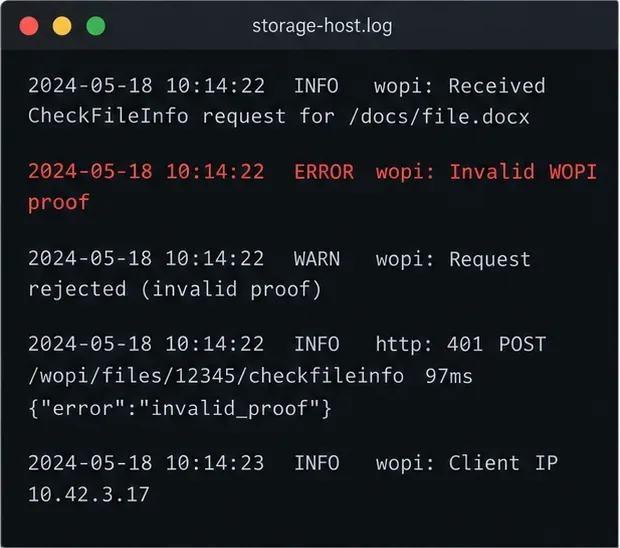
When a WOPI host reports “proof validation failed” or “Invalid WOPI proof,” first confirm which system logged the rejection. If the storage host is rejecting Collabora’s signed request, check the proof-key pair and the discovery response before changing WOPI host allowlists or disabling proof checks. For package installs, Collabora normally generates the key pair; for Docker, Kubernetes, and multi-replica deployments, the pair must be supplied and persisted consistently.
WOPI proof validation uses a signed request and the public key advertised by the WOPI client in its discovery metadata. It is separate from Collabora’s list of trusted WOPI hosts, TLS certificate validation, and the storage host’s access-token check. A key regeneration can help when the private key is missing or does not match the advertised public key, but it can create a new mismatch if only one replica changes or a host still has cached discovery data.
| Evidence in the log | Likely area to check |
|---|---|
| Storage host says “Invalid WOPI proof” while receiving CheckFileInfo or another WOPI request | Collabora’s proof key, the host’s discovery data, URL reconstruction, or timestamp |
| Collabora says “Unauthorized WOPI host” or “No acceptable WOPI hosts” | The WOPI host allowlist / domain configuration, not the proof key |
| Token invalid, expired, or access denied without a proof error | Host-issued access token, permissions, or token expiry |
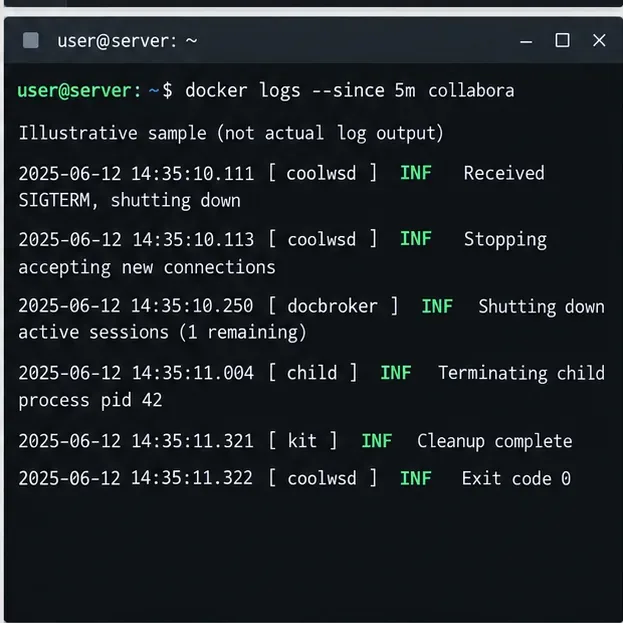
Check one failed request in both Collabora and storage-host logs; a browser spinner alone does not identify a proof-key failure.
Start with the least disruptive option. On a package-based installation, verify the existing key files and service logs first; current Collabora documentation says RPM and Debian package installs generate a WOPI proof key pair automatically. If those files are present and stable, rotating them is usually unnecessary.
| Deployment | Recommended action | Trade-off |
|---|---|---|
| Single package-managed server | Keep the generated key pair; repair permissions or regenerate only if missing or mismatched | Minimal change, but verify your package version and configured paths |
| Single Docker container | Generate a pair once and mount it persistently into the container | Requires a persistent volume and correct read access for coolwsd |
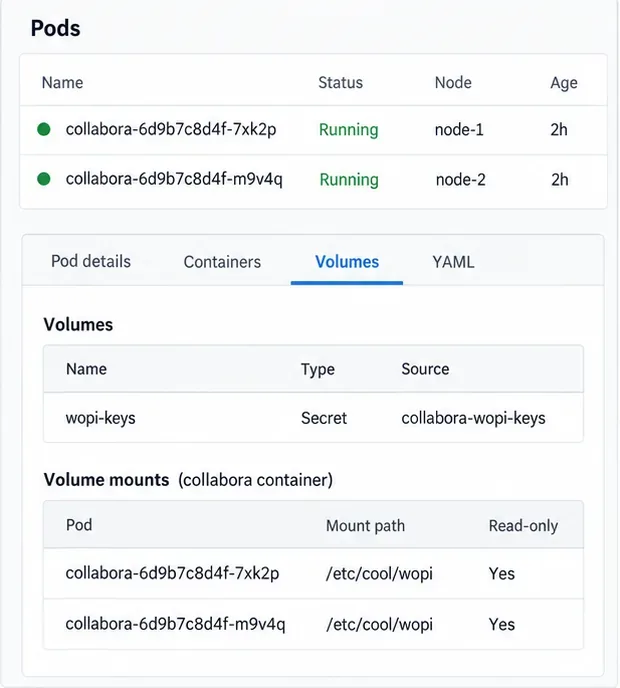
| Kubernetes or multiple replicas | Mount one shared Secret/key pair in every Collabora instance | Consistent signatures across replicas; rotation must update the host’s discovery view too |
| Host URL changed behind a proxy | Verify public scheme, host, path, and query string used for signature validation | More involved than rotating keys, but avoids unnecessary credential changes |
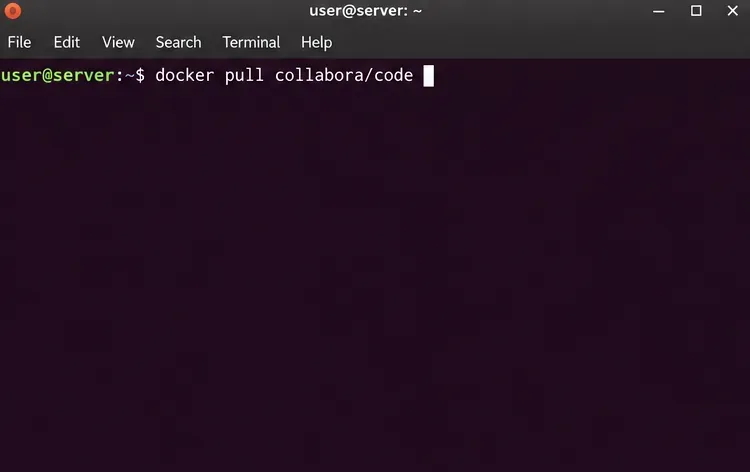
Collabora’s 24.04 manual says the public Docker image does not include a proof-key pair; generate one and mount it persistently. The official Helm chart supports proof-key Secrets. Never generate a separate pair for each replica, or load balancing can make failures intermittent.
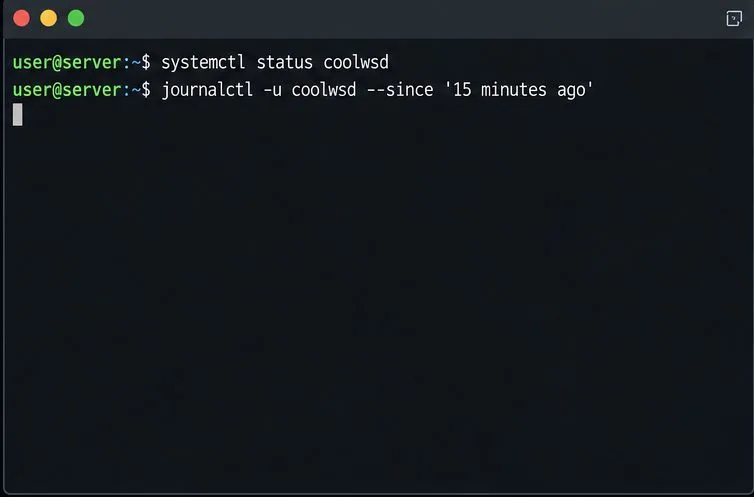
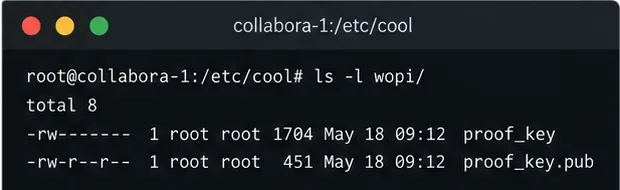
coolwsd.xml settings for the proof-key path and check whether both the private key and public key are available. Common locations are under /etc/coolwsd/, but package and container layouts can differ. Never paste the private key into logs, tickets, or chat.sudo openssl pkey -in /etc/coolwsd/proof_key -pubout -outform DER | sha256sum and openssl pkey -pubin -in /etc/coolwsd/proof_key.pub -outform DER | sha256sum. The resulting hashes should match. If your paths differ, substitute the actual configured paths. If the private key cannot be read, correct its ownership and permissions according to the service’s security model; do not make it world-readable.sudo coolconfig generate-proof-key where that utility is installed. For Docker, generate the pair in an appropriate persistent location, then mount both files where Collabora expects them and ensure the coolwsd process can read the private key. On a managed platform, use its supported Secret mechanism instead of hand-editing a running pod.Check time synchronization on both systems. WOPI proof requests include a timestamp; a host can reject an old or out-of-window timestamp. Confirm that NTP or the platform’s time service is healthy and that the servers report sensible UTC times. Do not loosen timestamp checks to work around a clock problem.
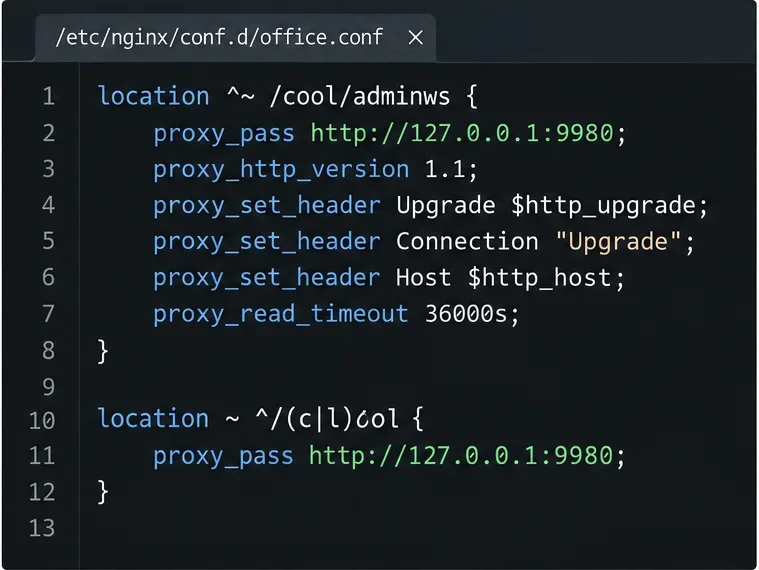
Next, inspect the public URL the host uses to reconstruct the signed request. The proof is tied to the request URL, including relevant query parameters, and the WOPI specification requires the URL representation used for validation to match the signed form. A reverse proxy that terminates HTTPS can make the application see an internal HTTP URL even though Collabora signed the public HTTPS URL. Configure trusted proxy headers and the application’s external URL settings according to the WOPI host’s official guidance; do not rewrite proof logic or strip query parameters.
If the proof fails only after a key rotation, refresh discovery and verify all Collabora replicas expose the same public key. If only requests routed through one proxy or one replica fail, compare that path’s logs and configuration rather than rotating the key again. Disabling proof validation can weaken a security check and should not be used as a production fix.
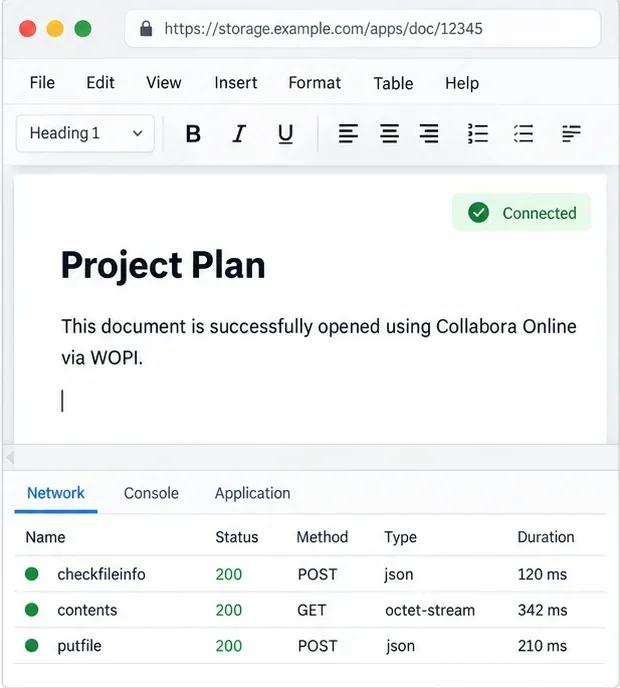
A successful document open verifies that path only; repeat the check for each WOPI host and proxy route you operate.
Trace Collabora WOPI proof failures to mismatched keys, stale discovery data, clock drift, or proxy URL changes—without weakening validation.
Reset browser zoom, test a clean session, and identify when a malformed size menu needs a Collabora server update.
Deploy Collabora CODE with Docker, connect it securely to Nextcloud Office, and verify document editing with practical WOPI and proxy checks.
Temporarily raise coolwsd to debug, capture one failed open, and use the log sequence to separate WebSocket, WOPI, proxy, and container issues.
Configure the Collabora Online admin login for Docker or Linux, restart the right service, and verify the new password without exposing it.
Find out whether CPU load comes from active documents, idle worker processes, or server capacity before changing Collabora settings or restarting the service.
Check whether Docker is capping Collabora CODE, raise the Compose memory limit safely, and confirm the running container received the new cap.
Simplify Collabora CODE with Compact or Tabbed mode and WOPI PostMessage controls to hide selected buttons, commands, and tabs safely.
Put Nginx in charge of HTTPS for a Collabora CODE container, forward editing WebSockets correctly, and verify the public endpoint without exposing port 9980.
Troubleshoot a mobile browser keyboard covering text in Collabora Online, with quick workarounds and separate checks for browsers, embedded WebViews, and host pages.