Restore Copy and Paste Between Collabora and Desktop Apps
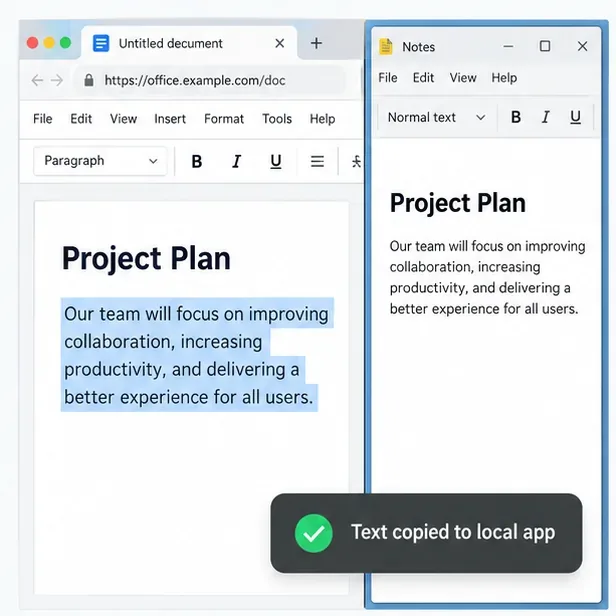
Test the system clipboard, adjust browser permissions, and identify when an embedded Collabora integration needs an iframe policy change.
Start by testing with plain text and the keyboard: copy from a local app, click inside the Collabora document, and press Ctrl+V (or Command+V on macOS). To copy out, select text in Collabora, press Ctrl+C or Command+C, then paste into a local app. If shortcuts work but the toolbar or right-click Paste does not, the browser’s clipboard permission path is the likely issue. If shortcuts fail too, test both directions and check whether Collabora is embedded in another site.
The system clipboard is the shared buffer that transfers data between applications. Collabora Online runs inside a browser, so copying across its boundary also passes through browser security rules.
Use plain text for the first test. Images, tables, spreadsheet ranges, and formatted text can use different clipboard formats, so a plain-text test separates basic access from format-conversion problems.
Click the document editing area so it has focus. Use the system shortcut rather than the editor toolbar or a browser context menu. On Windows and Linux, use Ctrl+C and Ctrl+V; on macOS, use Command+C and Command+V. When a Collabora message says the browser has limited clipboard access and asks you to use shortcuts, follow that instruction. The keyboard action is tied directly to a user gesture and can work even when a menu action that calls the asynchronous Clipboard API is blocked.
If it does not, make sure the document is editable, the cursor is in the document rather than a search box or toolbar field, and the source text was actually selected. Close and reopen the document once after a permission change; a stale editor frame may keep the previous policy.
First confirm plain text arrives. Then test the rich content you need; fonts, formulas, images, and cell formats may not transfer identically. Use Paste Special when the destination offers it.
The modern Clipboard API is restricted to secure contexts, usually HTTPS, and browsers can require a user gesture or permission. In Chrome or Edge, open the site information control next to the address, open site settings, and set Clipboard to Allow for the trusted site when that permission is available. If a browser prompt appears when you choose Paste, allow it only for the office service you trust. Reload the document and repeat the two-direction text test.
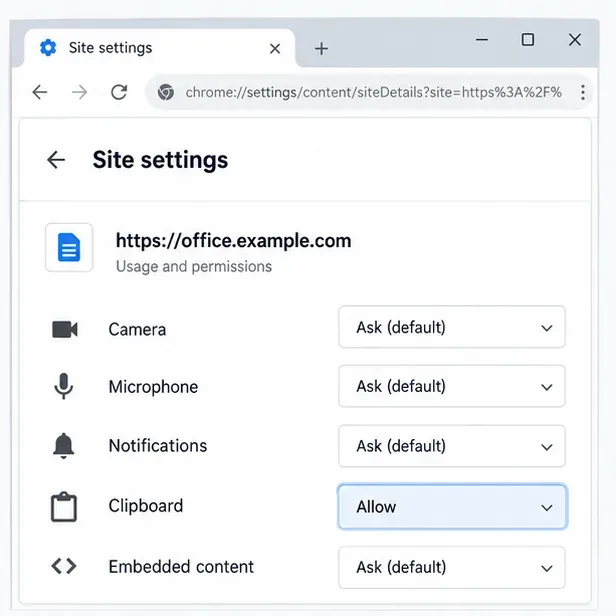
Clipboard permission labels and behavior vary by browser. Some browsers use a user gesture or a short-lived paste prompt instead of a persistent permission. A managed browser can also enforce a policy that overrides your choice; if the control is locked or the permission is denied by policy, ask the browser administrator to check the rule for the office site. Keep the site on HTTPS: granting a permission does not turn an insecure origin into a secure context.
An iframe is a web page embedded inside another page. Many Collabora deployments use one so the host platform can display the editor. In Chromium-based browsers, a cross-origin frame may need the embedding page to delegate clipboard access. The Collabora SDK manual documents this iframe attribute for its clipboard permission query:
<iframe allow="clipboard-read *; clipboard-write *">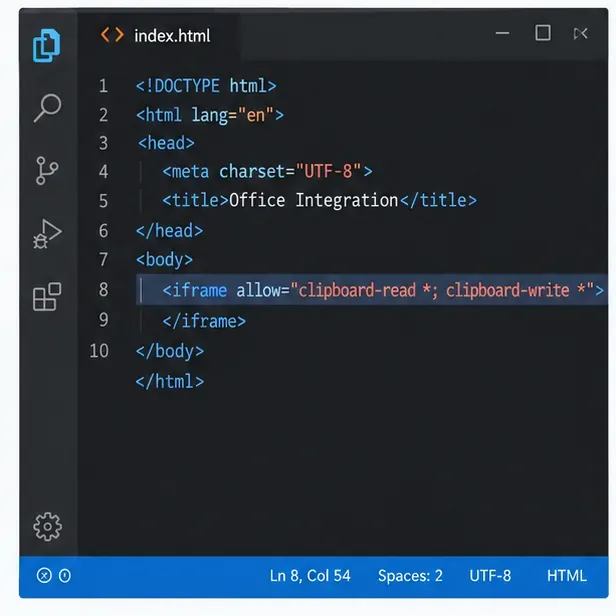
This is a setting for the integration that creates the frame, not a Docker setting on the Collabora server. If you maintain the host application, verify the actual editor iframe in browser developer tools and check that the parent page’s Permissions-Policy response header does not block clipboard-read or clipboard-write. A restrictive parent policy can still deny access even when the iframe has an allow attribute. Delegate only to the Collabora frame your users need; do not grant broad clipboard access to unrelated embedded content.
If you use a hosted Nextcloud, learning platform, or document portal and cannot edit its frame markup or response headers, send its administrator the browser and version, which direction failed, whether keyboard shortcuts work, and any clipboard-related console error. They may need to update the integration. Changing CODE’s network ports or restarting its container will not grant an iframe browser permission.
| What you observe | What to check next |
|---|---|
Toolbar Paste fails, but Ctrl+V works | Use the shortcut or grant the requested browser clipboard permission for the trusted site. |
| Only Collabora-in to desktop copy fails | Check copy restrictions or browser write permission; confirm simple selected text is copied. |
| Only desktop-to-Collabora paste fails | Check browser paste permission, focus in the document, and whether the host frame delegates read access. |
| Console says “Clipboard API has been blocked by a permissions policy” | The embedding page or its response header is blocking access. The integration owner must adjust it. |
| Plain text works but rich content does not | Compare supported clipboard formats and the destination app’s paste options; this may be a format-fidelity limit rather than total clipboard failure. |
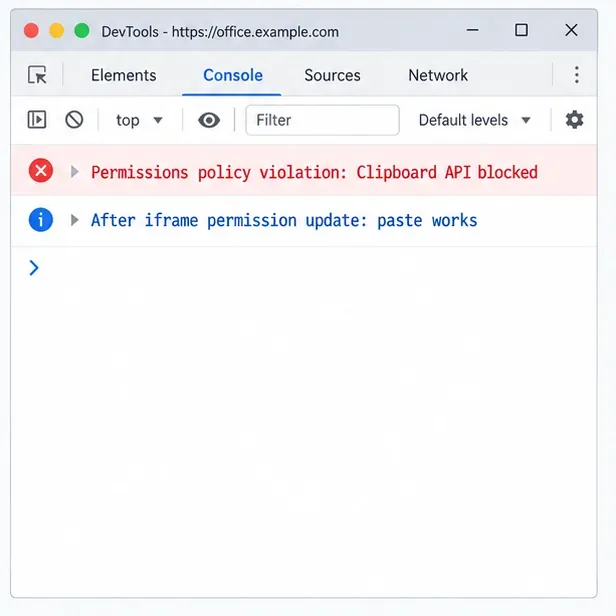
After a permission or integration change, reopen the document and repeat both plain-text tests: local app to Collabora, then Collabora to local app. Confirm the text appears in the intended place, then test the specific rich content you rely on. If only the menu works after the change, verify the keyboard route too; if only shortcuts work, the core clipboard path is usable but the asynchronous browser permission path may still be blocked.
For the security rules behind browser clipboard access, see MDN’s Clipboard API reference. For Chrome site permission controls, use Chrome’s site settings help. Integration owners can check Collabora’s advanced integration documentation for the iframe clipboard permission requirement.
Test the system clipboard, adjust browser permissions, and identify when an embedded Collabora integration needs an iframe policy change.
Mount font files into Docker and Collabora’s systemplate so custom typefaces appear in the editor and render correctly in documents.
Back up coolwsd.xml and its deployment sources, restore them safely, and verify CODE before users return to editing.
Allow the exact Nextcloud or other WOPI origin in CODE, then verify the active host allow-list and distinguish it from Nextcloud’s source-IP restriction.
Trace Collabora’s browser, WOPI, and WebSocket connections to find why a document will not open, then apply the fix that matches your Nextcloud setup.
Deploy Collabora CODE replicas with Helm, keep each document on one pod through WOPI affinity, and verify ingress, node placement, and Nextcloud editing.
Trace a failed socket handshake from browser to coolwsd, then match the reverse-proxy route to your Collabora version, including the CODE 26.04 Apache change.
Trace Collabora WOPI proof failures to mismatched keys, stale discovery data, clock drift, or proxy URL changes—without weakening validation.
Reset browser zoom, test a clean session, and identify when a malformed size menu needs a Collabora server update.
Deploy Collabora CODE with Docker, connect it securely to Nextcloud Office, and verify document editing with practical WOPI and proxy checks.