Home
» How to
»
Run Collabora Online Across Kubernetes Nodes
Run Collabora Online Across Kubernetes Nodes
For a multi-node Collabora Online deployment, use Collabora’s Kubernetes Helm chart behind an ingress or reverse proxy that keeps every request for the same document on the same Collabora pod. This session affinity is essential: ordinary round-robin balancing can send a user’s editing and clipboard requests to different pods and disrupt collaborative editing. The example below uses three replicas, NGINX Ingress, and a fixed replica count; replace the example host names and TLS secret with your own.
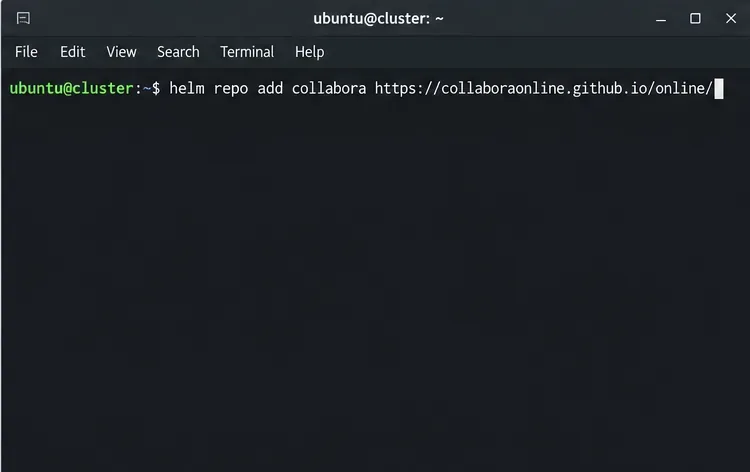
The terminal command adds Collabora’s official Helm chart repository before deployment.
What do you need before adding replicas?
You need a running Kubernetes cluster with at least two worker nodes, Helm, an ingress controller that supports the required affinity rule, a DNS name such as office.example.com, and a TLS certificate for that name. Nextcloud must be reachable by each Collabora pod at its public WOPI origin, for example https://cloud.example.com. CODE and Nextcloud are separate services; this guide configures the Collabora tier and then connects its public URL to Nextcloud Office.
Use the Collabora chart’s documented multi-replica setup rather than placing several independent Docker containers behind a generic load balancer. A load balancer that distributes each request without regard to the document’s WOPI source can break sessions. This guide follows the official Collabora Helm chart instructions available on October 10, 2026. Chart values can change, so check the values for the exact chart release you plan to install.
1. Configure replicas, ingress affinity, and the WOPI host
Add the chart repository, update its index, and inspect the chart’s current defaults before writing your override file:
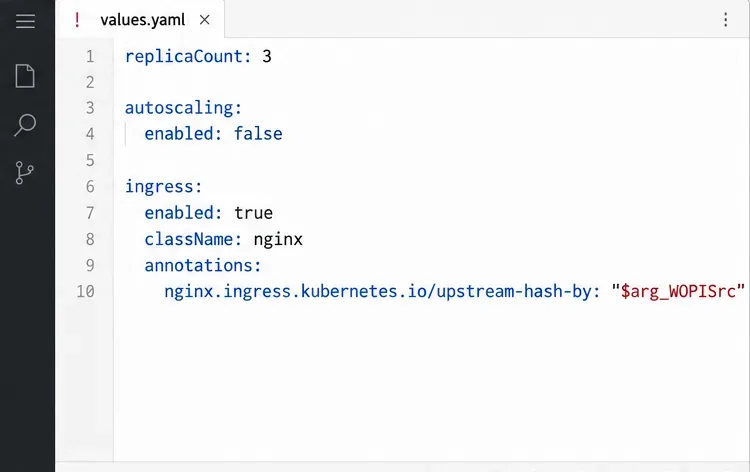
Create my_values.yaml with the core settings below. The sample uses the NGINX Ingress annotation shown in Collabora’s chart README. It hashes on WOPISrc so requests tied to one document reach the same pod. It also terminates public TLS at the ingress; the Collabora server settings shown are for that proxy-terminated TLS pattern.
The values file sets a fixed replica count and routes each document’s requests by WOPISrc.
The aliasgroups entry is the Nextcloud WOPI host, not the Collabora hostname. Keep it narrow and use the exact scheme, hostname, and port Nextcloud presents. The ingress TLS secret must exist in the ingress namespace and contain a valid certificate for office.example.com. If TLS terminates elsewhere, follow the matching proxy pattern in the chart documentation instead of copying the two extra_params flags blindly.
There is a version-sensitive autoscaling caveat: the chart README’s sample sets autoscaling off and warns that scaling can disrupt collaborative editing and copy/paste, while the currently published values file has autoscaling enabled by default. For a predictable initial cluster, explicitly disable it and choose a fixed replica count. Revisit autoscaling only after checking the exact chart release’s guidance and testing scale-up and scale-down with real editing sessions.
2. Install the chart and check pod placement
Install the chart into a dedicated namespace. The official chart repository documents this command pattern:
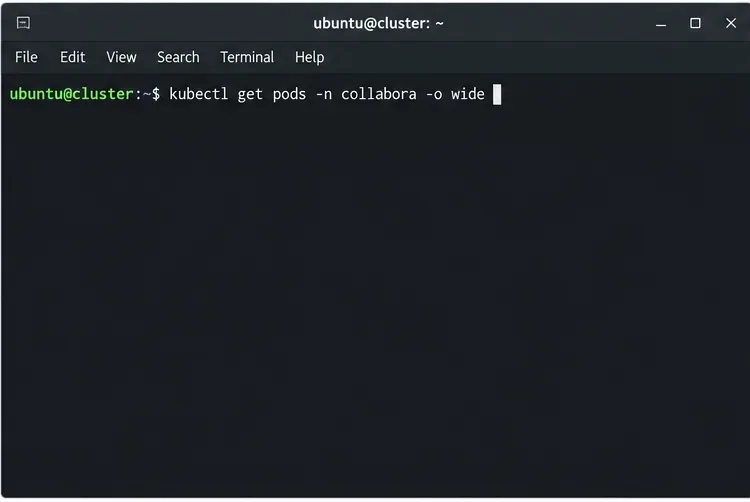
Then check that the deployment reached its desired replica count and see which worker nodes host the pods:
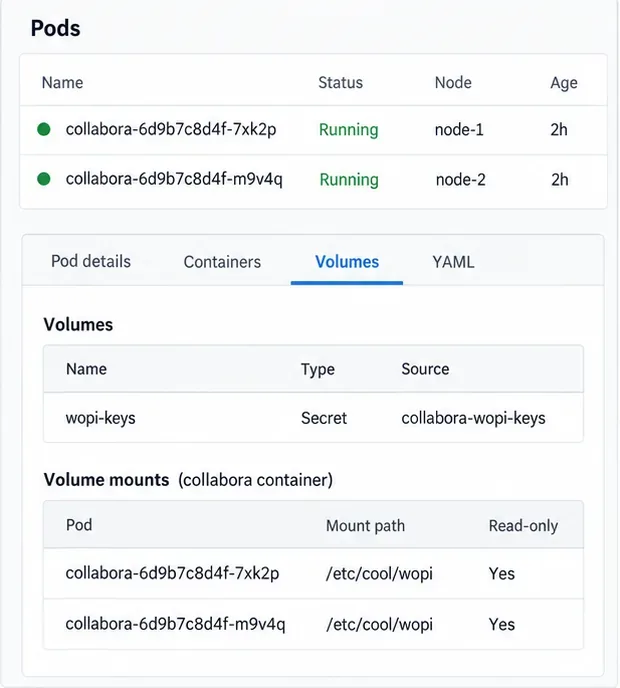
Use the wide pod listing to check readiness and the node assigned to each replica.
kubectl get pods -n collabora -o wide
kubectl get ingress -n collabora
helm status collabora-online -n collabora
Confirm that all three pods are Ready, the ingress has the expected host, and replicas are distributed across worker nodes if node-level resilience is required. A replica count alone does not guarantee that Kubernetes will place pods on separate nodes. The official chart template exposes node selector, affinity, and toleration settings; configure suitable scheduling rules for your cluster and validate the rendered chart before relying on them. If your chart release does not expose the policy you need, use a supported chart extension or Kubernetes deployment customization rather than assuming pods are spread.
3. Connect Nextcloud and verify document affinity
In Nextcloud, install or enable the Nextcloud Office app, then open Administration settings → Office. Select the external Collabora server and enter https://office.example.com. The server URL is the public TLS endpoint that both the Nextcloud server and users’ browsers can reach; do not enter a pod IP or internal Service address.
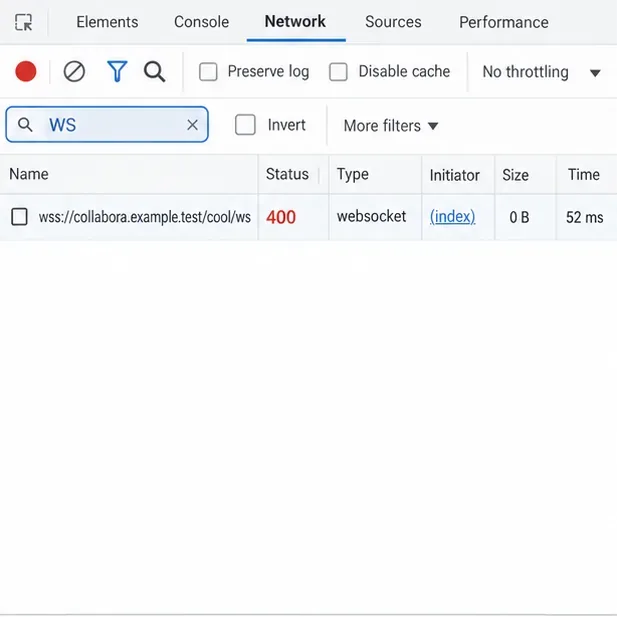
Open a test DOCX or ODT file from Nextcloud. Edit it from two separate user sessions and confirm both users see changes. Also check browser developer tools or ingress logs for WebSocket errors; the Ingress must keep the long-lived editor connection open. If one file’s requests are spread across pods, verify that the WOPISrc query parameter is present where the ingress applies the hash rule and that the installed ingress controller honors the annotation.
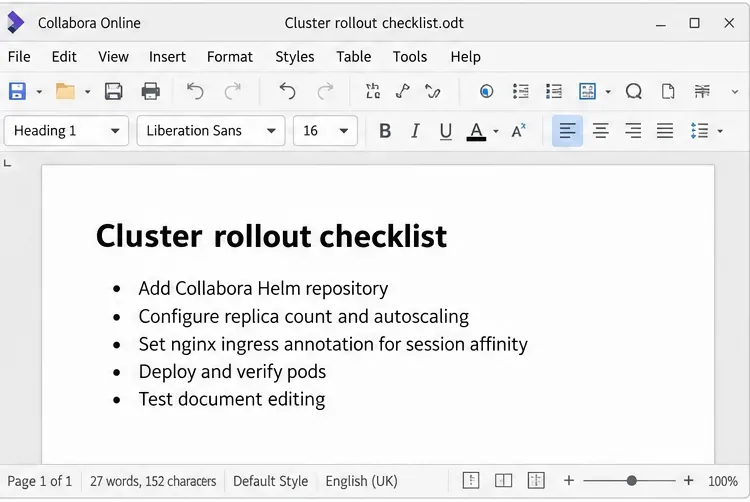
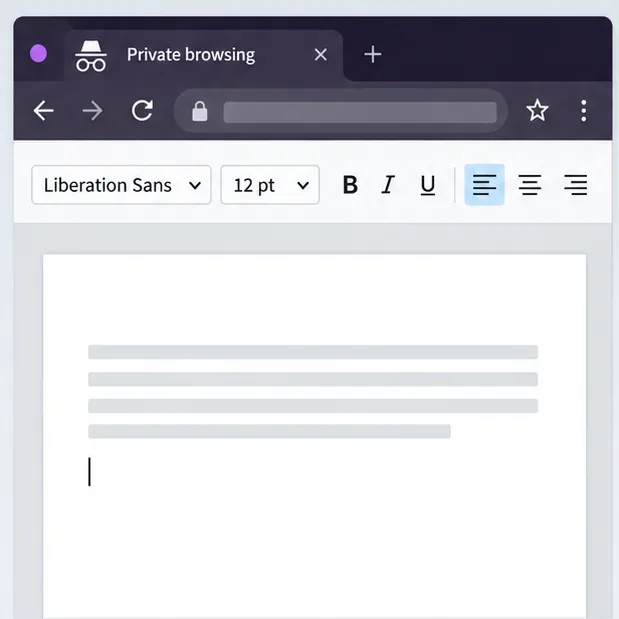
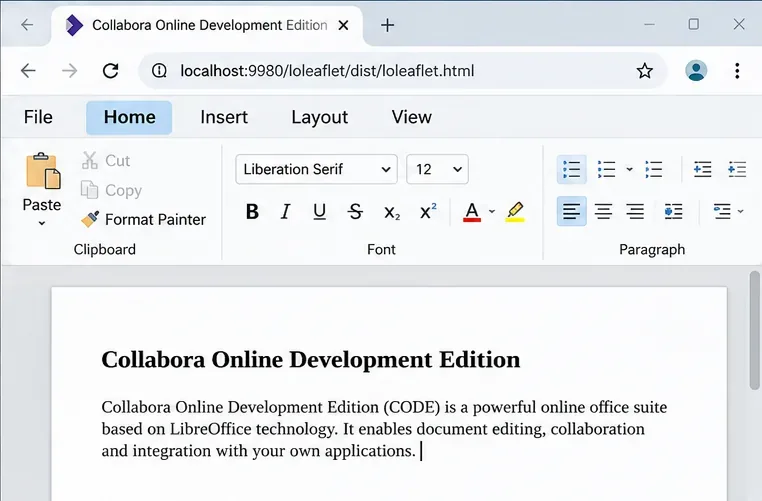
An open document provides a user-facing check after Nextcloud points to the clustered Collabora URL.
What does a healthy cluster prove?
A successful test confirms that Nextcloud can reach the Collabora endpoint and that a document can be edited through the configured ingress. It does not prove that every active session survives a pod or node failure. Editing state is handled by the pod serving that document, so a failure can require users to reconnect or reopen a file even while other replicas remain available. Test maintenance and failure scenarios with noncritical documents, and plan upgrades so long-lived WebSocket sessions are handled deliberately.