Fix CODE’s WOPI Host Check by Matching the Host Origin
Allow the exact Nextcloud or other WOPI origin in CODE, then verify the active host allow-list and distinguish it from Nextcloud’s source-IP restriction.
When Collabora Online CODE reports “Unauthorized WOPI host,” add the actual file-storage host—usually your Nextcloud origin—to CODE’s WOPI host allow-list. The host must match the origin CODE receives in the WOPI request, not the public URL of the Collabora server. In Docker, that is commonly configured with the aliasgroup1 environment variable.
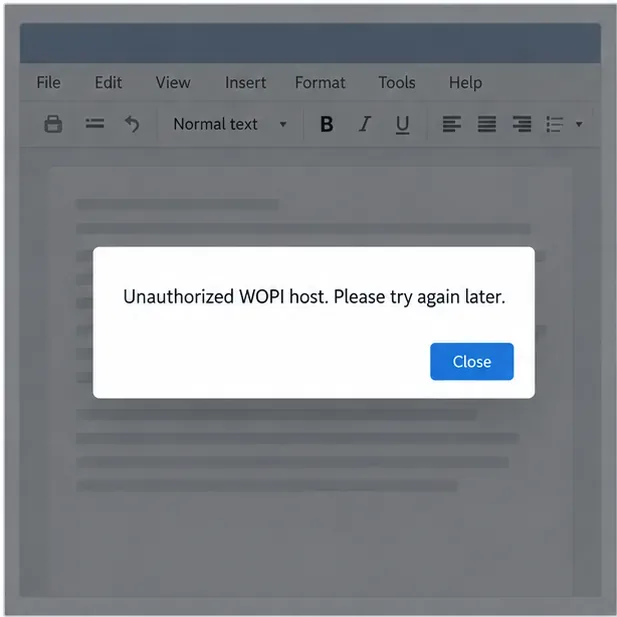
WOPI means Web Application Open Platform Interface, the protocol an office server uses to open and save files through a storage platform. The WOPI host is that storage platform, such as Nextcloud. CODE checks the host named in the WOPI request against the hosts it trusts. If the request names cloud.example.com but CODE is configured to trust only office.example.com, the editor can refuse the session before it opens.
For a self-hosted setup, the hostname in the request may be an internal Docker name such as nextcloud rather than the browser-facing hostname. A reverse proxy, a different port, or separate public and internal URLs can also make the origin differ. Configure what the request actually uses, not what seems like the “main” server name.
docker compose logs --since=10m collabora, replacing collabora with your service name.No acceptable WOPI hosts found matching the target host [cloud.example.com] in config. Record the target host shown in brackets. Do not copy or share a full WOPI URL: it can contain a short-lived access token.WOPISrc host, if available in your integration logs, while keeping any query-string token private.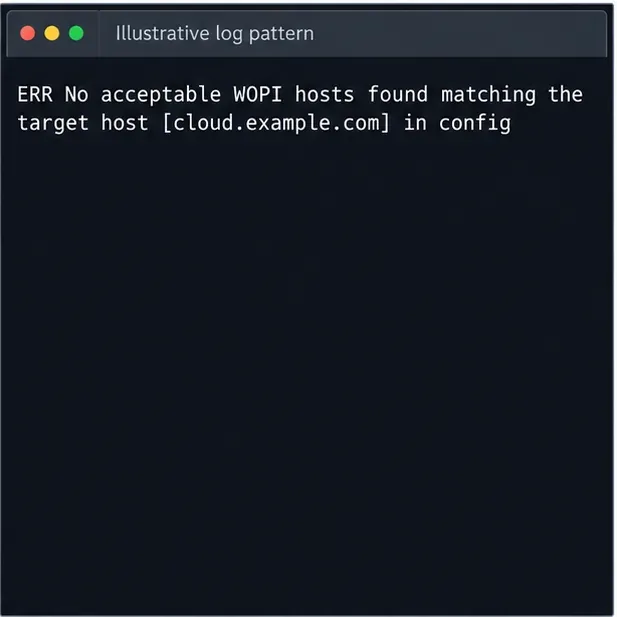
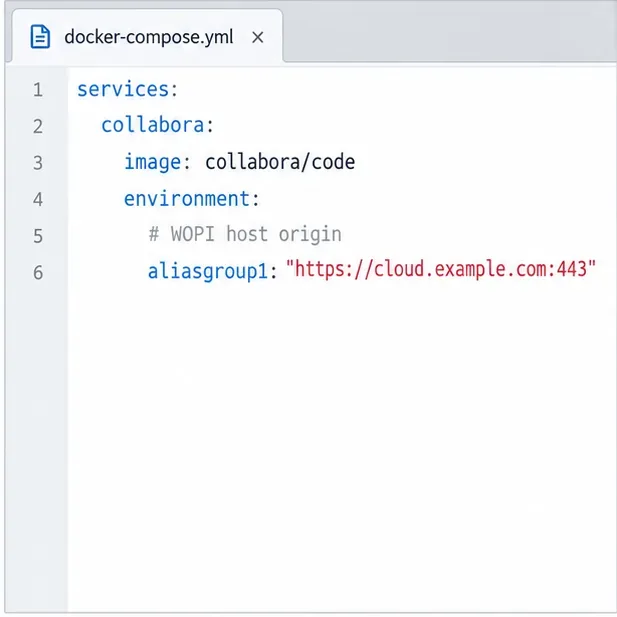
For the official CODE Docker image, set aliasgroup1 to the exact trusted WOPI origin. For a single Nextcloud installation, a Compose service can include:
services:
  collabora:
    image: collabora/code
    environment:
      aliasgroup1: "https://cloud.example.com:443"
Replace the example with your real Nextcloud host and the scheme and port that the WOPI request uses. Keep the existing image tag, administrator settings, network, and other service options in your Compose file. The example uses an HTTPS origin with port 443; a different deployment may use another port or an internal origin.
After editing the Compose file, recreate the CODE container so it receives the updated environment:
docker compose up -d --force-recreate collaboraUse your actual Compose service name in place of collabora. A plain restart may not load changed container environment values; recreating the service applies the updated configuration. If you configure CODE through its XML file, check the storage.wopi alias groups in the effective configuration instead. The official Collabora SDK manual documents Docker alias groups and WOPI host aliases; follow the syntax for the CODE version you run.
Collabora and Nextcloud can each enforce a WOPI-related restriction, but they answer different questions:
| Setting | What it checks | Typical correction |
|---|---|---|
CODE WOPI host allow-list (aliasgroup1) | Which storage host name CODE accepts in a WOPI request | Allow the actual Nextcloud origin sent to CODE |
| Nextcloud “Allow list for WOPI requests” | Which source IP addresses may send WOPI requests to Nextcloud | Allow the address Nextcloud sees for the CODE container or proxy |
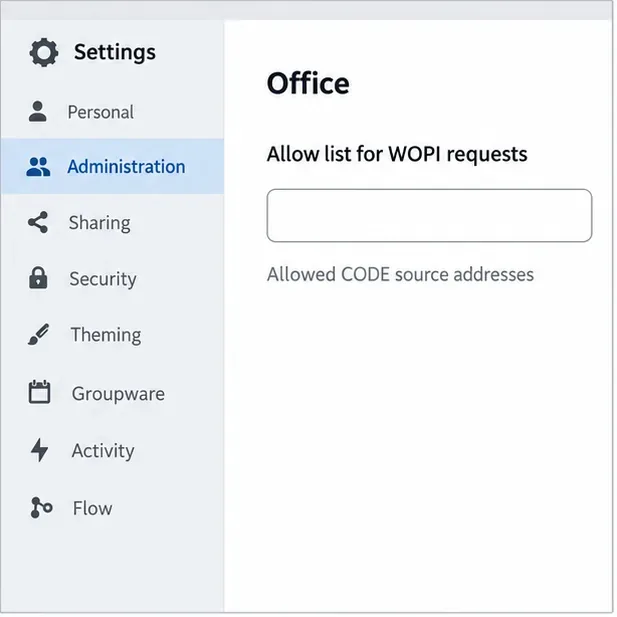
Changing Nextcloud’s source-IP allow-list will not correct CODE rejecting a hostname. Conversely, adding a hostname to CODE does not authorize CODE’s source IP at Nextcloud. Nextcloud’s documentation recommends restricting WOPI requests to the Collabora server’s IP addresses; use the address observed by Nextcloud, which can differ when containers or a reverse proxy are involved.
cloud.example.com: allow that Nextcloud host and the appropriate origin in CODE.nextcloud: CODE is probably receiving a Docker-network hostname; decide whether that internal origin is intended, then configure the corresponding trusted host and ensure DNS/network reachability.Do not solve a mismatch by trusting every host or using an unrestricted wildcard in a production deployment. Keep the allow-list limited to known storage origins. If multiple storage hosts are intentional, configure the documented alias groups for your installed CODE version rather than guessing at wildcard behavior.
Open a document through the same Nextcloud integration that failed. Then check fresh CODE logs: the “No acceptable WOPI hosts” rejection should be gone. Confirm that the document loads and can be saved; if a new error appears, use its message to identify the next layer. For the two host checks and the Nextcloud troubleshooting flow, consult Nextcloud Office troubleshooting and Nextcloud Office configuration. For CODE Docker alias groups, see the Collabora Online SDK 25.04 manual; use the documentation matching your installed release if its configuration differs.
Allow the exact Nextcloud or other WOPI origin in CODE, then verify the active host allow-list and distinguish it from Nextcloud’s source-IP restriction.
Trace Collabora’s browser, WOPI, and WebSocket connections to find why a document will not open, then apply the fix that matches your Nextcloud setup.
Deploy Collabora CODE replicas with Helm, keep each document on one pod through WOPI affinity, and verify ingress, node placement, and Nextcloud editing.
Trace a failed socket handshake from browser to coolwsd, then match the reverse-proxy route to your Collabora version, including the CODE 26.04 Apache change.
Trace Collabora WOPI proof failures to mismatched keys, stale discovery data, clock drift, or proxy URL changes—without weakening validation.
Reset browser zoom, test a clean session, and identify when a malformed size menu needs a Collabora server update.
Deploy Collabora CODE with Docker, connect it securely to Nextcloud Office, and verify document editing with practical WOPI and proxy checks.
Temporarily raise coolwsd to debug, capture one failed open, and use the log sequence to separate WebSocket, WOPI, proxy, and container issues.
Configure the Collabora Online admin login for Docker or Linux, restart the right service, and verify the new password without exposing it.
Find out whether CPU load comes from active documents, idle worker processes, or server capacity before changing Collabora settings or restarting the service.