Fix CODE’s WOPI Host Check by Matching the Host Origin
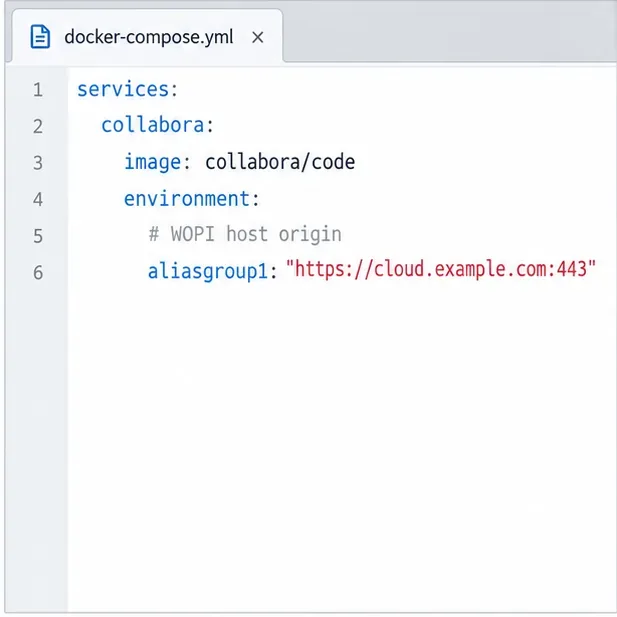
Allow the exact Nextcloud or other WOPI origin in CODE, then verify the active host allow-list and distinguish it from Nextcloud’s source-IP restriction.
Start by checking that the browser, Nextcloud, and Collabora can all reach the correct server URLs over the same HTTP or HTTPS scheme. In Nextcloud, test Collabora’s /hosting/capabilities and /hosting/discovery endpoints; if those respond but documents still fail, check the reverse proxy’s WebSocket route and the WOPI allow list.
The “Well, this is embarrassing” message is a generic document-opening failure, not a diagnosis by itself. The cause may be an unreachable URL, a TLS or DNS mismatch, a proxy that drops WebSocket upgrades, or a WOPI host that Collabora or Nextcloud does not trust. The checks below use a typical example with Nextcloud at https://cloud.example.com and Collabora at https://office.example.com; replace both names with your actual hostnames.
From a browser on the same network as the user, open these URLs, changing the Collabora hostname:
https://office.example.com/hosting/capabilitieshttps://office.example.com/hosting/discoveryThey should return Collabora endpoint data rather than a browser certificate warning, a 404 page, or a reverse-proxy error. The discovery endpoint normally returns XML. You can also test from the Nextcloud host or its application container:
curl -fsS https://office.example.com/hosting/capabilities
curl -fsS https://office.example.com/hosting/discovery
A failure from the browser points to public or LAN DNS, firewall, certificate, or proxy routing. A browser success with a command-line failure from Nextcloud means the server-side route differs; the user’s browser and the Nextcloud server each need their own working path to Collabora. Nextcloud’s current administration manual recommends testing both endpoints from both locations and confirming that Collabora can also reach Nextcloud over HTTP(S).
In Nextcloud, open Settings → Administration → Office and confirm that the Collabora Online server field contains the public or otherwise reachable Collabora URL. Use https:// if the service is configured for HTTPS. Nextcloud’s documentation says the configured URL should use the same protocol as the Collabora installation and recommends HTTPS.
Now check the return path. From the Collabora host or container, request Nextcloud’s status endpoint:
curl -fsS https://cloud.example.com/status.phpThe response should be reachable from Collabora, not only from your laptop. If either server is in Docker, test from the relevant container or network namespace: a hostname that resolves on the host may not resolve inside a container. For a built-in CODE server, Nextcloud must be able to reach itself using the same hostname users use in the browser. If split DNS or local name resolution prevents that, correct DNS or the host mapping instead of entering localhost for a remote service.
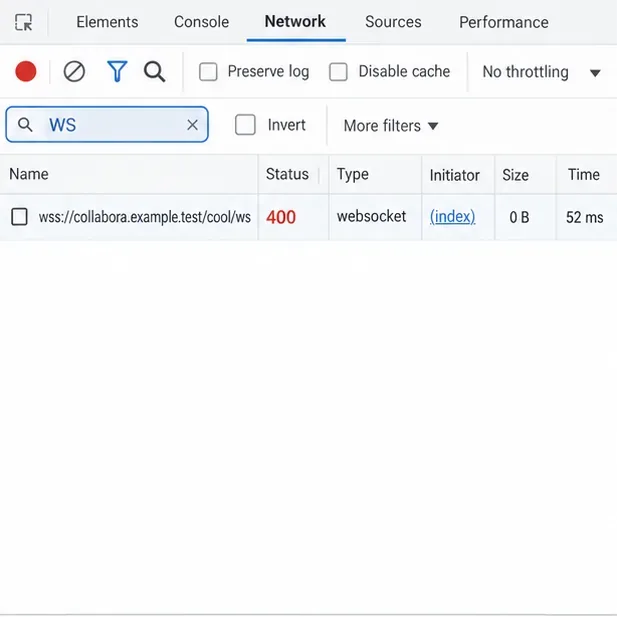
If the discovery URL loads but the editor frame stays blank, spins, or disconnects, inspect the proxy in front of Collabora. Editing uses a persistent WebSocket connection: the proxy must route Collabora’s current /cool/…/ws endpoint to the Collabora service and pass the HTTP/1.1 upgrade headers. Check the current Collabora proxy example for your proxy software and version; do not paste an old configuration unchanged.
Older installations may still use paths such as /lool. Collabora’s migration guidance documents the change from lool to cool and from loleaflet to browser. A proxy left on the old routes can return 404s even when the base domain opens. After editing a proxy file, validate its syntax with that server’s test command, reload it, then retest the discovery URL and open a document.
Check access and error logs at the same timestamp as a failed attempt. A 404 on /browser or /cool suggests path routing; a failed WebSocket upgrade suggests missing upgrade handling or a timeout; a 502 usually means the proxy cannot reach the Collabora upstream. These are clues, not definitive diagnoses, so compare them with Collabora’s own log.
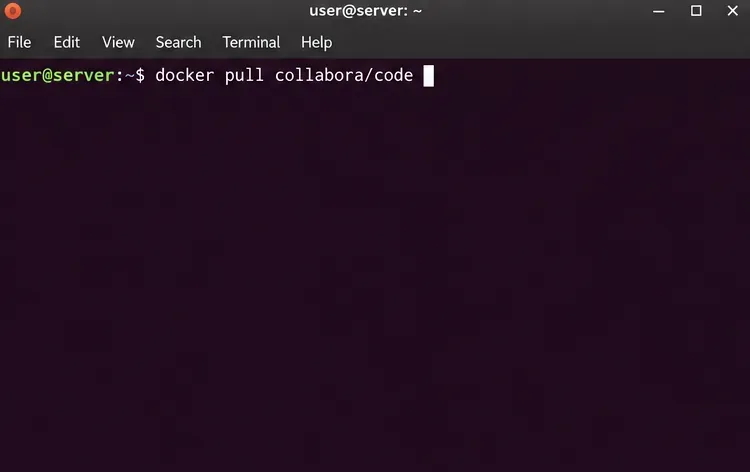
WOPI (Web Application Open Platform Interface) is the protocol Nextcloud and Collabora use to exchange document access requests. If Collabora’s log reports “No acceptable WOPI hosts found” or an unauthorized WOPI host, confirm that Collabora was configured to trust the Nextcloud hostname—not its own Collabora hostname. With the Docker image, inspect the container’s startup configuration and logs:
docker ps
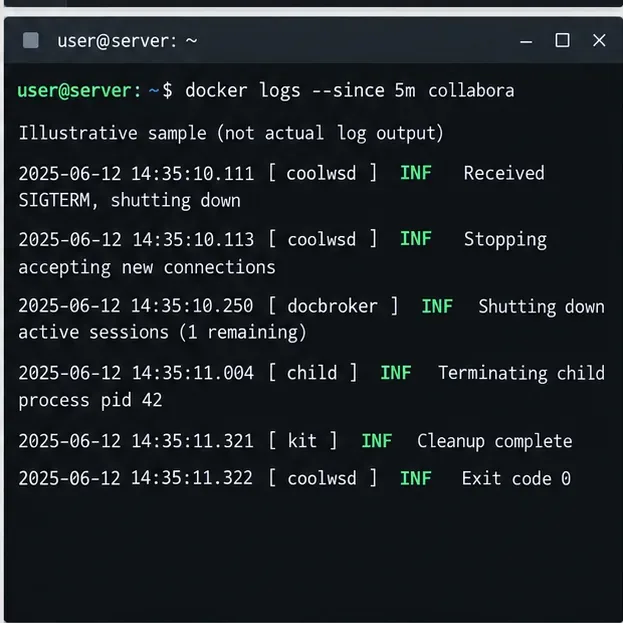
 docker logs --tail=100 CONTAINER_NAME
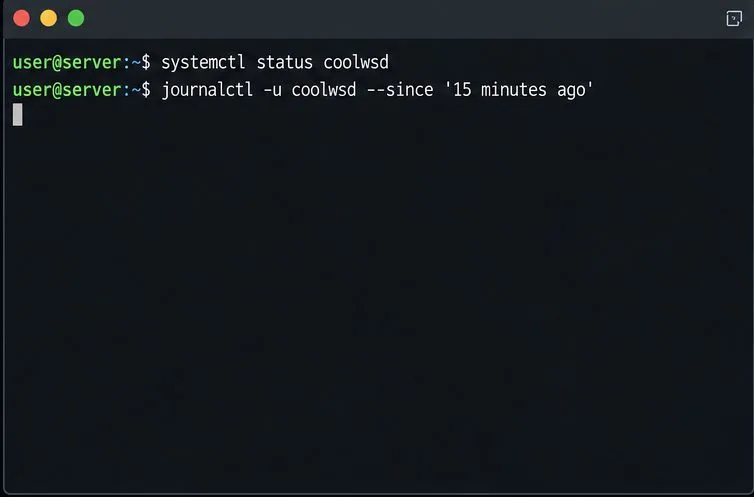
Replace CONTAINER_NAME with the Collabora container’s actual name. For a native package installation, inspect the service log with sudo journalctl -u coolwsd --since "15 minutes ago". Follow the WOPI host configuration instructions for your installation method; avoid broad wildcard allow rules.
There is also a separate WOPI allow list in Nextcloud Office. It restricts which Collabora server IP addresses may request files from Nextcloud. Add the source IP Nextcloud actually sees for Collabora, which can differ when Docker networking or a reverse proxy is involved. Do not enter 0.0.0.0 or disable the restriction just to silence an error: Nextcloud recommends limiting WOPI requests to the expected Collabora server addresses.
Retest from a user browser and from the Nextcloud server: the discovery and capabilities endpoints should respond, Nextcloud should reach its configured Collabora URL, and Collabora should reach Nextcloud’s status endpoint. Then open a small test document. If it still fails, record the timestamp, the affected document action, the HTTP or WebSocket status in the proxy log, and the matching Nextcloud and Collabora log entries. That evidence helps distinguish a network path failure from a WOPI authorization problem.
Allow the exact Nextcloud or other WOPI origin in CODE, then verify the active host allow-list and distinguish it from Nextcloud’s source-IP restriction.
Trace Collabora’s browser, WOPI, and WebSocket connections to find why a document will not open, then apply the fix that matches your Nextcloud setup.
Deploy Collabora CODE replicas with Helm, keep each document on one pod through WOPI affinity, and verify ingress, node placement, and Nextcloud editing.
Trace a failed socket handshake from browser to coolwsd, then match the reverse-proxy route to your Collabora version, including the CODE 26.04 Apache change.
Trace Collabora WOPI proof failures to mismatched keys, stale discovery data, clock drift, or proxy URL changes—without weakening validation.
Reset browser zoom, test a clean session, and identify when a malformed size menu needs a Collabora server update.
Deploy Collabora CODE with Docker, connect it securely to Nextcloud Office, and verify document editing with practical WOPI and proxy checks.
Temporarily raise coolwsd to debug, capture one failed open, and use the log sequence to separate WebSocket, WOPI, proxy, and container issues.
Configure the Collabora Online admin login for Docker or Linux, restart the right service, and verify the new password without exposing it.
Find out whether CPU load comes from active documents, idle worker processes, or server capacity before changing Collabora settings or restarting the service.