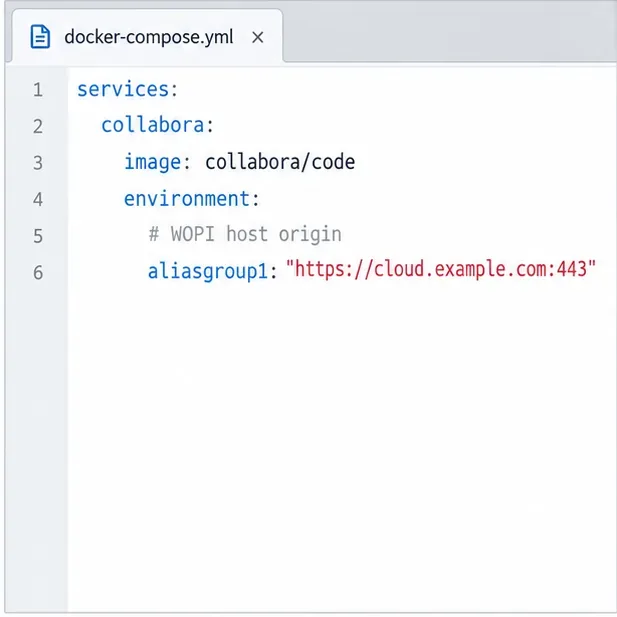
Deploy Collabora CODE on Kubernetes with Helm

Install the official Collabora Helm chart, configure WOPI access and ingress affinity, and verify the deployment without common setup mistakes.
Start by checking whether the blank screen affects one file or every file, then inspect the browser’s Network and Console panels alongside the Collabora and storage-platform logs. A blank canvas is a symptom, not a diagnosis: the editor may have loaded while its document connection, WOPI authorization, or embedded resources failed.
Open a known-good document in the same application, then try the affected file in another supported browser or a private window. Do not edit the original during diagnosis. One failing file points toward file format, content, or permissions; widespread failure points toward shared services or network changes.
| What you observe | Most useful next check | Trade-off |
|---|---|---|
| One document is blank | Try a different file of the same format; inspect the storage app’s file and WOPI logs. | Fast isolation, but does not rule out a file-specific parsing or permission problem. |
| All documents fail in one browser | Private window, another browser, extensions, and browser Console. | Low-risk and quick, but a browser workaround does not repair a server issue. |
| All users and browsers fail | Network requests, reverse proxy, WOPI host policy, and server logs. | More diagnostic value, but changes may affect every user; capture current settings first. |
A private window is a test, not a fix. If it works there, disable extensions one at a time or clear site data for the affected origin only after confirming you do not have unsynced work. Clearing all browser data can sign users out and remove unrelated site state.
In Chrome or Chromium, open Developer Tools (F12 or Ctrl+Shift+I), select Network, enable Preserve log, and reload. Filter for WS (WebSocket) and inspect failures; the Chrome DevTools Network reference explains request filters and status details. Check Console for CSP, certificate, mixed-content, or JavaScript errors.
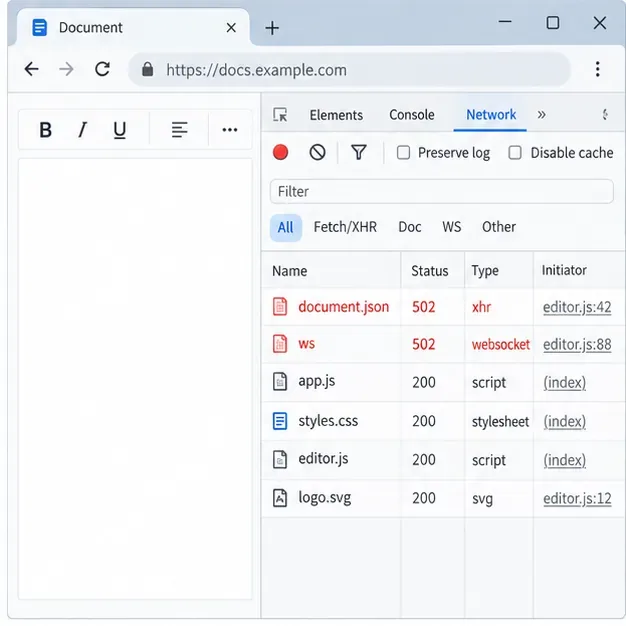
Interpret the evidence rather than applying a generic proxy recipe:
/browser/ paths: check whether the reverse proxy forwards the current Collabora paths to the right upstream./hosting/discovery endpoint proves basic HTTP access only; it does not prove the editor’s live connection works.For WebSocket requests, a successful handshake is the goal; the displayed status depends on the HTTP version and proxy path, so do not treat a single expected status number as universal.
Nextcloud’s current office troubleshooting guidance says the user’s browser must reach both servers over HTTP(S), Nextcloud must reach Collabora, and Collabora must reach Nextcloud. It also calls for the same protocol on both services. Test the public Collabora address from a browser at https://office.example.com/hosting/discovery and https://office.example.com/hosting/capabilities. From the Nextcloud host, use:
curl -fsS https://office.example.com/hosting/discovery -o /dev/null
curl -fsS https://office.example.com/hosting/capabilities -o /dev/null
Replace the example hostname with your actual Collabora URL. These checks establish HTTP reachability, not successful editing. If the server succeeds but the browser fails, check public DNS, TLS, firewall, or proxy exposure. The Nextcloud Office troubleshooting guide lists these connection checks and recommends reviewing both application logs.
If static editor resources return 404 or the live connection returns 502, compare your reverse-proxy routes with Collabora’s official proxy settings. Make sure the proxy sends the required Collabora paths to the correct upstream and supports the WebSocket connection used by the browser. Preserve the external host and HTTPS information expected by your deployment. Do not copy a configuration for a different proxy, URL prefix, or Collabora release without checking its assumptions. A dedicated Collabora hostname is often easier to debug; path-based routing requires consistent prefix handling.
WOPI is the protocol Collabora uses to fetch and save a document through the storage platform. The WOPI host is usually the Nextcloud or other storage hostname, not the Collabora hostname. If logs say No acceptable WOPI hosts found, add or correct the exact storage host in Collabora’s WOPI host configuration, then confirm the storage platform’s WOPI request allow-list contains the Collabora server address. Nextcloud recommends limiting WOPI requests to expected Collabora IP addresses and configuring Collabora to trust expected hosts in its Office configuration guidance.
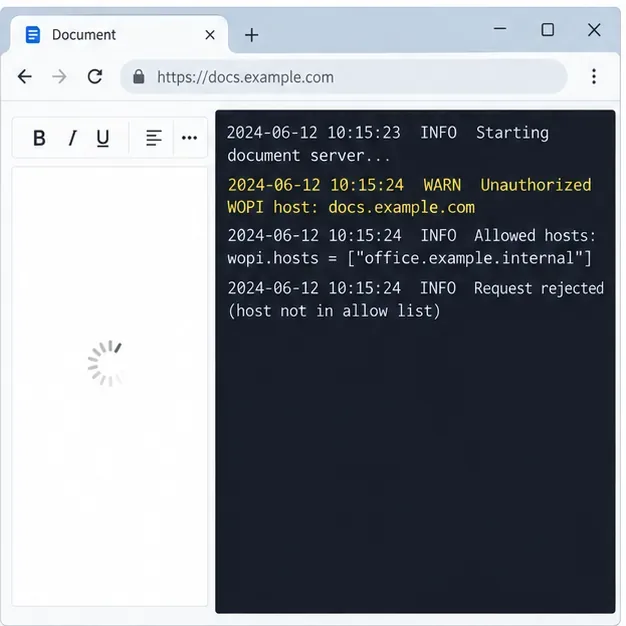
Adding a specific trusted host is safer than disabling host validation or allowing broad domains. Record the current setting, change only the relevant entry, and restart or reload services only as required by your deployment. If you use Docker, inspect recent Collabora output with docker logs --since=10m <collabora-container>; replace the placeholder with the real container name. For package or Kubernetes installs, use their service or pod logs instead.
Reload the same document. Confirm assets load, the live connection stays open, content appears, and Console errors stop. Test a second document and another user if the issue was shared. Save a harmless test edit and reopen it to verify reading and saving.
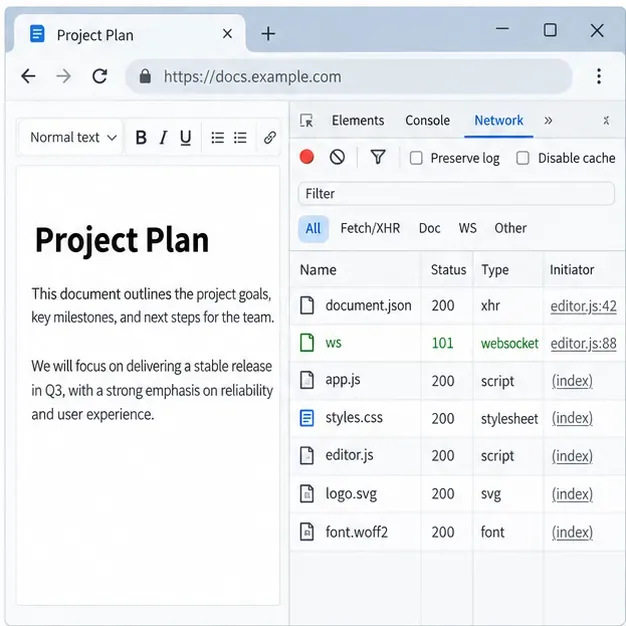
If the blank canvas remains but requests now succeed, check server logs for document conversion or file-specific errors and compare another file with the same format. If the issue began immediately after a Collabora, browser, or proxy update, test a controlled rollback or version-specific proxy change in a maintenance window rather than changing several variables at once. Browser cache clearing is useful only when evidence points to stale client assets; it cannot repair blocked routes or rejected WOPI requests.
Install the official Collabora Helm chart, configure WOPI access and ingress affinity, and verify the deployment without common setup mistakes.
Use browser requests, WOPI logs, and targeted proxy checks to find why Collabora opens a blank document—and choose a fix that fits the evidence.
Configure CODE Docker dictionaries and tag document passages correctly so English, French, and other supported languages receive the right spell-checking.
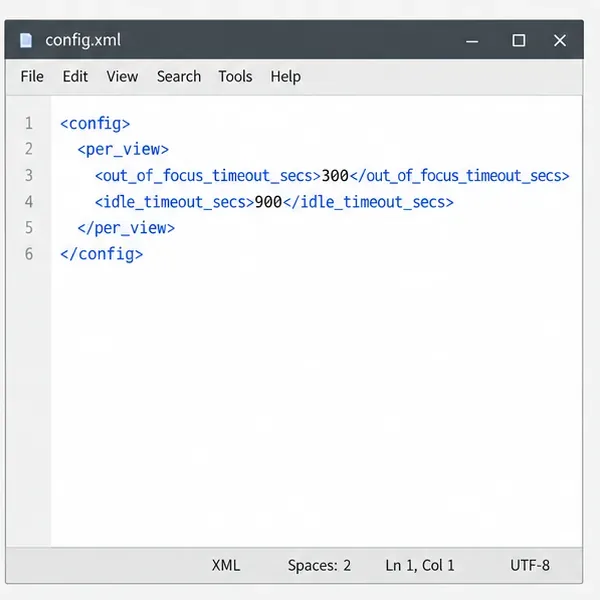
Adjust the per-view inactivity threshold in coolwsd and distinguish it from background-tab dimming, document unloading, autosave, and login expiration.
Stop scheduled CODE update checks, review optional remote services, and use outbound network controls without breaking document editing.
Enable secure document editing in Seafile by configuring Collabora’s discovery URL, HTTPS, and WOPI access for your deployment.
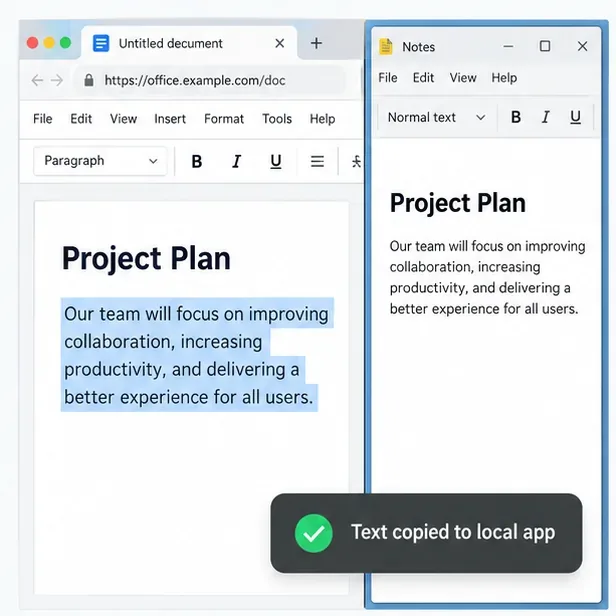
Test the system clipboard, adjust browser permissions, and identify when an embedded Collabora integration needs an iframe policy change.
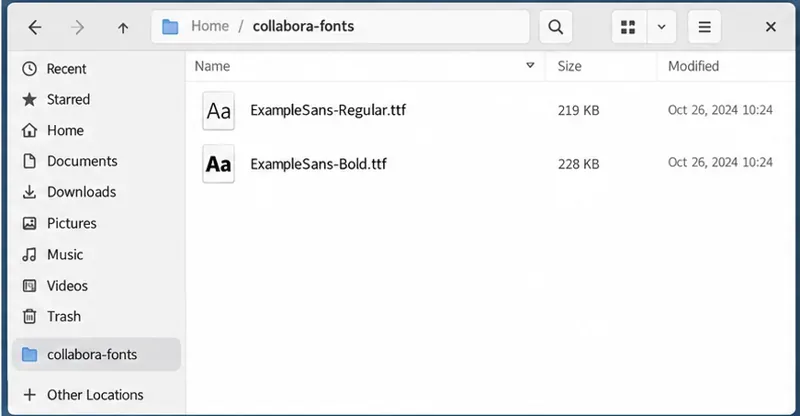
Mount font files into Docker and Collabora’s systemplate so custom typefaces appear in the editor and render correctly in documents.
Back up coolwsd.xml and its deployment sources, restore them safely, and verify CODE before users return to editing.
Allow the exact Nextcloud or other WOPI origin in CODE, then verify the active host allow-list and distinguish it from Nextcloud’s source-IP restriction.