Connect Seafile and Collabora with the Correct WOPI URL

Enable secure document editing in Seafile by configuring Collabora’s discovery URL, HTTPS, and WOPI access for your deployment.
To stop Collabora Online Development Edition (CODE) from making its scheduled version check, set fetch_update_check to 0 and allow_update_popup to false. For a deployment that must not contact unapproved external services, also disable unused integrations and enforce an outbound allowlist at the network boundary; hiding update notices alone does not block network traffic.
As of October 2026, Collabora's maintained coolwsd.xml.in documents an update-check interval of 10 hours and a separate control for update notifications. It does not document one universal switch labeled “disable telemetry.” An update request, optional cloud-assisted editing, local diagnostic logs, and the essential WOPI connection to a document-storage server are different things. Treating them as a single setting can either leave connections active or break document editing.
These instructions apply primarily to a standalone collabora/code Docker deployment. Package installations use the same configuration concepts but typically edit /etc/coolwsd/coolwsd.xml and restart the coolwsd service. Built-in CODE installations managed by another product may regenerate launch options; change them in the managing product rather than patching transient files.
First determine whether your CODE service is configured through Docker Compose, a docker run command, or a native package. For Docker, inspect the container and its current environment without posting the output publicly, since environment variables can contain credentials:
docker ps --format 'table {{.Names}}	{{.Image}}'
docker inspect --format '{{range .Config.Env}}{{println .}}{{end}}' code
Replace code with your actual container name. Save a secure copy of the deployment file or the existing coolwsd.xml before changing it. If your Compose configuration already includes TLS termination, WOPI host allowances, or authentication parameters, preserve those values.
Append these options to the existing extra_params value under your CODE service's environment block. This is a fragment, not a complete replacement Compose file:
services:
  code:
    environment:
      extra_params: >-
        --o:fetch_update_check=0
        --o:allow_update_popup=false
Merge the two flags with any existing extra_params flags instead of overwriting them. Then recreate only the CODE service with docker compose up -d --no-deps --force-recreate code, using your real Compose service name. In a docker run deployment, include the same options in the extra_params environment variable when recreating the container.
Edit /etc/coolwsd/coolwsd.xml. Locate the existing elements and change their values, retaining their original attributes:
<fetch_update_check>0</fetch_update_check>
<allow_update_popup>false</allow_update_popup>
If the existing elements contain attributes, retain them and change only the text values. Check that the file is valid XML before restarting; for example, use xmllint --noout /etc/coolwsd/coolwsd.xml if xmllint is installed. Restart using sudo systemctl restart coolwsd.
Important: allow_update_popup=false suppresses the editor's update notification; it is not itself an egress control. The fetch_update_check=0 setting addresses the scheduled check. Your organization must still track security updates through its normal maintenance process.
Review the active configuration for remote integrations. In the current upstream configuration, remote LanguageTool or Duden proofreading is disabled by default, and the server-wide AI and DeepL switches are also documented as disabled by default. An administrator or an integration may have enabled them. Where these options exist in your installed CODE version, keep them disabled if you do not need them:
--o:languagetool.enabled=false
--o:ai.enabled=false
--o:deepl.enabled=false
Include only options supported by your installed version, and merge them into extra_params rather than establishing a second conflicting value. The same effects can be configured in the matching <languagetool>, <ai>, and <deepl> sections of a native XML installation.
Inspect remote_config.remote_url and remote_font_config.url before clearing them. An empty remote configuration URL avoids that optional configuration fetch; a remote font URL may legitimately point to your own Nextcloud installation. Removing it can affect document typography, so retain it if the font service is approved and required. Also examine any configured monitoring WebSocket addresses and additional plugins, such as a citation manager, according to your deployment's needs.
Logging is a separate privacy concern, not proof of external telemetry. Review logging.docstats, logging.userstats, and logging.anonymize.anonymize_user_data if you want to limit local identifiers in diagnostics. Keep enough security and operational logging to troubleshoot incidents; changing log verbosity does not block outbound sockets.
A configuration-only change cannot guarantee zero unexpected outbound connections. Put CODE behind a firewall or egress proxy that permits the specific destinations and ports your deployment requires. Typically that means your approved WOPI storage host, any internal font or identity services you actually use, and required infrastructure such as internal DNS. Block other Internet destinations, including unapproved update endpoints, from the CODE workload.
Do not blindly disable networking or set the Docker network to internal: true: depending on your architecture, that may prevent CODE from reaching its WOPI server or prevent required integrations from working. Also remember that the user's browser loads editor resources and may make requests independently of the CODE server; server firewall rules do not govern the browser.
For Docker Engine installations using the iptables backend, Docker documents the DOCKER-USER chain as the intended place for administrator forwarding rules. With the nftables backend, implement a separate base chain rather than assuming DOCKER-USER exists. Design rules for your actual bridge or container network, IPv4 and IPv6, DNS, connection state, and legitimate WOPI traffic; a generic pasted DROP rule can take editing offline. Refer to Docker's iptables guidance and Docker's nftables guidance before enforcing policy.
After a restart or container recreation, inspect startup logs for configuration errors and test opening, editing, and saving a document through the normal storage integration. A responsive editor alone is not evidence that all unapproved requests have stopped. Check the running startup parameters, then review DNS and outbound-connection logs from your firewall, egress proxy, or container network during startup and document editing.
docker logs --since 10m code
# Check configured flags without exposing unrelated environment secrets:
docker inspect --format '{{range .Config.Env}}{{println .}}{{end}}' code | grep '^extra_params='
On native installations, use sudo journalctl -u coolwsd --since '10 minutes ago' and inspect the local XML. For the browser side, open your browser's developer tools and review the Network tab while opening a document. Distinguish requests to your own CODE and WOPI hosts from third-party destinations.
Success criteria: CODE loads and saves documents normally; the update-check option is set to zero; optional cloud integrations remain disabled unless explicitly approved; and network monitoring shows only permitted destinations during the observation period. If document loading fails after filtering traffic, temporarily review denied destinations against the approved WOPI and infrastructure list rather than disabling TLS certificate verification or opening unrestricted egress.
Primary references: Collabora's maintained server configuration template, the Nextcloud All-in-One CODE container configuration, and the official CODE Docker image description. These document the relevant settings and deployment patterns; they do not replace a network audit of your specific installation.
Enable secure document editing in Seafile by configuring Collabora’s discovery URL, HTTPS, and WOPI access for your deployment.
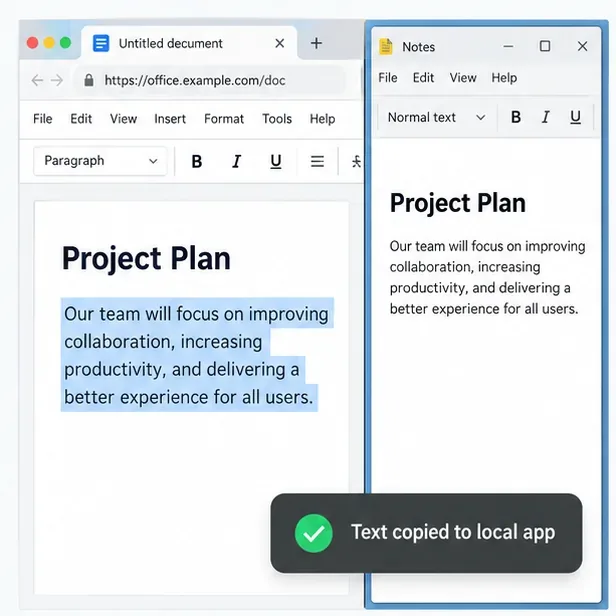
Test the system clipboard, adjust browser permissions, and identify when an embedded Collabora integration needs an iframe policy change.
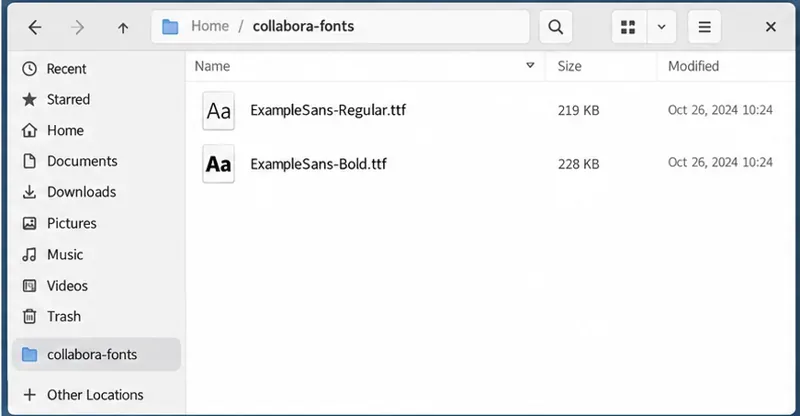
Mount font files into Docker and Collabora’s systemplate so custom typefaces appear in the editor and render correctly in documents.
Back up coolwsd.xml and its deployment sources, restore them safely, and verify CODE before users return to editing.
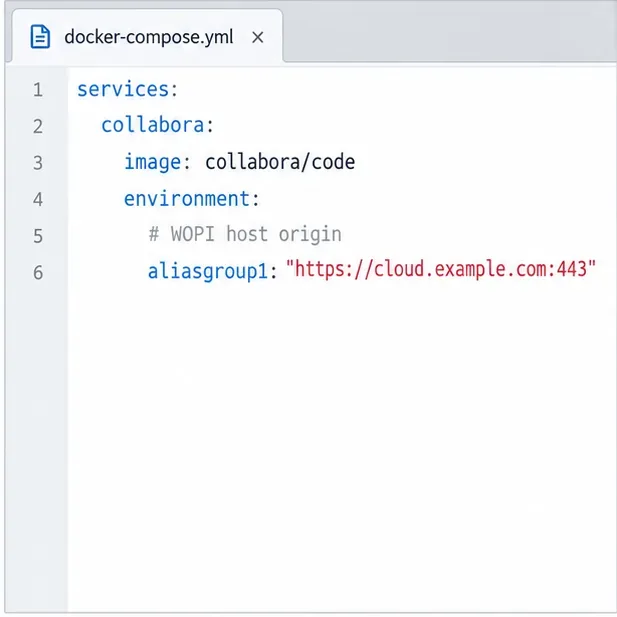
Allow the exact Nextcloud or other WOPI origin in CODE, then verify the active host allow-list and distinguish it from Nextcloud’s source-IP restriction.
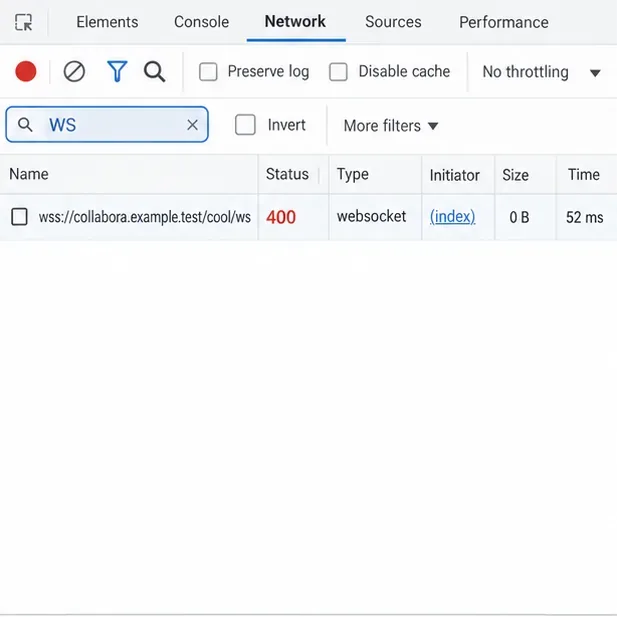
Trace Collabora’s browser, WOPI, and WebSocket connections to find why a document will not open, then apply the fix that matches your Nextcloud setup.
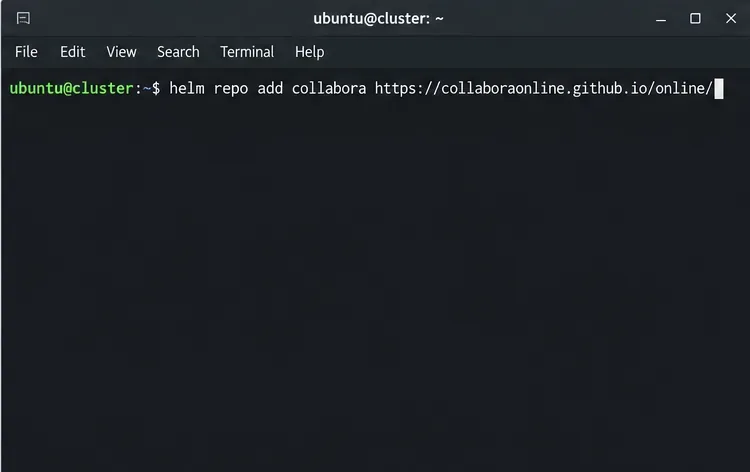
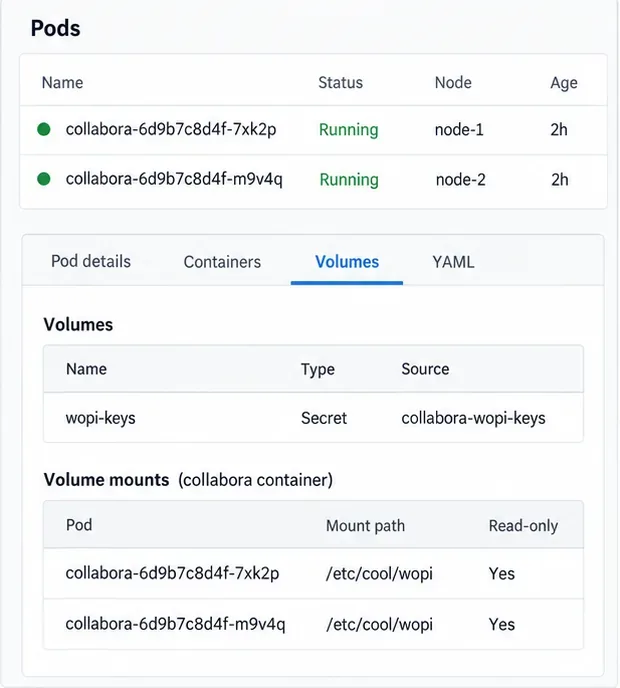
Deploy Collabora CODE replicas with Helm, keep each document on one pod through WOPI affinity, and verify ingress, node placement, and Nextcloud editing.
Trace a failed socket handshake from browser to coolwsd, then match the reverse-proxy route to your Collabora version, including the CODE 26.04 Apache change.
Trace Collabora WOPI proof failures to mismatched keys, stale discovery data, clock drift, or proxy URL changes—without weakening validation.
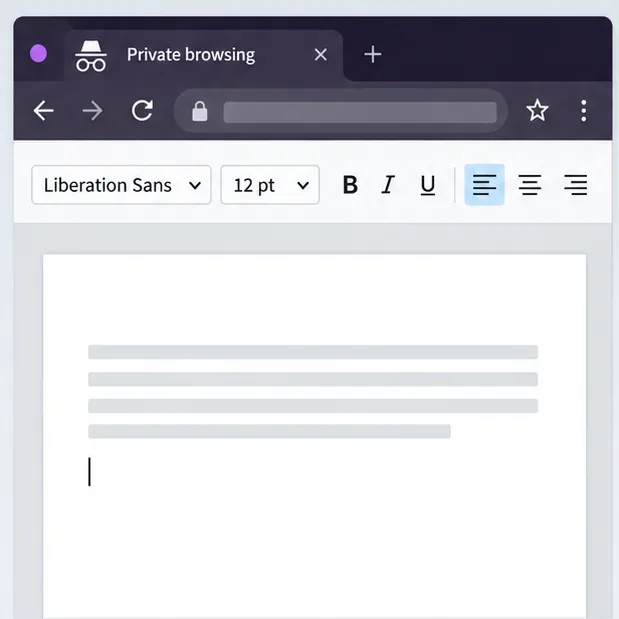
Reset browser zoom, test a clean session, and identify when a malformed size menu needs a Collabora server update.