Deploy Collabora CODE on Kubernetes with Helm

Install the official Collabora Helm chart, configure WOPI access and ingress affinity, and verify the deployment without common setup mistakes.
As of October 10, 2026, the upstream package registry lists chart version 1.3.0 as the latest release. Installing the chart is only part of a working deployment. You also need a public Collabora hostname, a valid WOPI allow-list entry for the document-storage host, and an ingress setup that keeps requests for each document on the same pod. The upstream package registry lists chart version 1.3.0 at the time of writing; check the repository before installing because the Helm chart version and CODE container image version are separate values.
This procedure uses the official collabora/collabora-online chart and an NGINX Ingress Controller. The chart README also includes HAProxy examples; ingress annotations are controller-specific, so use the example for your installed controller rather than mixing annotations.
office.example.com.Collabora publishes its chart from the project’s online repository. Add it, refresh the local index, and inspect the chart metadata and default values before installing:
helm repo add collabora https://collaboraonline.github.io/online/
helm repo update
helm show chart collabora/collabora-online
helm show values collabora/collabora-online
The chart version identifies the package, not necessarily the CODE image tag. Check the image repository and tag in the release values, then pin the chart version you reviewed for repeatable upgrades.
Create a namespace-scoped Secret using your approved secret-management workflow. The chart’s values support an existing Secret and configurable key names; the default key names are username and password. Verify the Secret exists in the collabora namespace before installing.
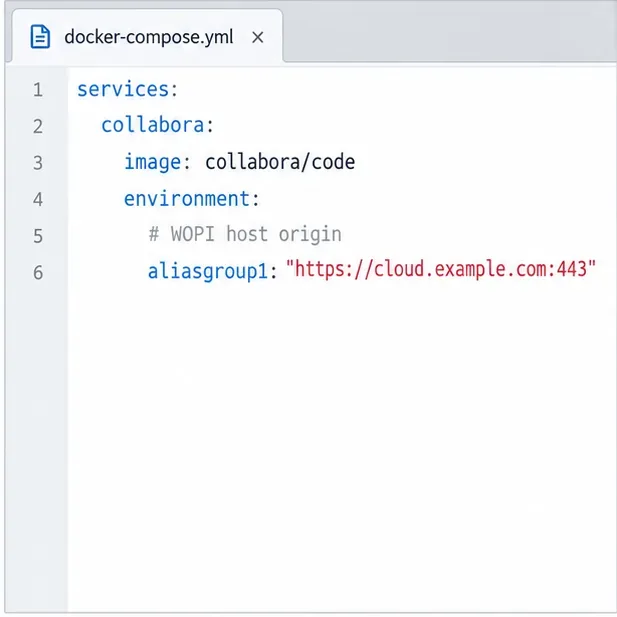
Create my_values.yaml. Replace both example hostnames with your actual public domains. The aliasgroups value identifies the WOPI client (for example, the Seafile or Nextcloud server). The Ingress host and server_name identify the Collabora service that users’ browsers reach.
replicaCount: 1

ingress:
  enabled: true
  className: nginx
  annotations:
    nginx.ingress.kubernetes.io/upstream-hash-by: "$arg_WOPISrc"
    nginx.ingress.kubernetes.io/proxy-body-size: "0"
    nginx.ingress.kubernetes.io/proxy-read-timeout: "600"
    nginx.ingress.kubernetes.io/proxy-send-timeout: "600"
  hosts:
    - host: office.example.com
      paths:
        - path: /
          pathType: ImplementationSpecific

autoscaling:
  enabled: false

collabora:
  aliasgroups:
    - host: "https://files.example.com:443"
  extra_params: --o:ssl.enable=false --o:ssl.termination=true
  server_name: office.example.com:443
  existingSecret:
    enabled: true
    secretName: collabora-admin
    usernameKey: username
    passwordKey: password
This example follows Collabora’s documented NGINX ingress pattern: requests are hashed using the WOPISrc parameter, and the proxy read and send timeouts are extended for document sessions. Confirm the annotation names against your ingress-controller version. If you use HAProxy, use the chart README’s HAProxy annotations and balancing configuration instead.
The ssl.enable=false and ssl.termination=true options are for a design where TLS terminates at the ingress and traffic from ingress to the pod is internal. They do not mean the public endpoint should use HTTP. Keep the ingress hostname on HTTPS, and do not expose the pod’s plain-HTTP service directly to the internet. Set server_name when Collabora sits behind a reverse proxy or cannot directly infer its external hostname.
For multiple fixed replicas, set replicaCount deliberately and retain session affinity. The upstream README currently says HPA is disabled because scaling can disrupt collaborative editing and copy/paste. A larger replica count alone does not provide correct routing; confirm that your ingress sends requests for the same document to the same pod.
Install the release from the official repository and wait for the Deployment to become ready:
helm install --create-namespace \
  --namespace collabora \
  collabora-online collabora/collabora-online \
  --values my_values.yaml

kubectl get pods -n collabora
kubectl get ingress -n collabora
If you are updating an existing release, use helm upgrade with the same release name, namespace, and values file rather than creating a second release. Review the chart’s release notes and rendered changes before upgrading a production instance.
Check that the pod is ready and that the Ingress reports the expected host and address. If it remains pending, inspect events and logs before changing resource settings:
kubectl describe pods -n collabora
kubectl logs -n collabora deployment/<deployment-name>
Size CPU and memory for your workload and cluster capacity. The chart README provides example requests and limits, not a guarantee for every deployment. Watch for throttling, OOM kills, and restarts.
After DNS and TLS are active, request Collabora’s discovery endpoint through the public hostname:
curl -fsS https://office.example.com/hosting/discovery
A successful response should contain the WOPI discovery XML rather than an ingress error page or certificate warning. Then configure your WOPI client with the same public Collabora URL and confirm that Collabora’s aliasgroups includes that client’s HTTPS hostname and port. The client’s exact setting depends on the storage product.
Open a test document from the WOPI client and make a small change. Confirm the editor loads, a second browser session can join if collaboration is required, and the change saves back to the storage service. This end-to-end check exercises DNS, ingress TLS, session routing, WOPI host authorization, and file transfer.
coolwsd_xml_content value replaces the default configuration file and requires the complete file content. Prefer the chart’s dedicated values for alias groups and parameters unless you have a complete, version-compatible XML configuration.Install the official Collabora Helm chart, configure WOPI access and ingress affinity, and verify the deployment without common setup mistakes.
Use browser requests, WOPI logs, and targeted proxy checks to find why Collabora opens a blank document—and choose a fix that fits the evidence.
Configure CODE Docker dictionaries and tag document passages correctly so English, French, and other supported languages receive the right spell-checking.
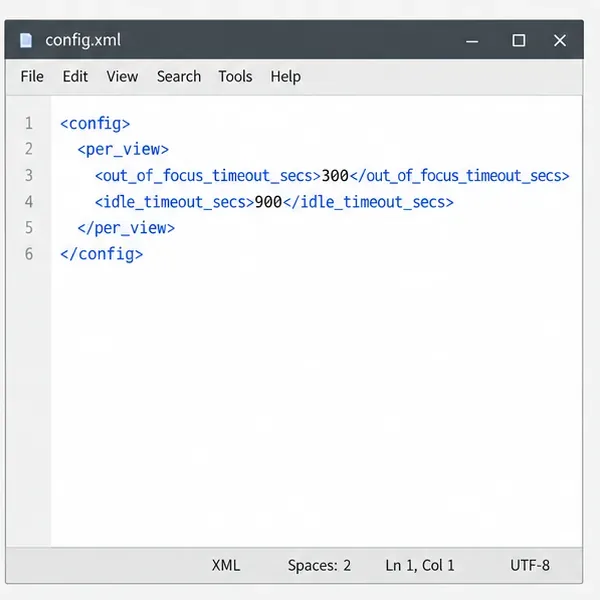
Adjust the per-view inactivity threshold in coolwsd and distinguish it from background-tab dimming, document unloading, autosave, and login expiration.
Stop scheduled CODE update checks, review optional remote services, and use outbound network controls without breaking document editing.
Enable secure document editing in Seafile by configuring Collabora’s discovery URL, HTTPS, and WOPI access for your deployment.
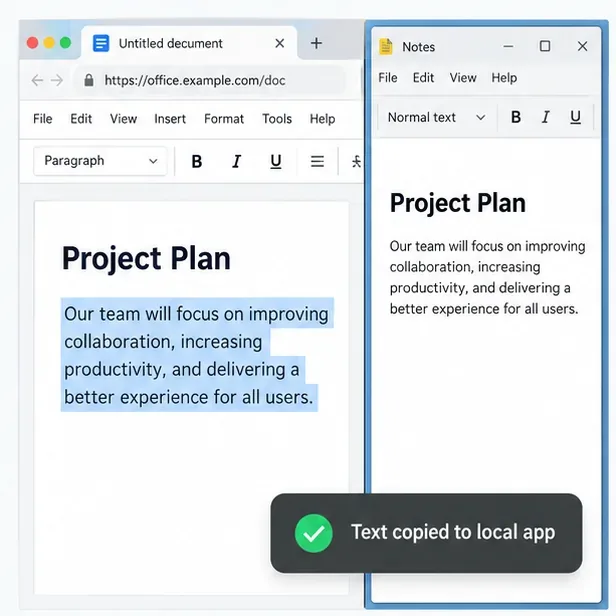
Test the system clipboard, adjust browser permissions, and identify when an embedded Collabora integration needs an iframe policy change.
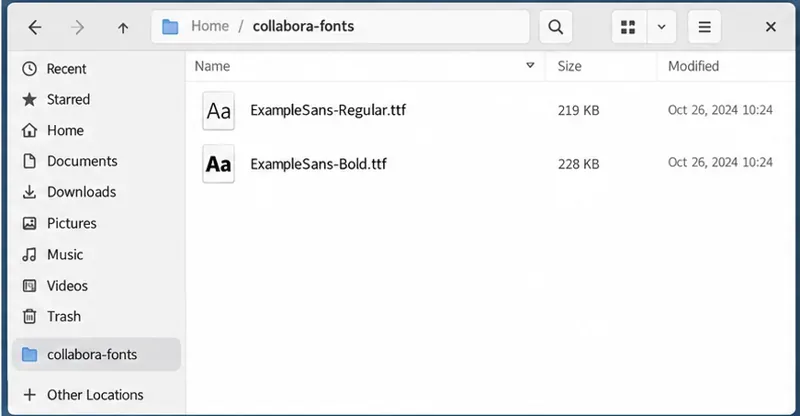
Mount font files into Docker and Collabora’s systemplate so custom typefaces appear in the editor and render correctly in documents.
Back up coolwsd.xml and its deployment sources, restore them safely, and verify CODE before users return to editing.
Allow the exact Nextcloud or other WOPI origin in CODE, then verify the active host allow-list and distinguish it from Nextcloud’s source-IP restriction.