Connect Seafile and Collabora with the Correct WOPI URL

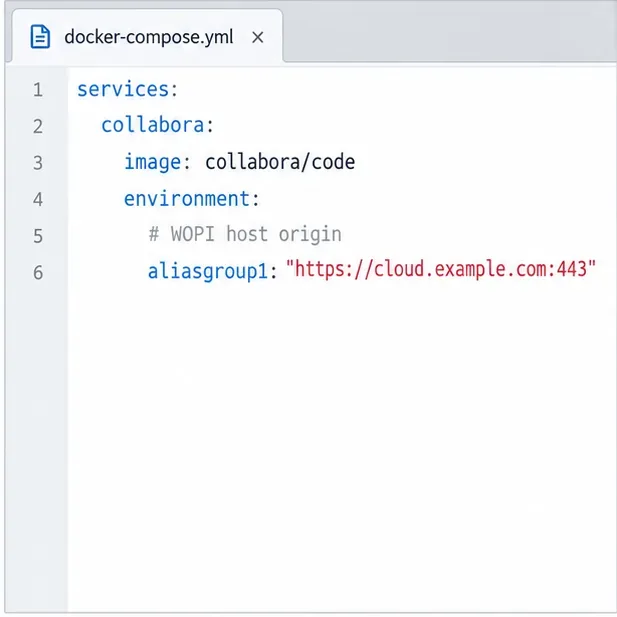
Enable secure document editing in Seafile by configuring Collabora’s discovery URL, HTTPS, and WOPI access for your deployment.
To spell-check more than one language in Collabora Online, add each required language code to the CODE container’s dictionaries setting, restart the container, and assign the correct language to each text passage. Both sides matter: the server must make the dictionaries available, and the document must mark English, French, or another passage with its language. Adding a language to the container alone does not automatically identify every language in a document.
There are two separate settings to consider:
dictionaries environment variable changes the list of dictionary languages CODE configures. Collabora’s 25.04 SDK manual documents space-separated language codes, optionally followed by a country code, and notes that limiting the list helps avoid unnecessary resource use and startup work.For example, a document with English (United States) and French passages needs both codes enabled on the server, and its English and French text must carry the corresponding language setting. A user interface language or keyboard layout is not a substitute for either setting. See the Collabora Online 25.04 SDK manual and the Collabora help topic on selecting a document language.
Add the desired locale codes as a space-separated string in the Collabora service’s environment. This example keeps the list to US English, UK English, and French:
services:
  collabora:
    image: collabora/code
    restart: unless-stopped
    environment:
      dictionaries: "en_US en_GB fr_FR"
      domain: "cloud\.example\.com"
      username: "collabora_admin"
      password: "replace-with-a-long-unique-password"
    ports:
      - "127.0.0.1:9980:9980"
Replace the domain pattern, credentials, image tag, and port mapping to match your deployment. Keep the existing reverse proxy and Nextcloud connection settings; this snippet only illustrates where the dictionary list belongs. If you already use a Compose file, edit the existing Collabora service instead of creating a second container.
The language codes above follow the codes documented by Collabora, where a locale can include a country code. Use codes matching the document languages your users need. Do not assume every possible code has a usable dictionary in every CODE image: the SDK manual describes changing the configured list, while the installed build and its dictionaries still determine what is actually available. Check the documentation for the CODE image version you run before adding less common locales.
dictionaries value with only the languages your users need. Preserve the other Collabora environment variables.docker compose up -d --force-recreate collabora from the directory containing the Compose file.docker compose logs --tail=100 collabora. Look for startup or dictionary-loading errors; do not treat a successful container status alone as proof that a particular dictionary is installed.If your deployment uses docker run instead, update its -e dictionaries="en_US en_GB fr_FR" argument and recreate that container with the same network, volume, proxy, and security options. Changing the environment on a running container does not change the environment it was started with.
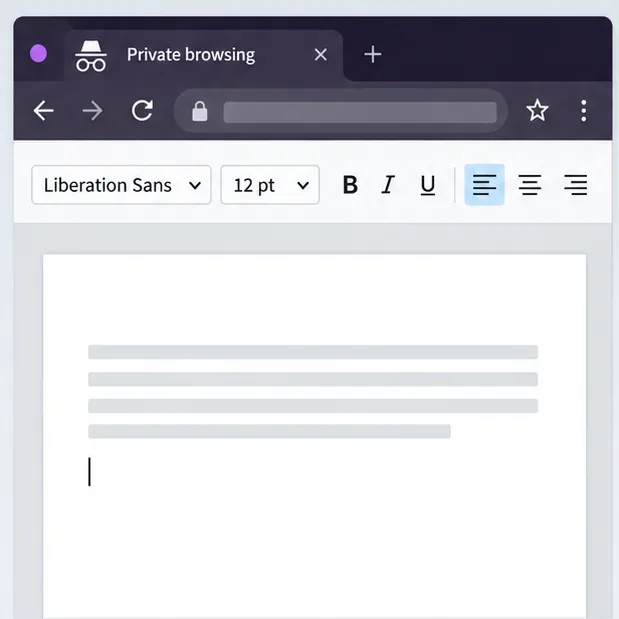
After the server is ready, open a document in Nextcloud and select the text whose language you want to check. In Collabora’s language controls, choose the language for the selection or paragraph; for a document that is all one language, use the option that applies the language to all text. The command labels can differ slightly between releases and screen layouts, but the key is to set the document text language rather than only changing the interface language. Collabora’s help explains that a document language determines the dictionary used for spell-checking, thesaurus, and hyphenation.
For a mixed-language document, apply the language in chunks. For example, select the French paragraph and set French (France), then select the English paragraphs and set English (United States). If new text inherits the wrong language, place the cursor in that paragraph and change its language before typing, or select and retag the text afterward. A misspelled-looking word may simply be text marked with the wrong language.
Spell-check may also be disabled for a selection or language. In Collabora’s language menu, “None” excludes selected text from spell-checking and hyphenation. If the text has the correct language but receives no spelling marks, verify spell-check status for that language and inspect whether the selection is excluded. The Collabora Language help page describes the language choices and the “None” option.
| What you see | What to check |
|---|---|
| Only one language gets spelling marks | Confirm all needed codes are in dictionaries, recreate CODE, then test text explicitly tagged with each language. |
| A language is available in the menu, but no words are checked | Set the selected passage to that language and confirm spell-check is enabled rather than set to “None.” Menu availability alone does not prove the dictionary is functioning. |
| Changes have no effect after editing Compose | Confirm you recreated the Collabora service and that the running container is the one managed by the edited Compose project. |
| Nextcloud cannot open documents after recreation | Check the Collabora service and proxy logs, and confirm Nextcloud’s Office setting still points to the Collabora server URL. Dictionary configuration does not repair a WOPI or reverse-proxy connection. |
Nextcloud’s administration manual describes the Collabora server URL under the Office configuration. Keep that integration setting separate from the dictionary change; if the connection already worked before, you normally should not need to change it for spell-check languages. Refer to the Nextcloud Office configuration documentation.
Create or open a test document and type a deliberately misspelled word in each enabled language. Set each sample passage to its intended language, then confirm that the spell-check marks the intentional error. Also type a correctly spelled word in each language to make sure it is not being treated as foreign text. Repeat with a second user if language availability differs by account or document.
If a language still fails, reduce the test to one locale at a time, check CODE logs, and compare the code against the documentation for the exact image version. Collabora’s default dictionary allowlist and image contents can change between releases; the 25.04 manual’s documented defaults should not be assumed for every later tag. Once spelling works in each explicitly tagged passage, retain the smallest language list that meets your users’ needs.
Enable secure document editing in Seafile by configuring Collabora’s discovery URL, HTTPS, and WOPI access for your deployment.
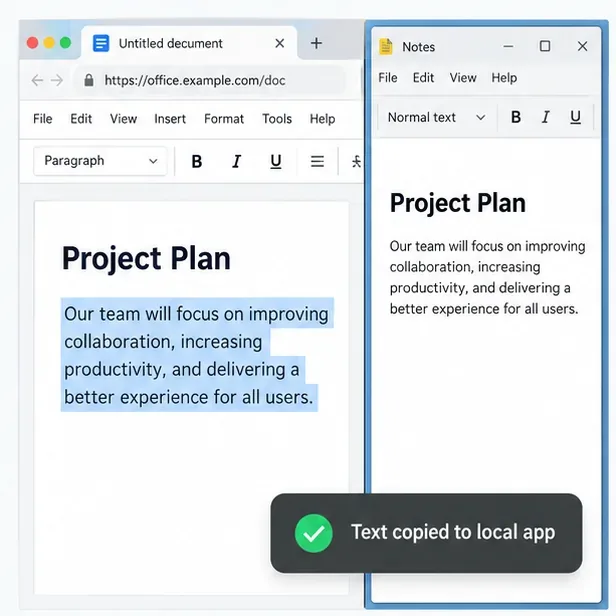
Test the system clipboard, adjust browser permissions, and identify when an embedded Collabora integration needs an iframe policy change.
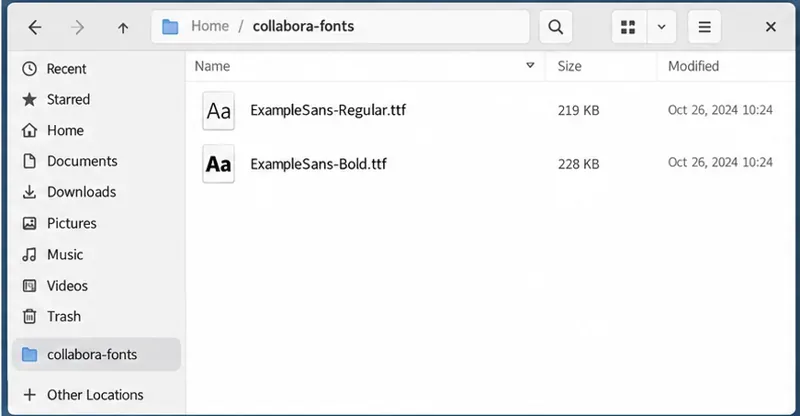
Mount font files into Docker and Collabora’s systemplate so custom typefaces appear in the editor and render correctly in documents.
Back up coolwsd.xml and its deployment sources, restore them safely, and verify CODE before users return to editing.
Allow the exact Nextcloud or other WOPI origin in CODE, then verify the active host allow-list and distinguish it from Nextcloud’s source-IP restriction.
Trace Collabora’s browser, WOPI, and WebSocket connections to find why a document will not open, then apply the fix that matches your Nextcloud setup.
Deploy Collabora CODE replicas with Helm, keep each document on one pod through WOPI affinity, and verify ingress, node placement, and Nextcloud editing.
Trace a failed socket handshake from browser to coolwsd, then match the reverse-proxy route to your Collabora version, including the CODE 26.04 Apache change.
Trace Collabora WOPI proof failures to mismatched keys, stale discovery data, clock drift, or proxy URL changes—without weakening validation.
Reset browser zoom, test a clean session, and identify when a malformed size menu needs a Collabora server update.