Home
» How to
»
Get Collabora CODE Running on ARM64 With the Correct Image
Get Collabora CODE Running on ARM64 With the Correct Image
A Collabora CODE container that exits immediately on an ARM64 host is often using the wrong image platform, but ARM64 itself is not inherently unsupported. Start by checking the host’s bitness, the exact image tag’s published manifest, and any Compose platform override before changing permissions or rebuilding the image. As checked October 10, 2026, the official CODE image includes ARM64 builds; Docker Hub lists the 26.04.4.2.1 tag for linux/arm64.
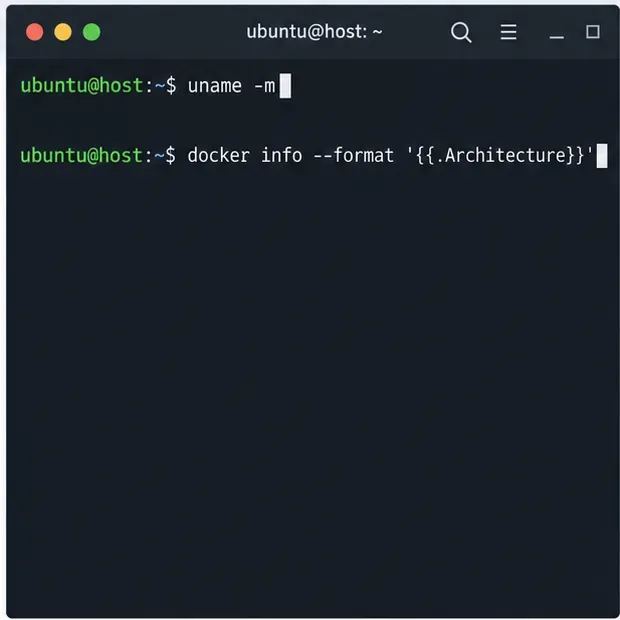
Start with the host and Docker architecture commands; compare their results with the image platform you plan to run.
1. Identify the host architecture and exact startup error
Run these commands on the Docker host, not inside the stopped Collabora container. Replace collabora if your Compose service uses another name:
uname -m
docker info --format '{{.Architecture}}'
docker compose ps -a
docker compose logs --tail=100 collabora
A 64-bit ARM Linux host commonly reports aarch64 from uname -m. A value such as armv7l usually identifies a 32-bit ARM kernel platform, which is different from linux/arm64. Docker’s architecture label may use another spelling, so compare the host type, Compose configuration, and image manifest rather than matching one string mechanically.
Read the first fatal message and the exit state. “No matching manifest for linux/arm64” means the selected tag has no matching variant for the requested platform. “Exec format error” suggests an architecture mismatch or an explicitly forced foreign platform. A permission error or an out-of-memory kill has a different cause; do not treat every restart loop as an ARM compatibility failure.
2. Confirm that the tag publishes an ARM64 image
Inspect the tag in the registry before changing the host:
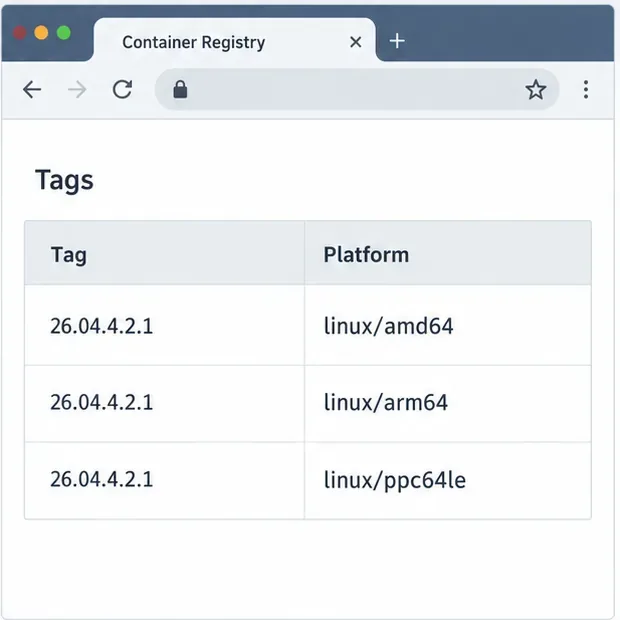
Look for linux/arm64 in the platform list. On October 10, 2026, the official Docker Hub tag listing showed that platform for both latest and 26.04.4.2.1. Collabora’s CODE page identifies x86-64, ppc64, and arm64 as supported host architectures. The versioned tag is easier to reproduce during troubleshooting. Tags and manifests can change, so inspect the exact version you plan to deploy instead of assuming every historical tag has the same architectures.
The listed release tag has a native ARM64 variant alongside amd64 and ppc64le; check the live registry for the tag you use.
Docker selects a matching variant automatically when the tag is multi-platform and no override changes the target. Docker’s image inspection command displays the platforms published for a registry image.
3. Remove an AMD64 override and pull the native variant
Check the resolved Compose service, including override files, for a forced platform: linux/amd64. The Docker CLI variable DOCKER_DEFAULT_PLATFORM can also set the default platform for commands that accept a platform flag. Compose’s platform field explicitly selects the target operating system and architecture, so remove an incorrect override or set it to ARM64. If you have jq, inspect the merged settings without printing unrelated environment values: docker compose config --format json | jq '.services.collabora | {image, platform}'. The Compose service reference defines this field. DOCKER_DEFAULT_PLATFORM is documented in the Docker CLI reference.
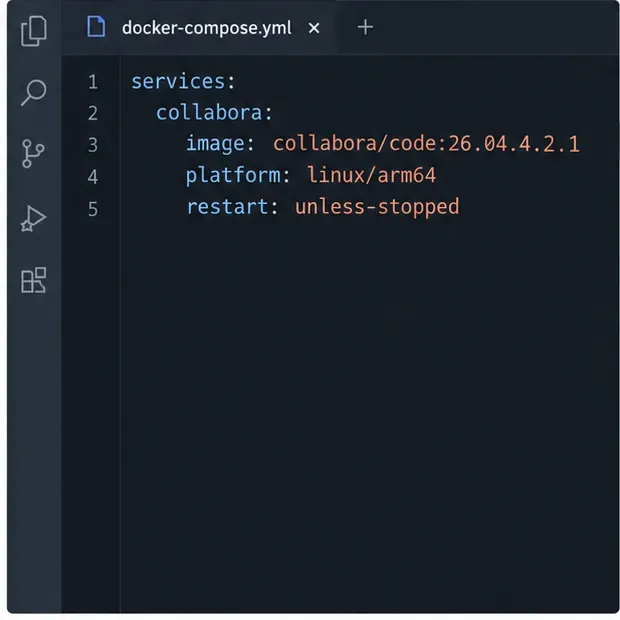
Use this Compose fragment to select the verified version and, when needed, explicitly target linux/arm64.
This is a fragment: merge the image and platform lines into your existing service and retain its required settings. If Docker already selects the native ARM64 manifest correctly, the platform line is optional. Replace collabora in the commands below if your Compose service has another name.
docker compose pull collabora
docker compose up -d --force-recreate collabora
Use the pinned tag as shown or another release whose manifest you just verified. The latest-arm64 tag is also listed by Docker Hub, but its contents move as releases change. Pinning a version makes a rollback and a later comparison more predictable. Avoid forcing linux/amd64 under emulation as the first fix when a native ARM64 image is available; emulation adds overhead and makes startup diagnosis less direct.
4. Diagnose non-architecture failures, then verify startup
If the native image still exits, use the log and state instead of broadening container privileges:
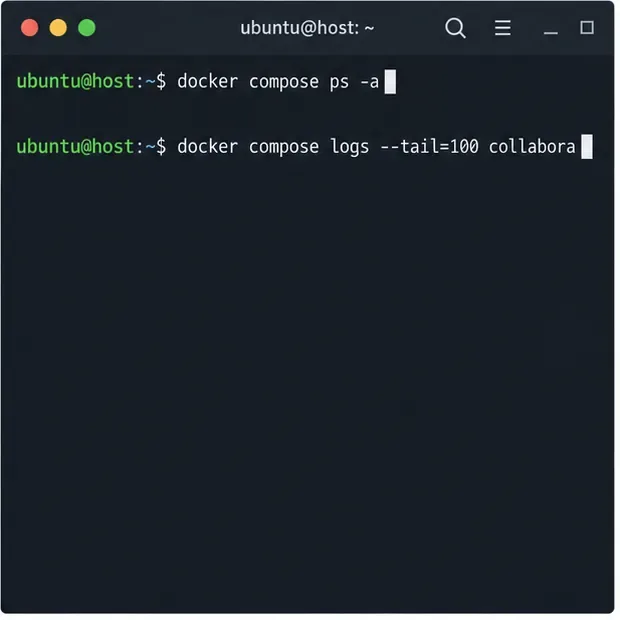
After recreating the service, use these commands to see whether Compose keeps the container running and to read its startup messages.
Signal
Next action
no matching manifest
Verify the exact tag and selected platform; choose a tag that lists linux/arm64.
exec format error
Remove an AMD64 override, pull again, and inspect the local image architecture.
permission denied or config file unreadable
Check bind-mounted files and directories, their owner and mode, and the container’s expected access. Fix the specific mount rather than using chmod -R 777 or privileged: true.
OOMKilled=true, often with exit code 137
Check host memory pressure and any container memory limit; exit code 137 alone does not prove an OOM kill.
Use the container name or ID shown by docker compose ps -a to inspect its exit state:
Docker documents container inspection and container logs for these checks. Do not delete persistent volumes or make the whole container privileged just to test an architecture issue.
Check the pulled image and the running service
Confirm the local image reports the target architecture:
The expected value is linux/arm64. Then check docker compose ps -a for a stable running state and review the latest logs for fatal startup errors. Once the container is connected to your storage platform or reverse proxy, request /hosting/discovery through the configured Collabora URL and open a test document. Recheck the registry’s tag list before upgrades, because the available versions and platform manifests can change.