Put Collabora Behind Nginx Without Breaking WebSockets
Configure Nginx TLS termination, Collabora routes, and WebSocket headers, then test the public endpoints before opening real documents.
Put Collabora on a dedicated HTTPS hostname at Nginx, forward its editor and discovery paths to coolwsd, and explicitly pass the WebSocket upgrade headers on the live socket routes. For a single host, Nginx can terminate public TLS and send HTTP to Collabora on a private interface; if Nginx and Collabora run in different containers, use the Collabora service name on their shared network instead of 127.0.0.1.
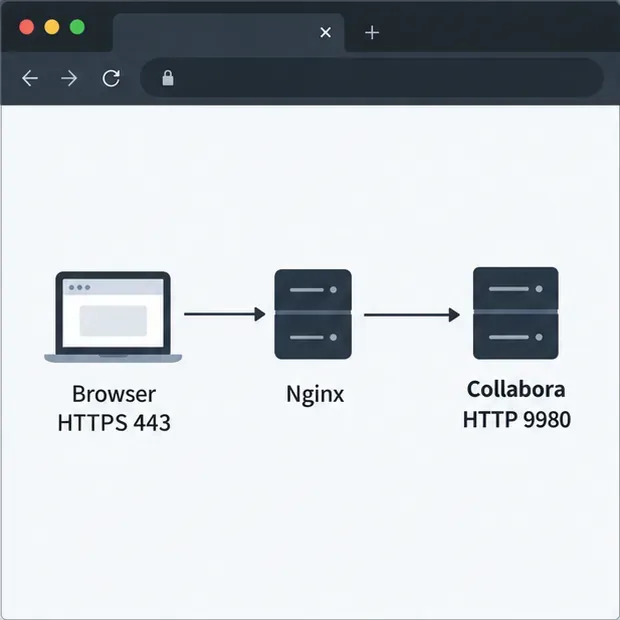
This example assumes users open https://office.example.com and Nginx handles its certificate. Collabora’s default listening port is 9980; use the port reachable in your deployment. A URL prefix such as https://example.com/collabora/ needs coordinated path and service-root settings, so this root-host configuration will not apply unchanged.
In the Nginx http context, add an upstream name for Collabora and a map that sets the connection header to upgrade only when a client requests a WebSocket. Put this block outside any server block. Replace the address if Nginx reaches Collabora another way.
map $http_upgrade $connection_upgrade {
    default upgrade;
    ''      close;
}

upstream coolwsd {
    server 127.0.0.1:9980;
}
If Nginx is itself a container, 127.0.0.1 refers to that Nginx container, not the Collabora container. On a shared Docker network, the upstream can instead be server collabora:9980;, using the service name that resolves in that network.
Inside the HTTPS server block for office.example.com, forward the browser assets, discovery endpoints, WebSocket connections, and remaining Collabora paths. The locations follow Collabora’s proxy guidance. Keep specific socket locations above the broader cool/lool route so Nginx applies the WebSocket headers correctly.
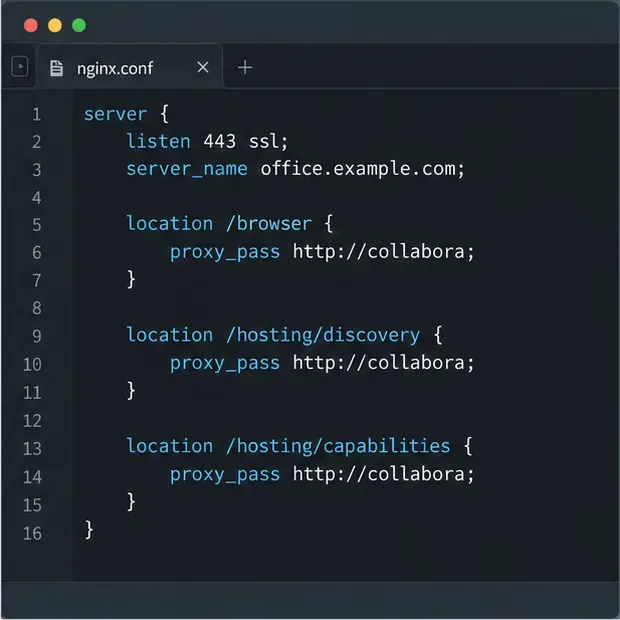
server {
    listen 443 ssl;
    server_name office.example.com;

    ssl_certificate     /path/to/fullchain.pem;
    ssl_certificate_key /path/to/private-key.pem;

    location ^~ /browser {
        proxy_pass http://coolwsd;
        proxy_set_header Host $http_host;
        proxy_set_header X-Forwarded-Proto $scheme;
        proxy_set_header X-Forwarded-Host $http_host;
    }

    location ^~ /hosting/discovery {
        proxy_pass http://coolwsd;
        proxy_set_header Host $http_host;
        proxy_set_header X-Forwarded-Proto $scheme;
        proxy_set_header X-Forwarded-Host $http_host;
    }

    location ^~ /hosting/capabilities {
        proxy_pass http://coolwsd;
        proxy_set_header Host $http_host;
        proxy_set_header X-Forwarded-Proto $scheme;
        proxy_set_header X-Forwarded-Host $http_host;
    }

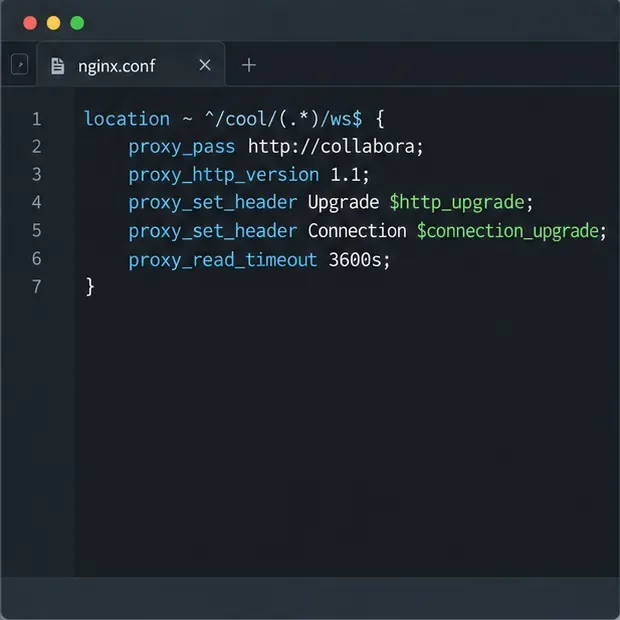
    location ~ ^/cool/(.*)/ws$ {
        proxy_pass http://coolwsd;
        proxy_http_version 1.1;
        proxy_set_header Upgrade $http_upgrade;
        proxy_set_header Connection $connection_upgrade;
        proxy_set_header Host $http_host;
        proxy_set_header X-Forwarded-Proto $scheme;
        proxy_read_timeout 3600s;
    }

    location ^~ /cool/adminws {
        proxy_pass http://coolwsd;
        proxy_http_version 1.1;
        proxy_set_header Upgrade $http_upgrade;
        proxy_set_header Connection $connection_upgrade;
        proxy_set_header Host $http_host;
        proxy_set_header X-Forwarded-Proto $scheme;
        proxy_read_timeout 3600s;
    }

    location ~ ^/(c|l)ool {
        proxy_pass http://coolwsd;
        proxy_set_header Host $http_host;
        proxy_set_header X-Forwarded-Proto $scheme;
    }
}
Replace the certificate paths with the files for your host. If your installation does not use the admin console, the /cool/adminws location may not be needed for document editing; the main /cool/.../ws route is essential. The proxy_read_timeout here is one hour as an example, not a universal requirement. Nginx’s default proxy read timeout is 60 seconds between successive reads. Choose a value longer than the idle periods your sessions need, or rely on appropriate WebSocket ping traffic where supported.
Users should reach Collabora over HTTPS, even when the private Nginx-to-Collabora hop uses HTTP. In that TLS-termination arrangement, configure coolwsd to treat the proxy as the TLS terminator: SSL is disabled on the internal listener and SSL termination is enabled. Apply these settings through the method supported by your package or container image, then restart/reload Collabora as its documentation requires.
Use an HTTP upstream only on a trusted private network and block public access to port 9980. If policy requires encryption between Nginx and Collabora, use an HTTPS upstream and configure certificate verification correctly; do not disable verification to conceal a certificate mismatch. Collabora’s proxy settings documentation distinguishes SSL at the proxy from SSL between the proxy and coolwsd.
Also set the Collabora URL in the storage integration to the public HTTPS hostname. For Nextcloud, its administration manual requires the browser and both servers to be able to reach each other over HTTP(S), with matching external protocols. Restrict the WOPI allow-list to the expected storage host and Collabora address; do not loosen it broadly to solve a proxy routing error.
Check the Nginx syntax before reloading it:
sudo nginx -t
sudo systemctl reload nginx
If Nginx runs in a container, use that container’s validation and reload procedure instead. From the Nextcloud host, test the public Collabora endpoints with the actual hostname:
curl -fsS https://office.example.com/hosting/discovery -o /dev/null
curl -fsS https://office.example.com/hosting/capabilities -o /dev/null
Open those HTTPS URLs from a user browser as well. They check reachability, but a successful discovery response alone does not prove document editing works. Open a document and use the browser Network panel to confirm assets load and the /cool/.../ws connection stays open. A successful HTTP/1.1 WebSocket commonly shows 101 Switching Protocols; the exact display can depend on the browser and transport. If this standard setup works in Firefox but fails in Chromium, inspect the request method and protocol. A Collabora issue report opened for 25.04 documents a Chromium WebSocket over HTTP/2 using CONNECT and receiving 405; it remains open as checked Oct. 9, 2026. This is a version-specific report, not a universal behavior. Compare your Collabora, Nginx, and browser versions before changing HTTP/2 settings. See Collabora issue 12155.
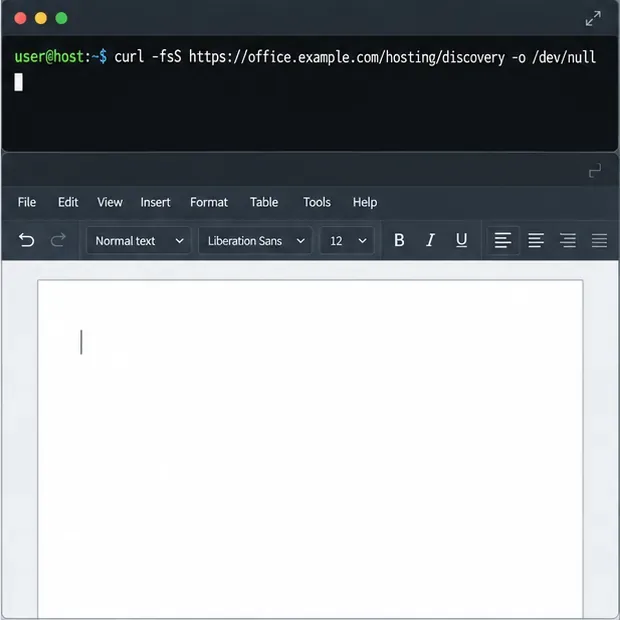
If discovery fails, inspect Nginx’s error log and verify the upstream hostname, port, and protocol. If discovery works but editing cannot connect, check the WebSocket route, headers, timeout, and Collabora logs. A WOPI authorization error points to the storage host allow-list. The Nextcloud Office troubleshooting guide recommends checking reachability from the browser, Nextcloud, and Collabora, then reviewing both servers’ logs.
The Nginx WebSocket proxying guide explains why Upgrade and Connection must be passed explicitly and why idle timeout behavior matters. See the Nginx proxy module reference for directive behavior. Once the checks pass, open, edit, save, and reopen a test document before inviting users to rely on the new route.
Configure Nginx TLS termination, Collabora routes, and WebSocket headers, then test the public endpoints before opening real documents.
Trace a 10-minute CODE disconnect to its proxy, load balancer, or WebSocket path, then correct the timeout and verify the session stays connected.
Install the official Collabora Helm chart, configure WOPI access and ingress affinity, and verify the deployment without common setup mistakes.
Use browser requests, WOPI logs, and targeted proxy checks to find why Collabora opens a blank document—and choose a fix that fits the evidence.
Configure CODE Docker dictionaries and tag document passages correctly so English, French, and other supported languages receive the right spell-checking.
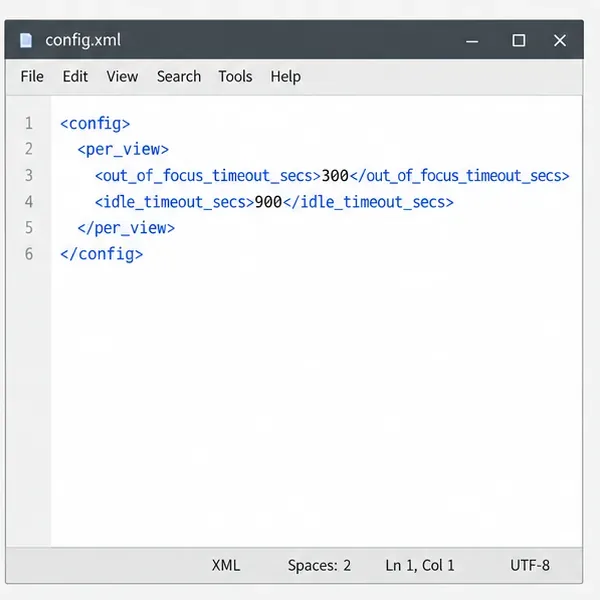
Adjust the per-view inactivity threshold in coolwsd and distinguish it from background-tab dimming, document unloading, autosave, and login expiration.
Stop scheduled CODE update checks, review optional remote services, and use outbound network controls without breaking document editing.
Enable secure document editing in Seafile by configuring Collabora’s discovery URL, HTTPS, and WOPI access for your deployment.
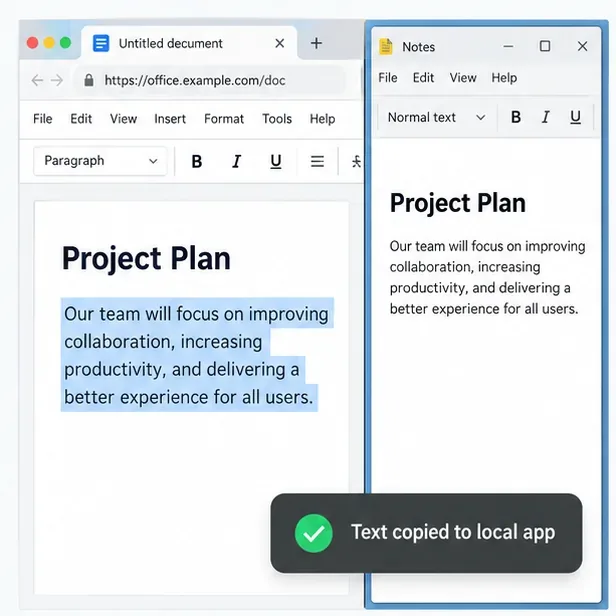
Test the system clipboard, adjust browser permissions, and identify when an embedded Collabora integration needs an iframe policy change.
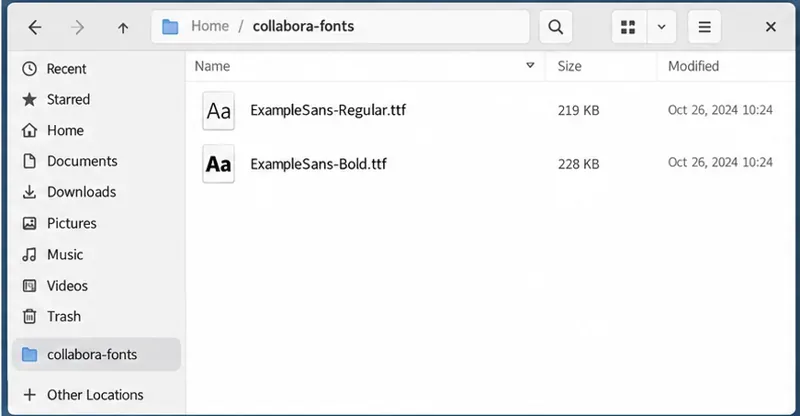
Mount font files into Docker and Collabora’s systemplate so custom typefaces appear in the editor and render correctly in documents.