Set Up Nextcloud LDAP and Active Directory Login
Connect Nextcloud to LDAP or Active Directory, limit access with user and group filters, and verify secure authentication before rollout.
To enforce two-factor authentication (2FA) in Nextcloud, first enable at least one 2FA provider, then turn on enforcement under Administration settings → Security or use the occ twofactorauth:enforce command. A provider is the method that supplies the second proof of identity, such as a one-time code from an authenticator app. Enforcement makes 2FA mandatory for the scope you choose; simply installing a provider does not. These steps follow the current Nextcloud 35 Administration Manual.
Nextcloud separates provider availability from the requirement to use 2FA. Administrators enable a provider first; then a user activates a method on their account, or an administrator enforces 2FA so users must complete setup. The built-in TOTP provider supports time-based codes generated by a compatible authenticator app. In Nextcloud 35 it is installed but disabled by default. The backup-code provider is always enabled and gives users one-time recovery codes.
Before enabling a requirement for a large group, decide whether it applies to every account or only a pilot group. Also identify service, integration, and emergency administrator accounts. A broad rule can interrupt access for users who have not enrolled yet or cannot reach their factor. Nextcloud’s official guide describes group selection and exclusions; selected-group membership takes precedence if a user is also in an excluded group. Review membership before applying a policy.
Do not disable or uninstall a provider that users have already enrolled without planning the migration. The administrator manual warns that Nextcloud retains provider associations; removing the app can leave users seeing an unavailable-factor warning at login. If a provider is permanently removed, consult the documented cleanup procedure and understand that it is irreversible.
If no groups are selected, Nextcloud enforces 2FA for everyone except members of excluded groups. If you select groups, it enforces 2FA for members of those groups. When someone belongs to both a selected and excluded group, the selected group wins, so the requirement still applies. These rules make it important to check nested or synchronized group memberships before enabling enforcement.
occ is Nextcloud’s command-line administration tool. Run commands from the Nextcloud installation directory as the web server user; the user and path may differ by installation method. The examples below use the documented Debian or Ubuntu-style account www-data.
# Enforce 2FA for every user
sudo -E -u www-data php occ twofactorauth:enforce --on

# Enforce for selected groups, with a service-account exclusion
sudo -E -u www-data php occ twofactorauth:enforce --on \
  --group=staff --group=admins --exclude=service-accounts

# Check a user's 2FA state
sudo -E -u www-data php occ twofactorauth:state alex
Replace group IDs and the user ID with values that exist on your server. The example policy enforces 2FA for members of staff and admins; it is not a universal recommendation to exclude service accounts. Exclude an account only after deciding how it authenticates and what compensating controls protect it. Nextcloud documents --off to disable enforcement, but use that as a planned rollback rather than a substitute for testing:
sudo -E -u www-data php occ twofactorauth:enforce --offSee the official Nextcloud 35 user and group command reference for the current syntax. Containerized, snap, and other installations may require a different command prefix or execution context; follow the instructions for your deployment rather than copying the example literally.
Check enforcement state for representative users with occ twofactorauth:state <uid>. Then test a normal browser login for an enforced user and confirm that Nextcloud requires a configured factor. Verify an excluded user only if the exception is intentional. Keep recovery codes protected and make sure administrators know the documented recovery route before expanding the policy.
If a user loses their factor, Nextcloud provides a provider-specific administrative command to disable 2FA for that user, when the provider supports it: sudo -E -u www-data php occ twofactorauth:disable <uid> <provider_id>. This is a recovery action, not a way to weaken enforcement for everyone. The official manual also describes a separate Two-Factor Admin Support app that can issue a one-time login code in supported situations. Confirm the appropriate method for your installed version and provider before relying on it.
For full details, consult the Nextcloud 35 administrator guide to two-factor authentication and the Nextcloud 35 user guide to enrollment and backup codes. Provider availability and exact interface labels can depend on your Nextcloud version and enabled apps, so confirm them on your instance before enforcing 2FA for all users.
Connect Nextcloud to LDAP or Active Directory, limit access with user and group filters, and verify secure authentication before rollout.
Enable a supported 2FA provider, prepare account recovery, then require two-factor authentication for everyone or selected Nextcloud groups.
Secure files edited in Collabora CODE by encrypting the storage layer, protecting temporary data, and verifying encryption and recovery.
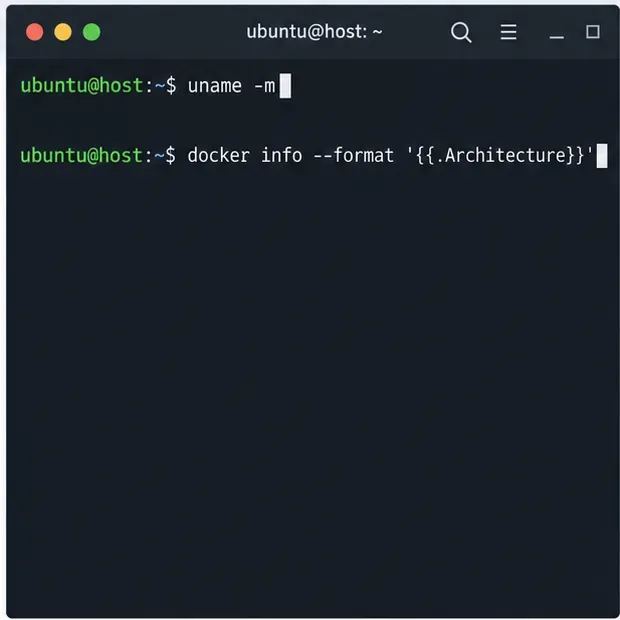
Check your host architecture, confirm the CODE tag publishes ARM64, remove forced AMD64 settings, and separate image errors from permissions or memory issues.
Set up the WOPI connection between Collabora Online and ownCloud Infinite Scale, configure the right service URLs, and verify document edits save.
Prevent document exports in Collabora Online CODE by setting the WOPI DisableExport permission, then verify the host and editor enforce it.
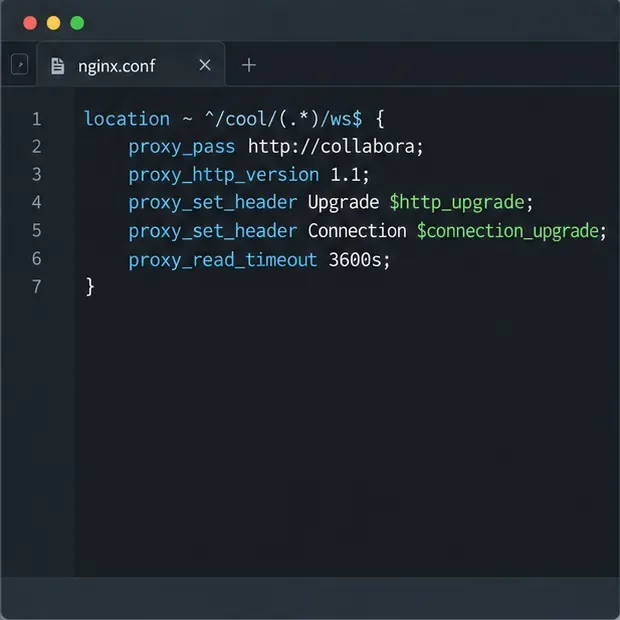
Configure Nginx TLS termination, Collabora routes, and WebSocket headers, then test the public endpoints before opening real documents.
Trace a 10-minute CODE disconnect to its proxy, load balancer, or WebSocket path, then correct the timeout and verify the session stays connected.
Install the official Collabora Helm chart, configure WOPI access and ingress affinity, and verify the deployment without common setup mistakes.
Use browser requests, WOPI logs, and targeted proxy checks to find why Collabora opens a blank document—and choose a fix that fits the evidence.