Some options on your LG TV are available in certain countries but not others. This means you’re potentially missing out on the latest available features. Fortunately, LG TV allows you to change your locations in the settings menu. However, you’ll only have certain countries in your region available.
Read on to learn how to change your LG TV’s location.
How to Change Your Location on LG TV
Before changing the location on your LG TV, we recommend checking if you have the correct firmware. WEBOS 3 and WEBOS LG TV are the best options. However, the steps should be similar to other versions as well.
Here’s how to change your LG TV’s location:
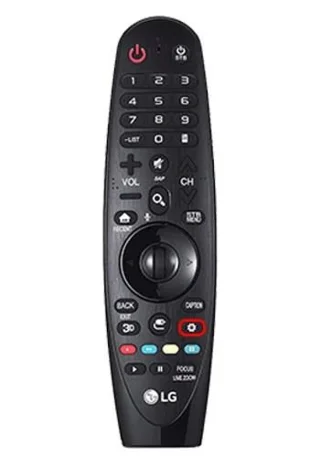
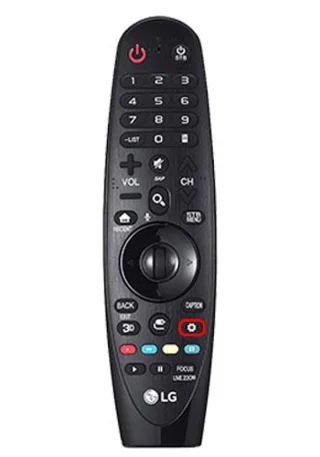
- Press the settings button on your remote control.

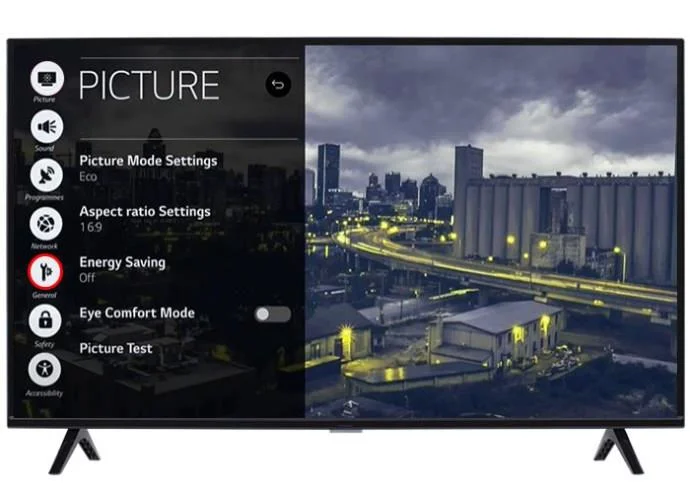
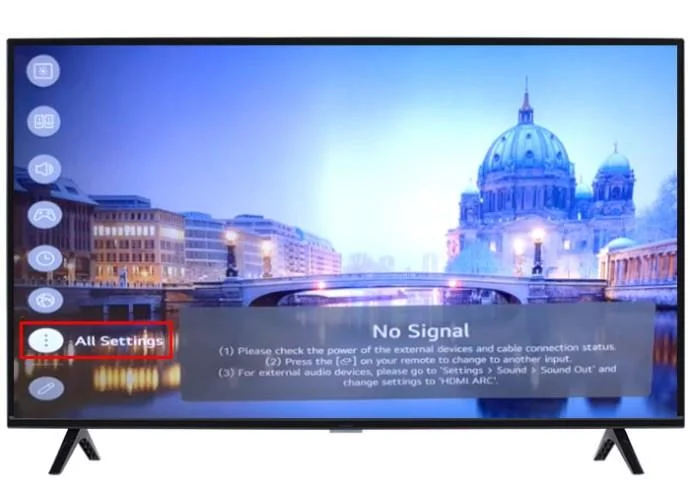
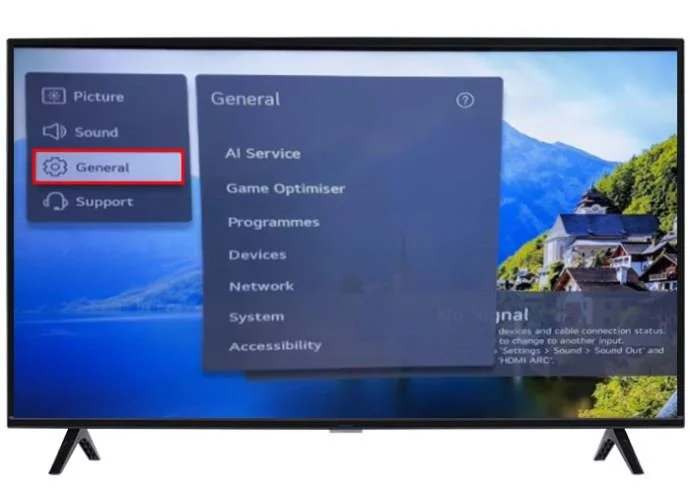
- On the all settings page, select the “General” settings option.

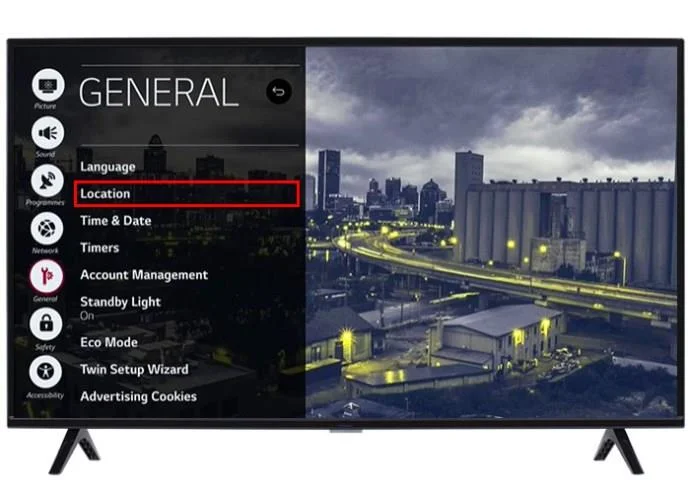
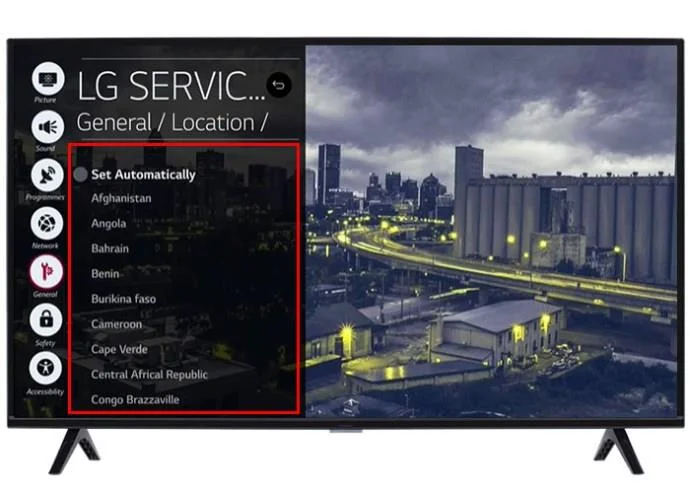
- Select the “Location” option.

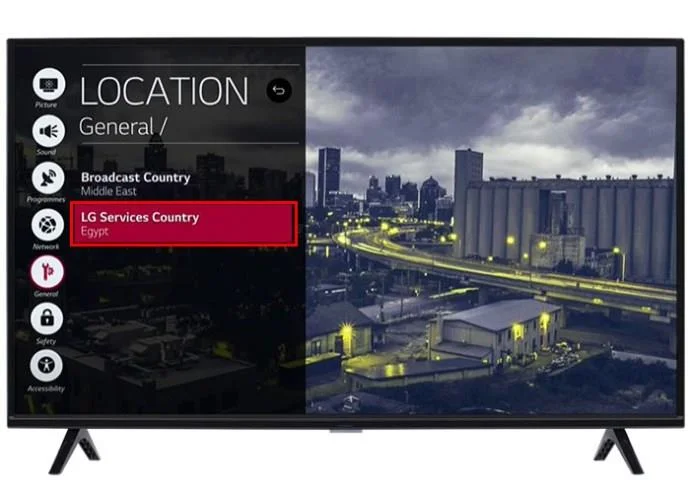
- From the options, press the “LG TV Services Country” option.

- A menu will pop up with a list of countries within your region. Select the appropriate one and then press “yes.”

After you complete the process, you might need to confirm a user agreement again before accessing the content.
You should also consider that changing the country might complicate your app subscription services. If you have a billing address for Netflix in one country, but the location for your LG TV reads another, you need to clarify the situation with the app’s customer support. They might lock you out of your account or pause your subscription.
Which Country to Choose When Changing Your LG TV Region
Before switching to other countries in your region, you’ll want to first consider those with access to the newest apps. Changing the country might also affect channels as well as streaming options.
Here are a few options to consider:
- U.S. – If you’re in the North American region, the U.S. will have the newest app options.
- Brazil – When using your LG TV in South America, your location settings should be set to Brazil to increase the chances of a wider app selection.
- U.K. or Scandinavian countries – For LG TV European users, feel free to choose either the U.K. or Scandinavian-speaking countries, including Denmark, Sweden, and Finland.
- Japan or South Korea – For all the newest, most exciting apps, switch your location to South Korea or Japan when using the LG TV.
- Saudi Arabia or Qatar – In the Middle East, both of these countries have access to a wide range of apps when using the LG TV.
- Australia – In the Oceania region, setting your location to Australia will heighten your chances of getting newer apps.
- South Africa, Nigeria, Kenya, and Egypt – Africa is a large continent, so you’ll benefit from switching around the country settings and viewing the apps available before making a final choice.
How to Download Apps on Your LG TV
Once you’ve changed your location, it’s time to start browsing and downloading available apps.
Here’s how to browse and download apps on the LG TV:
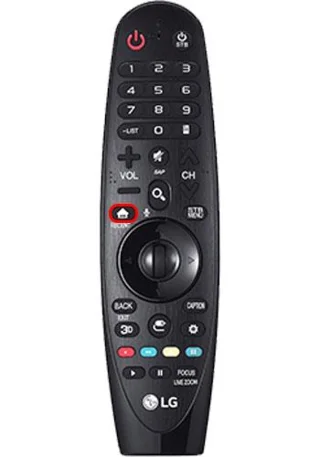
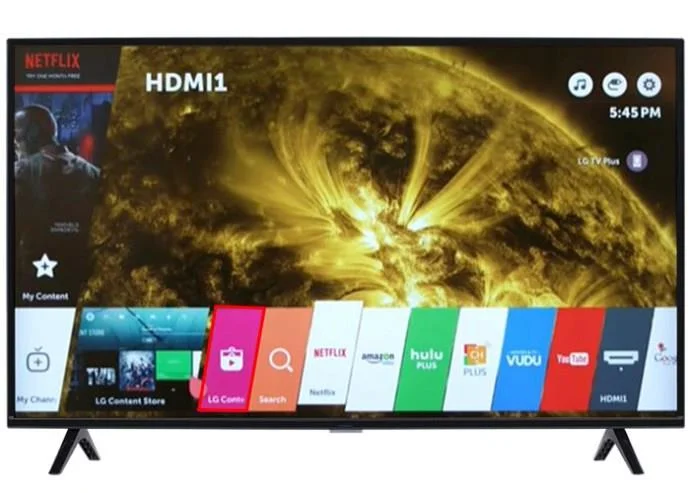
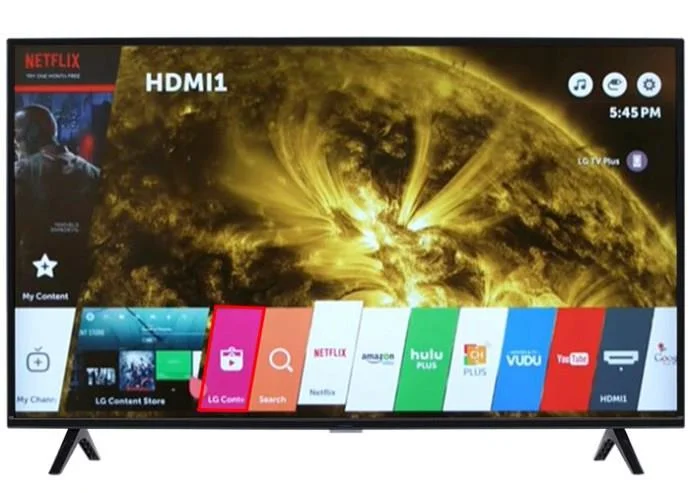
- Select the “Home” button on your LG TV remote.

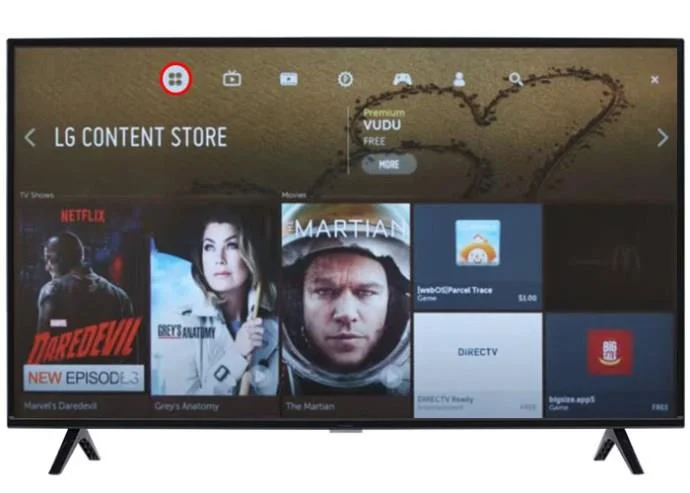
- Once the menu appears, browse the options until you find “LG TV Content Store.”

- Select the “Apps” option from the content store in the top toolbar. It’s the icon with four squares.

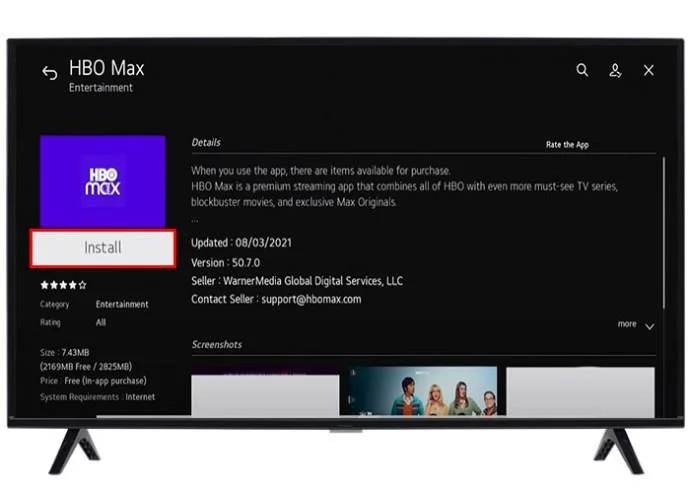
- Browse the available apps until you find the one you want. Select it and then select “Install.”

Once the app finishes installing, it’ll appear on your home screen. Ensure you have a strong internet connection when trying to access the Content Store.
You also might have a specific app in mind. Instead of browsing the interface, there’s an easy way to search for individual apps and download them.
- As explained above, select the home button and access the LG Content Store.

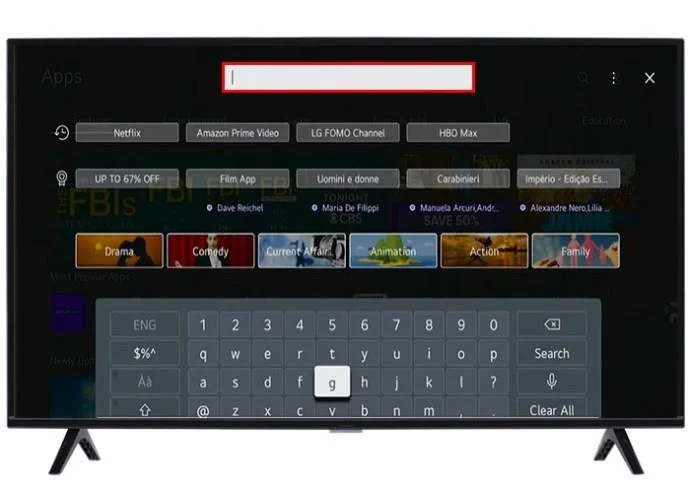
- Press “Apps” and then hold down the home button. A search bar will appear.

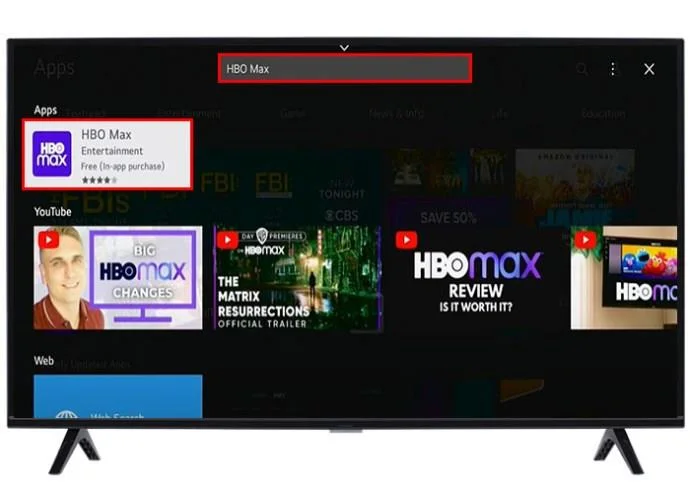
- Navigate to the search bar and type in the app’s name using the remote.

- When the app appears, select it, download it, and confirm.
If you want to erase the app, simply navigate to it, select the edit icon shaped like a pencil, and then select the delete option.
Changing the Language on Your LG TV
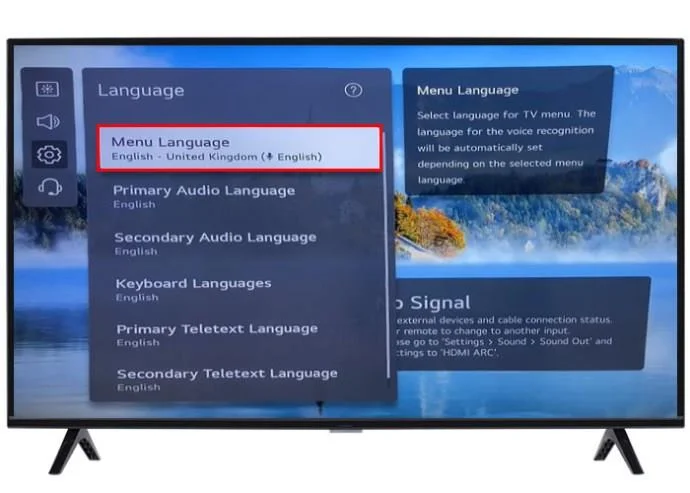
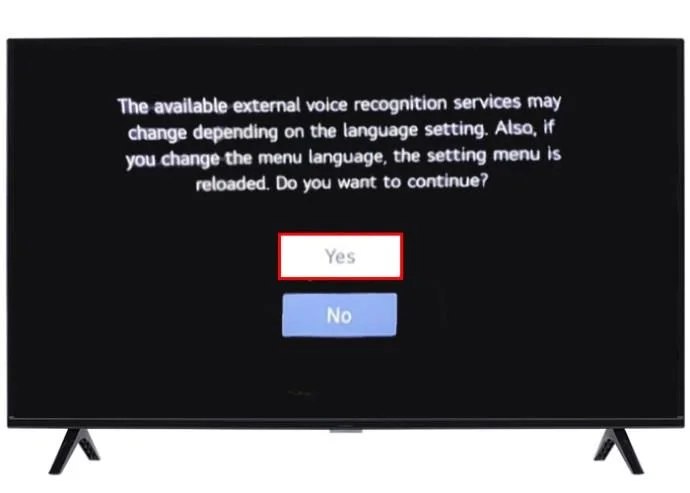
You might have access to all the latest apps when changing your location. However, this option sometimes changes the interface language too. For many, this makes it impossible to navigate the TV properly. If that’s the case, you’ll need to switch back to the original language without interfering with the country selection.
Here’s how it’s done:
- From your home screen, select the settings option on your remote control.

- Select the “All Settings” option. If the language is unintelligible, select the icon with three vertical dots.

- Select the “General Settings” option from the tab that opens. It’s the option with a cog next to it.

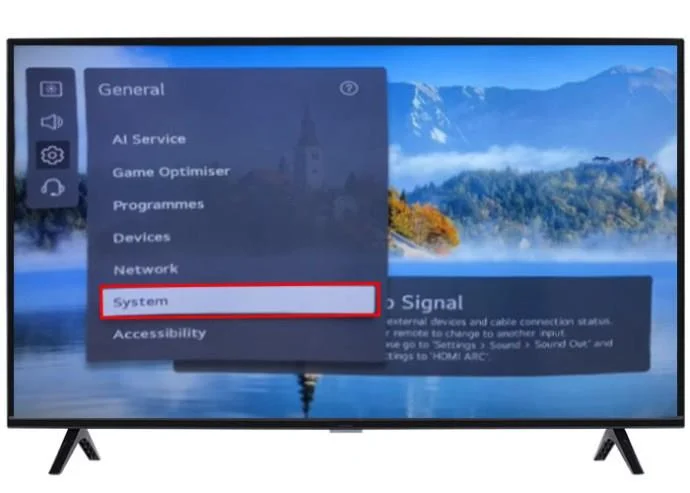
- Navigate to the “System” options from the next tab. It’s the second option from the bottom.

- Press the “language” option. It’s the first option from the top of the new tab.

- Select your desired language from the options and select “yes.”

You can select languages for different LG TV functions when choosing the language:
- The Menu Language – This language setting controls the language of any on-screen display. That includes settings, notifications, messages, and any app interface on the LG TV.
- The Audio Language – Certain apps have default audio tracks that you can change by using this settings feature. However, remember that certain developers might override this option, and you’ll need to go into individual app settings to change it.
- Keyboard language –With LG TV, you can choose from various language keyboard layouts. Make sure that your desired menu language and keyboard language correspond.
FAQS
Does changing my country on LG TV give me access to more releases?
Changing the country location settings might give you access to certain channels specific to that region. However, you might also lose certain channels specific to your former chosen setting. Generally, changing the country settings is for accessing newer apps, not channels.
Will changing my LG TV audio settings change language channels?
No, changing your audio language settings will not affect your channels. It only changes certain default audio tracks available on specific apps and sometimes on the interface.
Are there risks for changing my location on LG TV?
There might be small risks regarding software compatibility, payment issues, and general update problems. If this occurs, you’ll need to either change the location or find another compatible with your TV’s specific software.
Find the Latest Apps with an LG TV Location Change
Your LG TV is locked upon purchase, meaning you won’t be able to switch regions. However, you can still switch countries within your region to ensure you have a wide range of all the latest apps. Once the location changes, you can browse the content store and download your favorites. Changing the location might interfere with language. You can easily switch the language back through the general settings options.
Have you ever changed locations on your LG TV? Did you find the apps you needed? Let us know in the comments section below.