15 HR-Approved Office Halloween Costumes for 2026

Find 15 office-friendly Halloween costume ideas for 2026, with practical checks for dress codes, respectful themes, comfort, and workplace safety.
Autodesk AutoCAD 2020 has a free download program for those who are students, students or teachers with copyrighted software. Users only need to use student, student or teacher identification documents for Autodesk to confirm that they can use the company's products for their teaching and learning work. The following article will guide readers on how to install copyrighted AutoCAD for free.
How to install AutoCAD 2020 free license
Note , Autodesk will ask us to upload documents proving that you are a student or teacher. So when you enter personal information, it must match the information in the documents. If you do not have a student card, you can borrow someone else's.
Step 1:
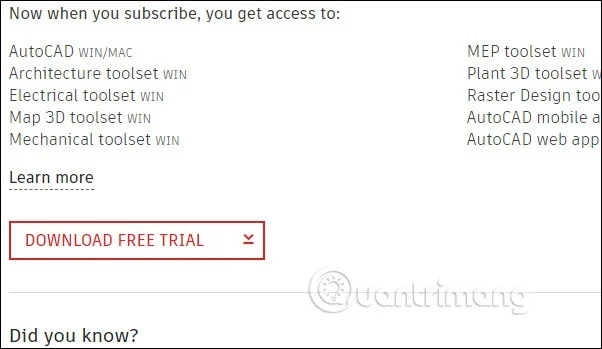
First, you access the link below to download AutoCAD software. Click Download free trial .
Step 2:
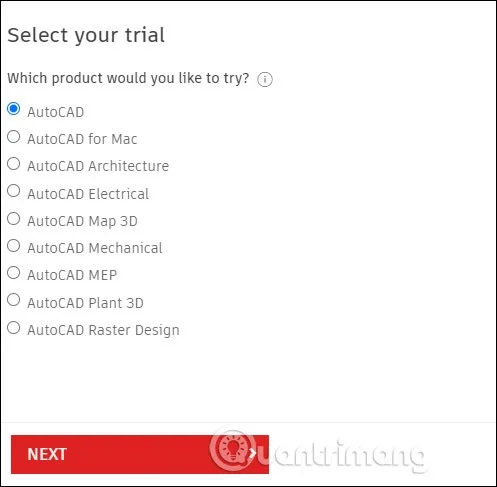
Now you choose the software you want to download as AutoCAD and then click Next , then switch to the minimum configuration interface to install the software, click Next to continue.
Step 3:
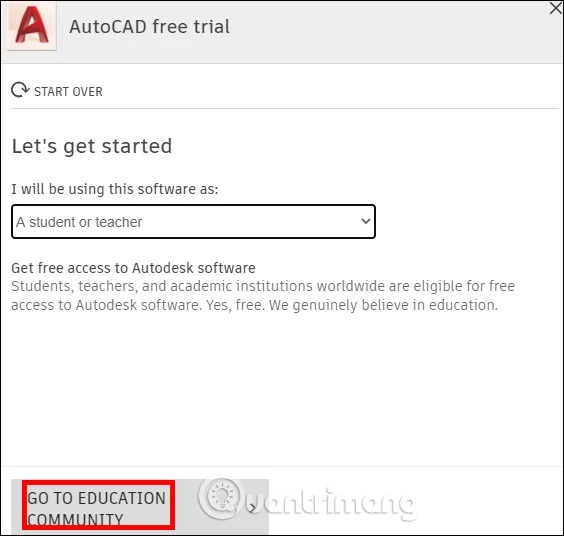
In this interface you will select student or teacher and click GO TO EDUCATION COMMUNITY below.
Step 4:
At this point, the user will need to fill in all personal information and then click Next below.

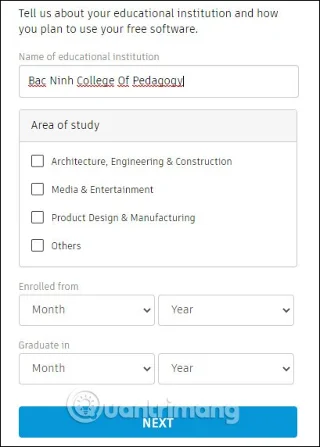
Then you fill in information about the school or place you are teaching to confirm.
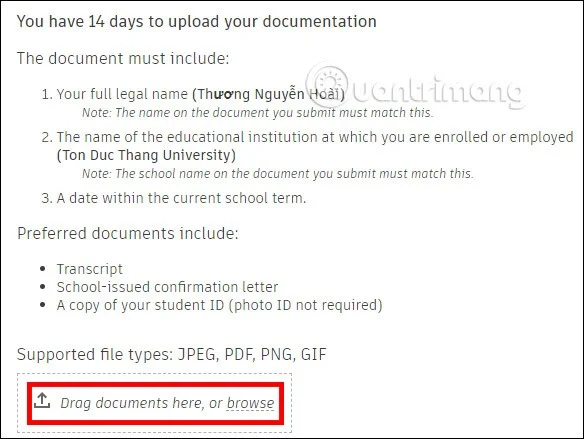
The interface then asks you to upload your student ID or other identification to Autodesk. You will have up to 14 days to upload the image. Once uploaded, Autodesk will send a notification that the document will be verified and emailed to your account. It may take up to 20 hours to verify.
Step 5:
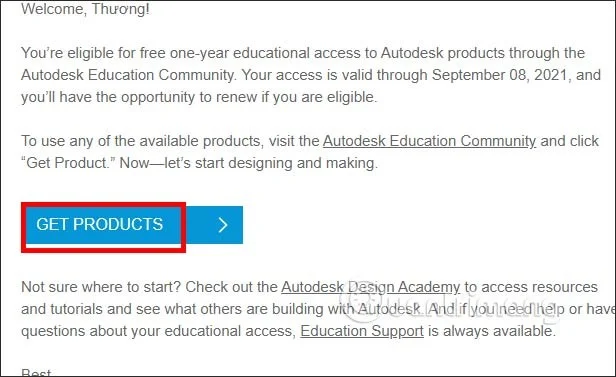
When the verification is successful, Autodesk will send an email as shown below, you click Get Products and will be transferred to the Autodesk website. Now log in to your registered personal account.
Step 6:
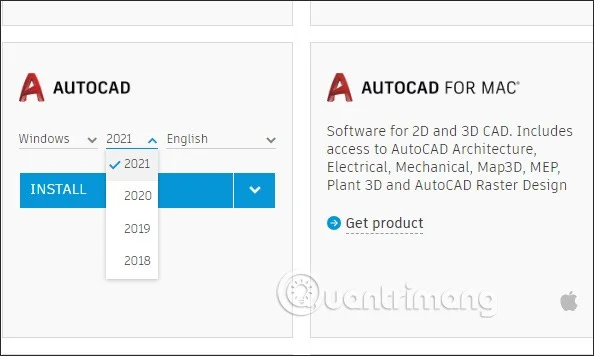
In Autocad software, we choose the version we want to download , the latest is 2021. Then click on the installation file to install the software. Note , AutoCAD will require restarting the computer, so you need to save the work you are doing.
Step 7:
During the download process, click the Browse… button to select the folder to save the installation file, then click Install.
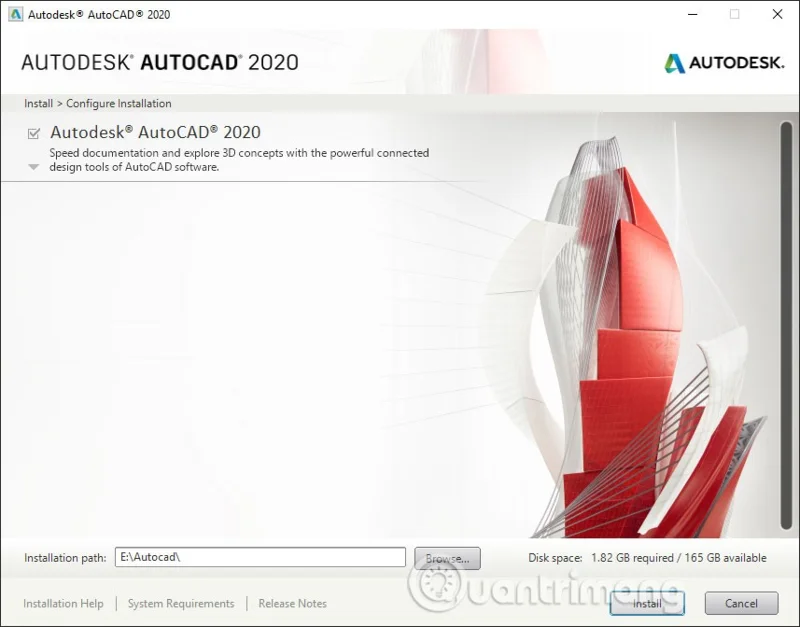
When the installation process is complete, click Launch to start the software.
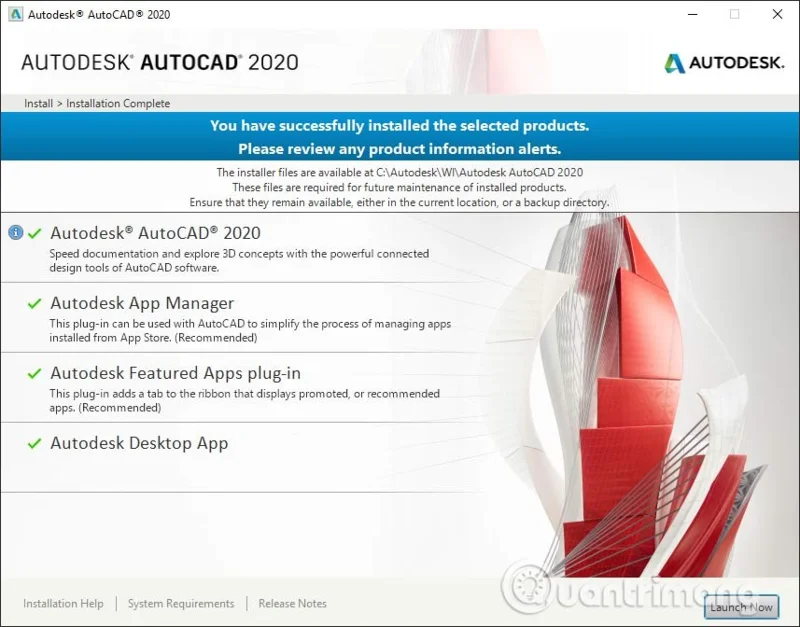
Step 8:
In the software interface, you will be asked to use Single or Group.
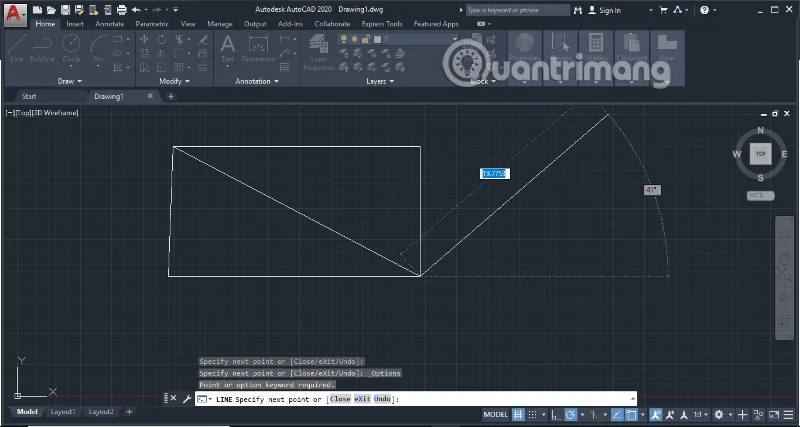
Next, log in to your personal account to use the software and you're done. Below is the interface of the licensed AutoCAD 2020 version.
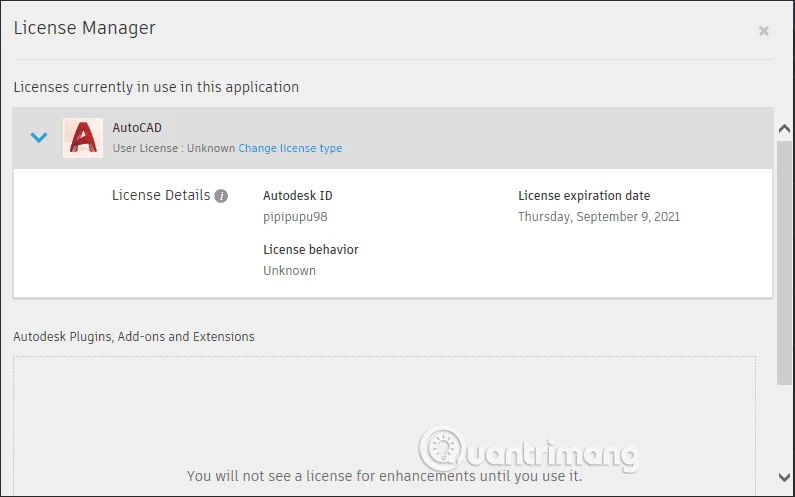
When you click on the account name and select Manage License… to see the license term. We will use Autocad for free until the student card expires.
See also:
Find 15 office-friendly Halloween costume ideas for 2026, with practical checks for dress codes, respectful themes, comfort, and workplace safety.
Plan a fun elementary school Halloween party with easy crafts, games, inclusive treats, costume tips, and a sample 75-minute classroom schedule.
Compare realistic side hustles for 2026 by startup cost, fees, flexibility, and income control, with current tax and scam guidance from official sources.
Upgrade your home office ergonomics with current OSHA and NIOSH guidance on chair fit, monitor height, laptop setup, lighting, and movement.
Learn why emotional intelligence matters in leadership, where it helps most, how to strengthen it, and how to tell whether your approach is working.
A practical roadmap for moving into tech without a degree: choose an accessible role, build job-ready skills, prove them with projects, and use hiring feedback to improve.
Build a credible LinkedIn personal brand in 2026 with current profile, content, newsletter, analytics, verification, and visibility guidance from LinkedIn.
Quiet quitting and quiet firing are catchy labels, not diagnoses. Learn what is verified, what depends on context, and what employees and managers can do next.
Fractional executives offer senior leadership without a full-time hire. Learn when the model works, what to ask, and the risks to manage.
Prepare a stronger Q4 raise request with current wage data, timing options, compensation tradeoffs, and scripts for yes, partial, or no outcomes.








