How to Update Google Chrome Browser

Learn how to update Google Chrome browser on Windows, Mac, and Android in minutes to enjoy better security, speed, and new features. Follow these clear steps.
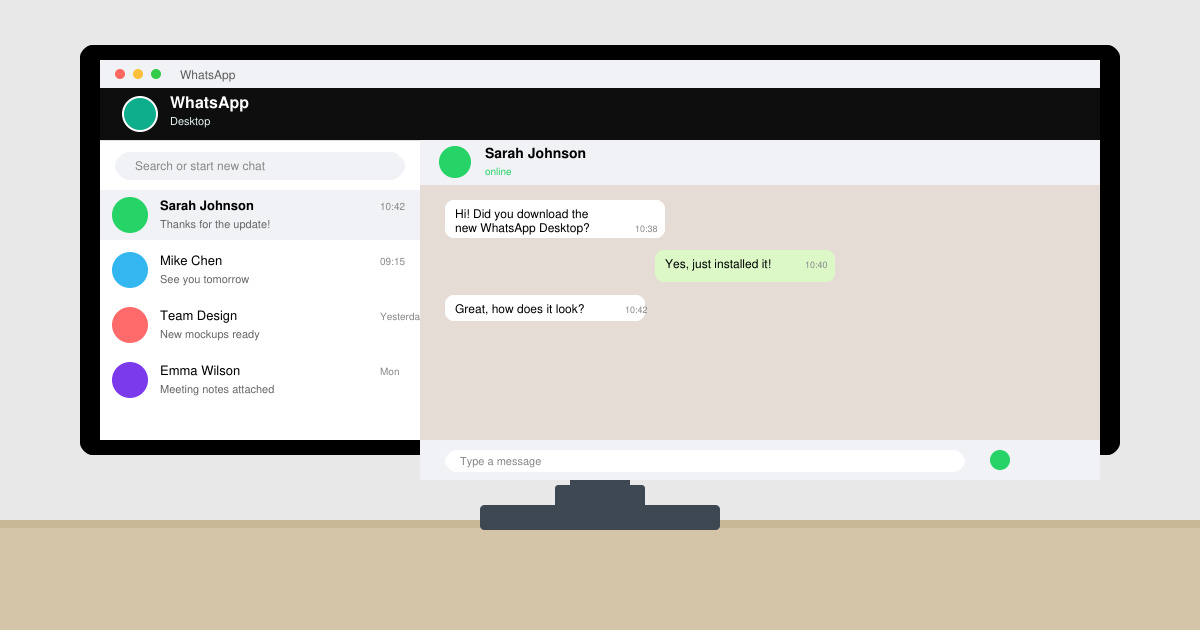
If you want to Download WhatsApp Software for PC, the official WhatsApp Desktop application provides a full-featured experience that mirrors your phone conversations on a larger screen. It requires your phone to stay connected to the internet and uses a simple QR code scan for setup. This guide walks through the exact process for Windows and macOS users.
WhatsApp Desktop works only when your smartphone has an active WhatsApp account and remains online during use. You need a computer running Windows 10 or later, or macOS 10.15 or later. Make sure your phone’s WhatsApp app is updated to the latest version before starting the installation on your PC.
The desktop version stores local data on your computer but does not replace the phone app. Both devices must stay linked through the same phone number.
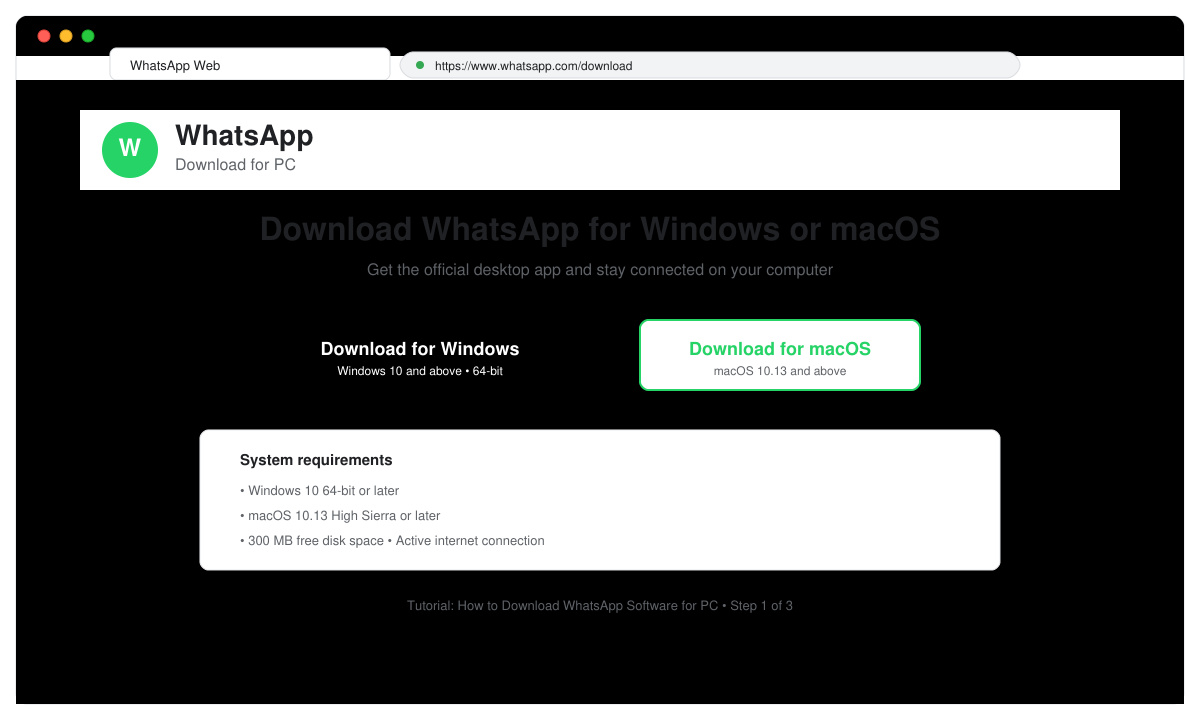
Open any web browser on your computer and navigate to the WhatsApp website. Click the Downloads link in the top menu and select the option for WhatsApp Desktop. Choose the correct version for your operating system (Windows or macOS).
Locate the downloaded .exe file on Windows or .dmg file on Mac in your Downloads folder. Double-click the file and follow the on-screen prompts to complete the installation. No additional software is required.
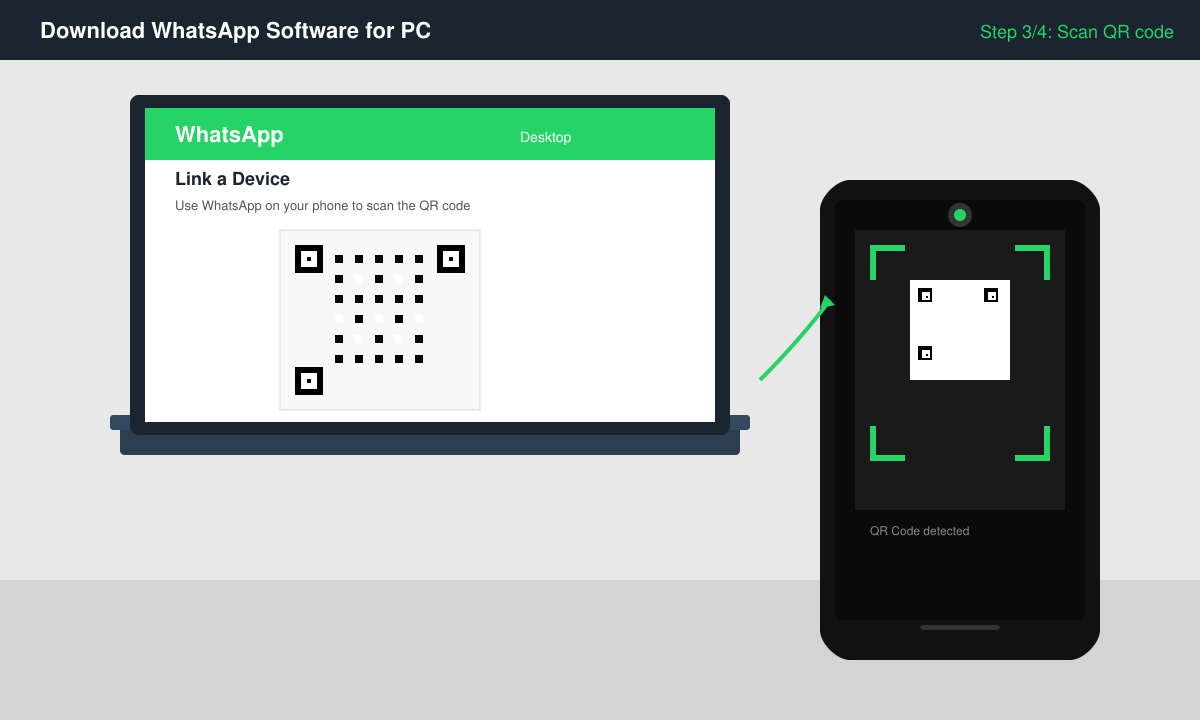
Launch the newly installed app. A QR code will appear on your computer screen. Open WhatsApp on your phone, go to Settings, select Linked Devices, and tap the plus icon to scan the code with your phone camera.
Once scanned, your chats will load on the computer. You can now send messages, share files, and make calls using your keyboard and mouse while your phone stays connected in the background.
If the QR code fails to scan, restart both your phone and computer, then try again. Make sure your phone’s camera permission is enabled for WhatsApp. On Windows, disable any aggressive antivirus temporarily if the installer is blocked. For macOS users, go to System Settings > Privacy & Security and allow the app if a warning appears. Always download directly from the official WhatsApp site to avoid fake versions.
Keep both apps updated regularly so new features and security patches apply automatically.
No. Your phone must remain connected to the internet for WhatsApp Desktop to function. The computer app acts as a mirror of your phone account.
Yes. WhatsApp Desktop is a standalone application you install, while WhatsApp Web runs inside a browser. The desktop app offers better notification handling and keyboard shortcuts.
No. The official WhatsApp Desktop app is completely free for personal use on both Windows and macOS.
Following the steps above lets you Download WhatsApp Software for PC and enjoy a convenient desktop experience within minutes.
Learn how to update Google Chrome browser on Windows, Mac, and Android in minutes to enjoy better security, speed, and new features. Follow these clear steps.
Learn how to download old media from WhatsApp and recover photos or videos from past chats. Follow these clear steps to save files that no longer appear in your gallery.
Facebook Messenger Isn T Working on your device? Use these exact troubleshooting steps to restore chats, calls, and notifications fast on Android, iOS, or desktop.
How to See Deleted WhatsApp Messages using your phone's built-in tools. Follow these exact steps to recover messages that contacts have deleted from chats.
Learn how to clear browser history in Chrome on desktop and Android with this exact step-by-step process. Keep your browsing private and free up storage space quickly.
Master how to use CapCut with this practical walkthrough covering project setup, editing tools, effects, and export options for high-quality video results.
Get the latest WhatsApp App Update Download from official sources to access new features and security improvements. Follow these clear steps for Android and iOS devices.
Learn how to safely Download WhatsApp App for Android from the official Google Play Store. Follow our clear step-by-step instructions to install the latest version quickly and securely.
Google Download WhatsApp App safely through the Google Play Store with this clear guide. Get the official version on your Android device quickly and avoid fake downloads.
Facebook and Messenger not working can disrupt your day. Follow these targeted fixes to restore access quickly on mobile and desktop.








