When using spreadsheet software such as Google Sheets, power users often need to apply a formula (or function) to an entire table column. For example, you might want to add up the values across two columns and 10 rows in a third table column.
The most straightforward way to do this is to add the SUM function to 10 cells in the destination column. However, inserting all those formulas by hand would be error-prone, to say nothing of tedious.
Fortunately, there are various ways you can quickly apply formulas to entire columns in Sheets without manually entering them to each cell, making you more efficient and accurate in your work.
You can work faster, more efficiently, and more accurately using this method to apply formulas to entire columns in Google Sheets. Let’s get started!
Add Formulas to Table Columns with the Fill Handle
Most spreadsheet applications, including Google Sheets, have a fill handle for you to copy cell formula across columns or rows with. You can utilize Sheets’ fill handle by dragging the formula’s cell over a range of cells to copy it to each cell within the range.
The other column cells will then include the same function and relative cell references for their table rows Follow these steps to add formulas to entire table columns with the fill handle:
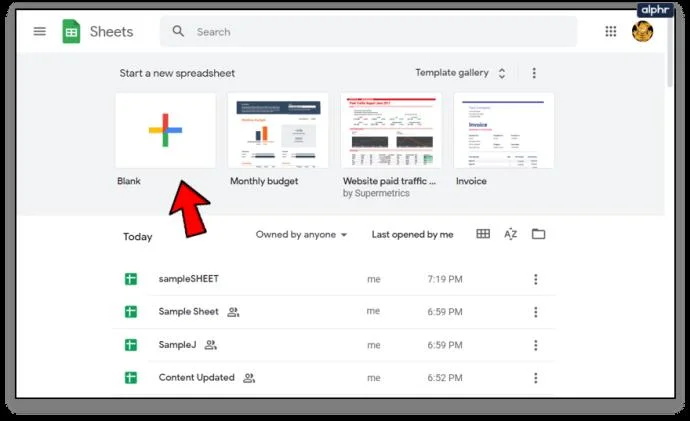
- Open a blank Google Sheet in your browser, opening a blank spreadsheet.

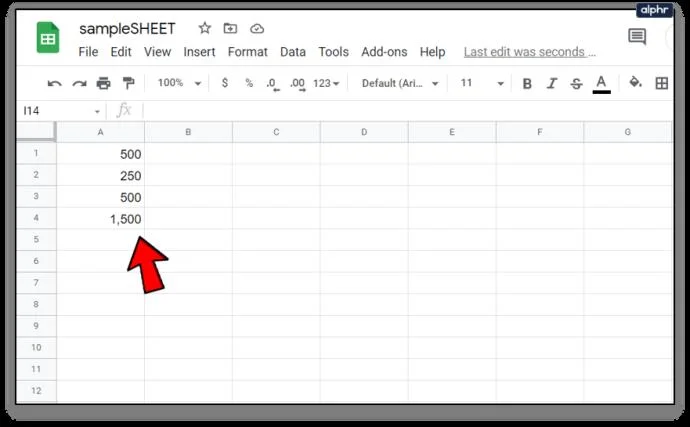
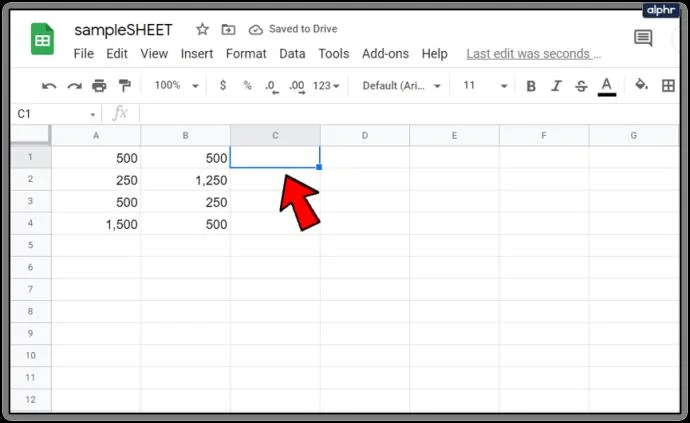
- For an example of the fill handle in action, enter 500 in A1, 250 in A2, 500 in A3 and ‘1,500’ in A4.

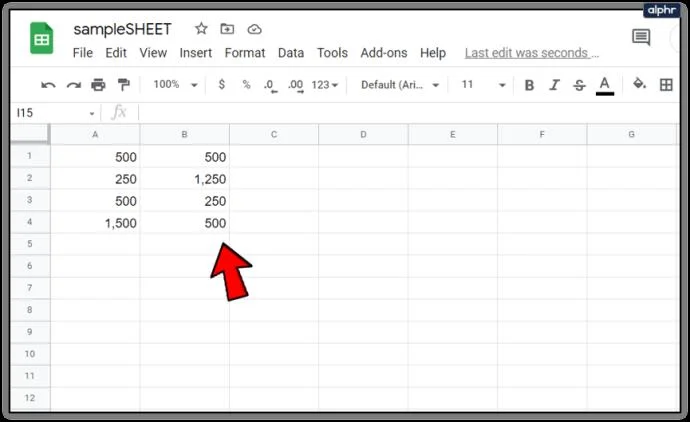
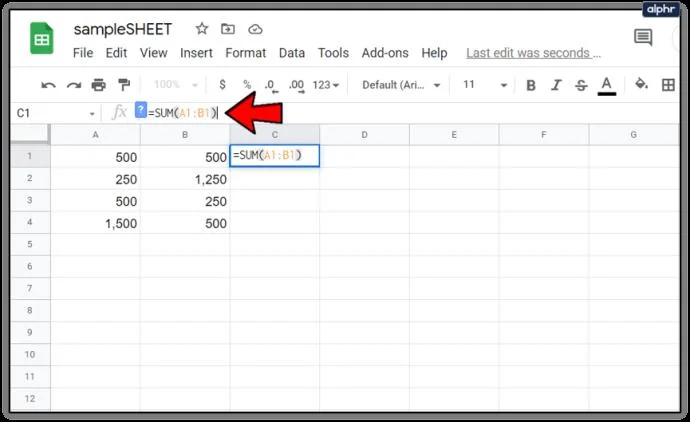
- Then input ‘500’ in cell B1, ‘1,250’ in B2, ‘250’ in B3 and ‘500’ again in B4 so that your Google Sheet spreadsheet matches the one in the snapshot directly below.

Now you can add a formula to column C with the fill handle:
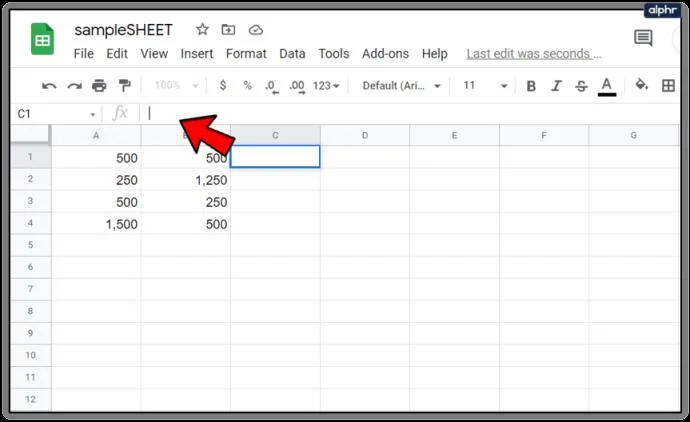
- First, select cell C1 in your Google Sheet; and click in the fx bar

- Then Enter
=SUM(A1:B1) in the fx bar.

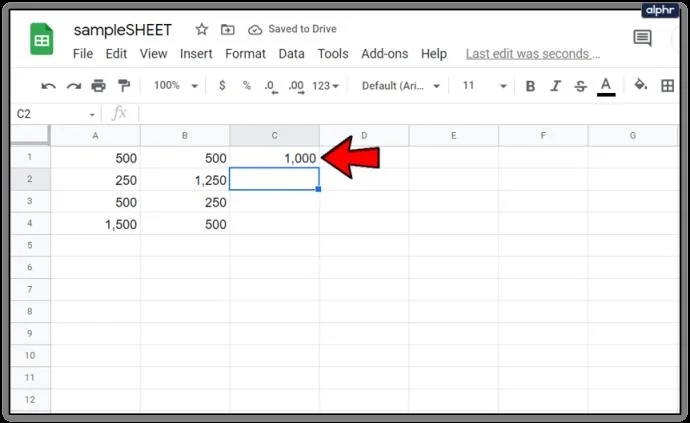
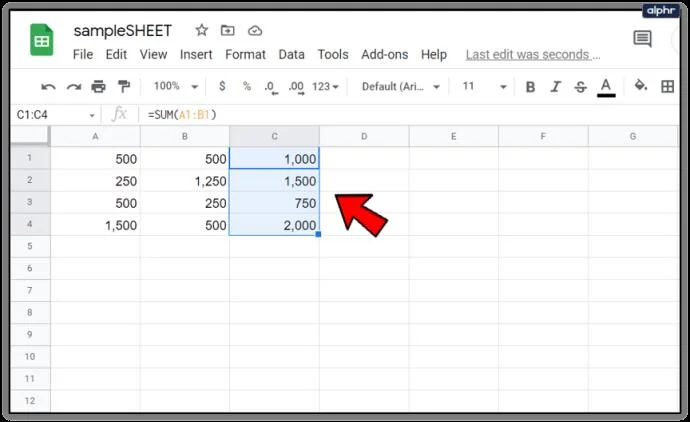
- Press Enter and cell C1 will return the value of 1,000.

- To copy C1’s function to the other table rows in column C with the fill handle, follow these steps:
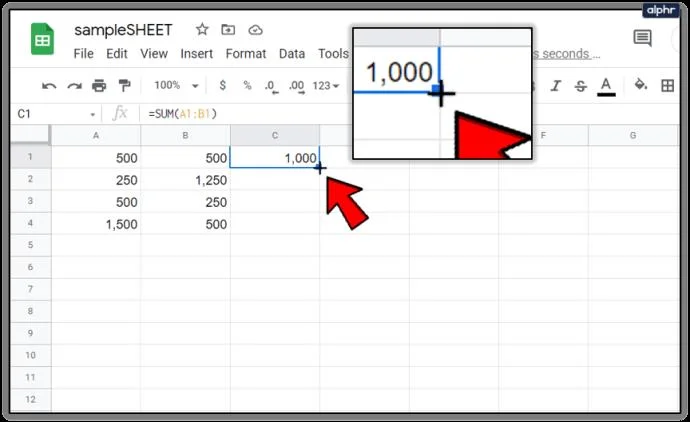
- Select the cell C1 and move the cursor to its bottom right corner of the cell.
- When the cursor transforms into a cross, press and hold the left mouse button down.

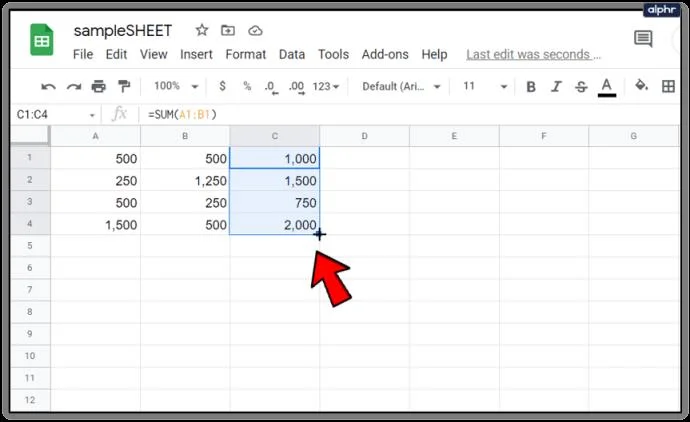
- Drag the cursor down to cell C4.
- Then release the left mouse button.

This process will apply the function to the other three rows of column C. The cells will add the values entered in columns A and B.
The ArrayFormula Function
Using Sheets’ fill handle tool is great for adding formulas to smaller table columns. However, if you have a huge table it might be better to apply the formula to the entire spreadsheet column with the ARRAYFORMULA function.
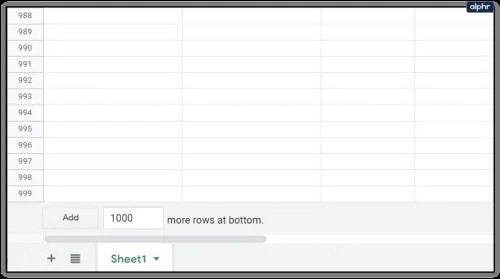
To use ARRAYFORMULA you need to know how many rows the formula needs to address. Luckily, this is easy to figure out. You can scroll down 1,000 rows in the spreadsheets with the scroll bar. Even though you can add more, 1,000 is the default number of rows in Sheets. As such, 1,000 cells amount to an entire column if you don’t modify the default value. This trick will save you a lot of time.

You can quickly apply a formula to all those column rows with the ARRAYFORMULA function.
- Replace the SUM function in column C of your table with an array formula.
- Select the cell range
C1:C4.

- Press the Del key to erase SUM. Select cell C1 to include the function.

- Input
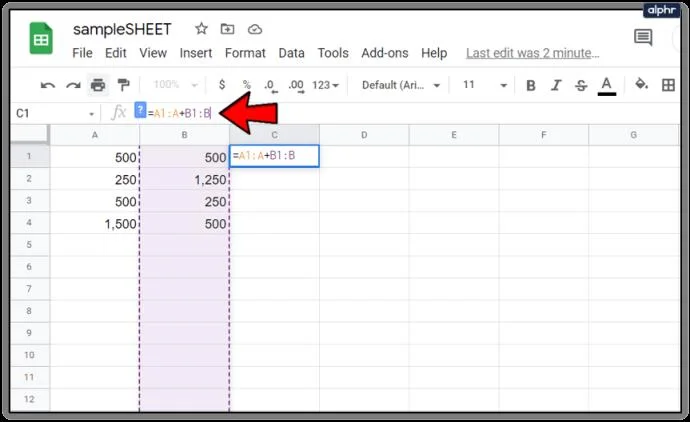
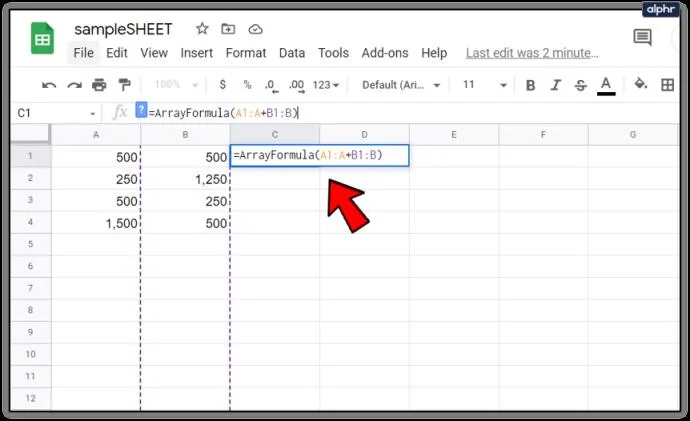
=A1:A+B1:B in the fx bar, and press Ctrl + Shift + Enter to add ARRAYFORMULA to the formula.

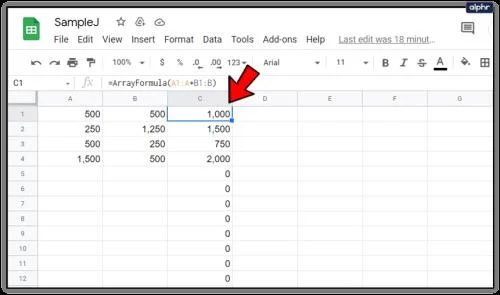
- The fx bar will then include the array formula shown in the snapshot directly below.

Then hit Enter to copy the formula to all 1,000 rows. This process will cause the 1,000 rows in column C of your spreadsheet to now add up the values entered in columns A and B!

The key thing to note here is that you should always press Ctrl + Shift + Enter after entering the basic function in the fx bar as Ctrl + Shift + Enter automatically converts the basic function into an array formula, which is what you need for this exercise.

You also need to modify the function’s cell reference for an array formula to work. The first column cell is always included in the reference.
However, the second half of the reference is actually the column header. The cell references should always be something like A1:A, B4:B, C3:C, etc, depending on where the first table column cell is in the Google Sheet you are working on.
Add Formulas to tables with AutoSum
Power Tools is a great add-on for Sheets that extends the web app with tools for text, data, formulas, deleting cell content and more besides. AutoSum is an option in Power Tools that you can add functions to entire columns with.
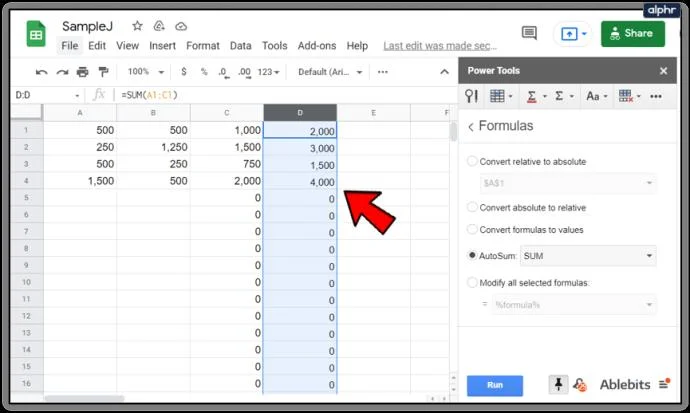
With AutoSum you can add SUM, COUNT, AVERAGE, MAX, PRODUCT, MODE, MIN, and other functions to full columns.
To add Power Tools, follow these steps:
- Navigate to the Power Tools website
- Press the Free button on this e to add Power Tools to Sheets

- Click Continue on the dialogue box that will appear within a few seconds

- Next, choose a Google Docs (same account as your Gmail) account in which to install Power Tools

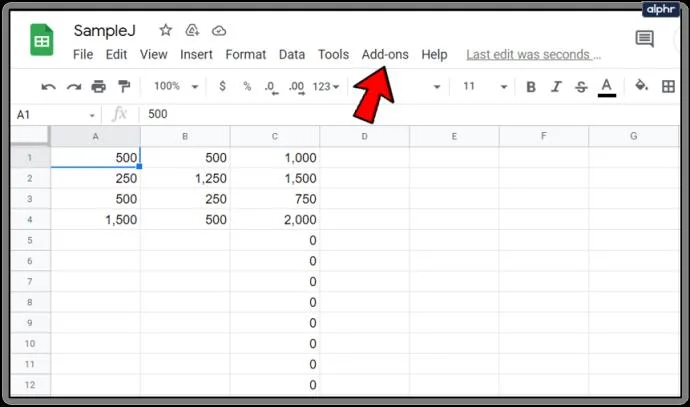
- Go to the Add-ons menu

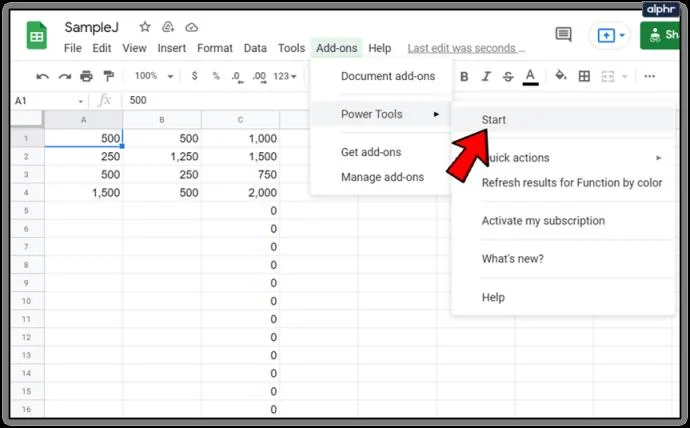
- Select Power Tools then Start to open the add-on sidebar or choose one of the nine 9 tool groups from the Power Tools menu

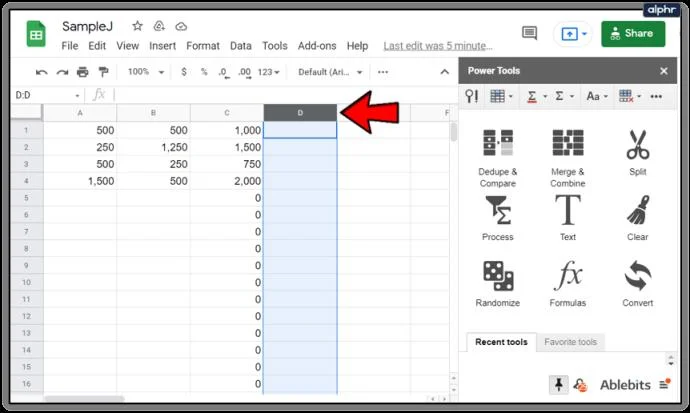
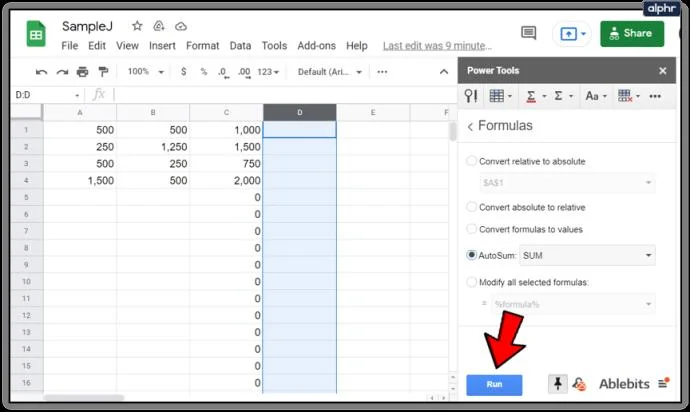
- Click the D header in your spreadsheet to select the entire column

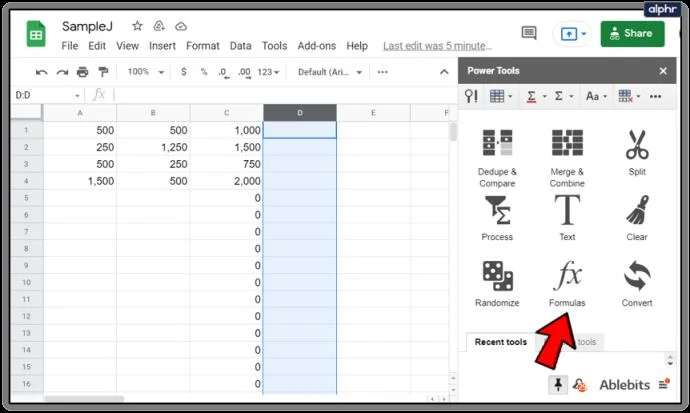
- Select Formulas from the Power Tools menu

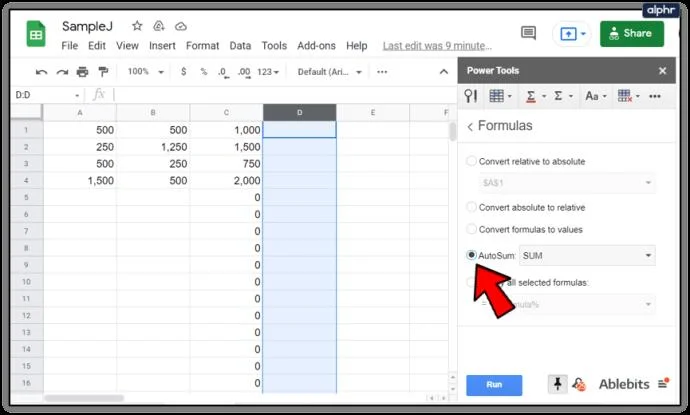
- Then click the AutoSum radio button in the sidebar

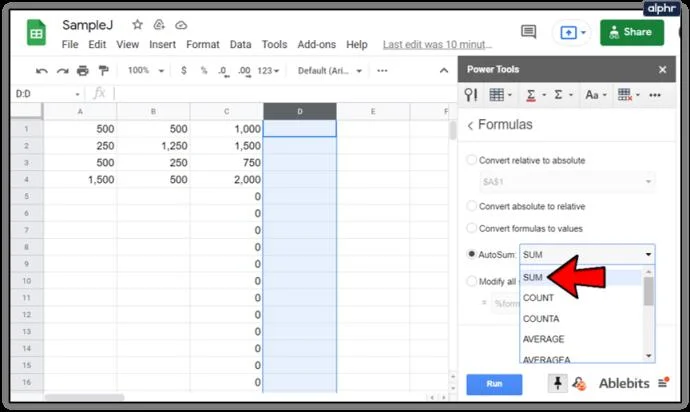
- Select SUM from the drop-down menu

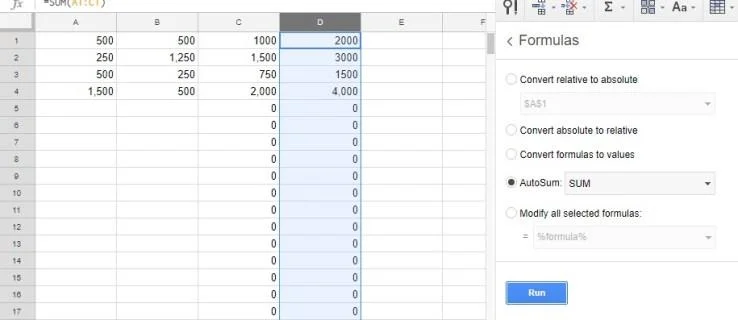
- Press the Run button to add SUM to column D as shown in the screenshot below

- That adds SUM functions to all 1,000 cells in column D as shown in the second screenshot below

So now you can quickly add functions to all your table column cells in Sheets with the fill handle, ARRAYFORMULA and the AutoSum option in Power Tools. The Google Sheets fill handle usually does the trick for smaller tables, but ARRAYFORMULA and AutoSum are a much better choice for applying functions across entire Google Sheet columns.
If you want to learn to use an advanced and powerful Google Sheets feature, check out How To Create, Edit and Refresh Pivot Tables in Google Sheets.
Do you have any other suggestions of how to add functions to an entire column in Google Sheets or other tips and tricks? Share them with us below!