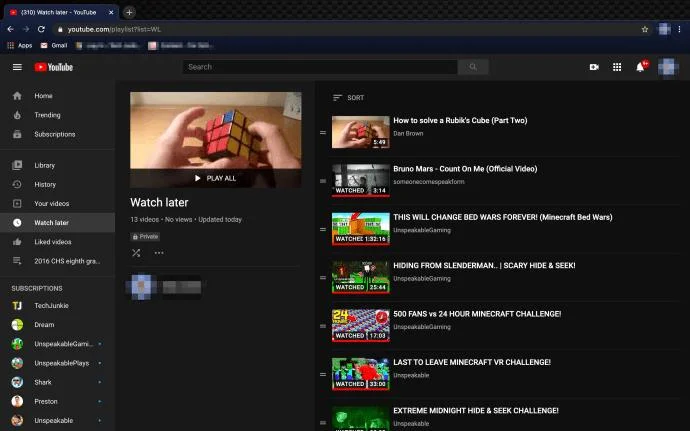
The YouTube app has a feature to save videos and watch them another time. The “Watch Later” function is perfect for those who do not have the time to finish a video or stumble across one they’d like to watch in the future when they get time.
By clicking the three dots next to the video and tapping on the “Add to Watch Later” option, you can easily organize those videos. If you don’t get the chance to watch your “View Later” items or don’t want to hold on to them anymore, there are ways to delete them out of the folder.
For those who have hundreds of videos they’d like to remove, it may take a little more skill and time to clean out the “Watch Later” files, but you can.
Can You Delete All Watch Later Videos at Once?
YouTube does allow you to mass-delete all videos that you’ve started watching in the folder. However, saved videos that were not seen are a different story.
Mass Deleting Saved Videos You’ve Partially Seen
Both iPhone and Android have options within the YouTube app to remove watched videos from the watch later folder. For those that have started a video and not completed it, you can follow these instructions to remove the watched videos:
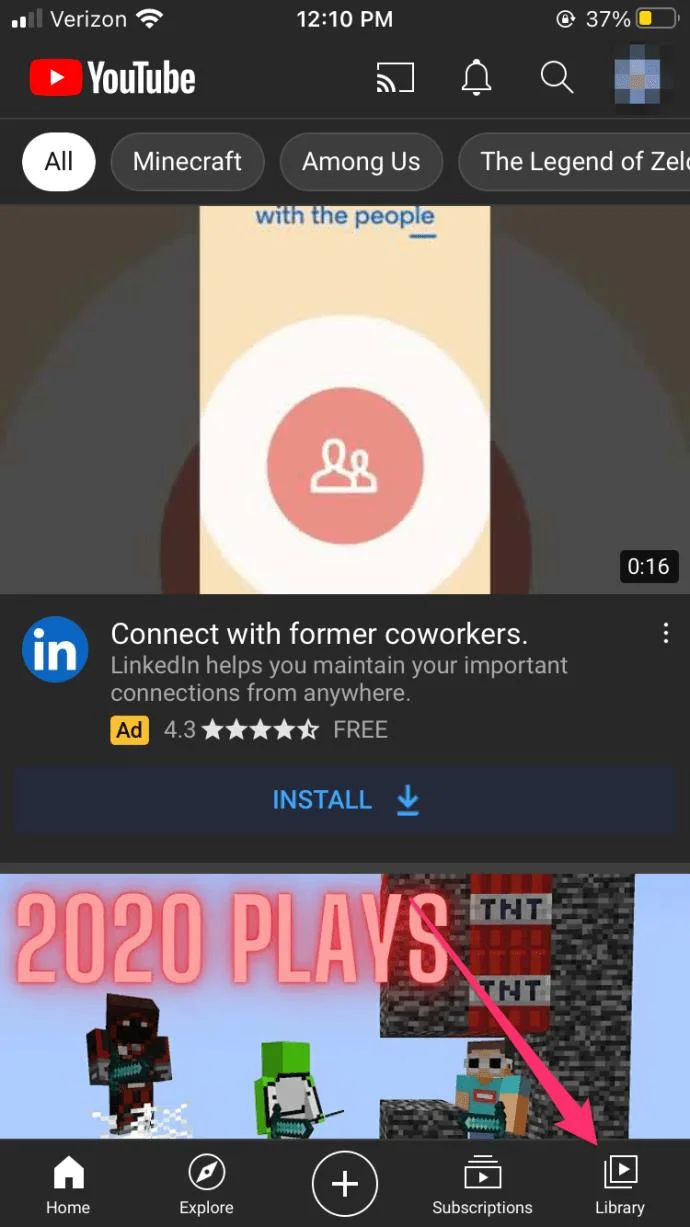
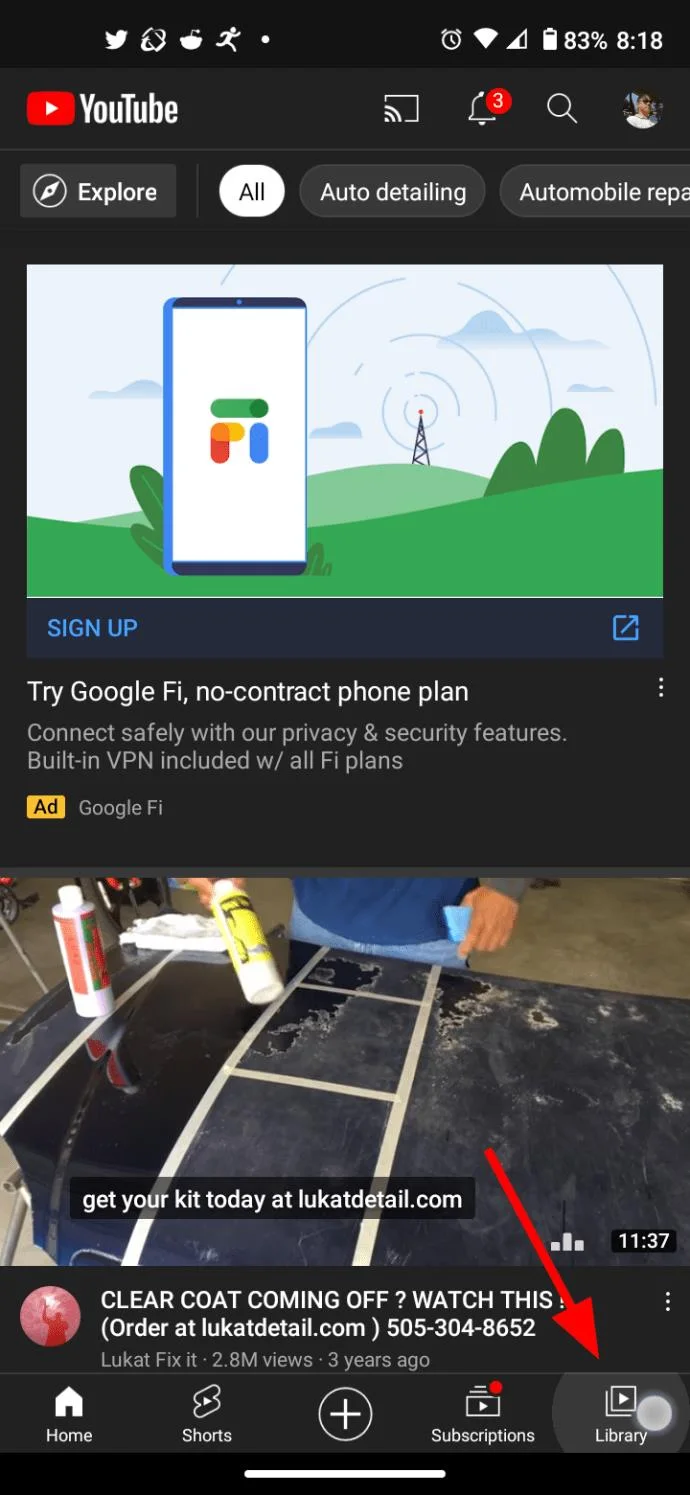
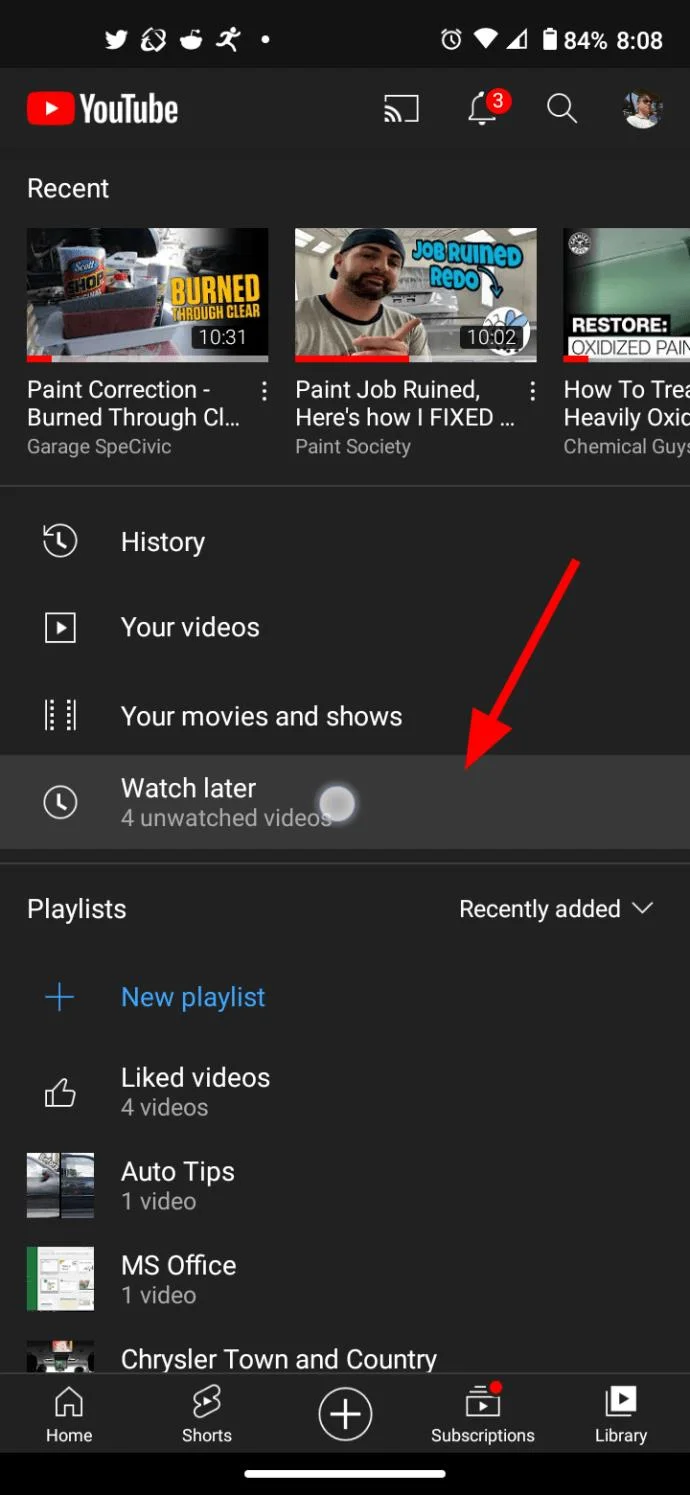
Click on “Library” in the lower right-hand side of the YouTube App.
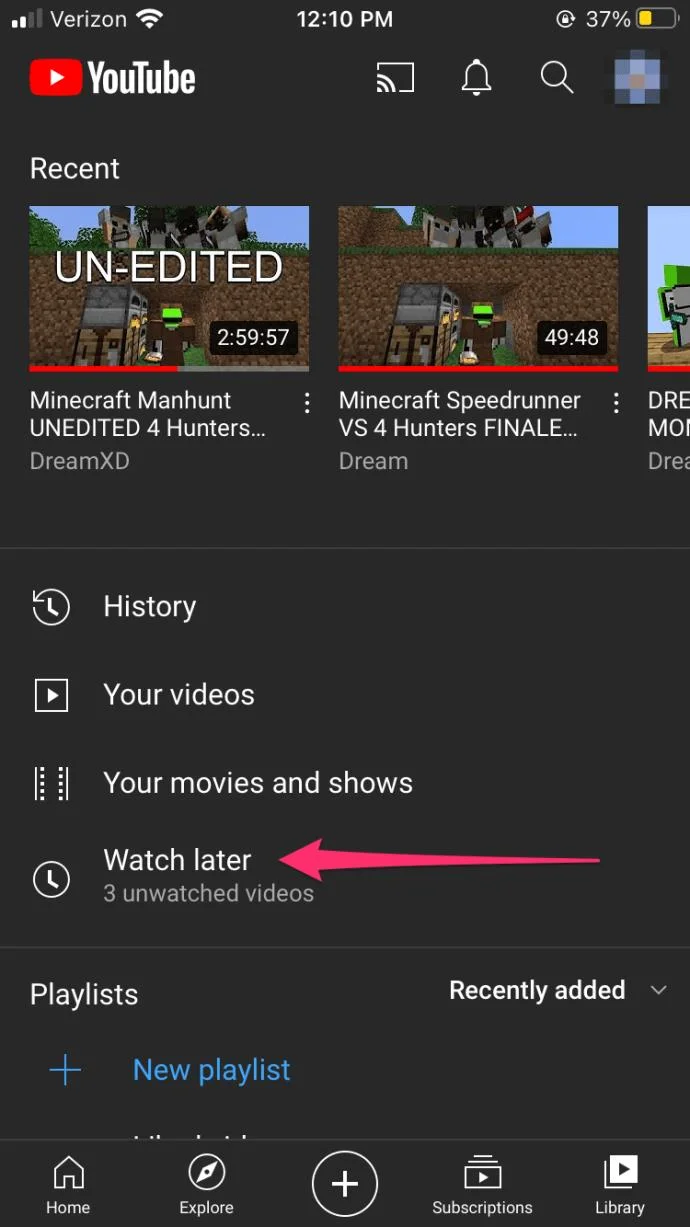
Tap “Watch Later,” which is in the center of the screen
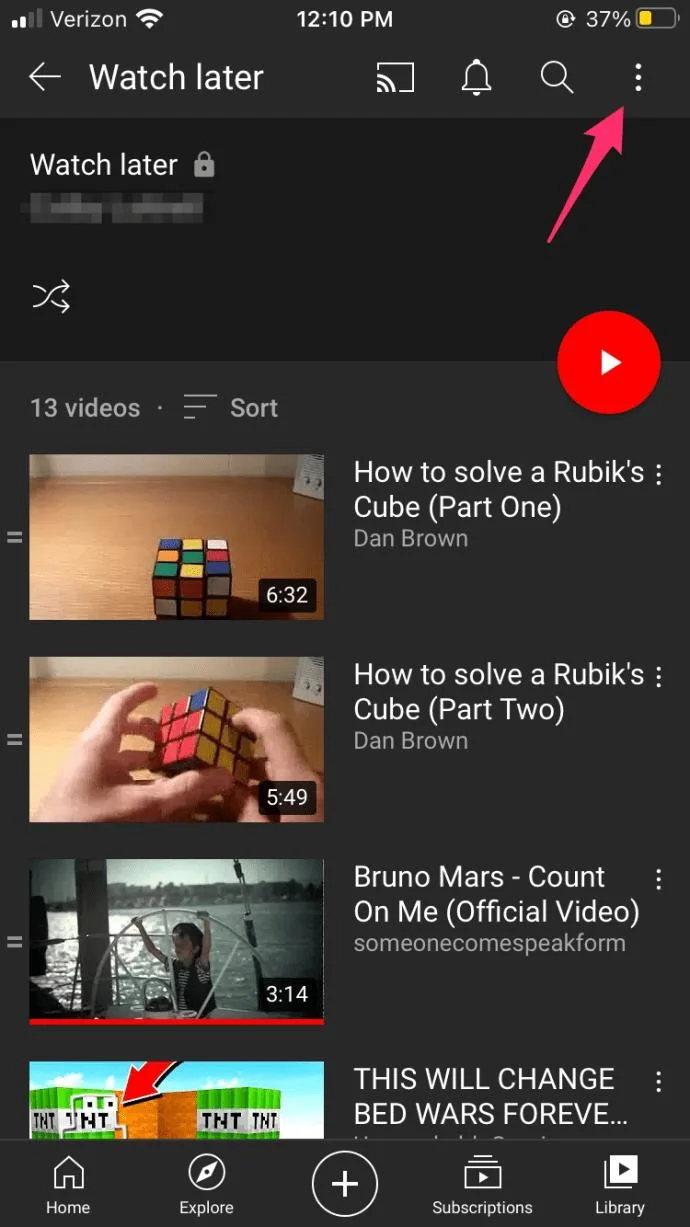
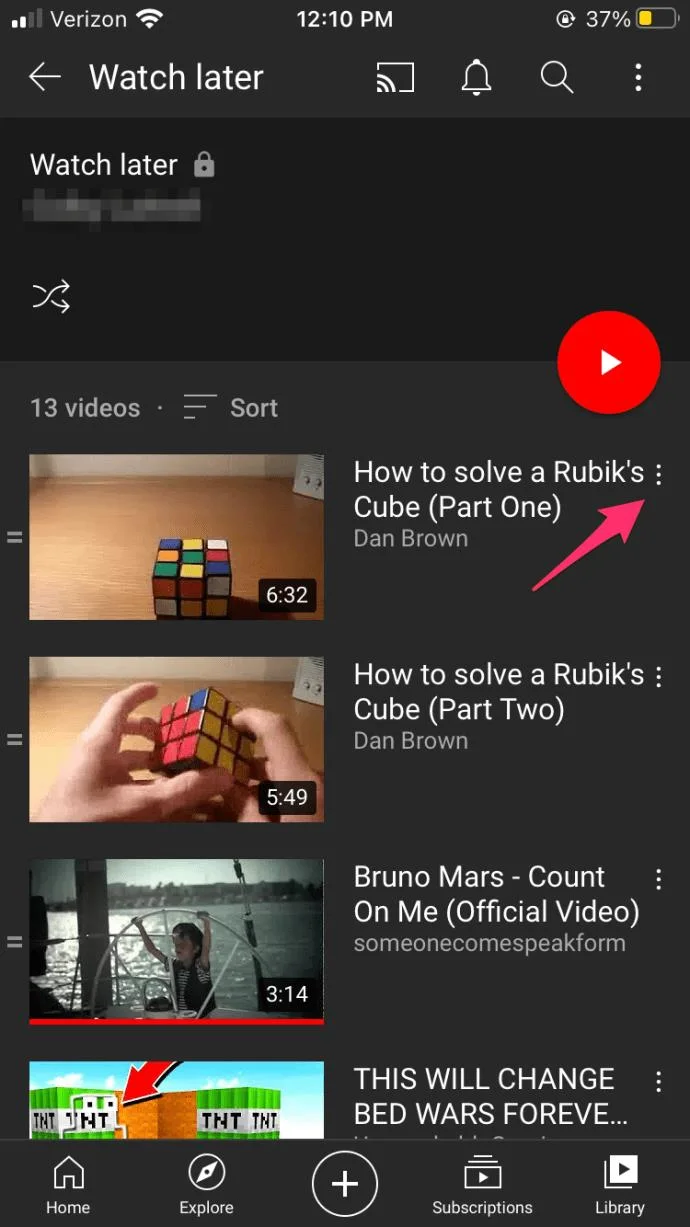
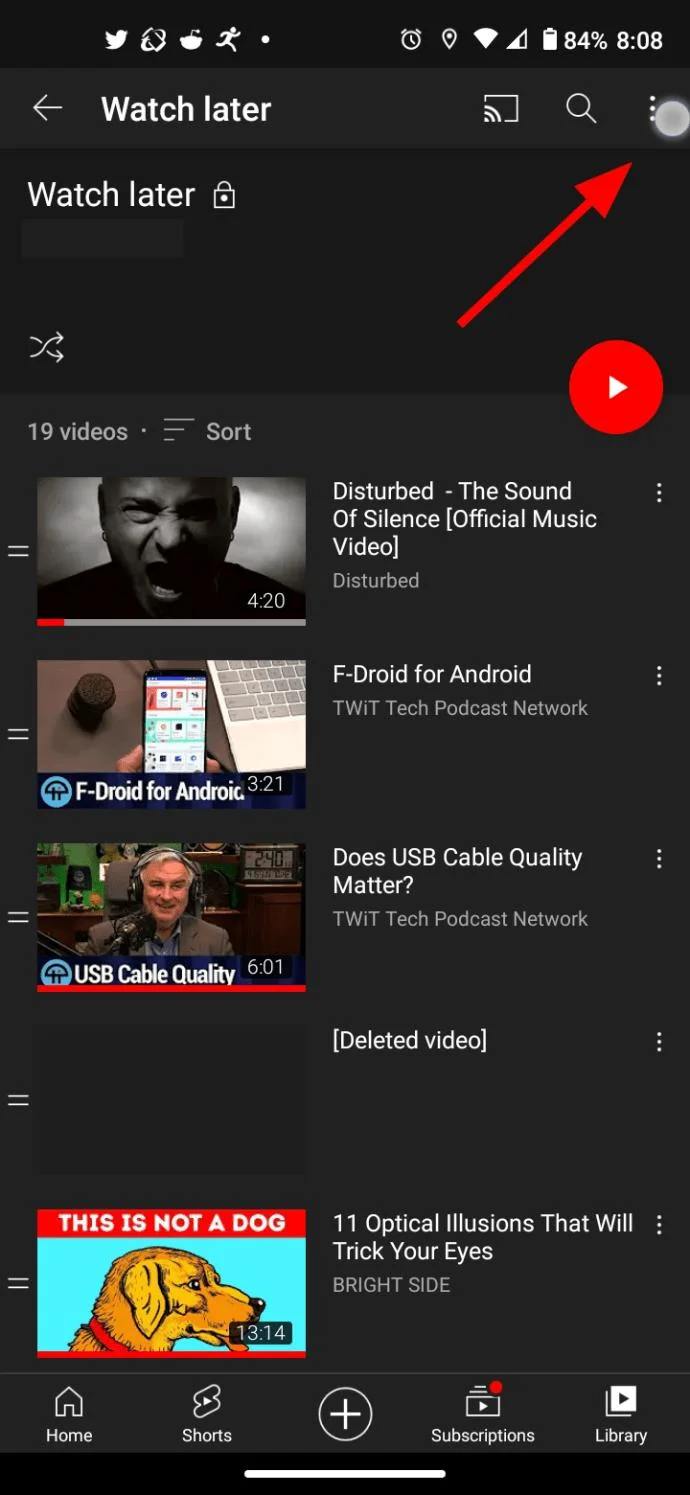
Tap the vertical allipsis (three vertical dots) in the upper right-hand corner from the Watch Later folder.
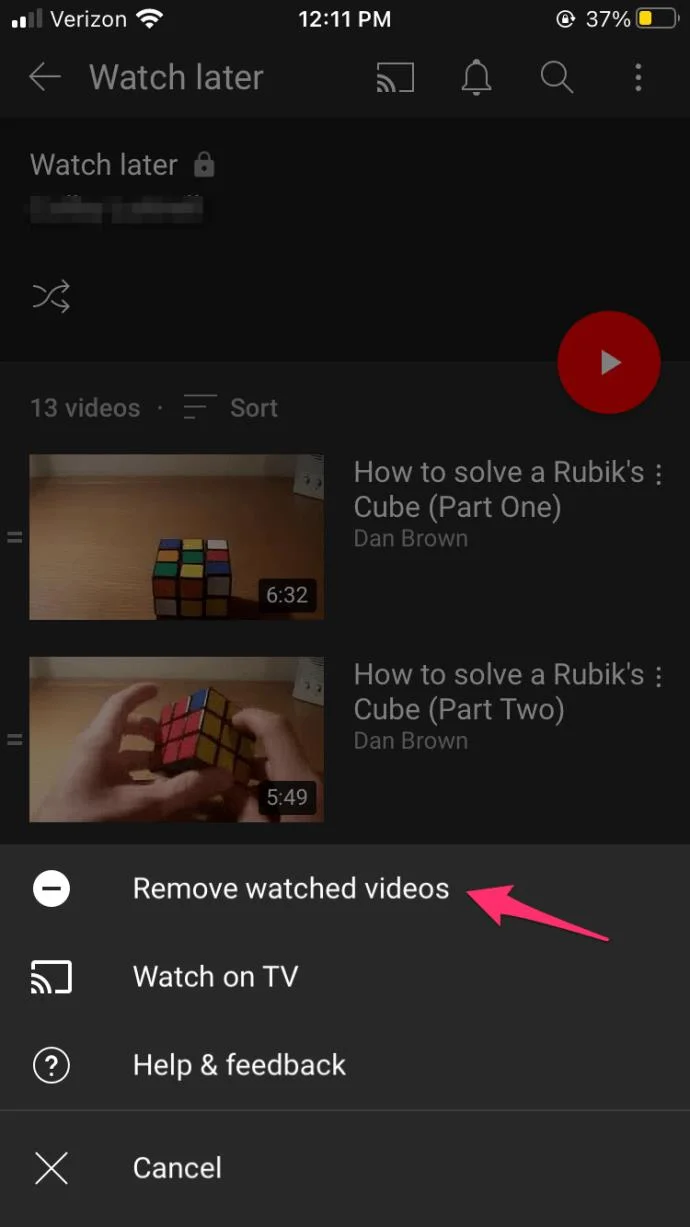
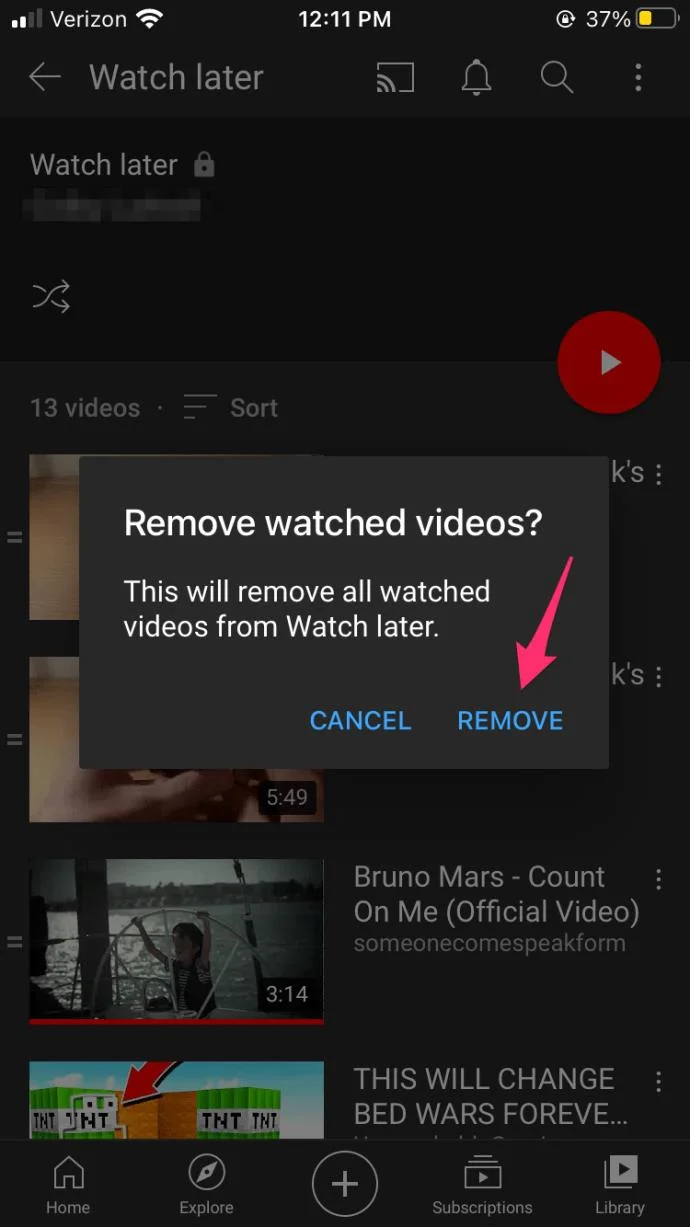
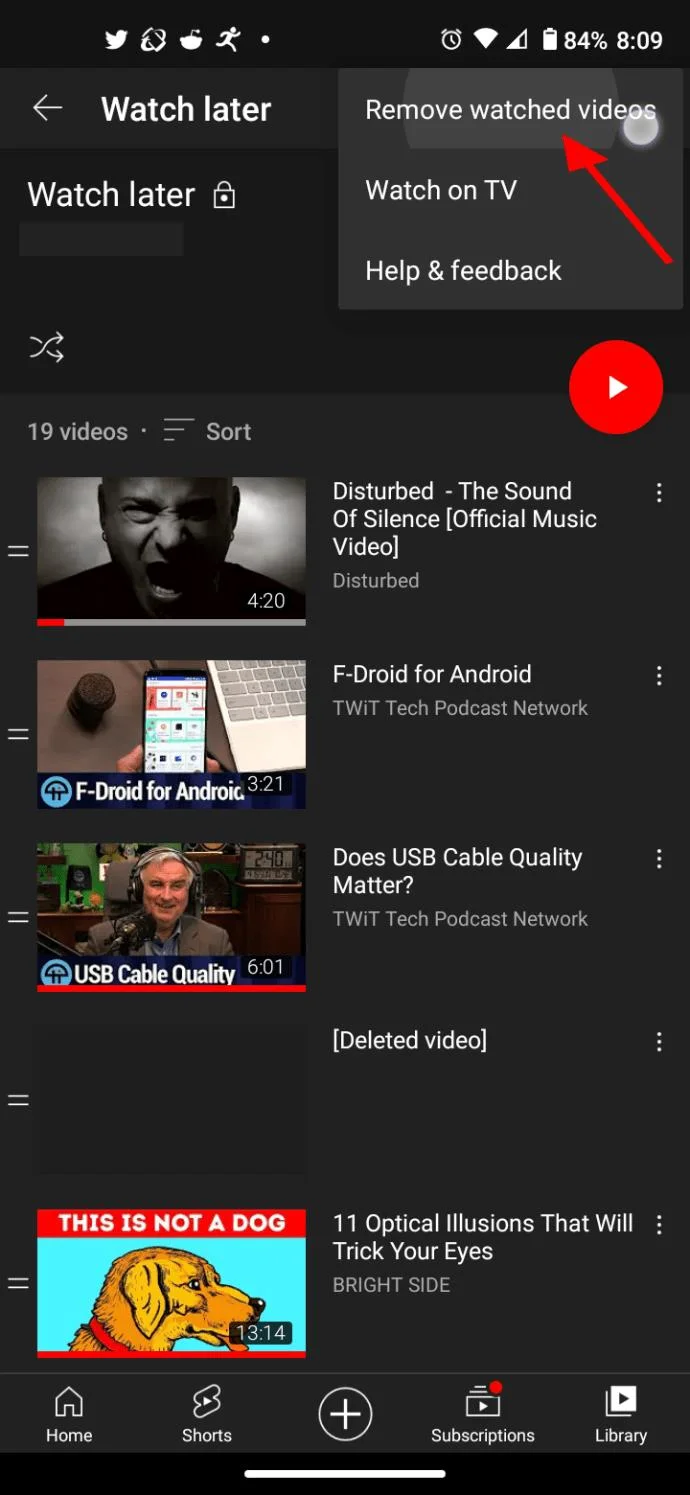
Tap “Removed Watched Videos,” which is the first option.
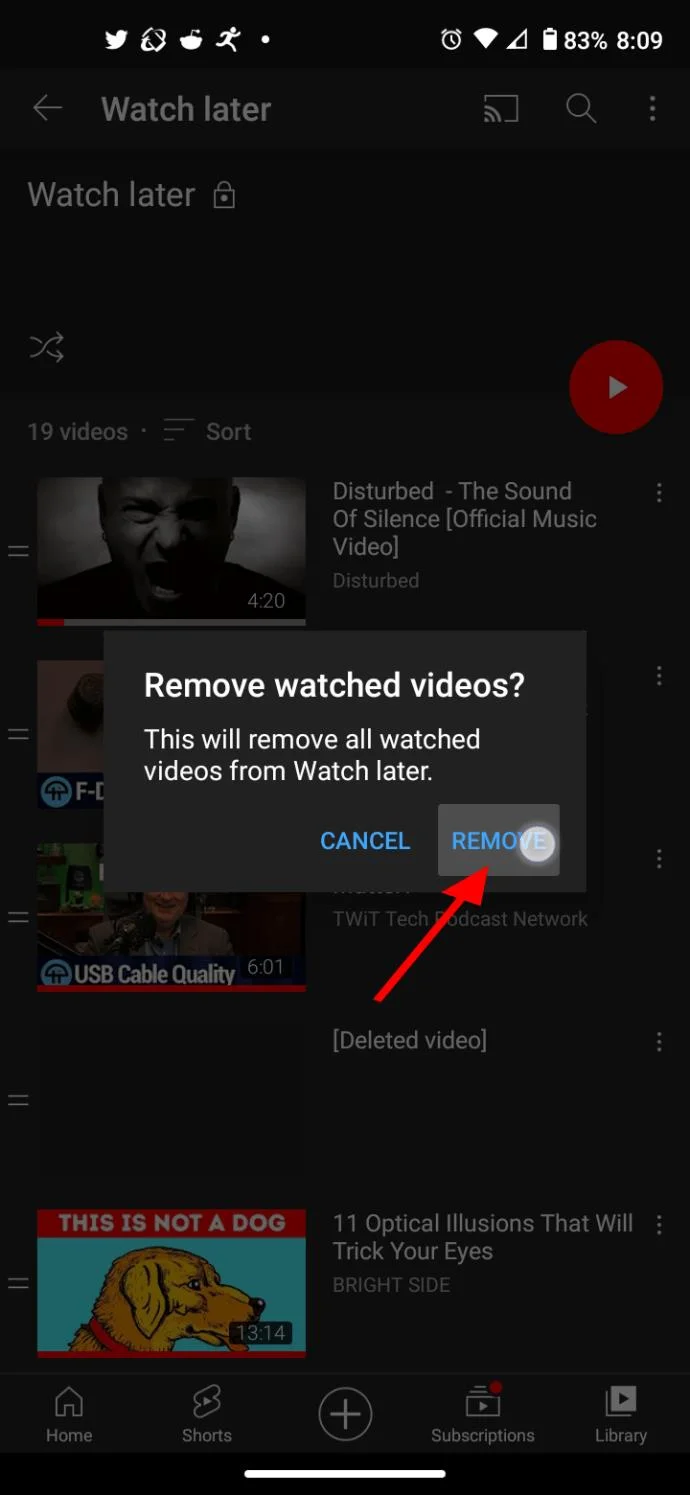
A small pop-up appears. Select “Remove.”
Upon completing the steps above, any video watched (regardless if you finished it) gets removed from the folder. Users may notice that there are still some videos remaining. These are the videos that never got viewed.
Deleting Videos That Were Never Watched
Once you remove the watched videos, you can delete the remaining ones, but you need to remove them one by one. Although the process is simple, it does take time, especially if there are several videos in the folder. Here’s how to do it:
Delete Unwatched Videos in YouTube on iPhone or iPad
Select the “Library” tab in the lower-right corner.
Tap “Watch Later” to open the entire list of saved videos.
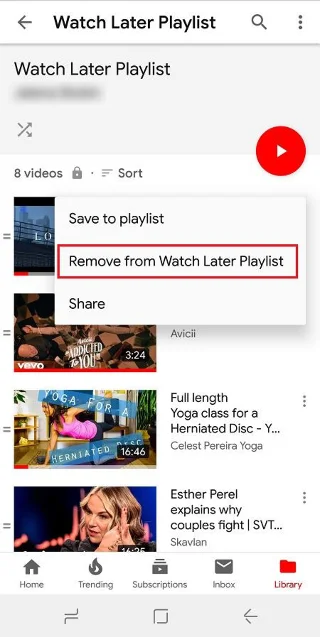
Touch the “vertical ellipsis” (three vertical dots) in the top-right corner of the video that you want to delete.
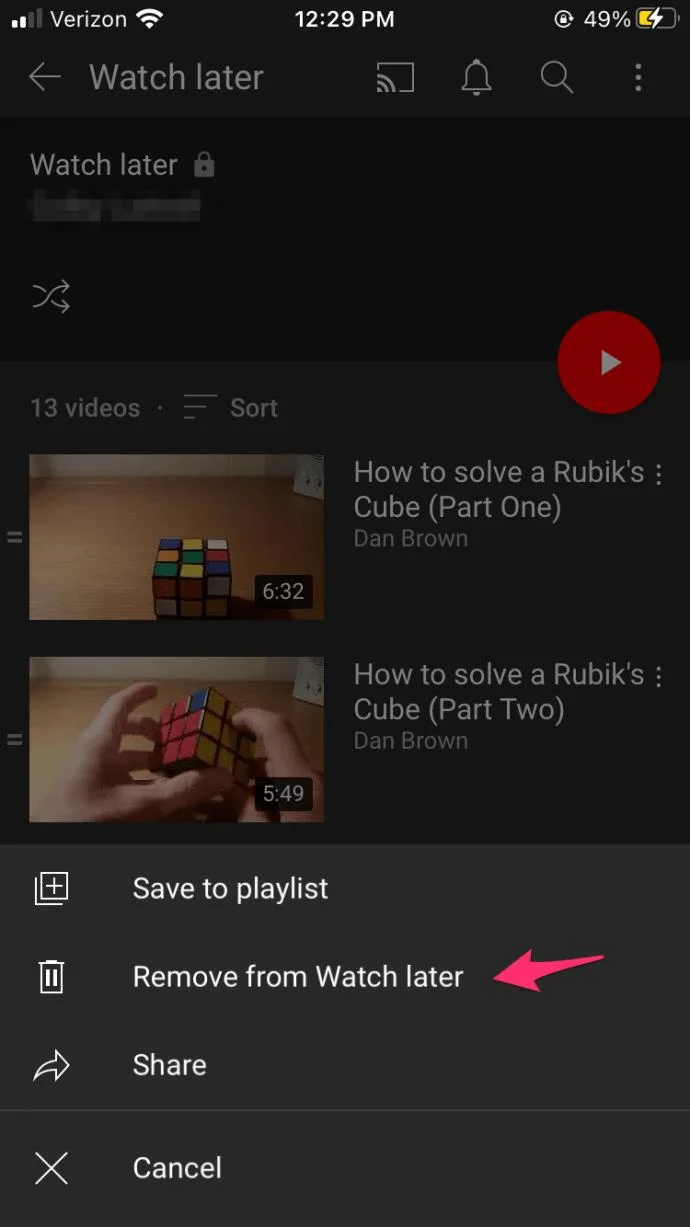
Select the “Remove from Watch Later” button.
Delete Unwatched Videos in YouTube On Android
The newer YouTube “Watch Later” feature on Android lets you remove the video using the same method as the iOS app.
Launch YouTube on android and select “Library.”
Tap on “Watch Later” in the middle section.
Tap on the “vertrical ellipsis” (three vertical dots) to open the Watch Later menu.
Select “Remove watched videos.”
Tap on “Remove” to confirm.
If your phone or tablet uses an older YouTube release, deleting Watch Later videos is slightly different. Here’s what to do:
Go to the Account tab.
Under the Playlists section, tap on Watch Later.
Tap the three-dot icon next to the video details.
Tap Remove from Watch Later.
Delete YouTube Watch Later Videos from Web Browser
On the Desktop version of YouTube, this becomes more convenient. Follow these steps:
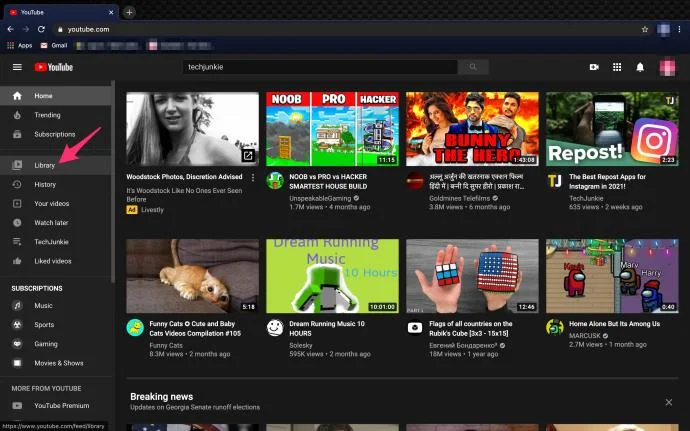
On the left-hand side tap Library (this may vary depending on your browser)
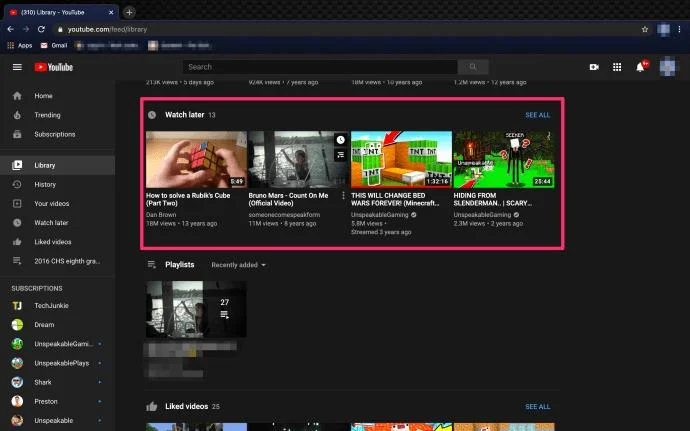
Scroll down to Watch Later.
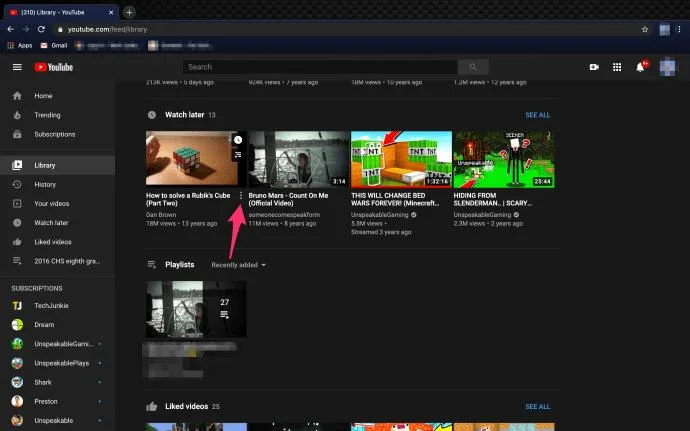
From there, tap the three dots next to each video and remove from watch later.
Even though none of these options aren’t complicated, they’re still not nearly as convenient as a mass delete feature would be. Luckily, tech-savvy people always find a way around such issues.
Using a Script to Remove All Watch Later Videos at Once
Many apps and platforms lack the much-needed mass delete features. But their desktop versions (combined with the proper browser) allow for the use of scripts that can help you overcome many inconveniences. YouTube is no exception, and there’s a script that can help you remove all your Watch Later videos with ease.
Fortunately, the script we’ve listed below works with the new version of YouTube so there’s no need to switch to the older version. Here’s what you have to do:
Note: It should be said that messing with scripts isn’t for everyone. The script below is verified to work, but others have not been fully verified. Some of them could be malicious enough to damage your computer. To prevent this from happening, only look for scripts from reputable sources instead of the ones posted by random people in various forums.
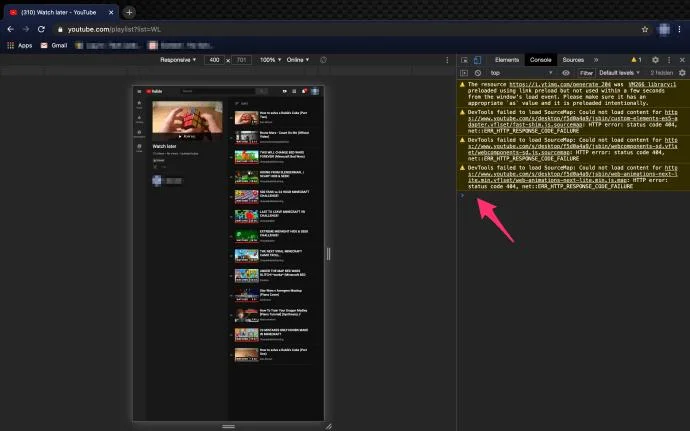
Open YouTube in Google Chrome and navigate to the Watch Later list.
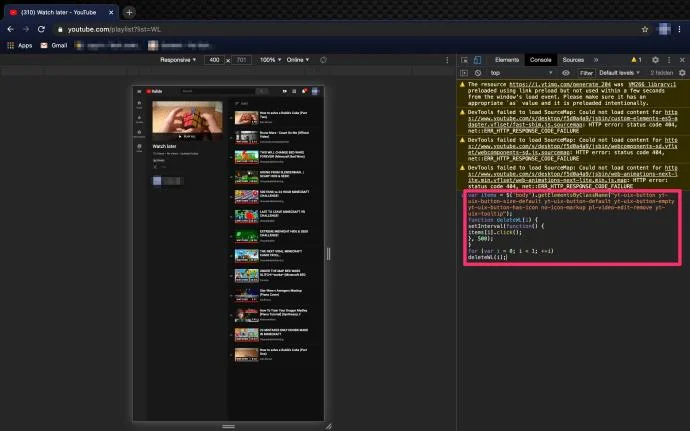
Press Ctrl + Shift + J on Windows or Command + Option+ J on Mac to open the console.
Paste the following script: setInterval(function () { document.querySelector('#primary button[aria-label="Action menu"]').click(); var things = document.evaluate( '//span[contains(text(),"Remove from")]', document, null, XPathResult.ORDERED_NODE_SNAPSHOT_TYPE, null ); for (var i = 0; i < things.snapshotLength; i++) { things.snapshotItem(i).click(); } }, 1000);
Immediately upon pressing Enter, you should see the videos start to disappear. The process isn’t lightning-fast, but it’s the easiest way of removing all Watch Later Videos in one go. Depending on how many videos you’re trying to remove, change the number at the end of the script to a lower numeral. You can speed up the process when you delete fewer videos at a time.
The Final Word
Since mass deletion isn’t YouTube’s thing, the final solution you saw here could be your best option. If there aren’t that many videos to remove, you can do it manually. Still, if you’ve accumulated thousands of them, this might not be that good of an idea, and the script may be the way to go.