How to Update Google Chrome Browser

Learn how to update Google Chrome browser on Windows, Mac, and Android in minutes to enjoy better security, speed, and new features. Follow these clear steps.
When you receive an iMessage from a friend with a picture, the picture is automatically saved to an album on your iPhone, thereby taking up phone memory. iMessage has the feature of receiving messages from friends, and opening them in applications on your phone if there are attached files, such as opening photos in the Photos application. The article below will guide you to block saving photos from iMessage to iPhone albums.
How to Block iMessage Photos from Being Saved to Albums via Settings
Step 1:
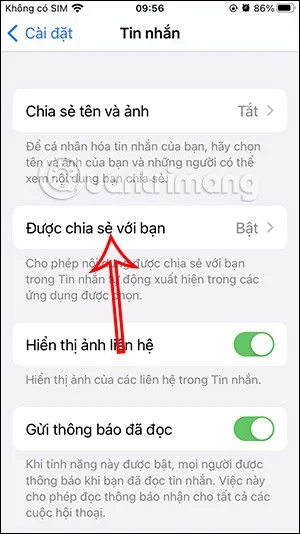
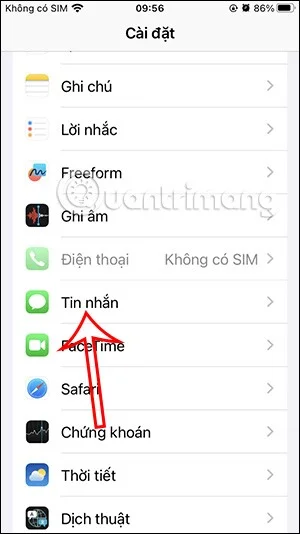
You access Settings on your phone, then tap on Messages to adjust. Switch to the new interface and you will see the item Shared with you . We will enter this item to adjust opening files via the application.
Step 2:
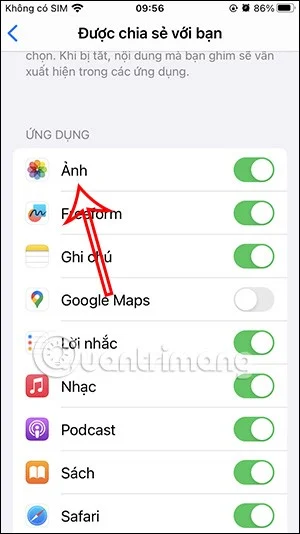
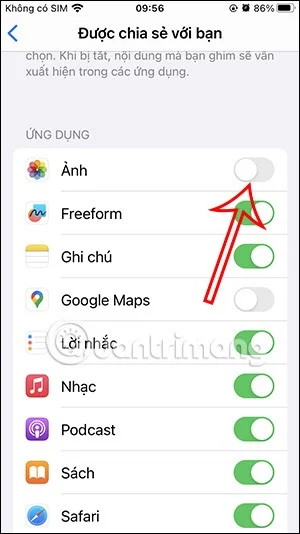
Below are the default apps that open in the Messages app, including the Photos app. To turn off saving photos from iMessage to your iPhone album , simply turn off the Photos app .
How to stop saving iMessage photos to albums in Photos
Step 1:
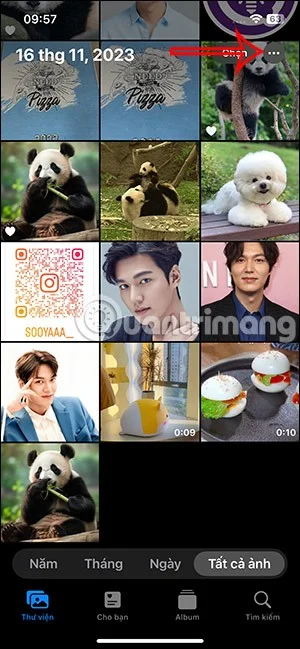
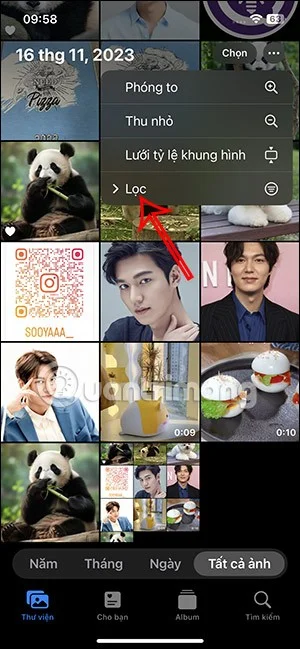
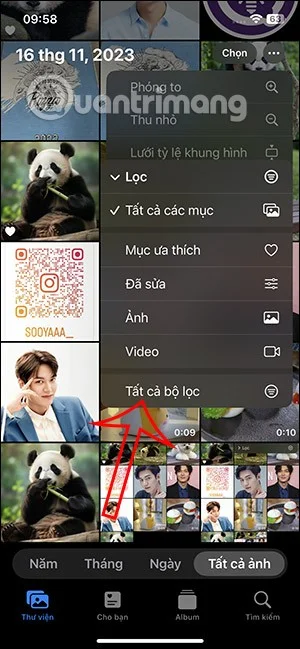
In the iPhone album interface, click on the 3-dot icon in the top right corner and select Filter . Then click on All filters at the bottom of the displayed list.
Step 2:
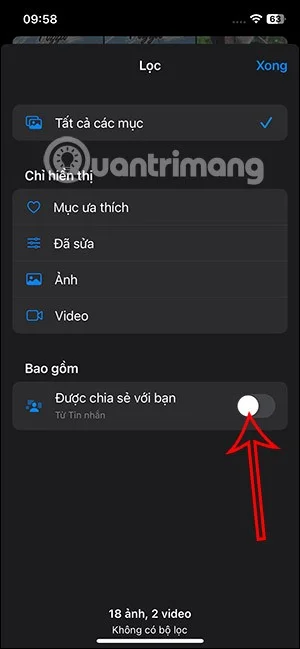
You will now see the Shared with friends setting to receive photos from iMessage. We will turn off the Shared with friends setting to prevent photos from iMessage from being saved to the photo album on the device.
How to delete shared photos in iPhone album
Step 1:
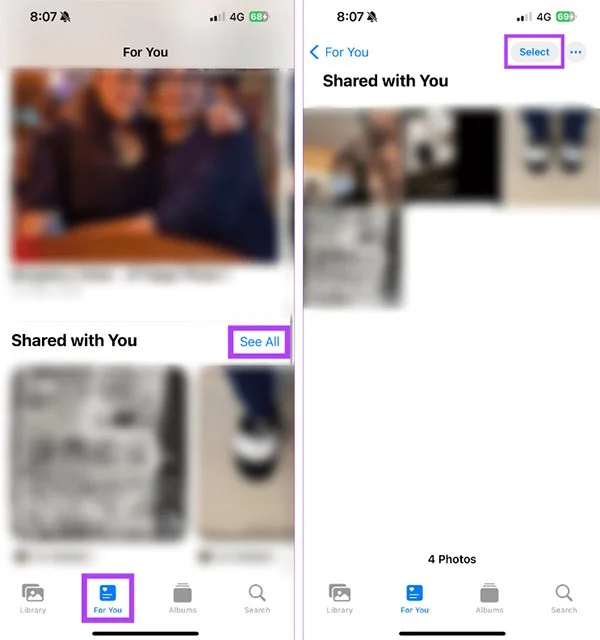
In the album interface, click on the For You tab , then scroll down to the Shared with You group to see the images you have received in messages. Next, click on See All and select Select to select the photo.
Step 2:
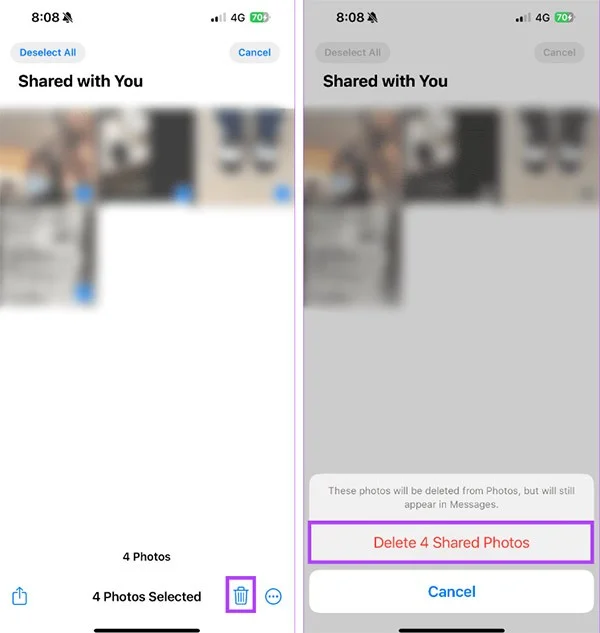
Select the images you want to delete and then click on the trash icon to delete the shared images you received.
Video tutorial to block saving photos from iMessage to iPhone album
Learn how to update Google Chrome browser on Windows, Mac, and Android in minutes to enjoy better security, speed, and new features. Follow these clear steps.
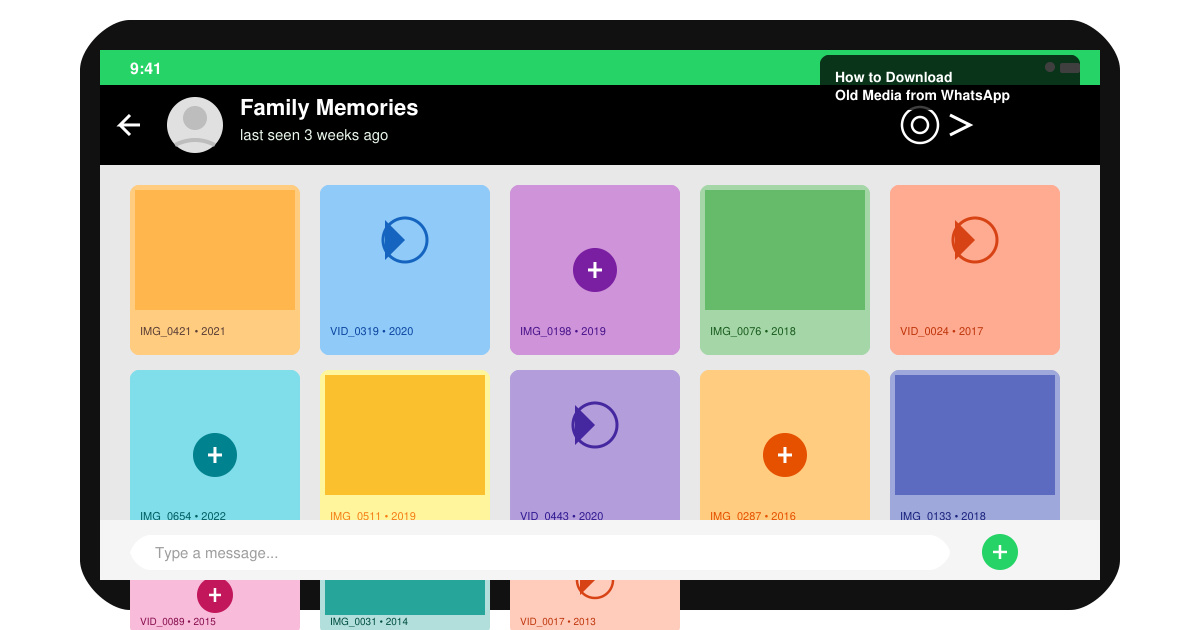
Learn how to download old media from WhatsApp and recover photos or videos from past chats. Follow these clear steps to save files that no longer appear in your gallery.
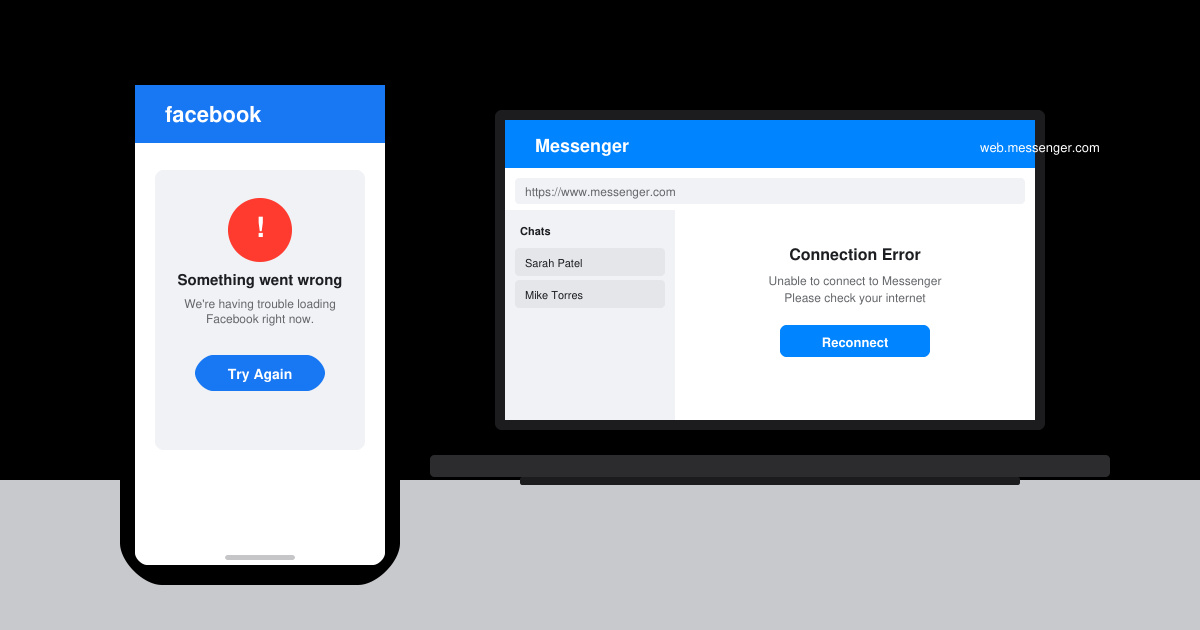
Facebook Messenger Isn T Working on your device? Use these exact troubleshooting steps to restore chats, calls, and notifications fast on Android, iOS, or desktop.
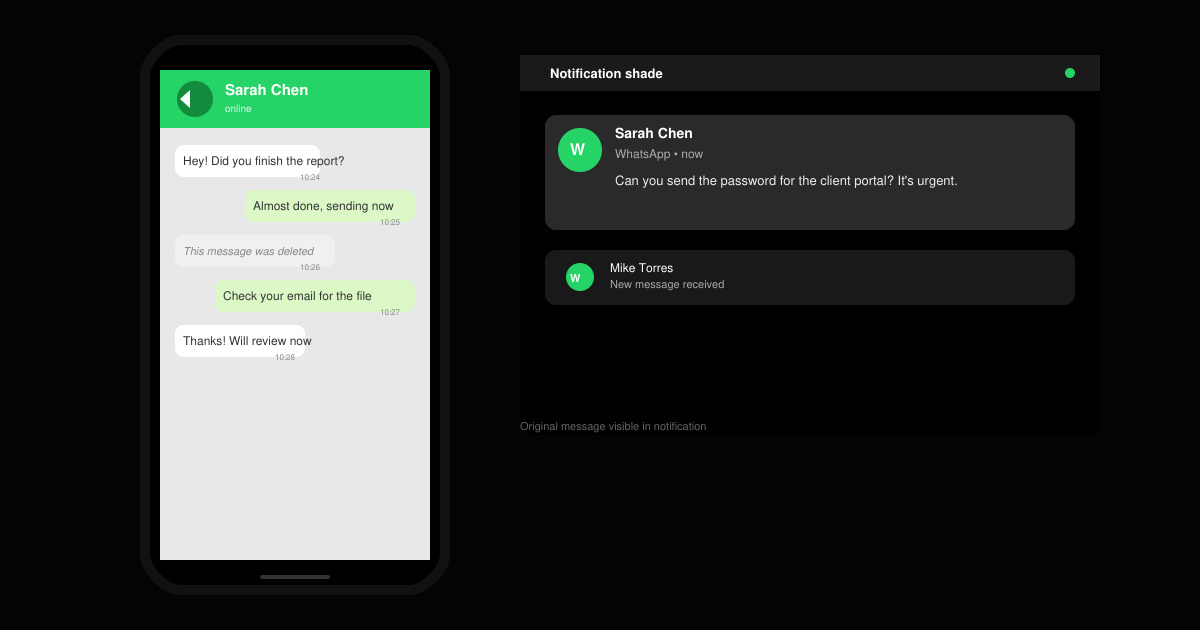
How to See Deleted WhatsApp Messages using your phone's built-in tools. Follow these exact steps to recover messages that contacts have deleted from chats.
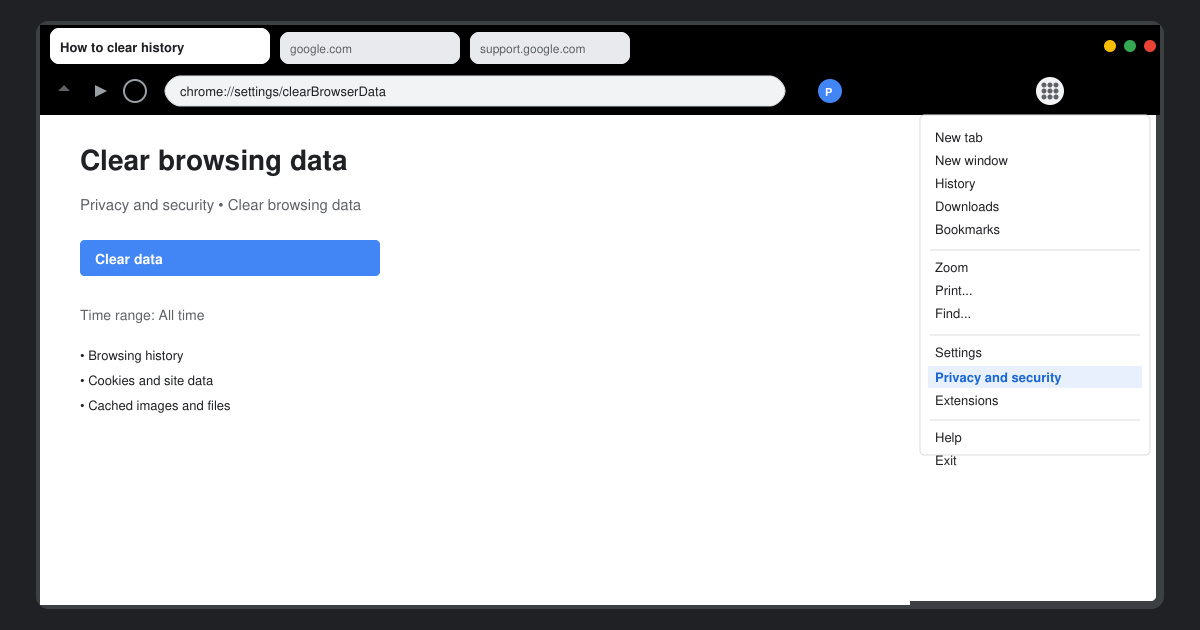
Learn how to clear browser history in Chrome on desktop and Android with this exact step-by-step process. Keep your browsing private and free up storage space quickly.
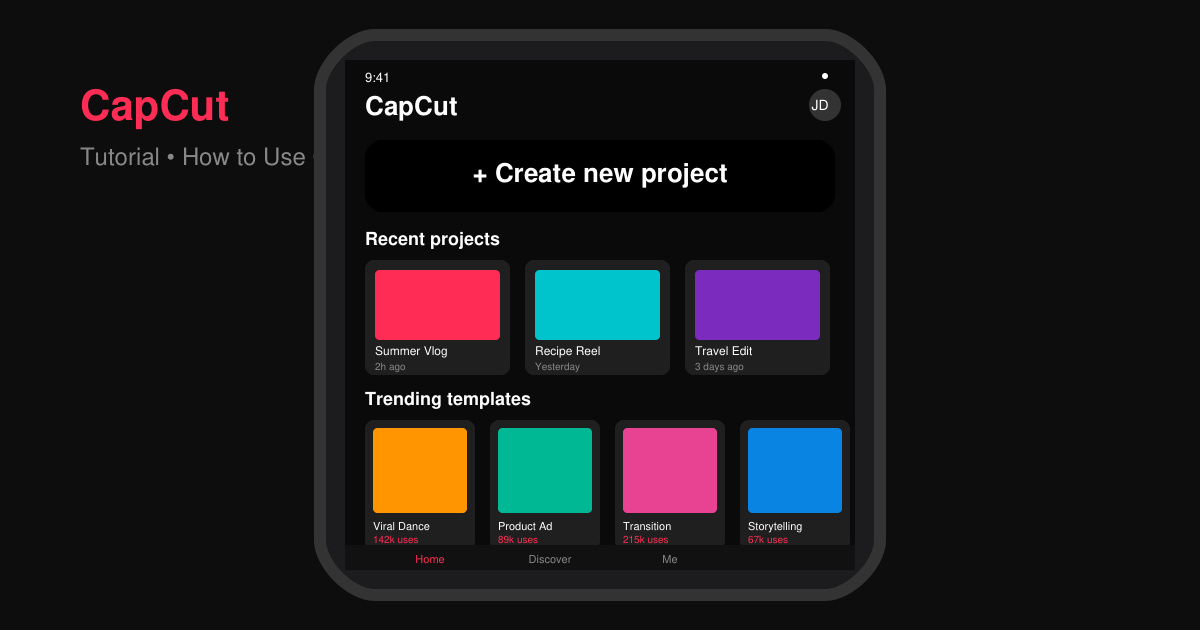
Master how to use CapCut with this practical walkthrough covering project setup, editing tools, effects, and export options for high-quality video results.
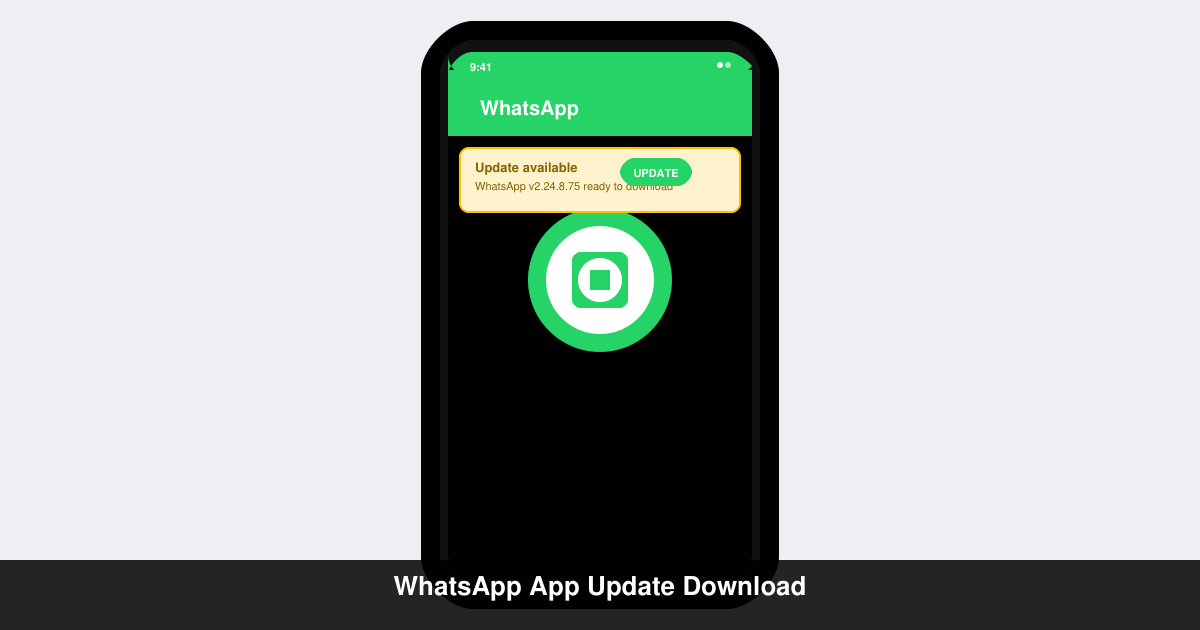
Get the latest WhatsApp App Update Download from official sources to access new features and security improvements. Follow these clear steps for Android and iOS devices.
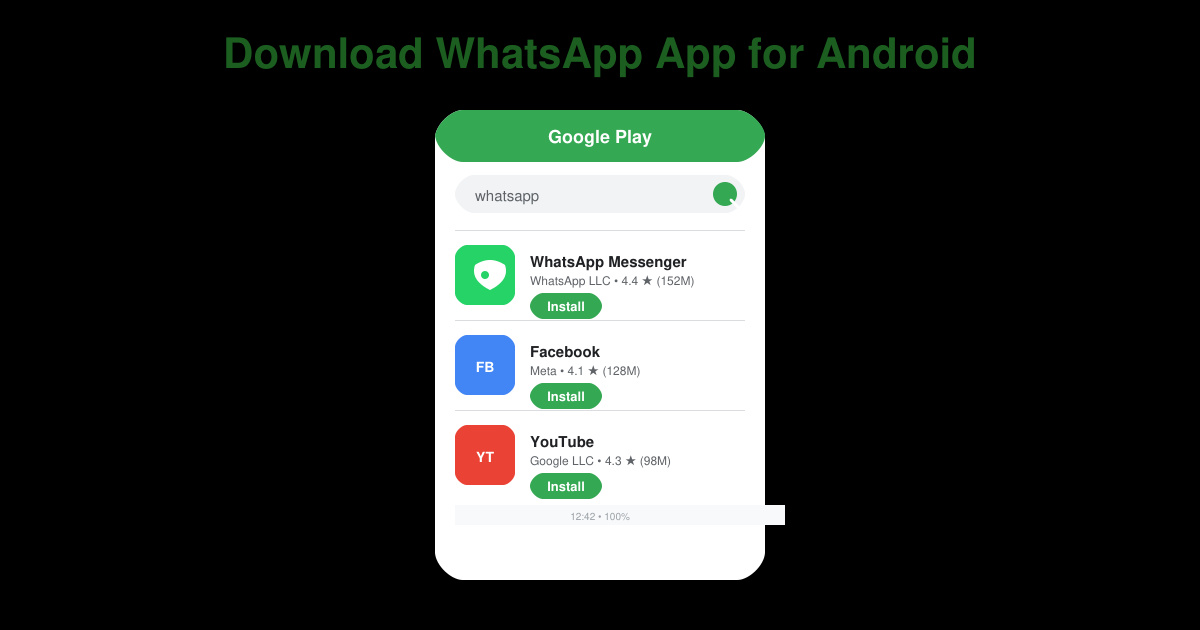
Learn how to safely Download WhatsApp App for Android from the official Google Play Store. Follow our clear step-by-step instructions to install the latest version quickly and securely.
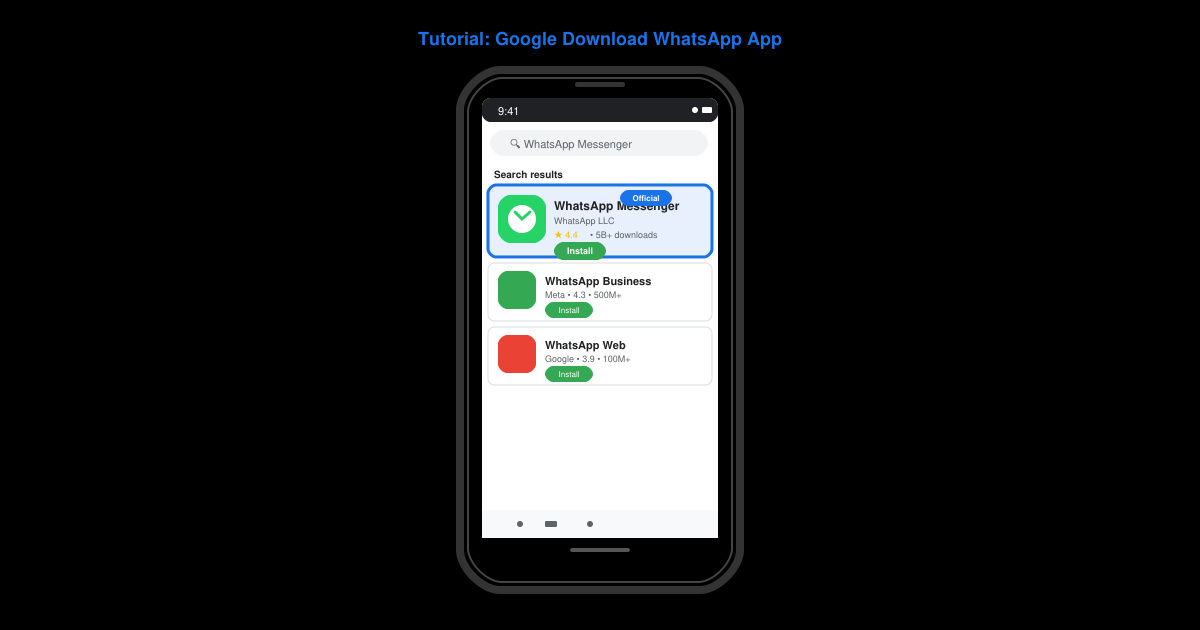
Google Download WhatsApp App safely through the Google Play Store with this clear guide. Get the official version on your Android device quickly and avoid fake downloads.
Facebook and Messenger not working can disrupt your day. Follow these targeted fixes to restore access quickly on mobile and desktop.