How to Update Google Chrome Browser

Learn how to update Google Chrome browser on Windows, Mac, and Android in minutes to enjoy better security, speed, and new features. Follow these clear steps.
Knowing how to change default browsers ensures your favorite option, whether Chrome, Firefox, or Edge, automatically opens every link you click. The process differs slightly by operating system but takes only a minute once you locate the correct settings panel.
Every operating system tracks a default web browser setting at the system level. Changing it tells the OS to route all http and https links to the new choice instead of the previous one. You must first install the target browser before it appears in the list of available options.
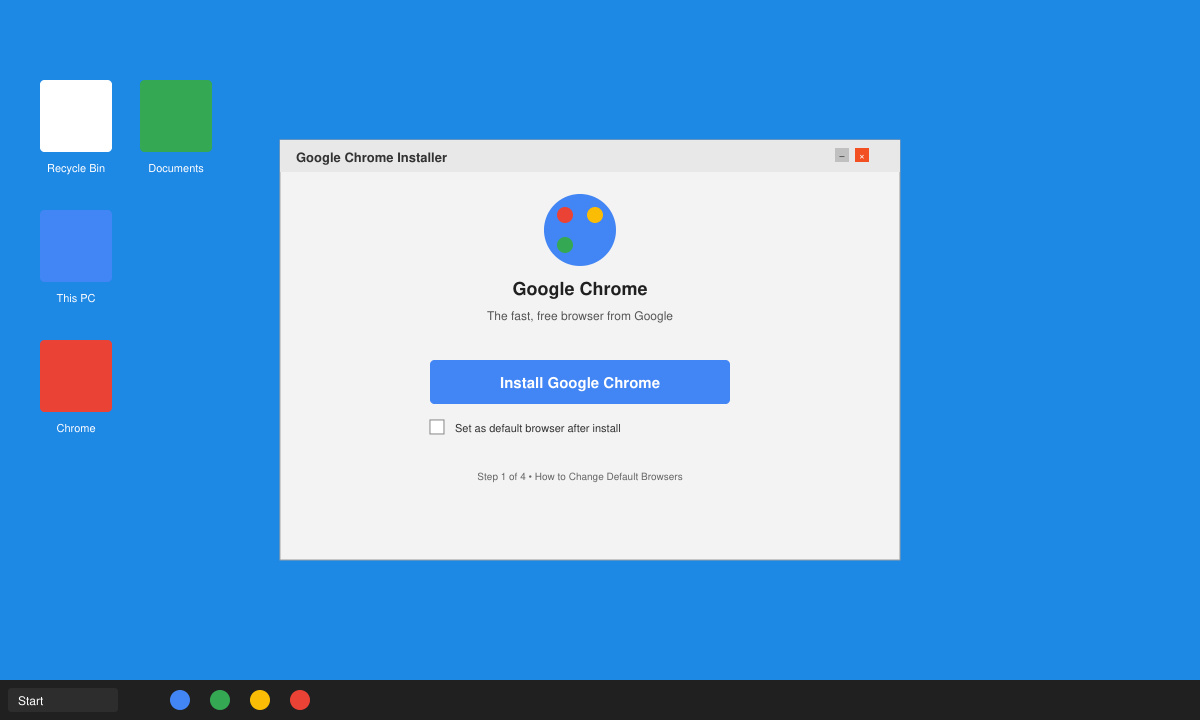
Download the installer from the official site of the browser you want. On Windows run the .exe file and complete the setup. On Mac drag the app into the Applications folder. On Android or iOS install it directly from the Play Store or App Store.
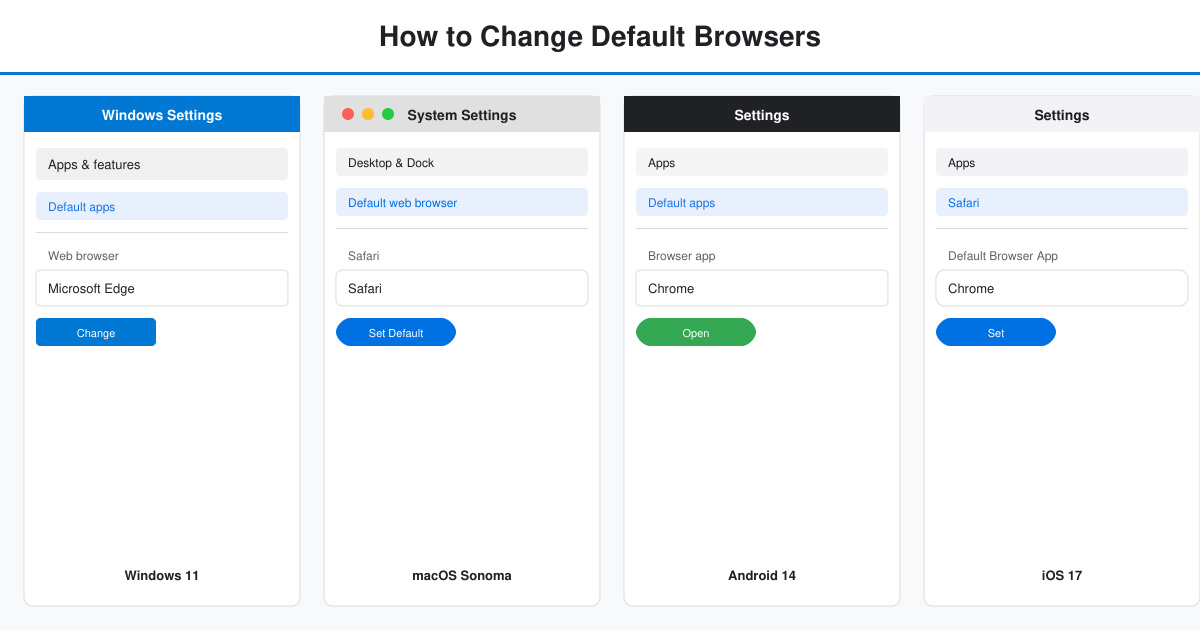
Click the Start button, type "default apps" and select the matching system setting. Scroll to the Web browser section, click the current browser name, and choose your new browser from the list that appears.
Click the Apple menu, choose System Settings, then click Desktop & Dock. Scroll to the Default web browser dropdown and select the installed browser you want to use.
Open Settings, tap Apps, then tap Default apps. Select Browser app and tap the name of your preferred browser to make it the system default.
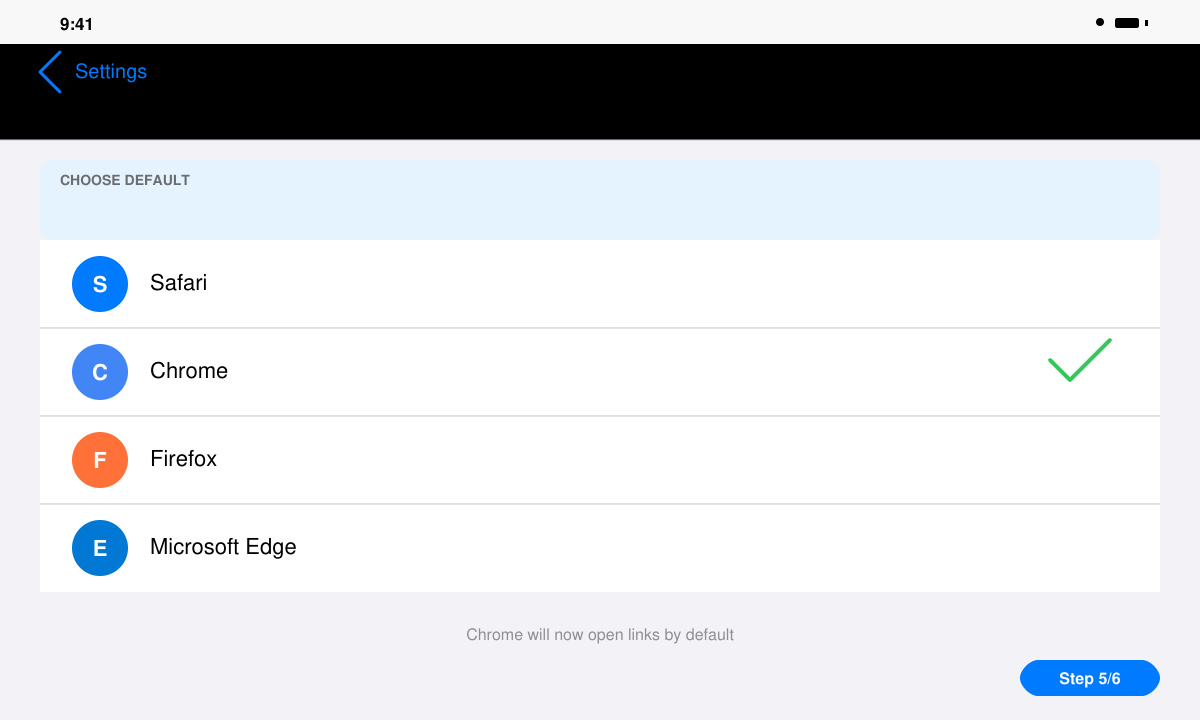
Go to Settings, scroll to the installed browser app in the list, tap it, then tap Default Browser App and choose the new browser from the options.
Yes. You can keep several browsers installed at once and switch the default at any time using the steps above.
No. Bookmarks, history, and saved passwords stay inside each browser. Only the system-level link opening behavior changes.
Yes. Once set, every app that opens web links, including email clients and messaging apps, will use the new default browser.
Following the platform-specific steps above lets you complete how to change default browsers in under two minutes on any device.
Learn how to update Google Chrome browser on Windows, Mac, and Android in minutes to enjoy better security, speed, and new features. Follow these clear steps.
Learn how to download old media from WhatsApp and recover photos or videos from past chats. Follow these clear steps to save files that no longer appear in your gallery.
Facebook Messenger Isn T Working on your device? Use these exact troubleshooting steps to restore chats, calls, and notifications fast on Android, iOS, or desktop.
How to See Deleted WhatsApp Messages using your phone's built-in tools. Follow these exact steps to recover messages that contacts have deleted from chats.
Learn how to clear browser history in Chrome on desktop and Android with this exact step-by-step process. Keep your browsing private and free up storage space quickly.
Master how to use CapCut with this practical walkthrough covering project setup, editing tools, effects, and export options for high-quality video results.
Get the latest WhatsApp App Update Download from official sources to access new features and security improvements. Follow these clear steps for Android and iOS devices.
Learn how to safely Download WhatsApp App for Android from the official Google Play Store. Follow our clear step-by-step instructions to install the latest version quickly and securely.
Google Download WhatsApp App safely through the Google Play Store with this clear guide. Get the official version on your Android device quickly and avoid fake downloads.
Facebook and Messenger not working can disrupt your day. Follow these targeted fixes to restore access quickly on mobile and desktop.








