How to Change Your Microsoft Teams Profile Picture on iPhone and Android

Want to refresh your professional look in Microsoft Teams? Updating your profile picture on mobile is quick and easy, whether you're on iPhone or Android. A great avatar makes you stand out in meetings and chats 😊. In this guide, we'll walk you through the exact steps using the latest Teams app features. No tech headaches—just results!

Why Update Your Microsoft Teams Profile Picture on Mobile?

Your profile photo is your digital handshake. It builds trust, shows personality, and keeps things professional. With remote work booming, a fresh image ensures colleagues recognize you instantly. Ready to dive in? Let's start with iPhone users! 👆

Change Microsoft Teams Profile Picture on iPhone: Step-by-Step

iOS users, this takes under 2 minutes. Follow these precise steps in the Microsoft Teams app (ensure it's updated via App Store):

  1. ⭐ Open the Teams App: Launch Microsoft Teams from your home screen.
  2. 👆 Tap Your Profile Icon: In the top-left corner, tap your current profile picture or initials.
  3. 📸 Select Edit Photo: Tap your profile picture again. Hit the camera icon or "Edit" option that appears.
  4. Choose or Snap New Photo:
    • Pick from your Photos library.
    • Or tap the camera to take a new selfie 😄.
  5. Crop & Apply: Adjust the crop circle for a perfect fit (recommended: headshot, 640x640 pixels). Tap "Done" or "Save."
  6. ✅ Confirm Upload: Teams syncs it across all devices instantly. You're set!
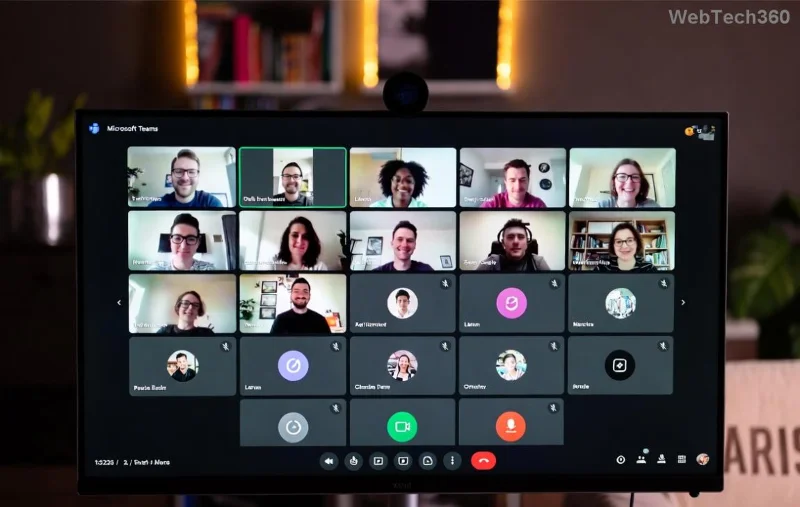
Step-by-step screenshot for changing Microsoft Teams profile picture on iPhone

Pro Tip: Use a well-lit photo with a neutral background for the best vibe. Teams auto-crops to circular—preview before saving!

Change Microsoft Teams Profile Picture on Android: Effortless Guide

Android folks, the process is nearly identical but with a touch of Google flair. Update your app from Google Play Store first.

Step Action
1️⃣ Launch App Open Microsoft Teams.
2️⃣ Profile Tap Tap avatar in top-left.
3️⃣ Edit Mode Tap photo > Camera/Gallery icon.
4️⃣ Select & Crop Choose image, crop, hit "Done."
5️⃣ Sync Upload complete—view in chats!
Android interface for updating Microsoft Teams profile picture

That's it! Your new Teams profile picture will reflect across web, desktop, and mobile. 🎉

Bonus Tips for the Perfect Microsoft Teams Profile Picture

  • Size & Format: Use JPG/PNG, at least 640x640 pixels. Avoid blurry images!
  • Privacy Check: Only your org sees it unless public.
  • Quick Reset: Repeat steps to revert to default initials.
  • Emoji Avatars: Fun option in settings for casual teams! 😎
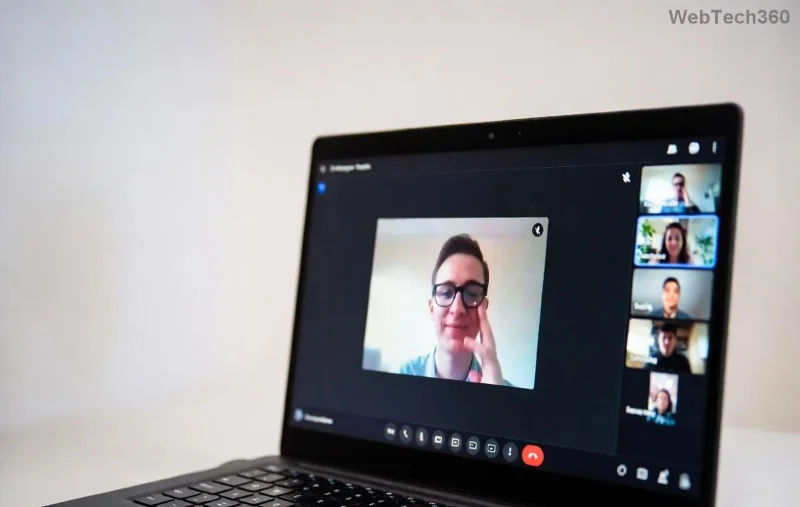
Final preview of updated Microsoft Teams profile on mobile

Troubleshooting Common Issues

Stuck? Here's the fix:

  • No Edit Option? Update Teams app or check admin restrictions.
  • Photo Not Uploading? Clear cache (Settings > Apps > Teams > Storage) or check internet.
  • Changes Not Syncing? Log out/in or restart app.

For official help, visit Microsoft Teams Support.

Wrap-Up: Shine in Every Teams Meeting! ✨

Now you know exactly how to change your Microsoft Teams profile picture on iPhone and Android. It's simple, fast, and makes a big impact. Try it now and notice the difference in your next call. Got questions? Drop a comment below—we're here to help! 👏


Related Reads: How to Customize Teams Notifications | Best Teams Backgrounds for Mobile
Leave a Comment

Troubleshooting Microsoft Teams How Download Error

Troubleshooting Microsoft Teams How Download Error

Struggling with the Microsoft Teams "How Download" error? Discover step-by-step fixes for smooth file downloads, app updates, and more. Get back to collaborating without frustration!

How to Fix Microsoft Teams Error Code 2603 (2026)

How to Fix Microsoft Teams Error Code 2603 (2026)

Frustrated by Microsoft Teams Error Code 2603? Get instant relief with our step-by-step guide to fix installation failures, crashes, and more in the latest 2026 updates. Works for all users!

Solving Microsoft Teams Wiki in Teams Error Loading

Solving Microsoft Teams Wiki in Teams Error Loading

Tired of the frustrating Microsoft Teams "Wiki in Teams" error loading? Get step-by-step fixes for Wiki not loading in Teams, clear cache, reset settings, and more. Resolve it fast with our expert guide.

How to Keep Microsoft Teams Active and Available All Day

How to Keep Microsoft Teams Active and Available All Day

Master how to keep Microsoft Teams active and "Available" all day. Proven tips, tools, and settings to avoid "Away" status, boost productivity, and never miss a beat in your workday.

How to Download Microsoft Teams for Windows 11 in 2026

How to Download Microsoft Teams for Windows 11 in 2026

Discover how to download Microsoft Teams for Windows 11 in 2026 with our ultimate guide. Official methods, troubleshooting, and pro tips for seamless installation and instant collaboration.

How to Fix Microsoft Teams Groups Visibility Error

How to Fix Microsoft Teams Groups Visibility Error

Tired of missing groups in Microsoft Teams? Discover how to fix the "Groups" Visibility Error with simple, up-to-date steps. Restore your teams visibility fast and frustration-free.

The Best Vitamins and Minerals for Your Eyes

The Best Vitamins and Minerals for Your Eyes

The eyes are the windows to the soul. So take good care of them with the following eye vitamins.

Solving Microsoft Teams For School Login Error

Solving Microsoft Teams For School Login Error

Stuck with Microsoft Teams "For School" login error? Follow our expert, step-by-step guide to solve it fast – no tech skills needed. Get back to classes without frustration!

How to Fix Microsoft Teams Media Error During Playback

How to Fix Microsoft Teams Media Error During Playback

Struggling with Microsoft Teams media error during playback? Discover step-by-step fixes for smooth video and audio in meetings. Updated with the latest troubleshooting tips for seamless collaboration.

Troubleshooting Microsoft Teams Where is Teams Folder Search

Troubleshooting Microsoft Teams Where is Teams Folder Search

Frustrated with Troubleshooting Microsoft Teams "Where is Teams" Folder Search issues? Follow our expert, step-by-step guide to locate hidden folders, fix search glitches, and restore smooth collaboration in the latest Teams updates. Quick fixes that work!

How to Fix Microsoft Teams Error AADSTS70008: Security Token Expired

How to Fix Microsoft Teams Error AADSTS70008: Security Token Expired

Struggling with Microsoft Teams Error AADSTS70008: Security Token Expired? Discover proven, step-by-step fixes to get back to seamless collaboration. Clear cache, re-authenticate, and prevent future issues fast!

How to Resolve Microsoft Teams Error Code 0x80070005

How to Resolve Microsoft Teams Error Code 0x80070005

Tired of Microsoft Teams Error Code 0x80070005 blocking your meetings? Follow our expert, step-by-step guide with quick fixes like permission resets, cache clears, and reinstalls to resolve access denied errors fast and get back to collaborating seamlessly.

Troubleshooting Microsoft Teams Error Message 80080005

Troubleshooting Microsoft Teams Error Message 80080005

Stuck with Microsoft Teams Error 80080005? This comprehensive guide delivers proven, step-by-step fixes for audio glitches, mic failures, and more. Restore seamless collaboration today!

Solving Microsoft Teams Error Code 404 on Web

Solving Microsoft Teams Error Code 404 on Web

Tired of Microsoft Teams Error Code 404 on web blocking your meetings? Follow our proven, step-by-step guide to clear cache, troubleshoot browsers, and resolve the "Not Found" error fast for seamless collaboration. Updated with the latest fixes!

Why is the Microsoft Teams Add-in Missing from My Outlook?

Why is the Microsoft Teams Add-in Missing from My Outlook?

Frustrated because the Microsoft Teams add-in is missing from Outlook? Uncover the top reasons and easy step-by-step fixes to bring back seamless Teams-Outlook integration without hassle. Works for latest versions!