How to Update Google Chrome Browser

Learn how to update Google Chrome browser on Windows, Mac, and Android in minutes to enjoy better security, speed, and new features. Follow these clear steps.
Need a fast way to fix slow page loads or remove unwanted tracking data? Knowing how to clear cache and cookies in Chrome solves most browser performance problems in under a minute. This guide gives precise clicks and menu paths for Windows, Mac, Android, and iOS.
Chrome stores cache files and cookies to speed up repeat visits. Clearing them logs you out of most sites and removes temporary files. Back up any important autofill data first if you rely on saved passwords without a password manager. The process differs slightly between desktop and mobile versions.
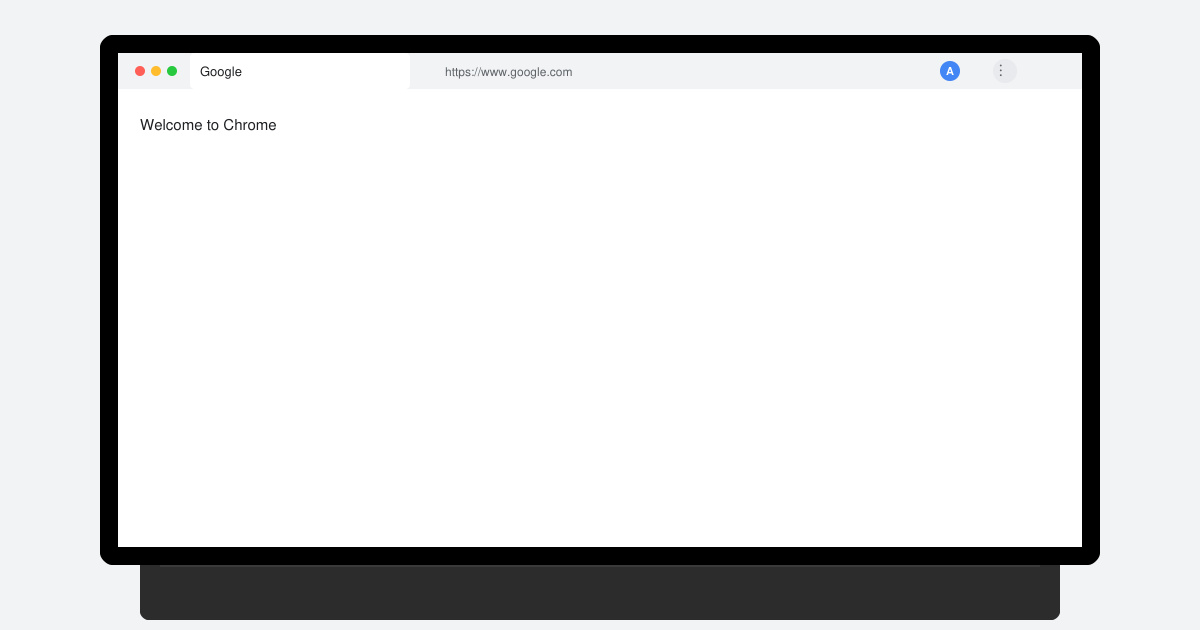
Launch Google Chrome, click the three-dot menu in the top right, then select Settings. In the left sidebar click Privacy and security.
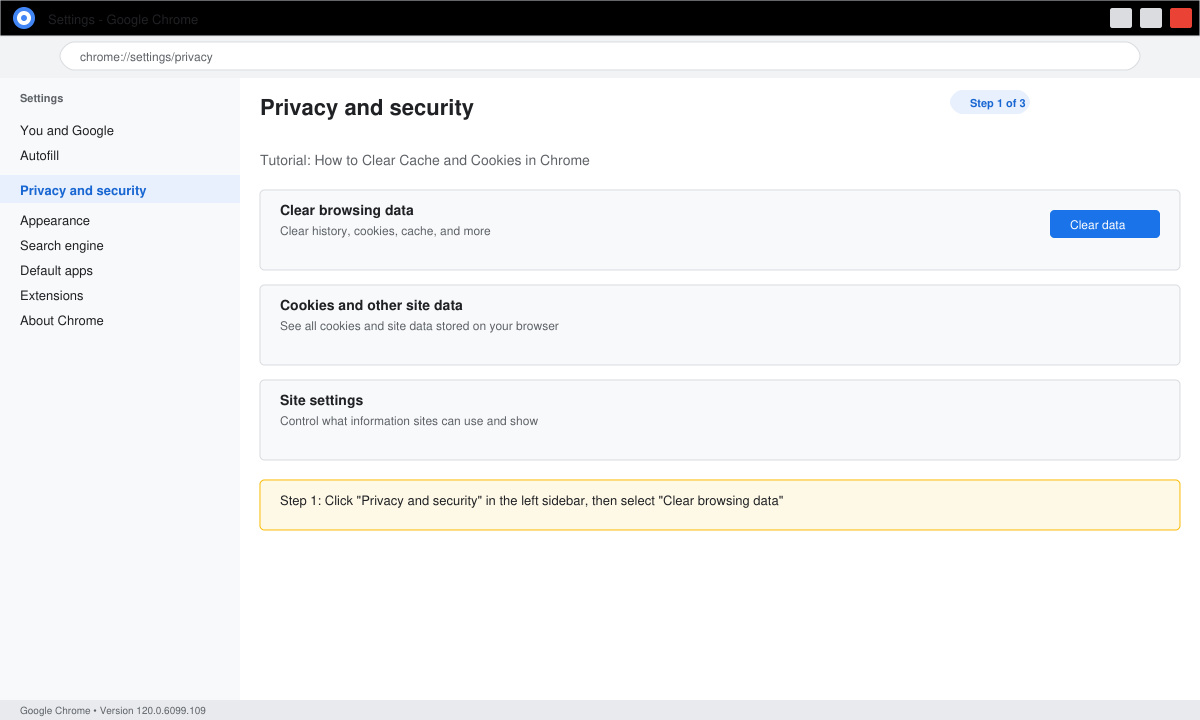
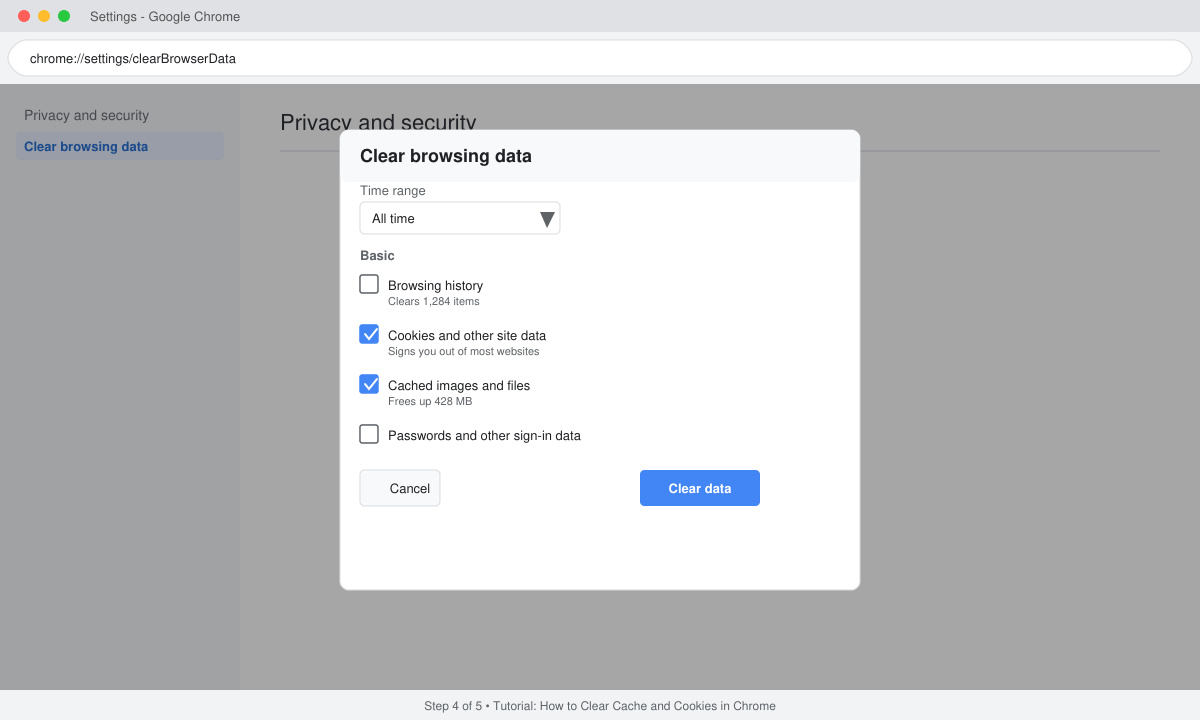
Under Privacy and security click Clear browsing data. A new window opens with three tabs: Basic, Advanced, and On-device.
On the Basic tab choose All time from the Time range dropdown. Check Cookies and other site data plus Cached images and files. Leave the other boxes unchecked unless you want to remove browsing history too.
Click the Clear data button at the bottom. Chrome removes the selected items immediately. Restart the browser to see the changes take effect.
Tap the three-dot menu in the top right of the Chrome app, then tap Settings. Scroll down and tap Privacy and security.
Tap Clear browsing data. On Android you will see time range options; on iOS tap the same option directly.
Select Cookies, site data and Cached images and files. Choose All time as the range, then tap Clear data or Clear browsing data and confirm.
No. Passwords saved with a Google account or password manager remain intact. Only site-specific cookies are removed.
Most users only need to do this when experiencing loading errors or after visiting many new sites. Monthly clearing is usually sufficient for privacy-focused users.
No. Each browser maintains its own cache and cookies separately. Edge, Firefox, and Safari are unaffected.
Following these exact steps lets you clear cache and cookies in Chrome quickly on any device. Regular maintenance keeps browsing fast and reduces tracking.
Learn how to update Google Chrome browser on Windows, Mac, and Android in minutes to enjoy better security, speed, and new features. Follow these clear steps.
Learn how to download old media from WhatsApp and recover photos or videos from past chats. Follow these clear steps to save files that no longer appear in your gallery.
Facebook Messenger Isn T Working on your device? Use these exact troubleshooting steps to restore chats, calls, and notifications fast on Android, iOS, or desktop.
How to See Deleted WhatsApp Messages using your phone's built-in tools. Follow these exact steps to recover messages that contacts have deleted from chats.
Learn how to clear browser history in Chrome on desktop and Android with this exact step-by-step process. Keep your browsing private and free up storage space quickly.
Master how to use CapCut with this practical walkthrough covering project setup, editing tools, effects, and export options for high-quality video results.
Get the latest WhatsApp App Update Download from official sources to access new features and security improvements. Follow these clear steps for Android and iOS devices.
Learn how to safely Download WhatsApp App for Android from the official Google Play Store. Follow our clear step-by-step instructions to install the latest version quickly and securely.
Google Download WhatsApp App safely through the Google Play Store with this clear guide. Get the official version on your Android device quickly and avoid fake downloads.
Facebook and Messenger not working can disrupt your day. Follow these targeted fixes to restore access quickly on mobile and desktop.








