WhatsApp App Update Download

Get the latest WhatsApp App Update Download from official sources to access new features and security improvements. Follow these clear steps for Android and iOS devices.
Once you’ve downloaded a bunch of photos or videos to the Files app on your iPhone or iPad, you might be wondering if you can copy them to your Photos library for quick access when you need them. The answer is yes, and it’s not complicated to do.
First, open the Files app on your device and navigate to the folder containing the media files (images, videos) you want to move to your Photos library. In this example, we’ll be working with media files in the Downloads folder, but you can of course work with any other folder in Files, such as your Dropbox or iCloud Drive.
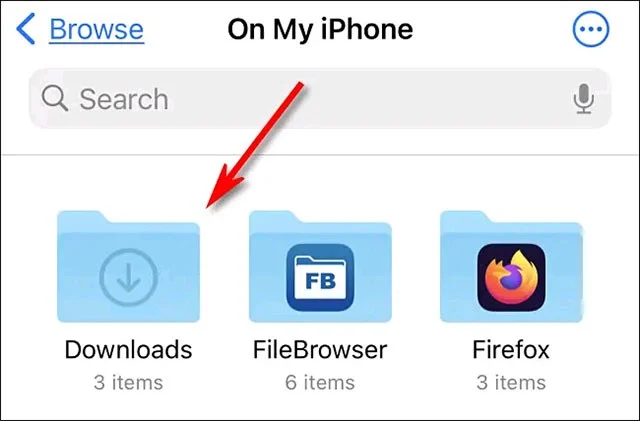
Once you've located the media files you want to copy, you'll have a few different options for working with the files.
If it's an image or video, tap it to open the detail view.
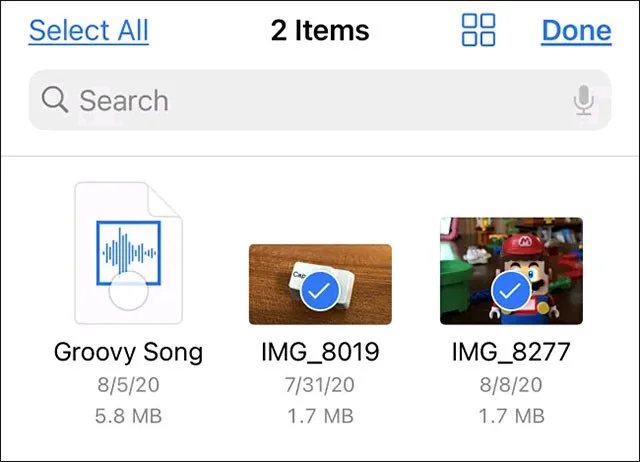
If you want to select multiple files on your iPhone, tap the ellipsis button (three dots in a circle) in the upper-right corner of the screen and select “Select.” (On an iPad, just tap “Select.”) Then check the items you want to copy to your Photos library.
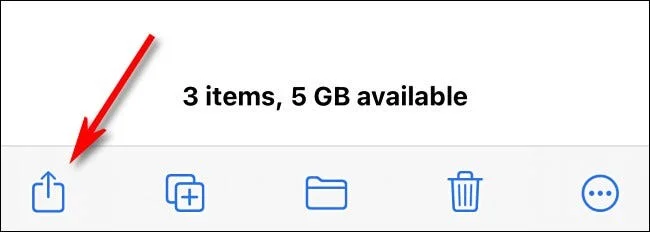
Once you have selected your file, tap the “Share” button, which looks like a rectangle with an arrow pointing up. On iPad, it is in the upper-right corner of the screen. On iPhone, it is in the lower-left corner.
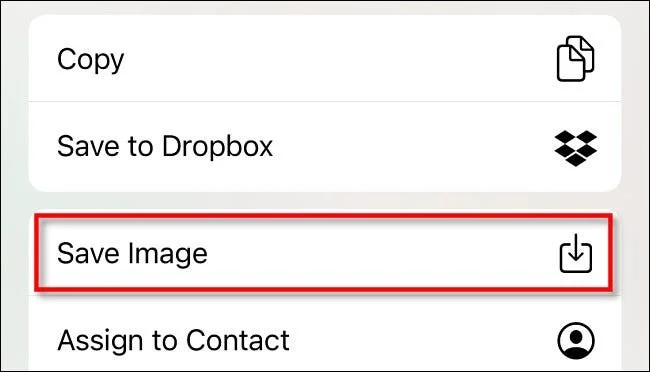
In the share menu that pops up, tap “Save Image” or “Save Video.” If you selected multiple photos or videos, tap “Save X Items,” where X is the number of items you selected.
That’s all there is to it. The next time you open the Photos app, you’ll see the photos or videos you copied from the Files app appear in your “Recents” album.
You can also use this method to copy media files from the Files app to iCloud Drive or Dropbox.
Get the latest WhatsApp App Update Download from official sources to access new features and security improvements. Follow these clear steps for Android and iOS devices.
Learn how to safely Download WhatsApp App for Android from the official Google Play Store. Follow our clear step-by-step instructions to install the latest version quickly and securely.
Google Download WhatsApp App safely through the Google Play Store with this clear guide. Get the official version on your Android device quickly and avoid fake downloads.
Facebook and Messenger not working can disrupt your day. Follow these targeted fixes to restore access quickly on mobile and desktop.
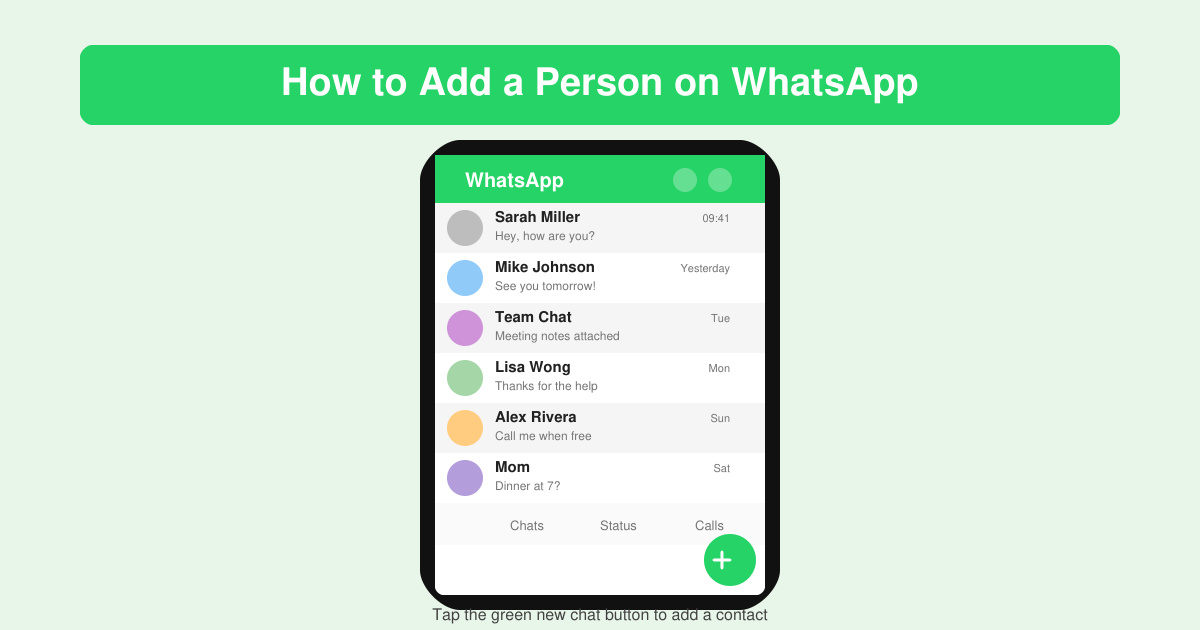
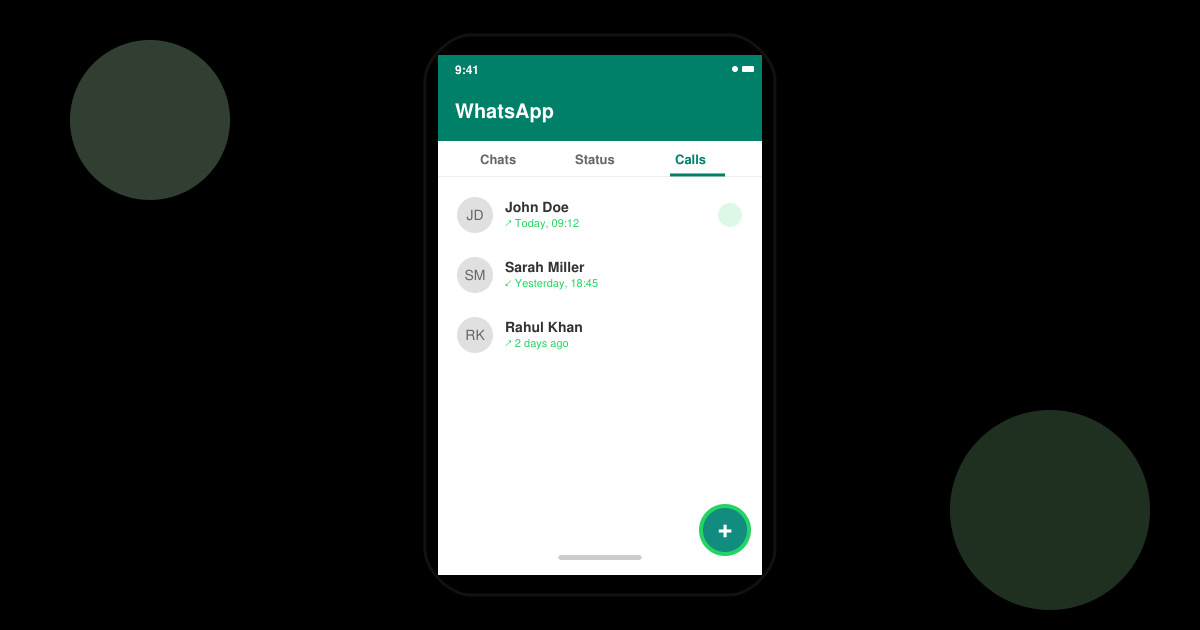
How to Add a Person on WhatsApp quickly on Android or iOS. Follow these exact steps to add a new contact using their phone number and start chatting right away.
Learn how to add contact in WhatsApp in seconds with this clear walkthrough. Save numbers directly inside the app and keep all your chats organized without switching to your phonebook.
Facebook Download Facebook Messenger safely from official sources. Follow this guide to install the app on any device quickly and securely.
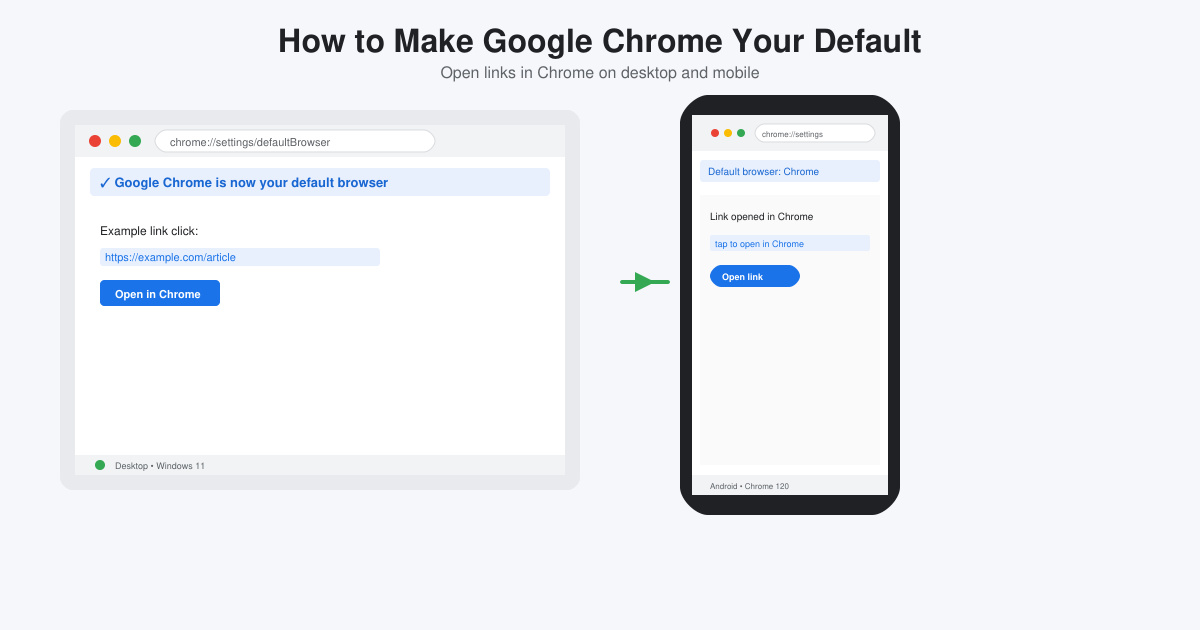
How to Make Google Chrome Your Default browser on Windows, Mac, Android and iOS takes just minutes. Follow these clear steps to ensure every link opens in Chrome automatically.
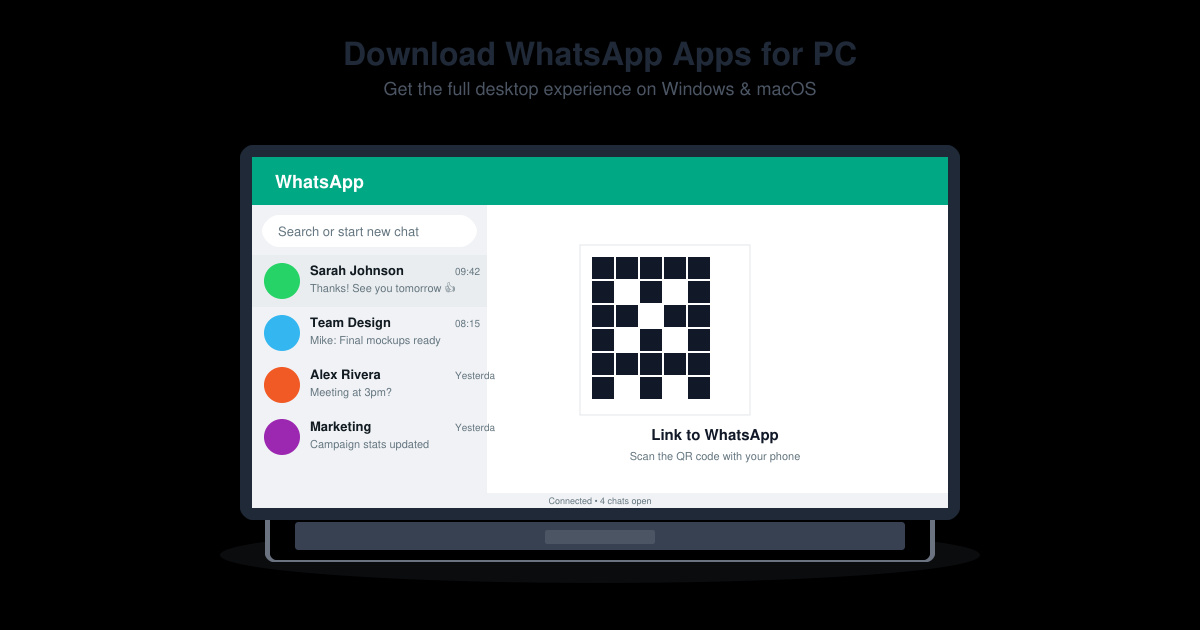
Download WhatsApp Apps for PC with our clear guide covering the official desktop app and WhatsApp Web setup. Get messaging on your computer in minutes.
Skype Download Skype Download Skype Download made easy with this official guide. Download the latest Skype version safely for Windows, Mac, Android and iOS in minutes.