Home
» Wiki
»
How to create a Telegram group topic for discussion
How to create a Telegram group topic for discussion
Telegram supports many customizations for Telegram groups, such as limiting the time to send messages in Telegram groups or creating Telegram group topics to discuss different topics. Telegram group topics will be separate from messages in Telegram groups and you can create many different discussion topics. The article below will guide you to create Telegram group topics.
Instructions for creating a Telegram group topic
Step 1:
At the Telegram interface, users click on the chat group they want to create a topic for, then click on the pen icon in the right corner of the interface as shown below.
Step 2:
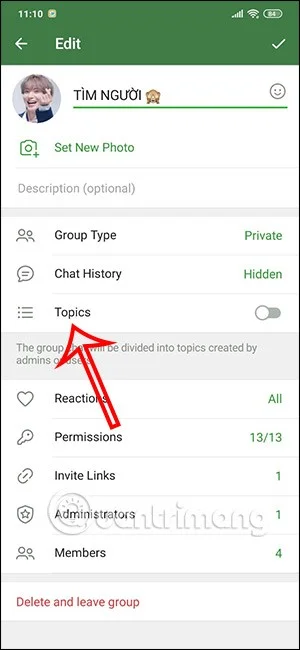
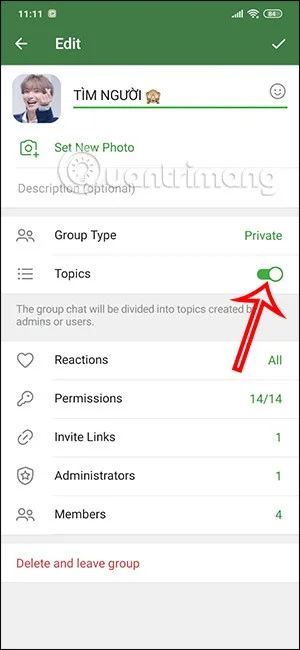
In the Telegram chat group information interface, users need to click to activate Topic mode to create topics in the Telegram chat group.
Step 3:
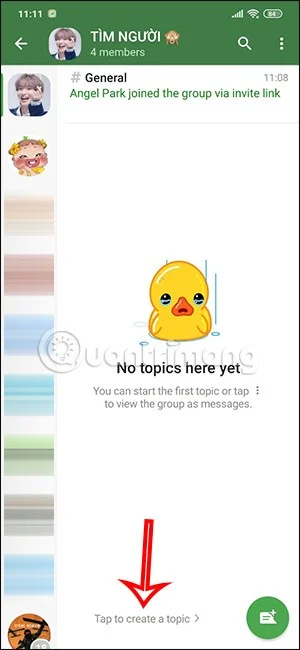
Returning to the chat interface on Telegram, users will see the chat group with the created topic. Now you click on Tap to create a topic to create a topic in this chat group.
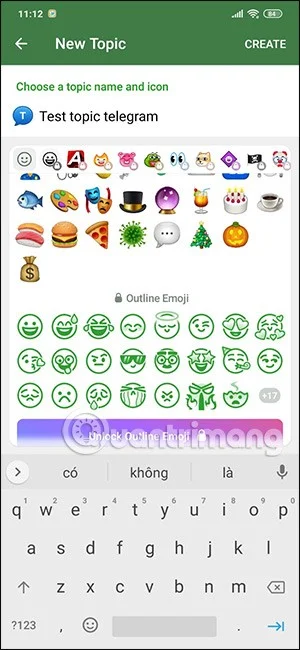
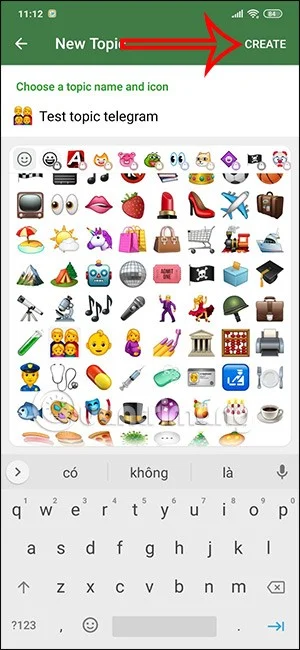
In the topic information creation interface, we enter a name for this topic. Then below we choose an icon for this topic with free icons. After filling in, click the Create button to create.
So you have created this topic in the Telegram group.
Step 4:
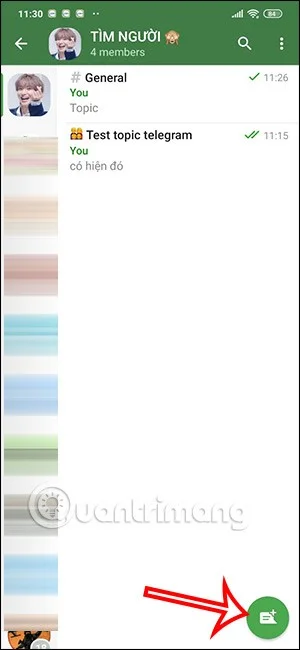
We can create multiple topics in the Telegram chat group for discussion. In the Telegram chat interface, click on the Telegram chat group and then select the topic creation icon below.
Step 5:
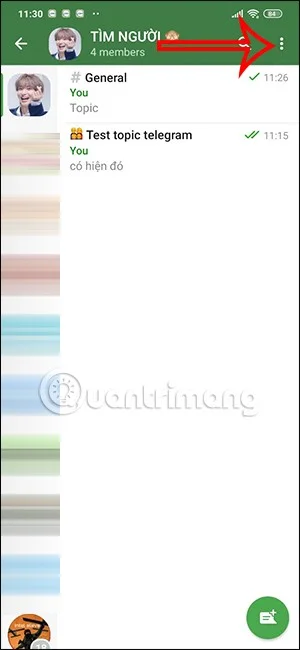
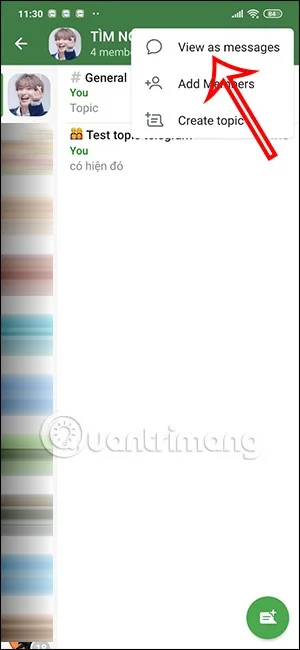
At this management interface, to access the Telegram chat group, click on the 3-dot icon in the right corner and select View as messages . Now you have accessed the Telegram group messaging interface to send messages as usual.
Instructions for adjusting Telegram topics
Step 1:
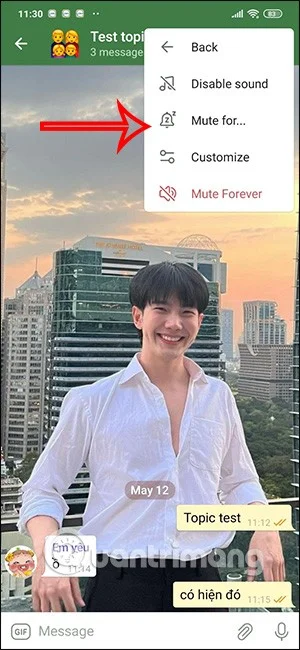
We access the Telegram topic, then click on the 3 dots icon in the top right corner of the interface. Here users will see options for this topic. You click Mute to turn off notifications for this topic.
Step 2:
Then we will have the adjustments to mute this topic. We can adjust how long to mute notifications for this topic.
Step 3:
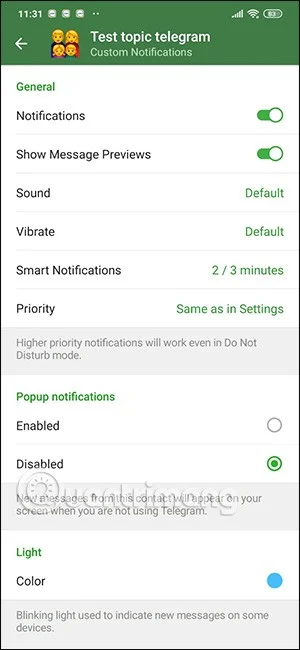
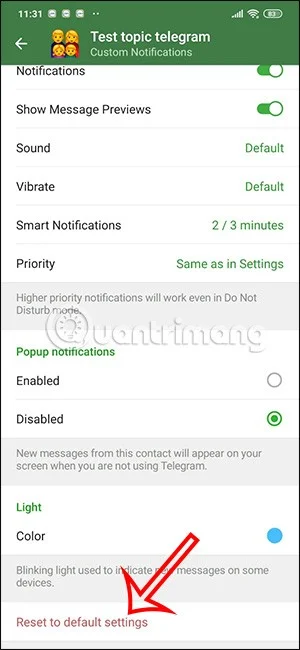
You can also click Customize to adjust other content for the Telegram topic. In case you want to return to the old settings, click Reset to default settings to return to the previous settings.
Step 4:
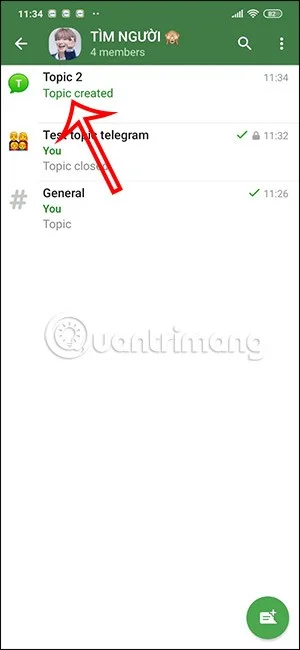
We can also close this topic to stop the topic's activity. Then the topic will receive a notification as shown below.