On Samsung phones, there is an option to create shortcuts for music listening applications on the phone such as Zing, Spotify or podcast applications. Users can then choose which audio applications they often use to create shortcuts on the phone interface. And when you want to use it, you just need to click on the newly set shortcut on the Samsung phone and you're done. The following article will guide readers to create music listening shortcuts on Samsung phones.
Instructions for creating music app shortcuts on Samsung
Step 1:
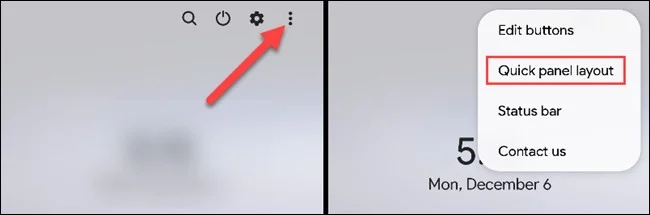
On the phone interface, users swipe down twice on the screen to expand the quick settings interface on the phone. Next, users click on the 3-dot icon and select Quick Panel Layout .
Step 2:
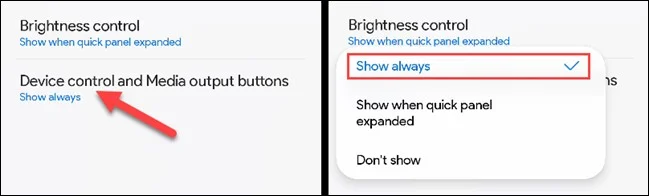
Display the setup interface, the user clicks on Device controls and Media output buttons to switch to the shortcut setup interface.
At this time, the user will click Show Always to always display the quick access shortcut to the music app, or click Show When Quick Panel Expanded to display when we expand the quick settings interface.

Step 3:
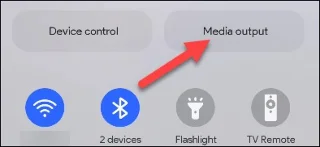
Expand the quick control panel interface and you will see the Media Output option for us to set up the audio application for Samsung phones.

Step 4:
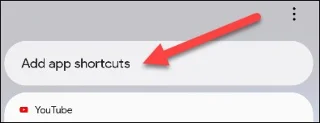
Then the user clicks on Add App Shortcuts to add the audio application that you want to create a shortcut.

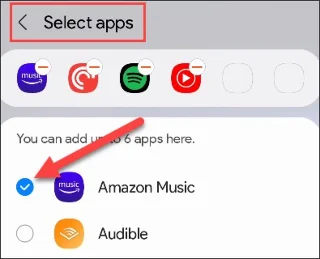
The user clicks on the audio application they want to use. The result when expanding the settings interface will display shortcuts to audio applications.