Fast Startup Windows 11 helps your computer boot faster than usual, but it can also be the reason why your Windows computer does not shut down completely . If you want to make sure your computer really shuts down every time, you should disable Fast Startup according to the article below.
How to disable Fast Startup Windows 11 feature
Step 1:
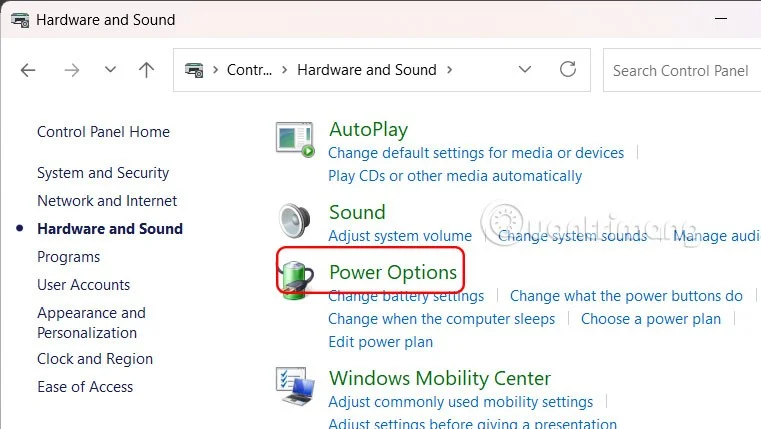
Open Control Panel on your computer and click Hardware and Sound .
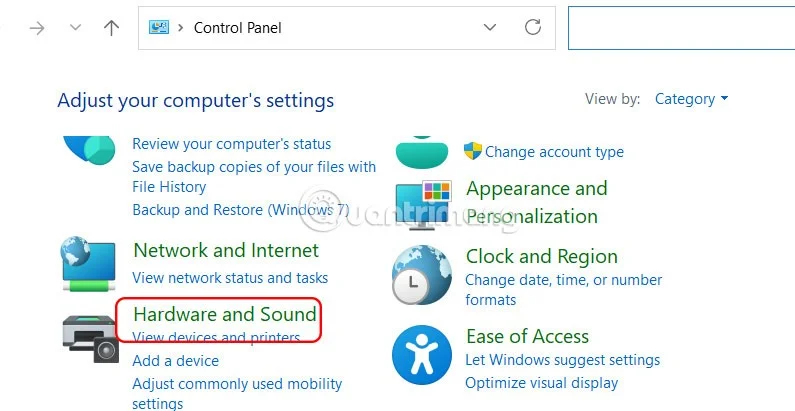
Next, click Power Options .

Step 2:
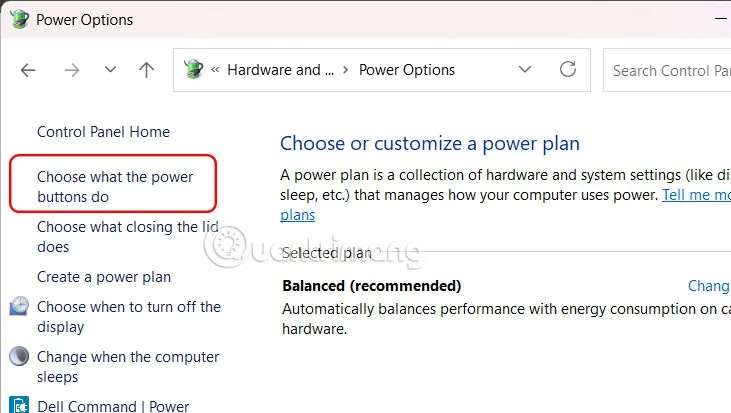
In the new interface, users click on Choose what the power buttons do .

Step 3:
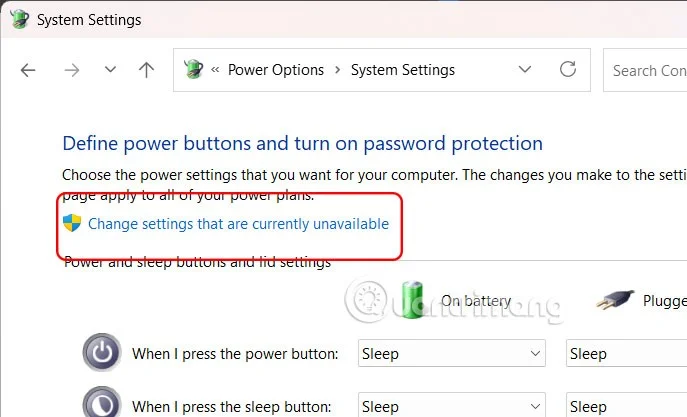
We click on Change settings that are currently unavailable above the interface.

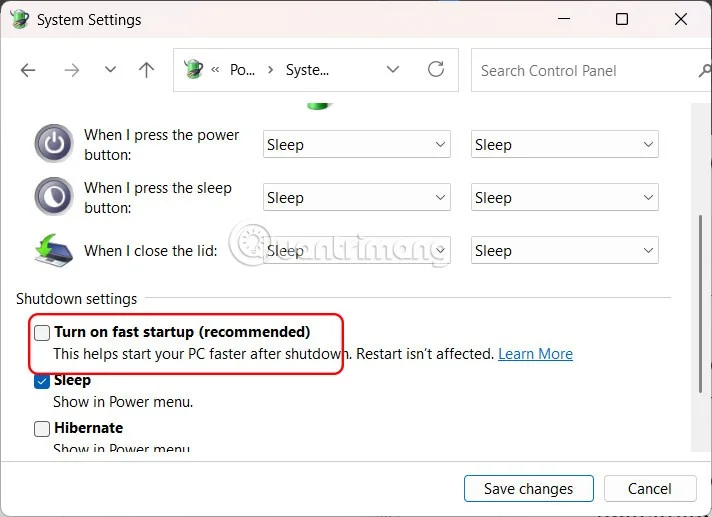
Now below the options display, we will turn off the Turn on fast startup (recommended) setting in the Shutdown settings section.
Finally, click Save changes to save the new settings.

Step 4:
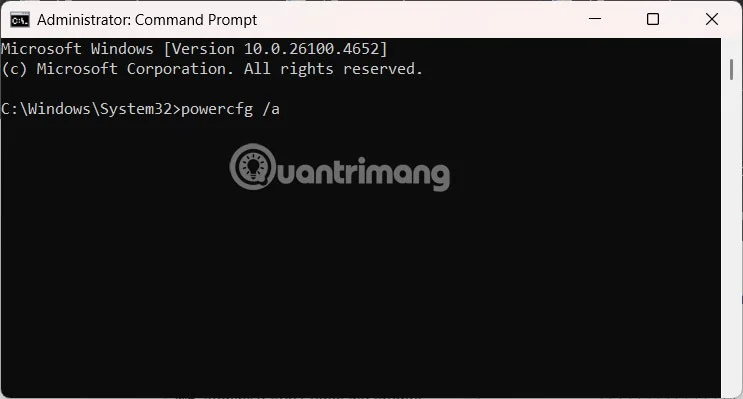
Open Command Prompt with Admin rights on your computer and enter the command below to check if Fast Startup is turned off or not.
powercfg /a

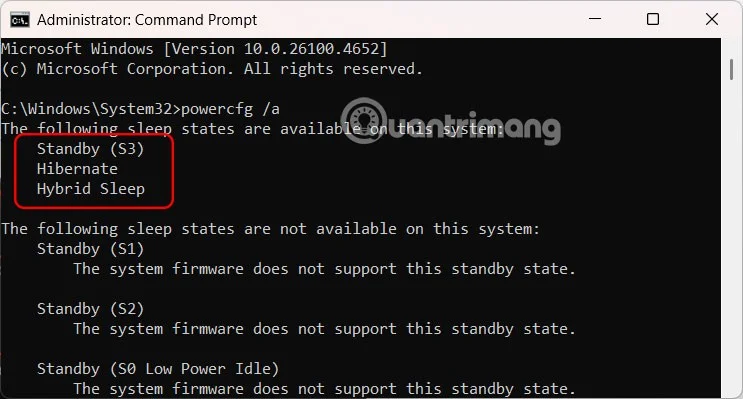
If you see a list of available sleep states displayed on a computer without Fast Startup, then the feature is completely disabled.

If your computer uses an SSD, you should disable Fast Startup. Since SSDs are already very fast to boot up, disabling Fast Startup can help ensure a clean shutdown and avoid potential driver or update issues.
On the other hand, if your computer still uses HDD, turn on Fast Startup mode to speed up computer startup.