Canva Power Point Template
Create professional slides fast with a Canva Power Point Template. Follow this guide to search, edit, and export directly to PowerPoint format in minutes.
Ever sat through an important Microsoft Teams meeting and realized you need that recording later? Don't worry! Downloading Microsoft Teams recordings on your laptop or PC is straightforward and saves you time. Whether you're the meeting organizer, a participant, or an admin, this guide walks you through every method with crystal-clear steps. You'll have your videos saved locally in minutes, ready for offline viewing or sharing. Let's dive in! 👆
Before starting, ensure:
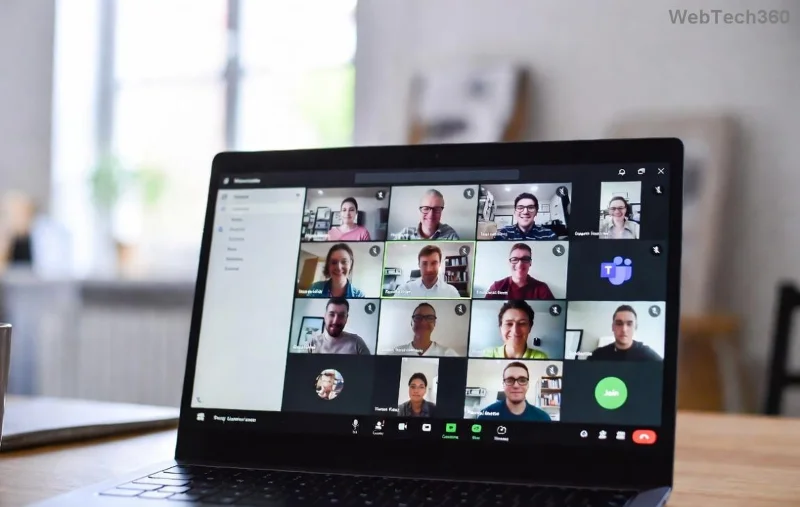
The desktop app is the fastest way for most users. Follow these steps:
Pro Tip: For HD quality, right-click the file post-download and play in VLC for best results. This works seamlessly on both Windows laptops and MacBooks!
No app? Use the web version—no installation needed.
Bonus: Pin the recording tab for quick access next time! 😊
For deeper access, especially as a participant:
This method shines for bulk downloads or when Teams app glitches. Official guide: Microsoft Support.
Participants can't always download directly—depends on organizer settings:
Stuck? Use this table for quick fixes:
| Issue | Solution |
|---|---|
| No Download option | You're not organizer—request permissions or use OneDrive method. ❌ |
| "File not found" error | Check retention policy or search OneDrive. Refresh Teams. 🔄 |
| Slow download | Clear browser cache or switch to desktop app. Use wired connection. 🌐 |
| Recording expired | Contact admin to extend storage. Prevent future loss with auto-downloads. ⏰ |
Still issues? Update Teams app via Profile > Check for updates. 👍
These hacks keep you productive—imagine never missing a key meeting moment again! 🚀
Q: Can I download transcripts too?
A: Yes! In Recordings tab, click Transcript > Download (TXT/VTT).
Q: Works on both Windows and Mac laptops?
A: Absolutely—universal steps! 💻
Q: What format are recordings?
A: MP4 video, perfect for any player.
Mastered it? Share this guide and stay looped in on more Teams tips. Your meetings just got easier! 🎉
Create professional slides fast with a Canva Power Point Template. Follow this guide to search, edit, and export directly to PowerPoint format in minutes.
Skype Free Phone Calls let you connect with friends and family worldwide at no cost. Follow this guide to set up and start making free calls quickly and easily.
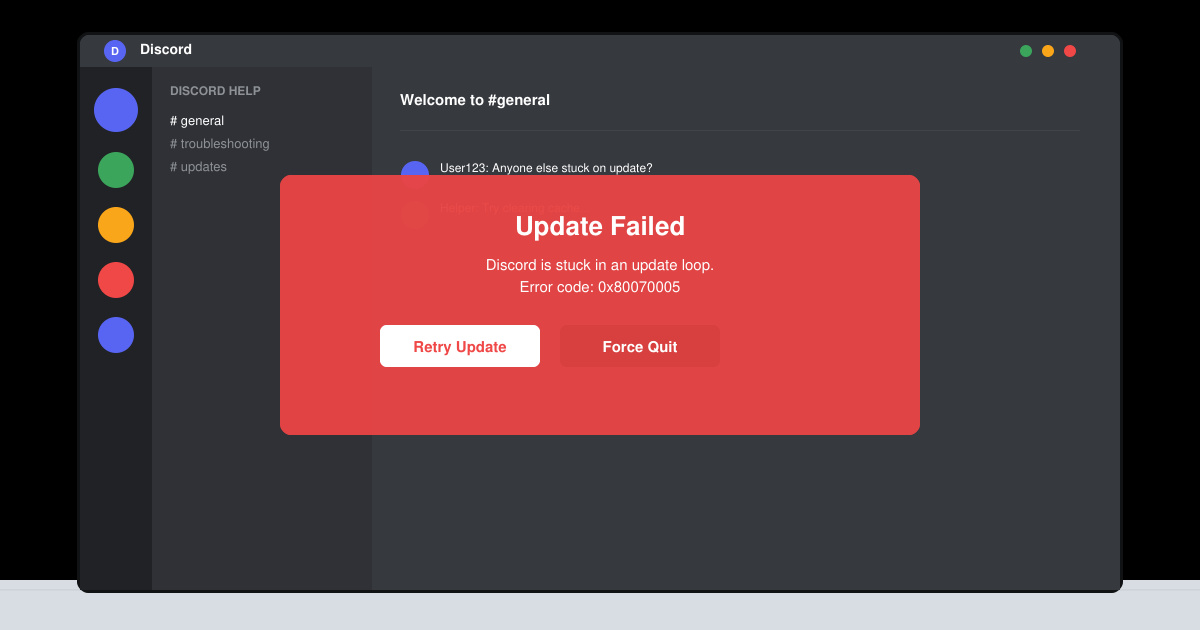
Stuck in the Discord Update Failed Loop? Follow these targeted fixes to break the cycle and complete the update without repeated failures or reinstalls.
Travel planning used to mean folders full of printed confirmations, handwritten notes, guidebooks, and a slightly terrifying number of browser tabs. Now, pretty much everything you need for a trip can live on the device already in your pocket.
Discover how Canva Free for Teachers gives educators full access to premium design tools at no cost. Verify your status and start creating classroom materials in minutes.
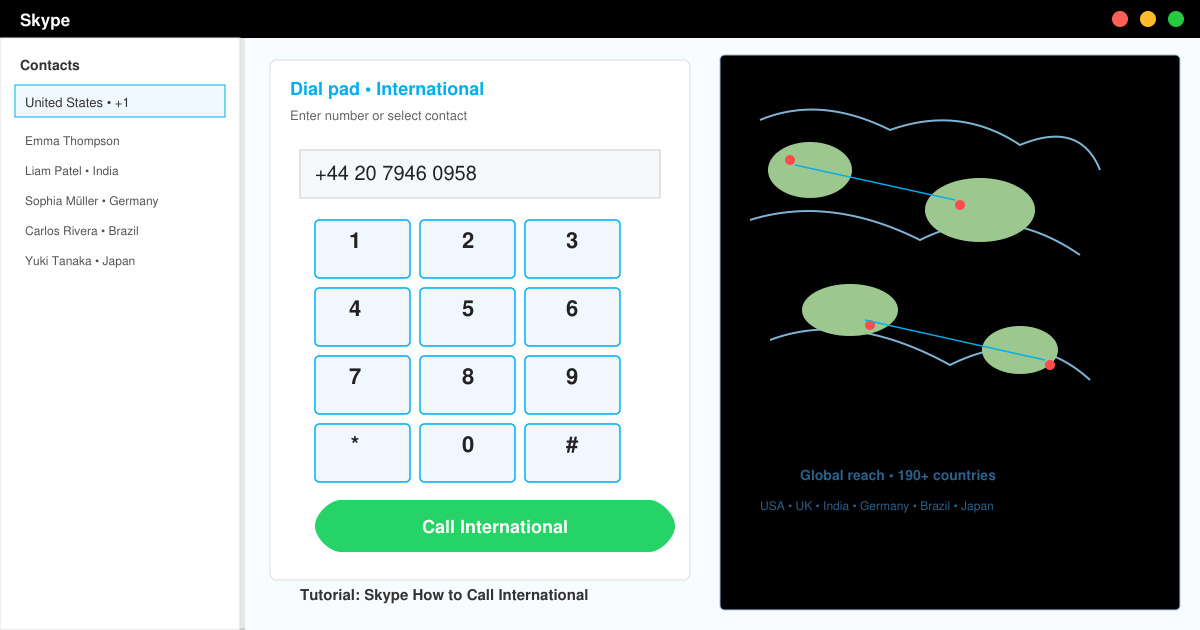
Skype How to Call International is simple and cost-effective once you set up credit and use the right country codes. Follow this guide to place clear calls from anywhere.
Make Skype to Skype Calls Free in minutes with this clear guide. Set up your account, add contacts, and start unlimited voice and video calls at no cost.
Fix the Your Connection is Not Private Chrome error quickly with these exact steps. Restore secure browsing by addressing certificate and settings issues in minutes.
Record heat has lifted air-conditioning demand while gas-market shocks have returned volatility to power prices. That creates a real risk of painful bills—but not a guaranteed, Europe-wide price explosion.
Large format printing has long faced criticism for its environmental impact. Traditional substrates, solvent-based inks, and short-lived promotional campaigns have all contributed to the perception that eye-catching graphics come at a high environmental cost.