In addition to the image creation feature on Copilot AI, users can now edit those images right in Copilot without having to use additional image editing software . Basically, you just need to give a request on how to edit the image for Copilot to follow. The following article will guide you on how to edit images on Copilot.
Instructions for editing images on Copilot
Step 1:
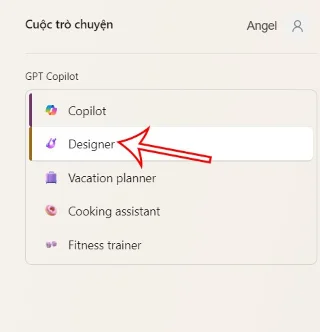
First, you access Copilot and log in to your Microsoft account. In the Copilot interface, you will see the GPT Copilot list on the right side of the interface as shown below. We click on Designer to use the image creation feature on Copilot.
Step 2:
Next, the user enters the image content they want to create into the box below. As a result, you will see four images created from the content you entered. To edit any image , simply click on the image created.

Step 3:
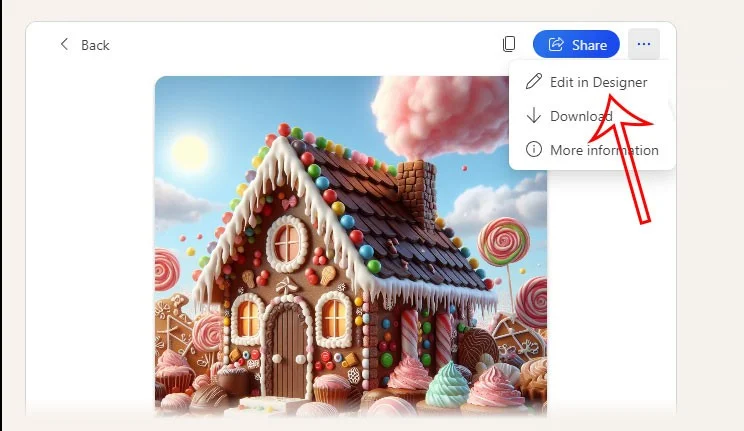
At the new image viewing interface, we click on the 3-dot icon in the right corner and select Edit In Designer to proceed with image editing.

Step 4:
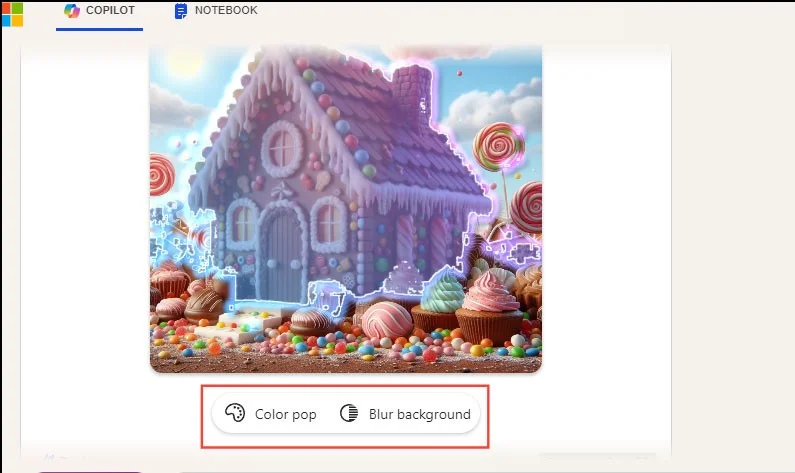
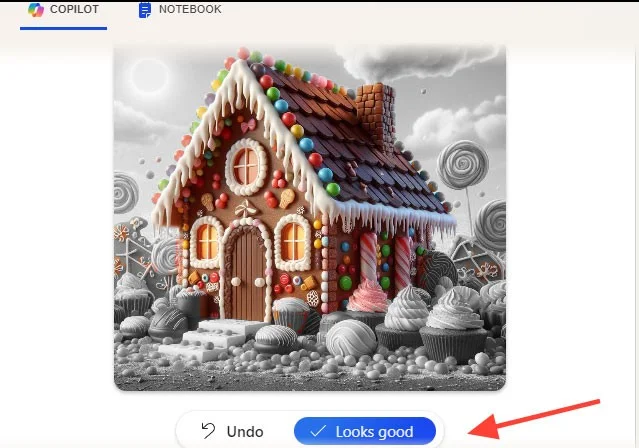
Now you need to right-click on the detail you want to edit in the photo. You can press the Shift key and select multiple details to edit at the same time. Then below the image, there are 2 options: Color Pop to turn unselected details into black and white and Blur Background to blur the background.

If you like the edit, click Looks Good to save .

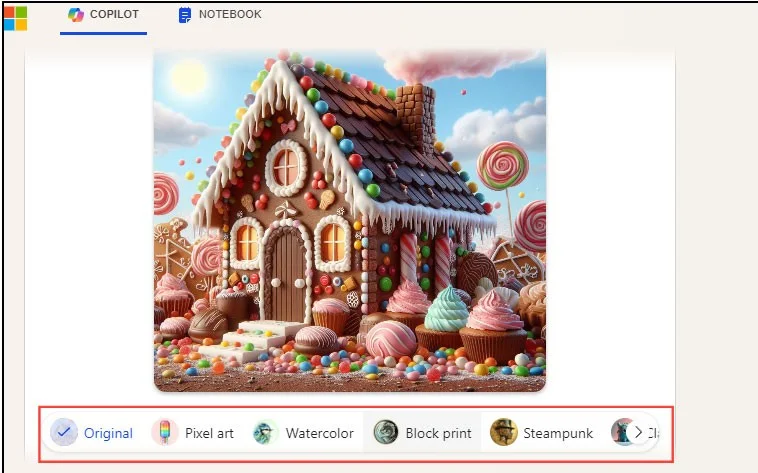
In addition, below the image there are other effects to apply to the photo. After editing, click Download to download the photo.