The Windows 11 Language bar allows users to quickly switch between input languages and keyboard layouts. Depending on their needs, users can quickly enable or disable the Language bar on their computers. Below are instructions on how to enable or disable the Windows 11 Language bar.
Instructions to enable and disable the Windows 11 Language bar
Step 1:
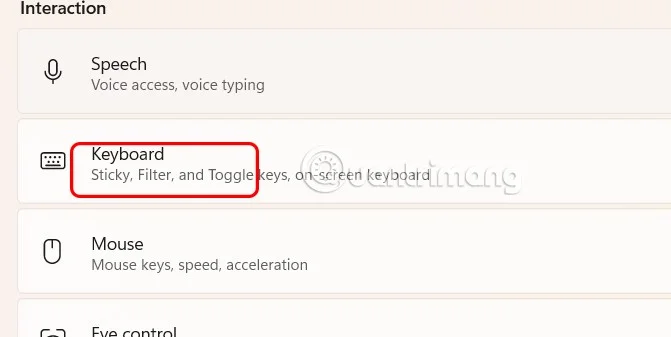
Press Windows + I to open Settings , then click on Accessibility on the left side of the interface.
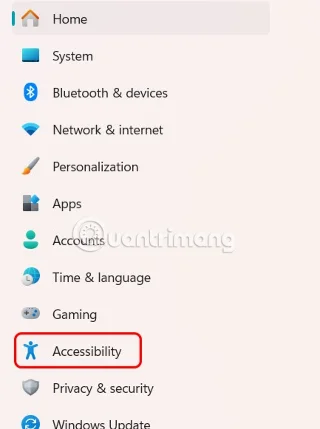
Continue to look to the right and click on Keyboard to adjust the keyboard on your computer.

Step 2:
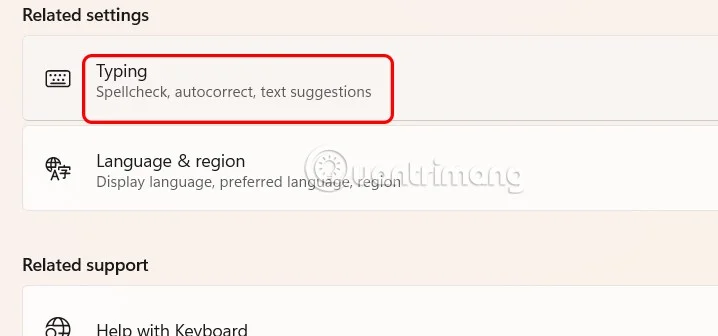
In the Related settings section, users click on Typing to make adjustments.

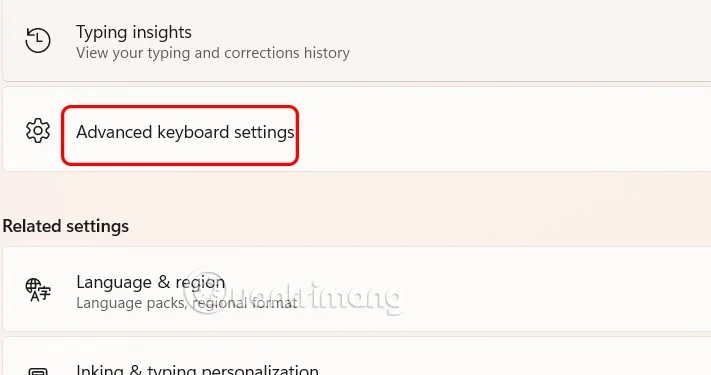
Continue scrolling down below and click on Advanced keyboard settings to open the advanced computer keyboard settings.

Step 3:
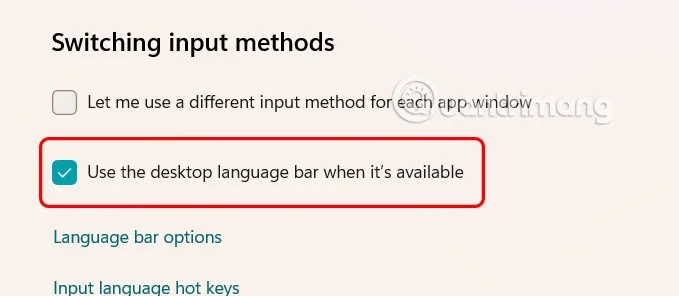
To activate the Language bar on your computer, just check Use the desktop language bar when it's available .

As a result, you will see the Language bar displayed on the computer as shown so we can change the keyboard language to the language we want.

If you want to hide the language bar on the taskbar, just uncheck Use the desktop language bar when it's available.