How to Fix Microsoft Teams Error G Audio

Encountering the dreaded Microsoft Teams "Error G" audio during a crucial meeting? 😩 This frustrating error pops up when Teams can't access your microphone or speakers, leaving you muted or silent. Don't panic—it's a common issue fixed in minutes with the right steps. Whether you're on Windows, Mac, or web, our guide delivers quick fixes for Microsoft Teams Error G that actually work. Let's dive in and restore your audio glory! 🎤
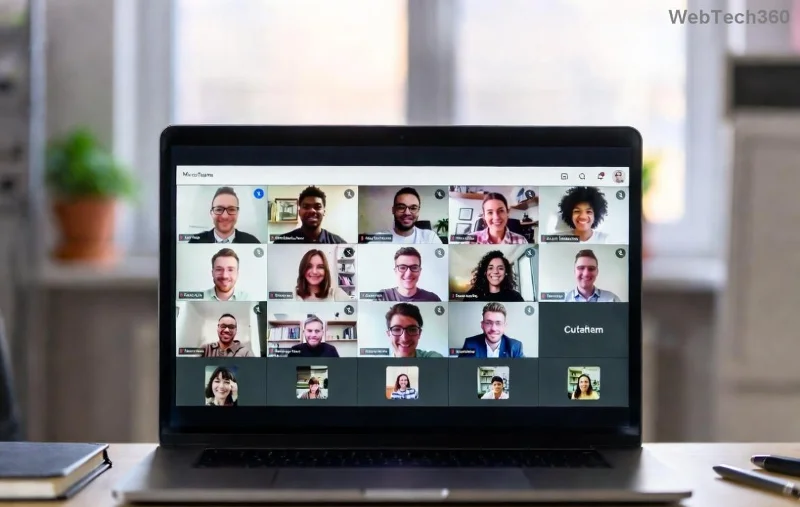
Microsoft Teams Error G audio troubleshooting screenshot showing error message and device settings

What Causes Microsoft Teams Error G Audio? Quick Diagnosis

Before fixing, understand the culprit. Error G typically signals:

  • ❌ Blocked microphone/speaker permissions.
  • 🔇 Outdated audio drivers or Teams app.
  • ⚙️ Conflicting devices or privacy settings.
  • 🌐 Network glitches in remote setups.

Pro tip: Test your audio in Teams settings first (Settings > Devices). If it fails here, proceed to fixes. Ready? Follow these numbered steps from simplest to advanced—most users solve it by step 3! ⭐

1️⃣ Basic Fixes: 80% of Microsoft Teams Error G Cases Resolved Here

Start simple—no tech wizardry needed. These take under 5 minutes.

  1. Grant Permissions: Teams needs mic/speaker access.
    • Windows: Settings > Privacy > Microphone > Allow apps. Toggle Teams ON.
    • Mac: System Preferences > Security & Privacy > Microphone > Check Teams.
    • Browser: Click camera/mic icons in address bar > Allow.

    Restart Teams. Test call—audio back? 🎉

  2. Restart Everything:
    • Close Teams fully (Task Manager on Windows: End task).
    • Restart your computer.
    • Reopen Teams & join a test meeting.
  3. Switch Devices: In Teams (More actions > Show device settings), select different mic/speakers. Unplug extras to avoid conflicts.

2️⃣ Update & Optimize: Tackle Driver and App Glitches

If basics fail, drivers are often the villain. Here's how to update:

Platform Update Steps Expected Fix Time
Windows 1. Right-click Start > Device Manager.
2. Expand Audio inputs/outputs.
3. Right-click mic/speakers > Update driver > Search automatically.
4. Restart.
2-3 mins
Mac Apple Menu > System Update. Install latest macOS for audio fixes. 5-10 mins
Teams App Teams > Profile > Check for updates. Or download latest from official site. 1 min
Step-by-step guide image for updating audio drivers in Device Manager for Microsoft Teams Error G fix

Bonus: Clear Teams cache for stubborn issues.

  • Windows: %appdata%\Microsoft\Teams > Delete contents in folders (folders: Cache, GPUCache, etc.).
  • Mac: ~/Library/Application Support/Microsoft/Teams > Same deletion.
Relaunch—Teams Error G audio vanished? High-five! 👏

3️⃣ Advanced Troubleshooting: When Simple Fixes Aren't Enough

Still stuck? Rare but fixable:

  1. Run Windows Troubleshooter: Settings > Update & Security > Troubleshoot > Recording Audio > Run. Auto-detects fixes.
  2. Disable Exclusive Mode:
    • Right-click speaker icon > Sounds > Playback/Recording tab.
    • Select device > Properties > Advanced > Uncheck "Exclusive Mode".
  3. Reinstall Teams: Uninstall via Settings/Apps. Download fresh from Microsoft. Clean install nukes corruption.
  4. Check Antivirus/Firewall: Temporarily disable (e.g., Windows Defender exclusions for Teams.exe). Re-enable after testing.

Prevention Tips: Say Goodbye to Microsoft Teams Error G Forever

Lock in success:

  • ⭐ Keep Teams and drivers auto-updated.
  • ✅ Regularly test devices pre-meeting.
  • 🔒 Review privacy settings quarterly.
  • 📱 Use wired headset for reliability over Bluetooth.

For enterprise users, check IT policies—sometimes admin locks cause Error G. Official Microsoft support confirms these as top fixes.

Final Thoughts: Audio Fixed, Meetings Rocking! 🚀

Congrats—you've conquered Microsoft Teams "Error G" audio! Most fixes take <10 mins, getting you back to productive calls. Which step worked for you? Drop a comment below or share this guide—help a colleague! Questions? We're here. Smooth sailing ahead! 😊

Leave a Comment

How to Create and Manage a Bot in Microsoft Teams (2026)

How to Create and Manage a Bot in Microsoft Teams (2026)

Master how to create and manage a bot in Microsoft Teams (2026) with this expert guide. From setup to advanced management, unlock productivity boosts using the latest Bot Framework and Azure tools.

Troubleshooting Microsoft Teams Remote Control Request Error

Troubleshooting Microsoft Teams Remote Control Request Error

Tired of Microsoft Teams "Remote Control" Request Error blocking your meetings? Follow our proven, step-by-step troubleshooting guide with the latest fixes to restore seamless remote control and boost productivity instantly.

How to Fix Microsoft Teams Planner Error: Tasks Not Loading

How to Fix Microsoft Teams Planner Error: Tasks Not Loading

Struggling with Microsoft Teams Planner error where tasks not loading? Discover step-by-step fixes for Microsoft Teams Planner Error: Tasks Not Loading. Quick solutions for instant relief in Teams Planner. Updated with latest troubleshooting tips.

Troubleshooting Microsoft Teams Version History Errors

Troubleshooting Microsoft Teams Version History Errors

Tired of Microsoft Teams version history errors disrupting your workflow? This step-by-step troubleshooting guide covers common issues, quick fixes, and pro tips to restore seamless file versioning in Teams. Updated with the latest solutions!

Solving Microsoft Teams Error 2400: Unable to Connect to Servers

Solving Microsoft Teams Error 2400: Unable to Connect to Servers

Tired of Microsoft Teams Error 2400 blocking your connection? Follow our proven, step-by-step fixes to solve "Unable to Connect to Servers" and get back to productive meetings fast.

Where is My Microsoft Teams Recording Saved? Find Your Files Fast

Where is My Microsoft Teams Recording Saved? Find Your Files Fast

Struggling to locate your Microsoft Teams recording? Discover exactly where Teams saves meeting files in OneDrive or SharePoint, plus quick steps to find and access them instantly. No more lost recordings!

How to Fix Microsoft Teams Error G Audio

How to Fix Microsoft Teams Error G Audio

Struggling with Microsoft Teams "Error G" audio? Discover step-by-step fixes for microphone and speaker issues. Quick, easy solutions to get back to seamless meetings without frustration. Works on Windows, Mac & more!

Fixing Microsoft Teams Vcruntime140.dll Missing Error

Fixing Microsoft Teams Vcruntime140.dll Missing Error

Tired of the frustrating Microsoft Teams Vcruntime140.dll missing error crashing your meetings? Discover proven, step-by-step fixes to resolve it fast and restore smooth teamwork. No tech skills needed!

How to Fix Microsoft Teams Undefined Error (2026)

How to Fix Microsoft Teams Undefined Error (2026)

Struggling with Microsoft Teams 'Undefined Error' (2026)? Discover proven, step-by-step fixes like clearing cache, updating the app, and more. Get back to seamless collaboration fast!

How to Disable Microsoft Teams at Startup for Better PC Performance

How to Disable Microsoft Teams at Startup for Better PC Performance

Discover simple, step-by-step methods to disable Microsoft Teams at startup and unlock better PC performance. Faster boot times, less resource drain—perfect for Windows users seeking smooth operation.

How to Fix Microsoft Teams Network Error Offline

How to Fix Microsoft Teams Network Error Offline

Stuck with Microsoft Teams "Network Error" offline? Discover proven, step-by-step solutions to fix Microsoft Teams network error offline quickly. Get back online fast—no tech skills needed!

Solving Microsoft Teams Error 4oggx

Solving Microsoft Teams Error 4oggx

Struggling with Microsoft Teams Error 4oggx? Discover proven fixes to resolve sign-in failures, crashes, and connectivity issues fast. Get back to productive calls without frustration!

How to Fix Microsoft Teams Remove Account Data Error

How to Fix Microsoft Teams Remove Account Data Error

Encountering the frustrating Microsoft Teams "Remove Account" Data Error? Discover quick, reliable fixes like clearing cache, resetting the app, and more to get back to seamless collaboration without losing data. Updated with the latest solutions.

Troubleshooting Microsoft Teams Layout Error Sidebar

Troubleshooting Microsoft Teams Layout Error Sidebar

Tired of the frustrating Microsoft Teams "Layout Error" Sidebar? Follow our proven, step-by-step troubleshooting guide with the latest fixes to get your Teams sidebar working smoothly again. No tech skills needed!

Troubleshooting Microsoft Teams Offline Error in 2026

Troubleshooting Microsoft Teams Offline Error in 2026

Stuck with Microsoft Teams offline error in 2026? Discover proven troubleshooting steps, common causes, and quick fixes to restore your connection fast. No tech skills required!








