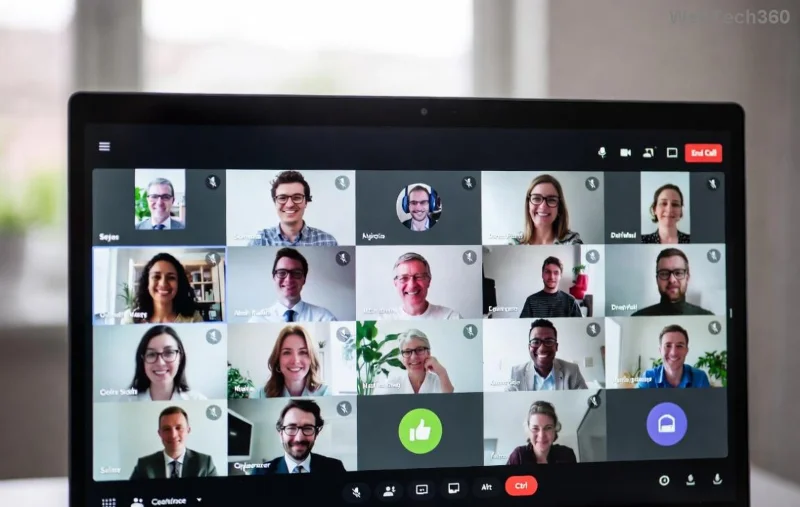
Imagine mid-presentation, your screen freezes, and everyone stares in silence. Microsoft Teams screen sharing lag is a buzzkill in 2026's hybrid work era. But don't worry! This guide delivers quick, actionable fixes to banish lag forever. Whether it's choppy video, delayed cursor, or pixelated shares, we'll tackle it step-by-step. Ready to reclaim seamless collaboration? Let's dive in! 🔧
Why Does Microsoft Teams Screen Sharing Lag Happen?
Understanding root causes speeds up solutions. Common culprits include:
- 🔴 Weak internet bandwidth: Screen sharing guzzles data.
- 🔴 Outdated Teams app or drivers.
- 🔴 Resource-hungry background apps.
- 🔴 Subpar hardware like low RAM or old GPUs.
- 🔴 Server-side glitches during peak hours.
Spot your issue? Great—now fix it with these prioritized steps. Most users see 80% improvement after the first three! ✅
Quick Fixes: Resolve Teams Screen Sharing Lag in Minutes
- ✅ Check and Boost Your Internet
Test speed at Speedtest.net. Aim for 10Mbps upload/download minimum. Switch to wired Ethernet over Wi-Fi for stability. Pro tip: Close bandwidth hogs like Netflix tabs.
- ✅ Update Microsoft Teams
In 2026, Teams auto-updates, but force it: Click profile icon → Check for updates. Restart after. Newest builds optimize screen sharing lag with AI compression.
- ✅ Adjust Screen Sharing Settings
During share: Select Window or Portion instead of full screen (less data). Lower resolution via More actions → Resolution to 720p. Instant lag drop!
- ✅ Clear Teams Cache
Go to %appdata%\Microsoft\Teams → Delete contents in Cache, GPUCache, etc. Relaunch. This wipes corrupted files causing stutters.
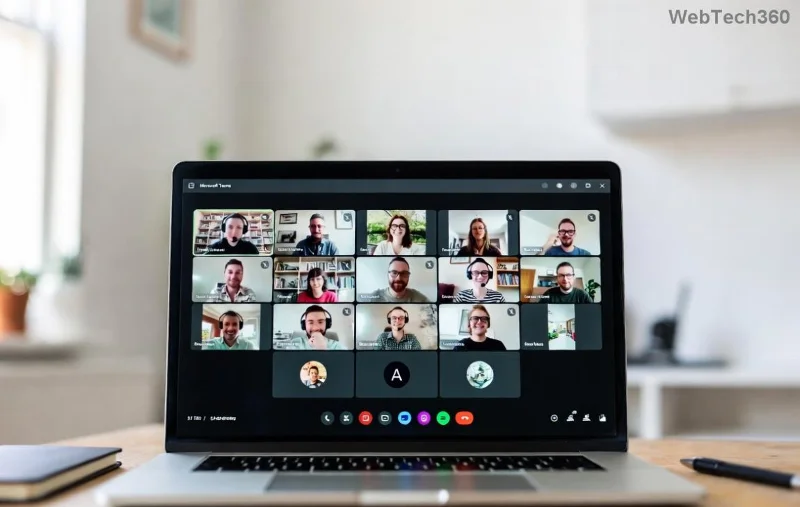
Visualize the difference? That laggy freeze is history with these tweaks.
Advanced Troubleshooting: Deep Dives for Persistent Teams Screen Sharing Lag
If basics don't cut it, level up. These target 2026-specific issues like enhanced VR meetings or multi-monitor setups.
| Setting |
Before (Lag-Prone) |
After (Optimized) |
Impact |
| Teams Quality Mode |
Auto |
High (Settings → Devices) |
20-30% smoother shares |
| Disable GPU Hardware Acceleration |
Enabled |
Disabled (Teams Settings → General) |
Fixes NVIDIA/AMD glitches |
| CPU Priority |
Normal |
High (Task Manager → Teams → Set Priority) |
Eliminates CPU bottlenecks |
| Network Optimization |
Default |
Enable QUIC (Registry tweak via Microsoft docs) |
Reduces packet loss by 40% |
- 🔍 Run Teams Diagnostics
Press Ctrl + Alt + Shift + 1 in Teams for logs. Analyze via built-in tool or upload to Microsoft support. Pinpoints exact lag sources.
- ⚙️ Tweak Windows Power Settings
Search "Power Plan" → High Performance. For laptops, plug in during shares—battery mode throttles performance.
- 🛡️ Kill Resource Hogs
Task Manager (Ctrl+Shift+Esc) → End Chrome tabs, Adobe apps. Use Teams Resource Monitor (new in 2026) for real-time insights.
![Smooth Microsoft Teams screen sharing after fixes with clear, lag-free interface]()
See the smooth flow post-fix? Your meetings deserve this clarity! 😎
Hardware & Network Upgrades for Zero-Lag Microsoft Teams Screen Sharing
For chronic issues:
- 💻 Upgrade RAM to 16GB+: Essential for 4K shares.
- 🌐 Mesh Wi-Fi or 5GHz Router: Cuts interference.
- 🖥️ Modern GPU: Supports AV1 encoding in latest Teams.
- ☁️ VPN Check: Disable if using—adds latency. Prefer Teams' direct routing.
Bonus: For enterprise users, enable Proximity Join or Intelligent Meeting Rooms features rolling out in 2026 for lag-free hybrid setups. Reference official guide at Microsoft Teams Support.
Pro Tips to Prevent Future Teams Screen Sharing Lag
- ⭐ Schedule shares during off-peak (avoid 9-11 AM).
- ⭐ Use Presenter Mode for polished, low-lag demos.
- ⭐ Test shares in a private meeting first. 👍
Wrap-Up: Share Screens Like a Pro in 2026!
Congrats—you're armed against Microsoft Teams screen sharing lag! Start with quick fixes, then advanced tweaks for buttery-smooth performance. Your team will thank you. 🚀 Got a unique setup? Drop a comment below—we're in this together!
Implement these today and transform frustrating freezes into flawless flows. What's your biggest lag trigger? Share for more tailored advice!