How to Resolve Microsoft Teams Error Code 0x80070005

Encountering Microsoft Teams Error Code 0x80070005? This frustrating "Access Denied" issue pops up during sign-ins, updates, or meetings, halting your workflow. Don't worry—it's a common glitch tied to permissions, antivirus blocks, or corrupted files. Our guide delivers quick, reliable fixes tested on the latest Windows versions, helping thousands regain smooth Microsoft Teams access. Let's dive in and crush this error! 👇

🛑 What Causes Microsoft Teams Error Code 0x80070005?

At its core, 0x80070005 signals denied access to files, registry keys, or system resources. In Microsoft Teams, triggers include:

  • Insufficient app or folder permissions.
  • Antivirus/firewall interference.
  • Corrupted cache or temporary files.
  • Outdated Windows/Teams versions.
  • Registry conflicts from prior installs.

Spot it? Teams freezes on launch, fails to update, or blocks logins. Time to fix it—start with the simplest steps for 80% success! ⭐
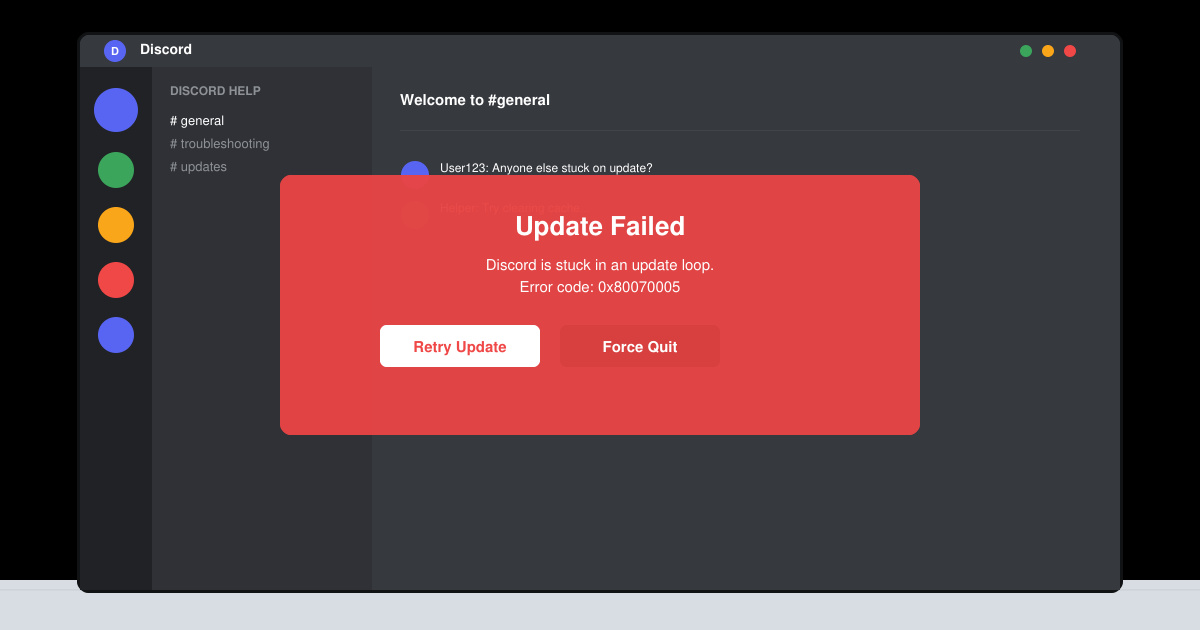
Screenshot of Microsoft Teams Error Code 0x80070005 access denied popup

🔧 Step-by-Step Fixes for Microsoft Teams Error Code 0x80070005

Follow these in order—most users resolve it by Step 3. Restart Teams after each. Ready? Let's go! ➡️

1️⃣ Run Microsoft Teams as Administrator

The fastest fix: Right-click the Teams icon > Run as administrator. This bypasses permission hurdles.

  1. Search "Teams" in Windows Start.
  2. Right-click > Run as administrator.
  3. Sign in—if it works, set permanent admin rights via Properties > Compatibility > Run this program as an administrator.

Success rate: High for basic access issues. 🎉

2️⃣ Clear Teams Cache (Quick Reset)

Corrupted cache causes 40% of errors. Wipe it clean:

  1. Quit Teams fully (Task Manager > End all Teams processes).
  2. Press Win+R > %appdata%\Microsoft\Teams.
  3. Delete contents of folders: Cache, GPUCache, IndexedDB, Local Storage, tmp.
  4. Restart Teams.

Pro tip: Use Shift + Restart for a clean launch. Feels like new! 😊

Step-by-step visual guide to clearing Microsoft Teams cache folders

3️⃣ Disable Antivirus/Firewall Temporarily

Third-party security often flags Teams. Test by disabling:

AntivirusQuick Disable Steps
Windows DefenderSettings > Update & Security > Windows Security > Virus & threat protection > Manage settings > Off (Real-time).
Norton/McAfeeRight-click tray icon > Disable for 15 mins.
Third-partyAdd Teams.exe to exclusions list post-test.

Restart Teams. If fixed, whitelist Teams folders: %appdata%\Microsoft\Teams and %localappdata%\Microsoft\Teams.

4️⃣ Reset or Reinstall Microsoft Teams

For stubborn cases:

  1. Reset: Settings > Apps > Microsoft Teams > Advanced > Reset.
  2. Reinstall: Uninstall via Apps, download latest from official site.
  3. Delete leftovers: %appdata%\Microsoft\Teams and %localappdata%\Microsoft\Teams.

Latest installer auto-handles updates—smooth sailing! 🚀

Microsoft Teams reinstall process with error resolution confirmation

5️⃣ Fix Folder Permissions

Manually grant access:

  1. Navigate to %appdata%\Microsoft.
  2. Right-click Teams folder > Properties > Security > Edit > Add "Everyone" > Full control.
  3. Apply to subfolders.

Caution: Secure afterward. Works wonders for enterprise setups.

6️⃣ Update Windows and Teams

Run Windows Update (Settings > Update & Security). For Teams: Help > Check for updates. Patch mismatches cause 0x80070005.

7️⃣ Advanced: Registry Cleanup (Use with Care)

Backup registry first (regedit > File > Export).

  1. Win+R > regedit.
  2. Navigate: HKEY_CURRENT_USER\Software\Microsoft\Office\Teams.
  3. Delete Teams keys > Restart.

Reference: Official troubleshooting at Microsoft Support.

✅ Prevention Tips to Avoid Microsoft Teams Error Code 0x80070005

  • Regularly clear cache weekly.
  • Keep antivirus exclusions updated.
  • Run monthly Windows/Teams updates.
  • Use Microsoft Teams desktop app over web for stability.

Still stuck? Check Event Viewer (Win+R > eventvwr) for details or contact Microsoft Support. You've got this—your Teams will be error-free! 👏

❓ FAQ: Microsoft Teams Error Code 0x80070005

Does this affect Mac users?
Rarely—mostly Windows. Try cache clear equivalent: ~/Library/Application Support/Microsoft/Teams.
Error persists after reinstall?
Run SFC /scannow in admin Command Prompt.
Enterprise/Intune issue?
IT admin permissions needed.

Fixed your Microsoft Teams Error Code 0x80070005? Share in comments below—we love success stories! Stay productive. ✨

Leave a Comment

How to Resolve Microsoft Teams Error Code 0x80070005

How to Resolve Microsoft Teams Error Code 0x80070005

Tired of Microsoft Teams Error Code 0x80070005 blocking your meetings? Follow our expert, step-by-step guide with quick fixes like permission resets, cache clears, and reinstalls to resolve access denied errors fast and get back to collaborating seamlessly.

Troubleshooting Microsoft Teams Error Message 80080005

Troubleshooting Microsoft Teams Error Message 80080005

Stuck with Microsoft Teams Error 80080005? This comprehensive guide delivers proven, step-by-step fixes for audio glitches, mic failures, and more. Restore seamless collaboration today!

Solving Microsoft Teams Error Code 404 on Web

Solving Microsoft Teams Error Code 404 on Web

Tired of Microsoft Teams Error Code 404 on web blocking your meetings? Follow our proven, step-by-step guide to clear cache, troubleshoot browsers, and resolve the "Not Found" error fast for seamless collaboration. Updated with the latest fixes!

Why is the Microsoft Teams Add-in Missing from My Outlook?

Why is the Microsoft Teams Add-in Missing from My Outlook?

Frustrated because the Microsoft Teams add-in is missing from Outlook? Uncover the top reasons and easy step-by-step fixes to bring back seamless Teams-Outlook integration without hassle. Works for latest versions!

How to Set Up and Link Microsoft Teams to Your Outlook Calendar

How to Set Up and Link Microsoft Teams to Your Outlook Calendar

Master how to set up and link Microsoft Teams to your Outlook Calendar with this ultimate step-by-step guide. Enjoy effortless meeting scheduling, seamless sync, and boosted teamwork – no tech headaches!

How to Find the Microsoft Teams Installation Folder

How to Find the Microsoft Teams Installation Folder

Struggling to locate the Microsoft Teams installation folder? This step-by-step guide reveals exact paths for Windows, macOS, and more. Master how to find the Microsoft Teams installation folder effortlessly and boost your productivity today!

How to Remove an Account from Microsoft Teams Safely

How to Remove an Account from Microsoft Teams Safely

Discover how to remove an account from Microsoft Teams safely without losing data. Follow our expert, step-by-step guide for personal and work accounts to ensure a smooth, secure process.

Troubleshooting Microsoft Teams Call Failed Issues in 2026

Troubleshooting Microsoft Teams Call Failed Issues in 2026

Tired of Microsoft Teams "Call Failed" errors disrupting your 2026 meetings? Follow this ultimate troubleshooting guide with step-by-step fixes, latest tips, and quick wins to get back to seamless calls.

How to Fix Microsoft Teams Media Playback Errors in 2026

How to Fix Microsoft Teams Media Playback Errors in 2026

Tired of Microsoft Teams media playback errors ruining your 2026 meetings? Follow our expert, step-by-step guide to fix audio, video, and sharing glitches fast—no tech skills needed. Seamless collaboration awaits!

Solving Microsoft Teams Error Code 48V35 During Video Calls

Solving Microsoft Teams Error Code 48V35 During Video Calls

Struggling with Microsoft Teams Error Code 48V35 during video calls? Discover proven fixes for this common issue, from quick restarts to advanced driver updates. Get back to seamless meetings fast!

How to Login to the Microsoft Teams Admin Center Correctly

How to Login to the Microsoft Teams Admin Center Correctly

Master how to login to the Microsoft Teams Admin Center correctly with our precise step-by-step guide. Fix common errors, ensure security, and manage Teams effortlessly for admins everywhere.

How to Fix Microsoft Teams VDI Error on Citrix/VMware

How to Fix Microsoft Teams VDI Error on Citrix/VMware

Tired of Microsoft Teams VDI errors crashing your Citrix or VMware sessions? Discover step-by-step fixes for audio, video, and optimization issues. Get back to seamless meetings with our latest, expert guide.

Troubleshooting Microsoft Teams Mac Error Keychain Issues

Troubleshooting Microsoft Teams Mac Error Keychain Issues

Struggling with Microsoft Teams "Mac Error" Keychain issues? Discover proven, step-by-step troubleshooting fixes for macOS to get back to seamless collaboration. Quick solutions inside!

How to Fix Microsoft Teams Camera Not Working in Meetings

How to Fix Microsoft Teams Camera Not Working in Meetings

Struggling with Microsoft Teams camera not working in meetings? Discover quick, step-by-step fixes for camera issues, permissions, drivers, and more. Get back to seamless video calls today!

How to Fix Microsoft Teams Error 1200 on Phone (iOS/Android)

How to Fix Microsoft Teams Error 1200 on Phone (iOS/Android)

Tired of Microsoft Teams Error 1200 crashing your calls on phone? Discover quick, step-by-step fixes for iOS and Android to get back to seamless teamwork fast—no tech skills needed!