How to Check Purchase History on Apple App Store
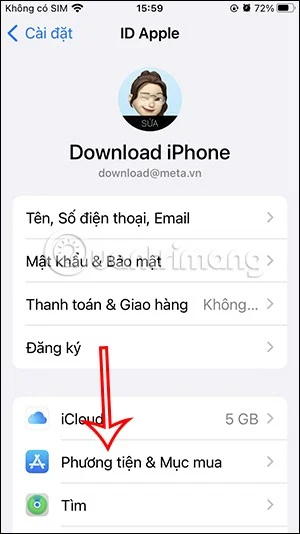
Through your purchase history on the App Store, you will know when you downloaded that app or game, and how much you paid for the paid app.
Turns out the iPhone can respond to taps on the back. Many people only recently discovered Back Tap, a hidden gesture that can launch shortcuts, open apps, or take screenshots. And it’s like a cheat code for the phone.
Table of Contents
Back Tap is one of those handy but hidden iOS features that Apple quietly added to the Accessibility settings menu . It first appeared in iOS 14 and uses the iPhone's sensors to detect quick taps on the back of the device. You can assign a different action to Double Tap and Triple Tap, giving you two shortcuts that you can activate without touching the screen.
What makes Back Tap useful is that it works almost everywhere. If you're watching a video, a double tap can take a screenshot without interrupting playback. If you're reading, you can triple tap to scroll down or open Siri. It's fast, discreet, and feels surprisingly smooth once you get the hang of it.
The best part is that you don't need the latest iPhone to use it. Back Tap works on iPhone 8 and up, as long as you've updated to iOS 14 or later. While it's designed as an accessibility feature, it's useful for anyone who wants to get the most out of their device.
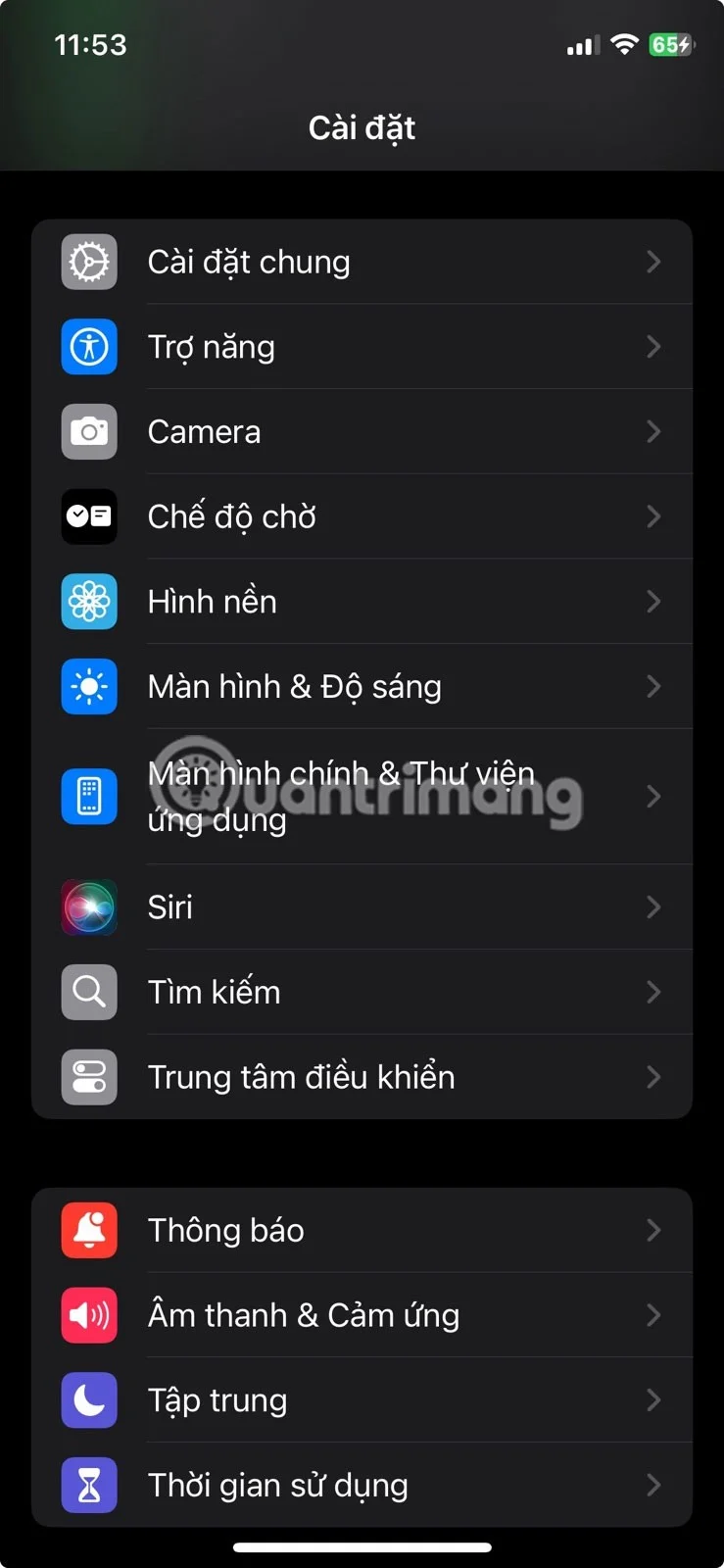
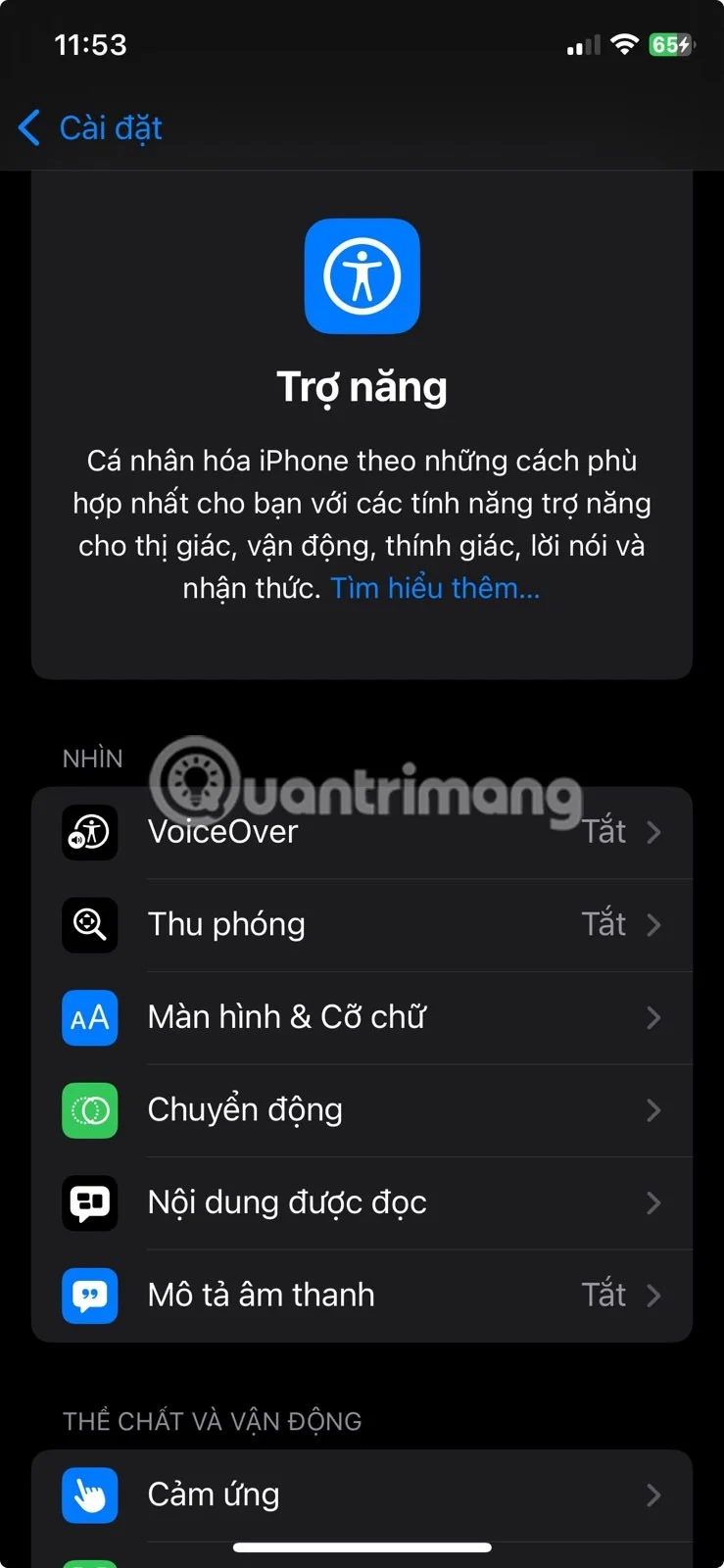
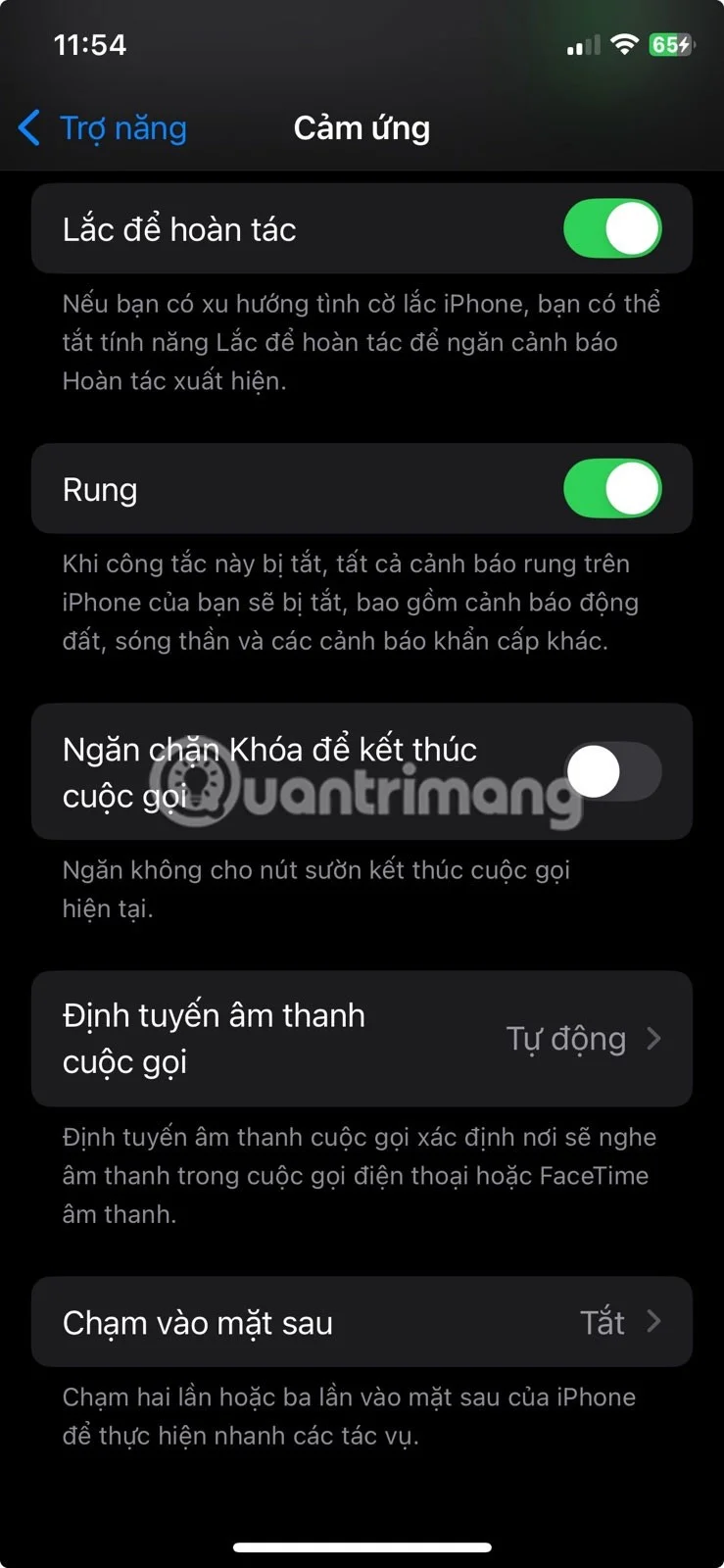
Back Tap takes less than a minute to set up. Start by going to Settings , then tapping Accessibility . Under Physical and Kinesthetic , select Touch , then scroll down and tap Back Tap .
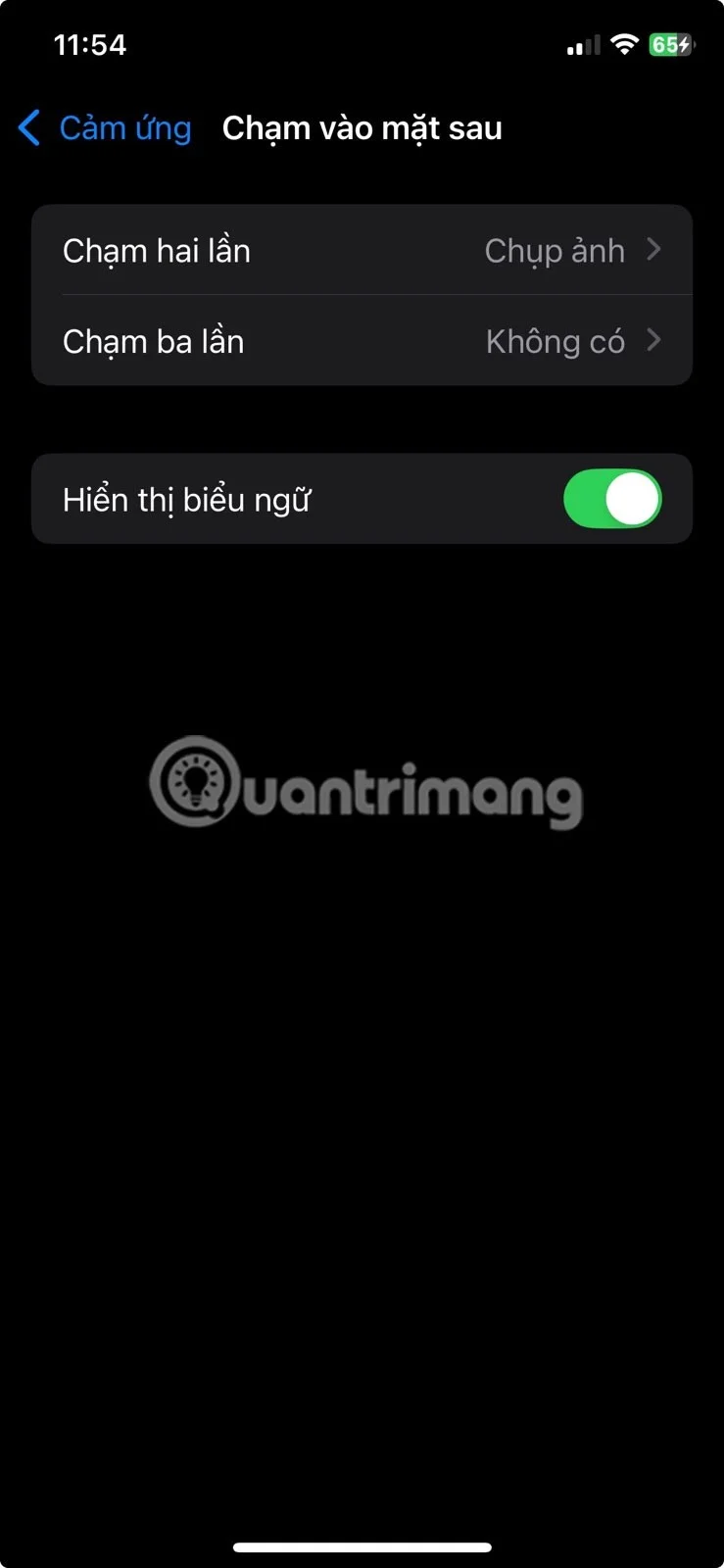
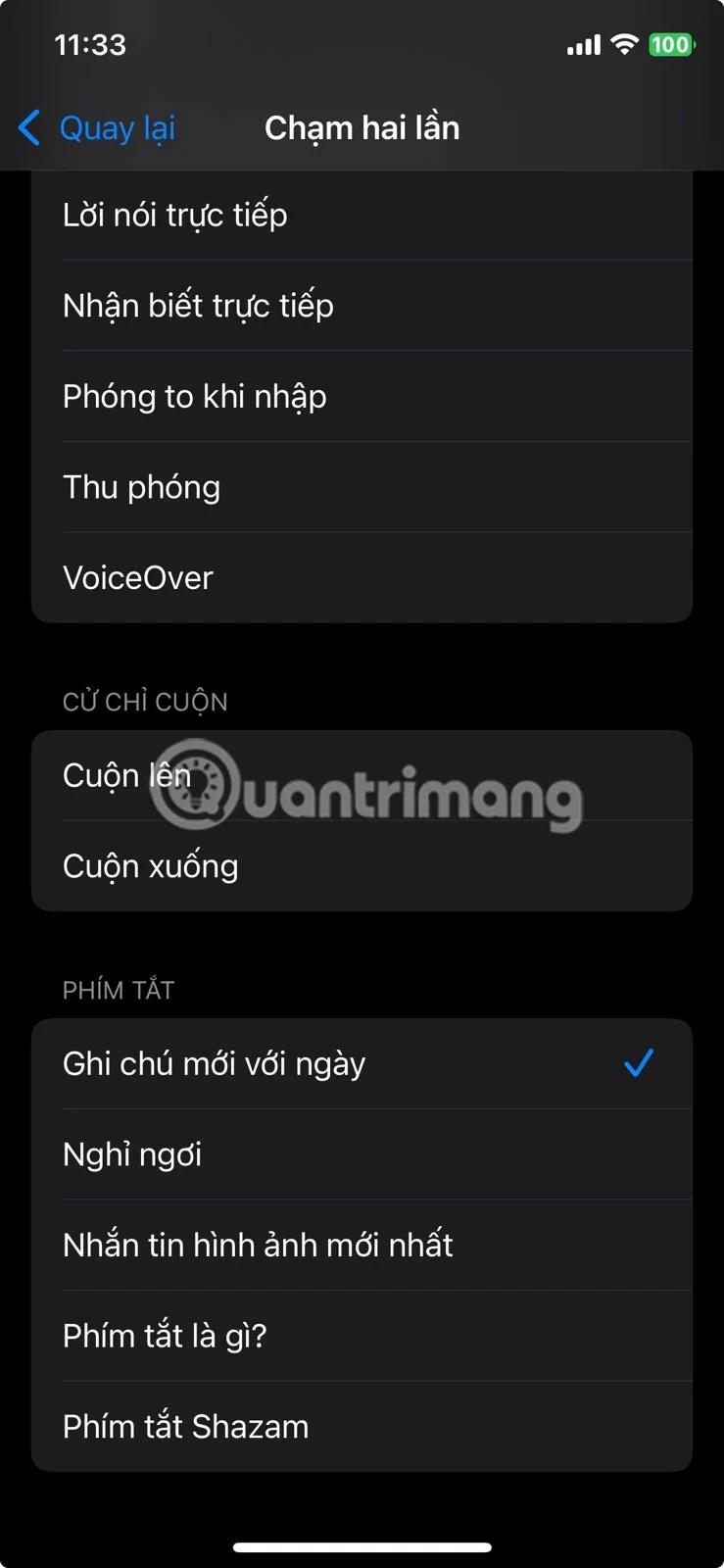
You'll see two options: Double Tap and Triple Tap. Tap either option to assign it an action. You can choose from options like taking a screenshot, locking the screen, opening Spotlight, scrolling, or launching the camera.
If you've created any shortcuts in Apple's Shortcuts app, they'll also appear in the list. This opens up even more possibilities, like sending a pre-written message, toggling Low Power Mode, launching a playlist, or opening a favorite app.
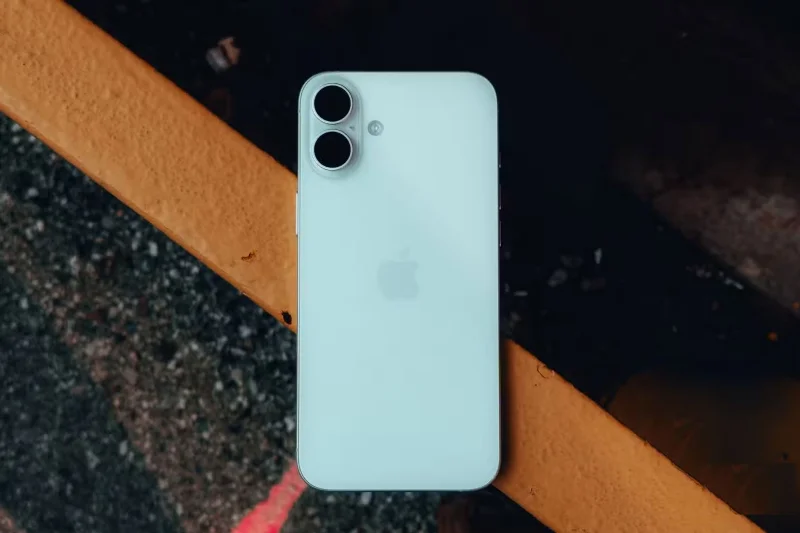
Once you've made your selections, you're done. Tap the back of your phone near the Apple logo two or three times in quick succession and the action you selected will run immediately.
It's important to note that Back Tap only works when the screen is on. Additionally, any actions you can't perform from the Lock Screen only work after your phone is unlocked. For example, if you set Back Tap to launch an app or shortcut, nothing will happen until you unlock your device.
However, actions like turning off the screen or toggling accessibility will work even when the device is locked. This may be confusing at first, but once you understand the behavior, it makes more sense. You don't want shortcuts to trigger when your phone is in your pocket or bag.
Another thing to note is that if this feature doesn't seem to respond, your phone case may be getting in the way. Thin cases work fine, but thick or sturdy cases can make it difficult for your phone to recognize your touches.
You don't necessarily have to remove the case, but if Back Tap seems unreliable, you might want to test it with the case off to rule that out. Enabling the Show Banners option in Back Tap's settings can help, as it will display a prompt when either tap is successfully recognized.
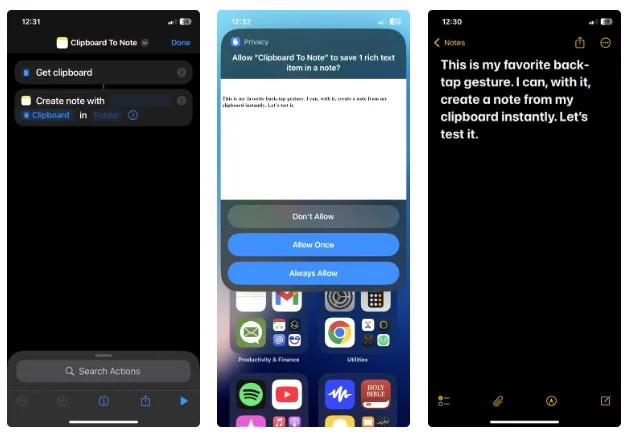
Taking notes is probably something you do several times a day without even thinking about it. But if an idea strikes you while you're browsing a website, chatting with someone, or setting up an app, you don't have to hunt for your notes app. Instead, you can set up a Back Tap gesture on your iPhone to instantly open a quick note.
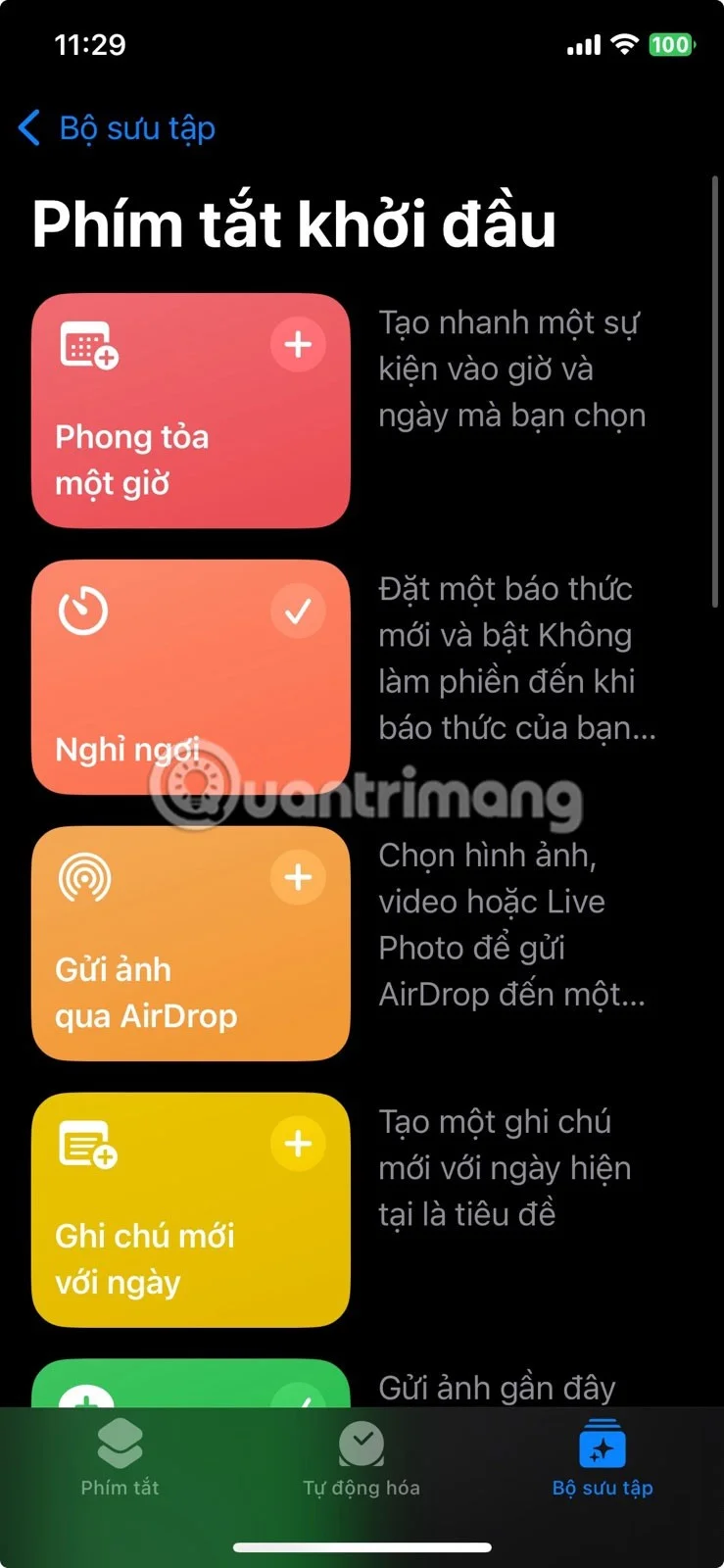
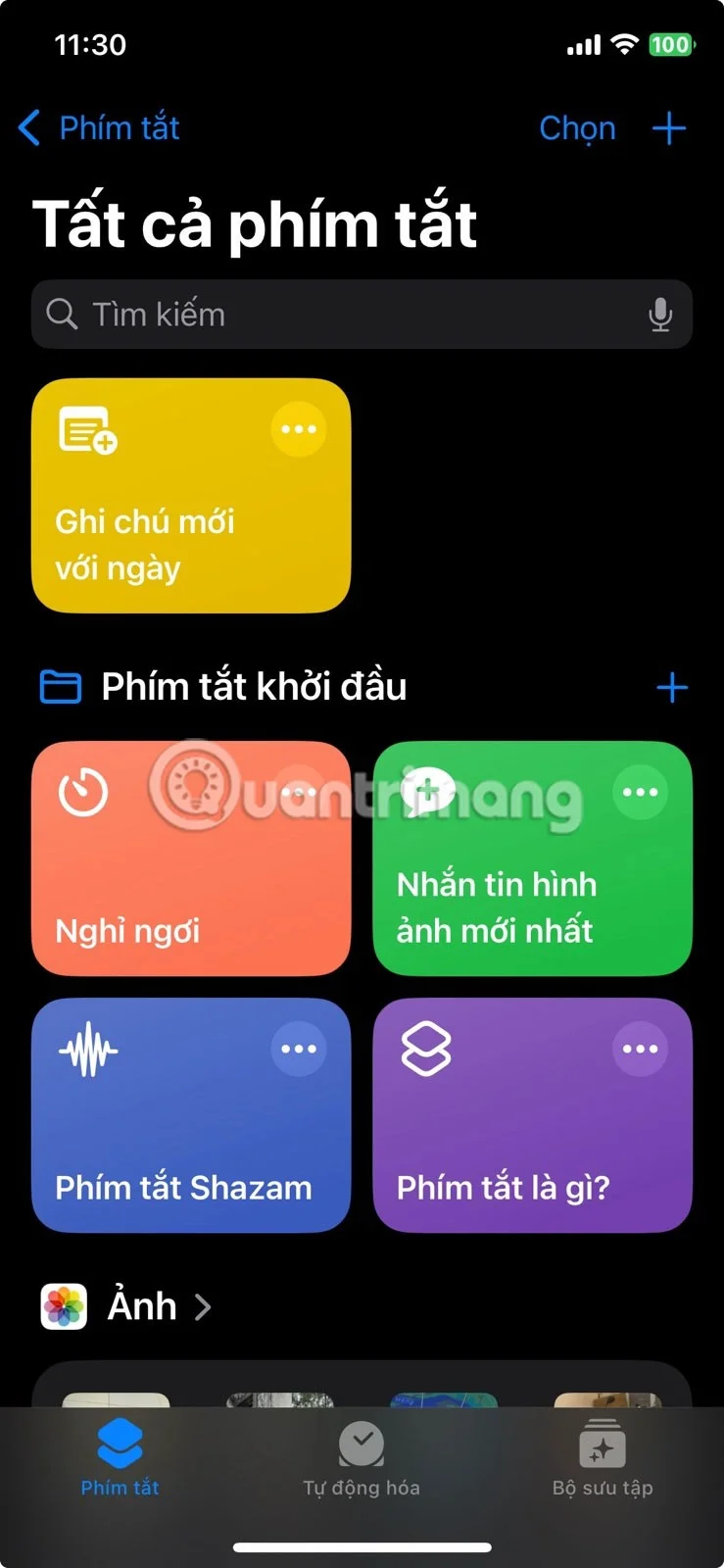
Since the Back Tap menu doesn't have a built-in option to create a note, you'll first need to set up a shortcut for that note in the Shortcuts app.
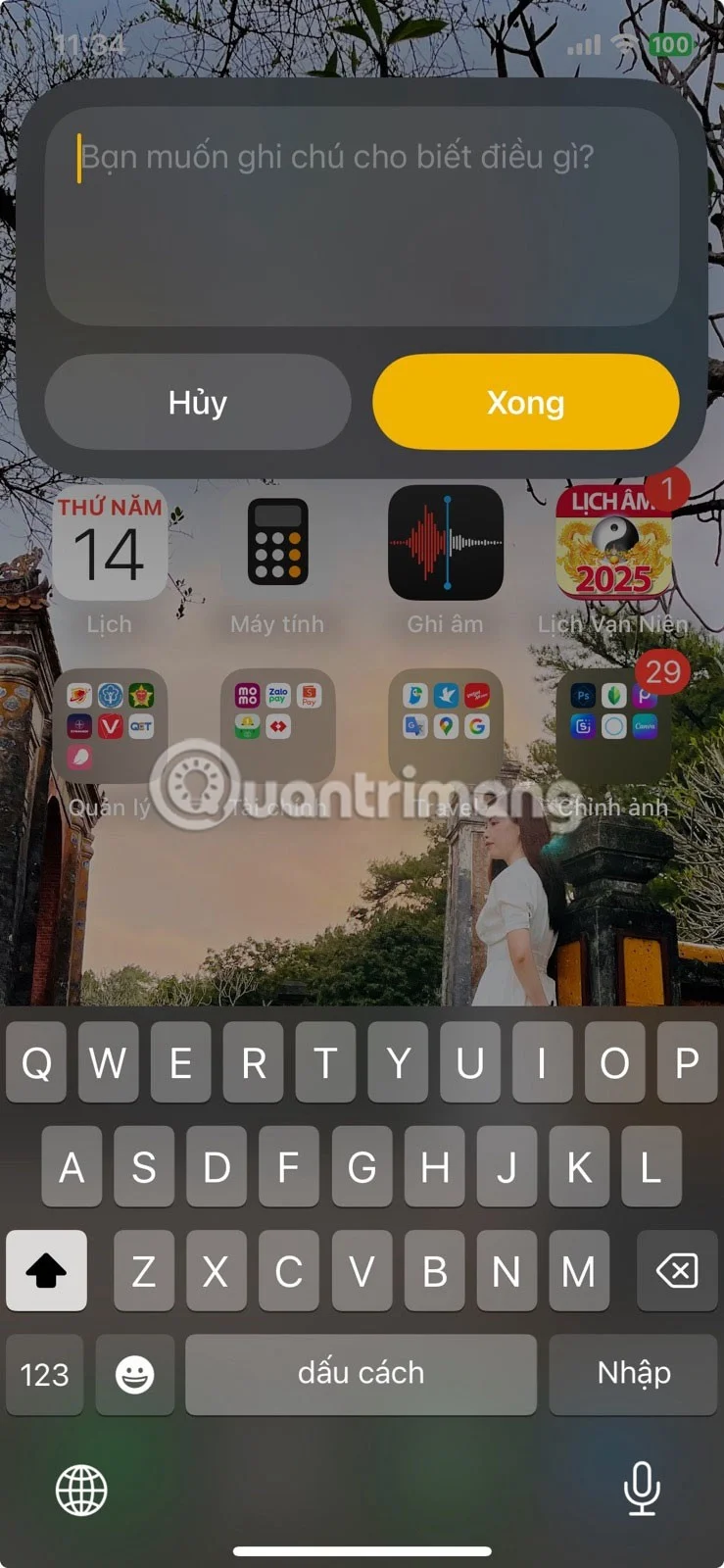
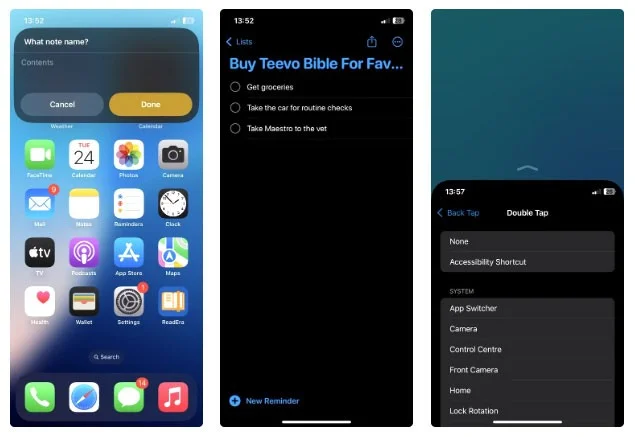
You can even customize the shortcut if you want. For example, you can set it to open a different notes app or save the note to a specific folder. When you're ready, just double-tap the back of your iPhone and the Quick Notes window will appear. This works on any screen, whether you're using an app or the home screen.
This little change will help you take more notes than ever, simply because it's so easy to use. Those moments when you might have put off taking notes, only to forget later, are now rare.
The Pomodoro Technique is a simple but effective way to increase your focus. It involves working for 25 minutes, then taking a short break before starting again. But you don't have to open the Clock app and manually set a timer every time.
By assigning a triple tap to launch the Pomodoro timer, you can skip those extra steps. While Back Tap doesn't have a Pomodoro function built in, you can easily create one using the Shortcuts app.
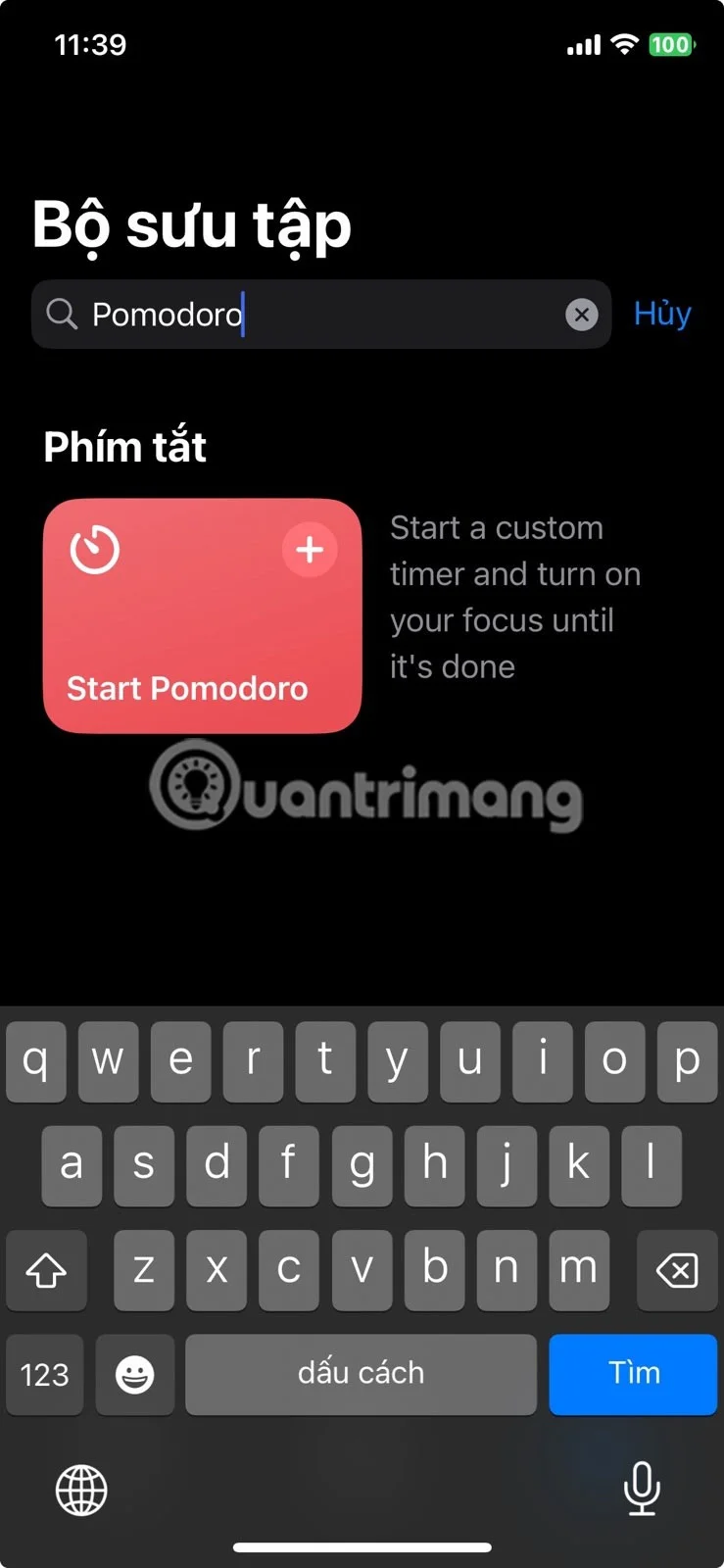
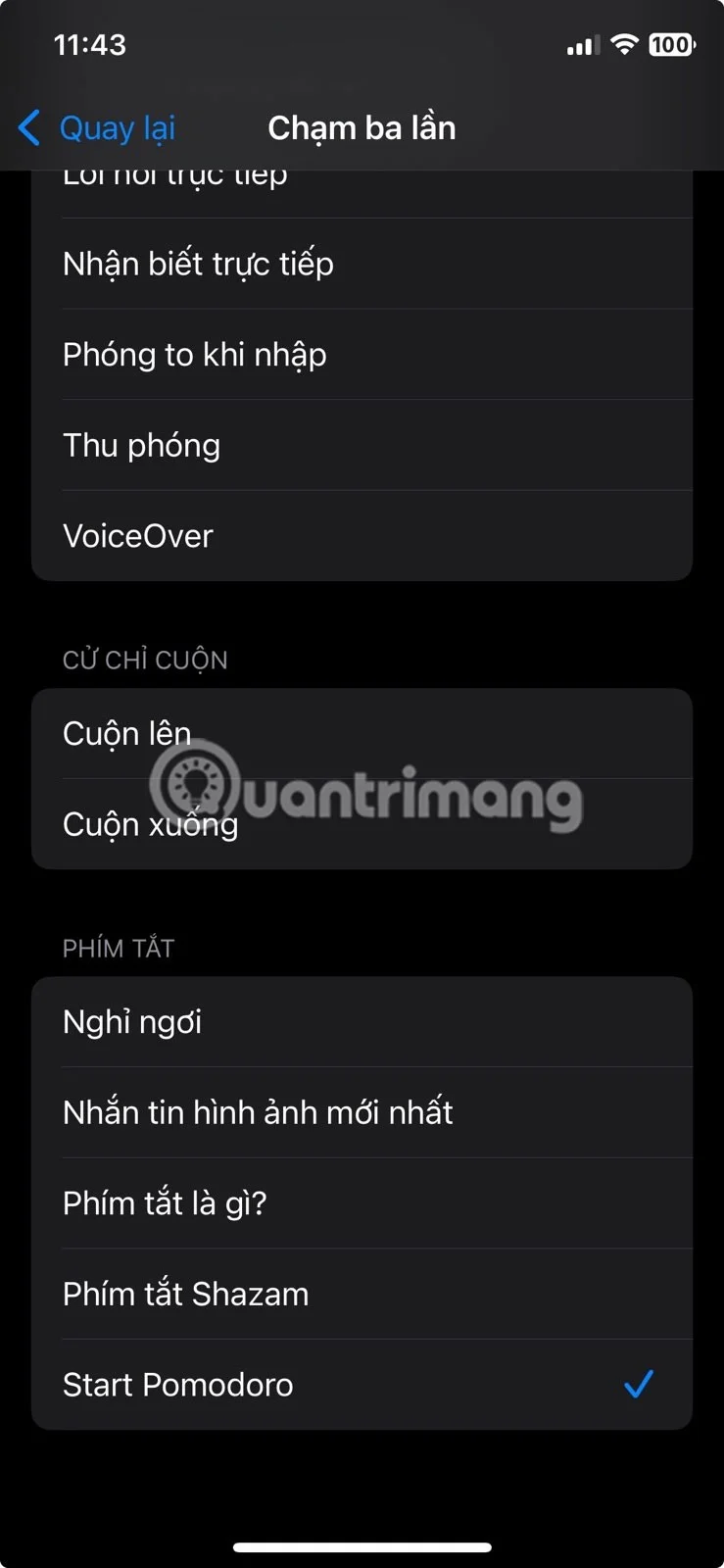
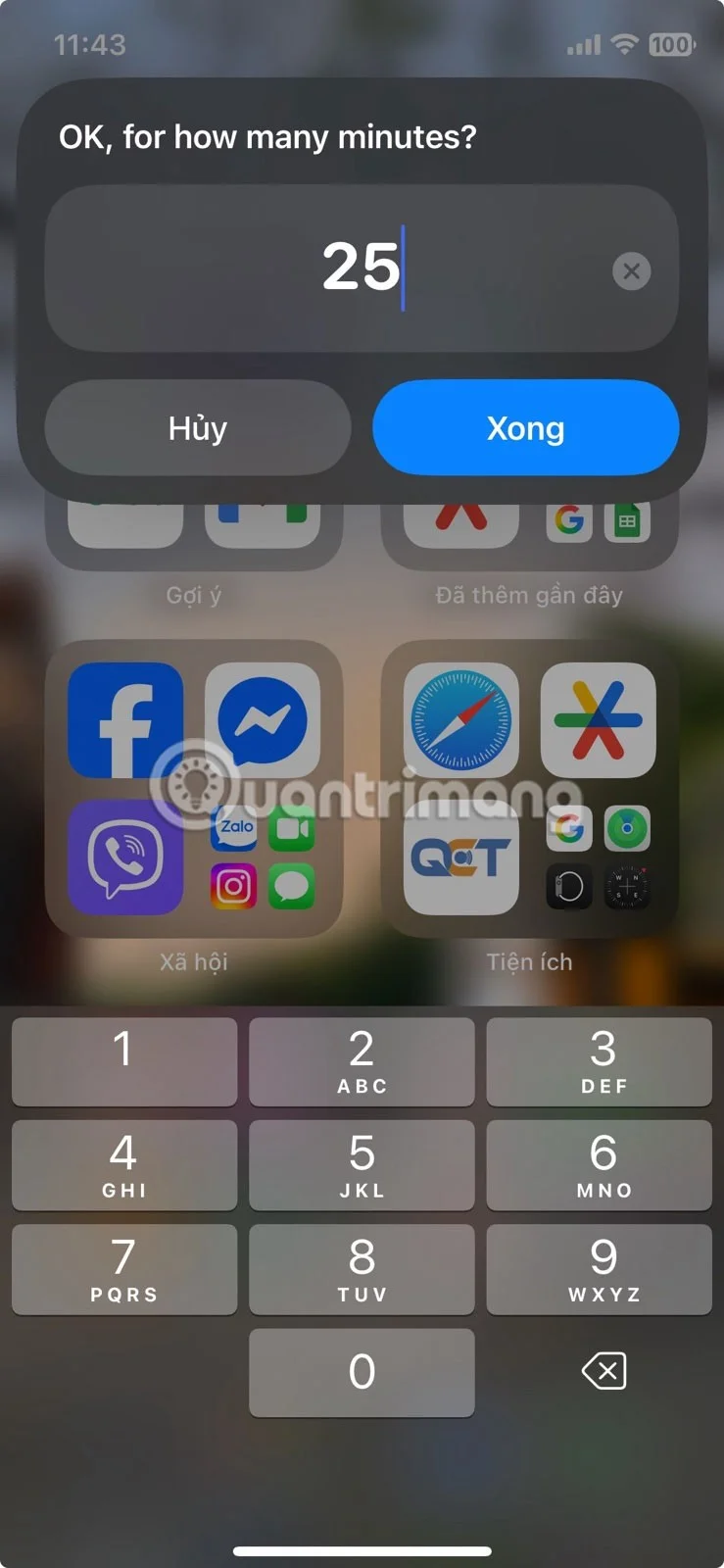
In the Shortcuts app, go to the Collections tab and search for pomodoro , then add Start Pomodoro to your library. Once added, go to the Back Tap settings and set the Triple Tap behavior. Now, with just three quick taps on the back of your iPhone, a pop-up will appear and you can start the Pomodoro timer instantly.
For a procrastinator, the Pomodoro technique has been a real game changer. And being able to start a Pomodoro session with just a triple tap has helped many people stick with it.
Some iPhone features are obvious and easy to spot. Others are easy to overlook even if you've been using your iPhone for a while. Back Tap is one of those features, and it can help you be more productive.
The examples above are just the beginning. If you already use the Shortcuts app to automate everyday tasks, you can trigger your favorite actions with Back Tap to make the process even easier.
After some experimentation, many people have found a few combinations that make their phones more responsive and personalized.
For example, you can set up a Double Tap gesture to take a screenshot. Many people take screenshots regularly for Instagram ads, short posts, app errors, etc. - and it's much faster than pressing two buttons. It works even when there's something else on the screen, making it feel seamless.
With Triple Tap , you can create a shortcut to record your current location and open a new note. Use it to keep track of where you've been while running errands or exploring. Triple tap, type a note, and go; it's fast and reliable.
You can also use the Screen Tap gesture to run other custom shortcuts. Try shortcuts to open your to-do list, paste the clipboard into the Notes app, or even control music playback. If you have any automations set up in the Shortcuts app, this is one of the easiest ways to trigger them without having to dig through the menus.
There are also plenty of built-in options. Screen Reader is useful if you want content read aloud, and accessibility features like Magnifier or VoiceOver are easy to set up.
Another widely used gesture is Accessibility Shortcut , which works a little differently. Instead of tapping the back of your phone, you simply triple-press the side button. Scroll to the bottom of the Accessibility menu and tap Accessibility Shortcut to access the options. Select as many as you like, using the controls to rearrange them as you like. They’ll all appear in the menu when you triple-press the side button.
You can set Color Filters (which sets the screen to grayscale) to turn on when you want to reduce visual clutter or stay focused. That setting is usually hidden in the Settings menu , but with this shortcut, it's just a quick button press away.
Touching the back isn't a feature Apple advertises much, but once you start using it, it feels surprisingly natural. It's one of those features that just blends into your routine and quietly makes your phone easier to use.
If you haven't already, set it up and give it a try. You'll probably wonder why you didn't start sooner.
Through your purchase history on the App Store, you will know when you downloaded that app or game, and how much you paid for the paid app.
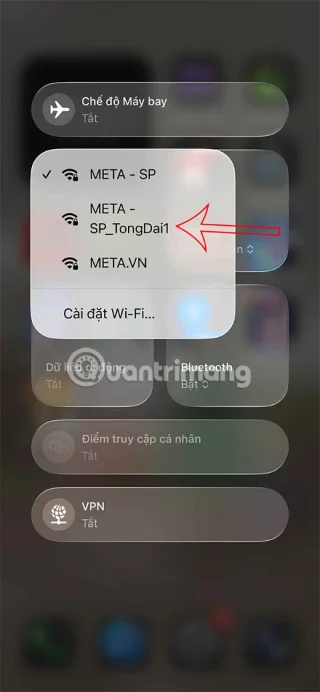
Apple makes it easy to find out if a WiFi network is safe before you connect. You don't need any software or other tools to help, just use the built-in settings on your iPhone.
iPhone mutes iPhone from unknown callers and on iOS 26, iPhone automatically receives incoming calls from an unknown number and asks for the reason for the call. If you want to receive unknown calls on iPhone, follow the instructions below.
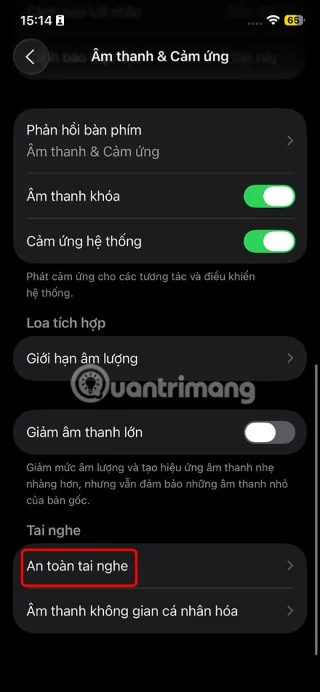
iPhone has a speaker volume limit setting to control the sound. However, in some situations you need to increase the volume on your iPhone to be able to hear the content.
ADB is a powerful set of tools that give you more control over your Android device. Although ADB is intended for Android developers, you don't need any programming knowledge to uninstall Android apps with it.
You might think you know how to get the most out of your phone time, but chances are you don't know how big a difference this common setting makes.
The Android System Key Verifier app comes pre-installed as a system app on Android devices running version 8.0 or later.
Despite Apple's tight ecosystem, some people have turned their Android phones into reliable remote controls for their Apple TV.
There are many reasons why your Android phone cannot connect to mobile data, such as incorrect configuration errors causing the problem. Here is a guide to fix mobile data connection errors on Android.
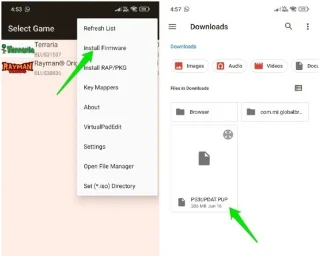
For years, Android gamers have dreamed of running PS3 titles on their phones – now it's a reality. aPS3e, the first PS3 emulator for Android, is now available on the Google Play Store.