Home
» PC Tips
»
How to show file extensions, view file extensions on Windows
How to show file extensions, view file extensions on Windows
Windows File Explorer offers a lot of options to change how you view files. What you might not know is that one important option is disabled by default, even though it's crucial to the security of your system.
File extensions are important
File extensions are three- or four-letter suffixes that appear after the final period of a file name, such as .txt, .exe, or .pdf. These extensions act as identifiers so that the operating system (and you) can instantly recognize what type of file they are.
Windows uses file extensions to determine which application to launch when you double-click a file. For example, an .exe file will launch an application, while a .docx file will open a Word file in Microsoft Word . Many programs save files with a specific file extension, which can then only be opened in that program (or a compatible third-party tool).
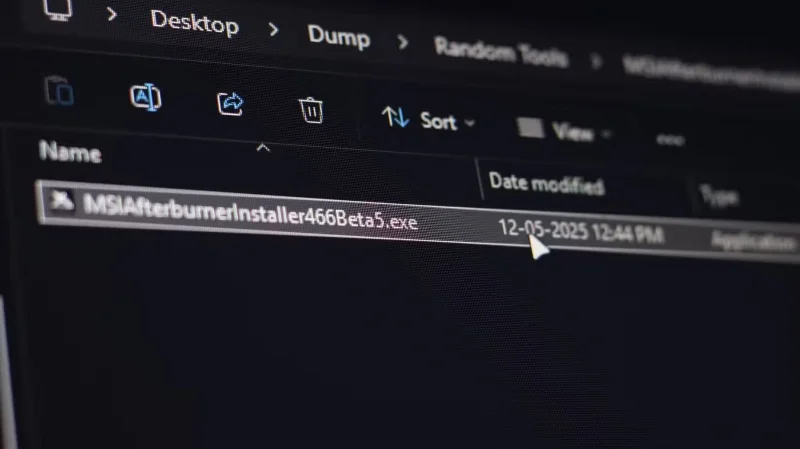
Executable file in Windows
One important advantage of being able to see file extensions is the ability to detect potentially dangerous files. Certain extensions such as .exe, .bat, .cmd, .vbs, and .scr (among others) can be malicious files designed to run malicious code on your system. These files often use file extensions used by legitimate Windows tools and programs, so detecting them can be quite difficult.
Despite their importance, file extensions are hidden by default in all modern versions of Windows. This is done to create a cleaner user interface in File Explorer. However, malware creators often use hidden extensions to disguise malicious executables as harmless-looking documents to trick users into running malware on their PCs, so it’s best to leave them visible.
Show file extensions on Windows
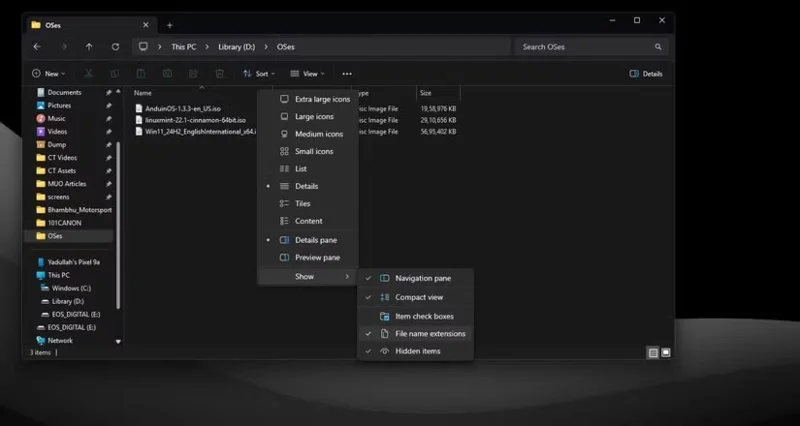
Luckily, showing file extensions on Windows only takes a few clicks. On Windows 11, just open File Explorer with the Windows key + E shortcut , click View in the top bar, hover over Show , and select File name extensions . You’ll see the file extensions for all the files saved on your computer.
File name extensions option in File Explorer
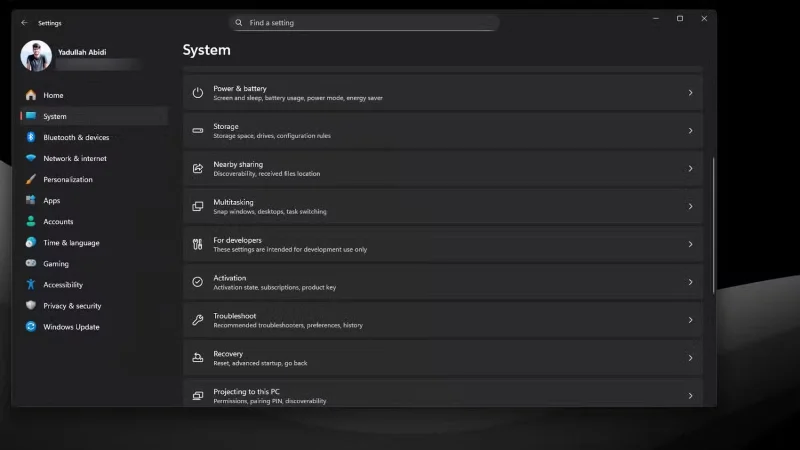
If you don't see the top bar in File Explorer, you can also show file extensions from Windows settings. Follow these steps:
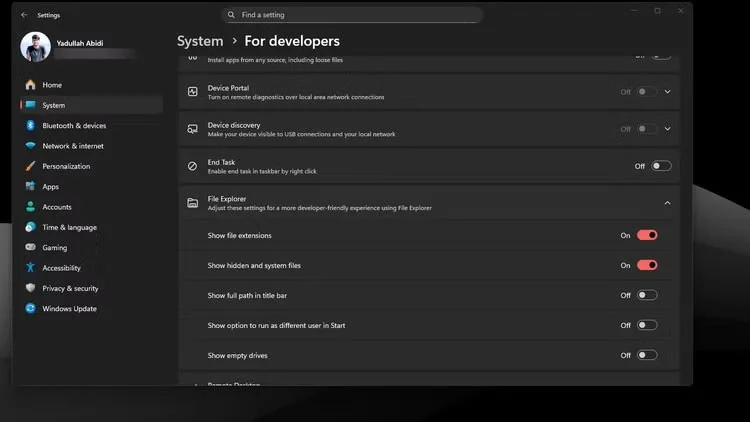
Press Windows key + I to open Windows Settings . Go to the System tab and select For developers .
Expand the File Explorer section by clicking on it, then make sure the Show file extensions slider is turned on.
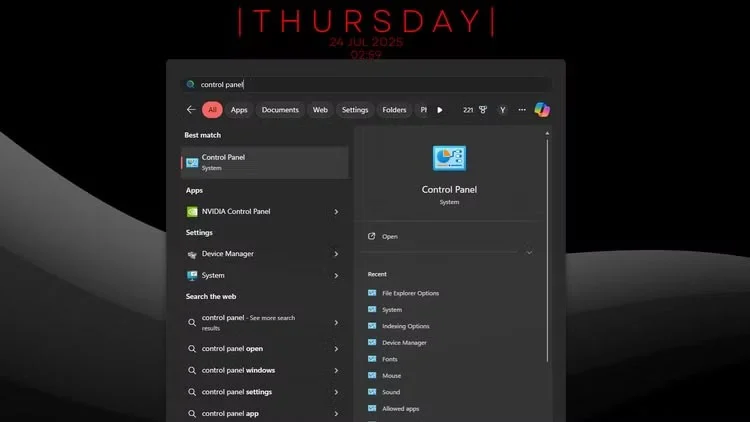
Especially if you're using an older version of Windows, Control Panel is also useful for displaying file extensions:
Open the Start menu and search for Control Panel . Click the corresponding option.
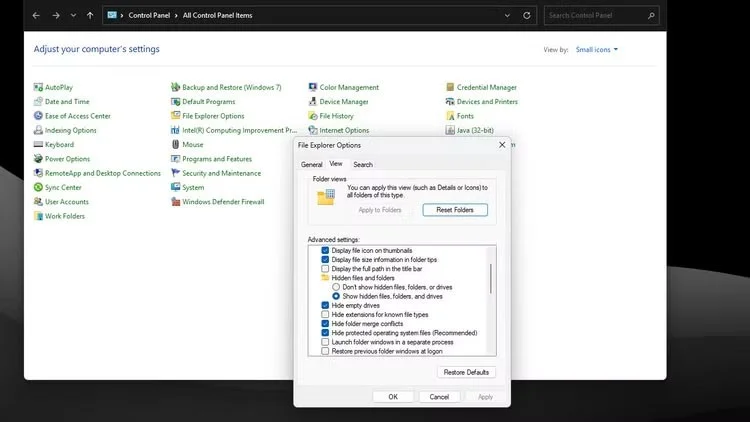
Change Category to Small icons if needed, then select File Explorer options .
In the View tab , make sure that the Hide extensions for known file types option is unchecked.
You can also show file extensions by making a small change to the Windows Registry, but you should avoid doing this. The three methods above will work on any version of Windows you’re using in 2025 and are much less error-prone. However, if you want to quickly show file extensions, just run this command in Windows Terminal or PowerShell :
This command will add the necessary entries to the Windows Registry to tell File Explorer to start displaying file extensions. Remember to refresh File Explorer with the F5 key to see the changes.
How attackers exploit hidden file extensions
As mentioned, hackers often exploit hidden file extensions on Windows to disguise malicious files as harmless files. For example, a file named image.png.exe will appear as a PNG image file in File Explorer with a hidden file extension, when in fact it is an executable file that can run malicious code or malware when launched.
This technique is called a “double extension attack,” and it’s the most common type of file extension attack you’ll see. Fortunately, as long as the file extension is enabled, these malicious EXE files are fairly easy to spot and avoid. However, this isn’t the only technique that tries to use hidden extensions to trick you. Some other common methods include:
Technique
For example
Describe
Right-to-Left Override (RTLO)
image[RTLO]gpj.exe appears as image.exe.jpg
The attacker used the Unicode character U+202E to reverse the file name.
Whitespace Padding
document.pdf[insert 100 spaces].exe
You can put more whitespace between the fake and real file extensions, so the real file extension will be pushed off the screen even if the file extension is displayed.
Icon Manipulation
The document.exe file with a PDF icon
This is a simple technique where criminals will change the malicious file's icon to a more familiar icon, such as a PDF or JPG icon.
PIF file
document.pif
The PIF file extension is automatically hidden by Windows, even if file extensions are enabled. However, PIF files are rarely used in modern versions of Windows.
As you can see, there are a number of tricks an attacker can use to trick you into running a malicious executable file that you might think is an image. However, by spending just a few seconds displaying file extensions on Windows, you can fall for this trick before you accidentally launch any malware on your PC.
File extensions help identify the type of file you're dealing with, but Microsoft's default practice of hiding them in File Explorer leaves an opening for malicious files to disguise as malicious. Don't fall for these tricks! Show file extensions and always double-check a file before opening it, especially if it's from the Internet or you didn't ask for it.