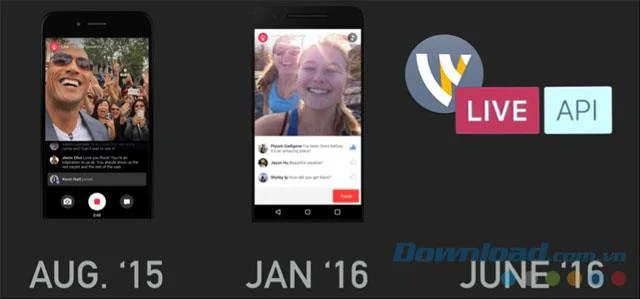
Facebook first introduced live stream video streaming service in August 2015. Initially, this livestream feature only supported stars and authenticated accounts. 5 months later, in January 2016, Facebook opened its live video streaming feature to all users. Now any Facebook user on mobile or web can stream video in real time.
The simplest way to stream Facebook Live is to use the Facebook app on your smartphone. Since June 2016, Facebook has introduced a new Live API feature that allows companies, websites or third-party services to stream content directly to Facebook. Telestream and Wirecast are the first partners of this service, supporting fast, smooth video streaming with many unique options.
What is Wirecast?
Using professional streaming and coding software such as Wirecast, users not only increase the quality of video transmission to Facebook, but also significantly improve the ability to interact with viewers, helping you easily reach your advertising goals. product, trade, or introduction of a new service. Instead of relying on the iPhone's camera with a narrow angle, you can now use multiple cameras, combine with the microphone, add titles, decorate graphics and many other tools during the stream .
When using Wirecast, you can stream videos to your Facebook Page, profile, group or event. Below are some specific instructions for playing live video to Facebook using Wirecast.
Prepare before transmitting video with Wirecast
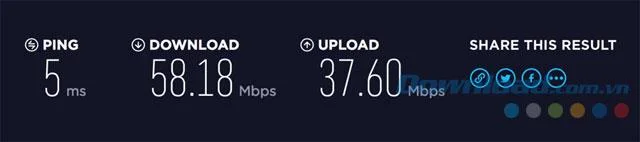
Make sure your network connection is fast and stable with a minimum upload speed of 4-5Mbps.

This is a prerequisite if you want to stream live video. You can check the speed of your home network with SpeedTest , note that it takes several times to get accurate results. If the results are unsatisfactory, you only have to use the Facebook app on the iPhone to live stream.
Step 1: Prepare the content
Open Wirecast and set the shot, camera, source and title to use.

Step 2: Choose Destination
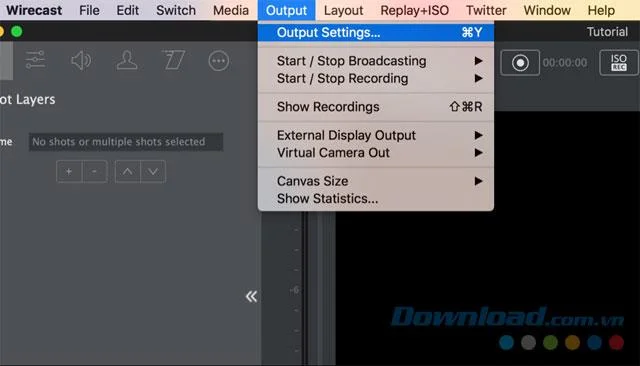
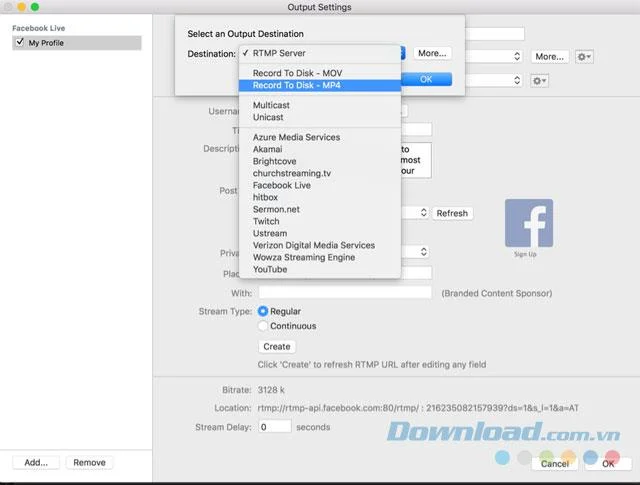
In Wirecast there are many services for you to choose to stream videos on such as YouTube Live, Ustream, Twitch, record to MP4 ... but in this case we will choose Facebook Live in the Output Settings section. Open the menu bar> Output > Output Settings. You can also use the keyboard shortcut .

Step 3: choose Facebook as the target location
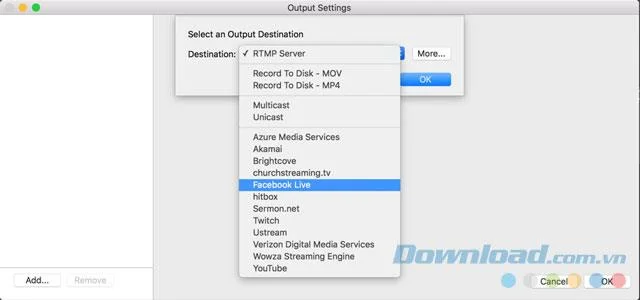
If you haven't added any services yet, Wirecast will ask you for an output destination. From the dropdown list, just select Facebook Live. Note that the list of destination services will be arranged in alphabetical order for users to easily find. If Facebook is not listed, click the More button to continue and select.
Step 4: Log in to Facebook
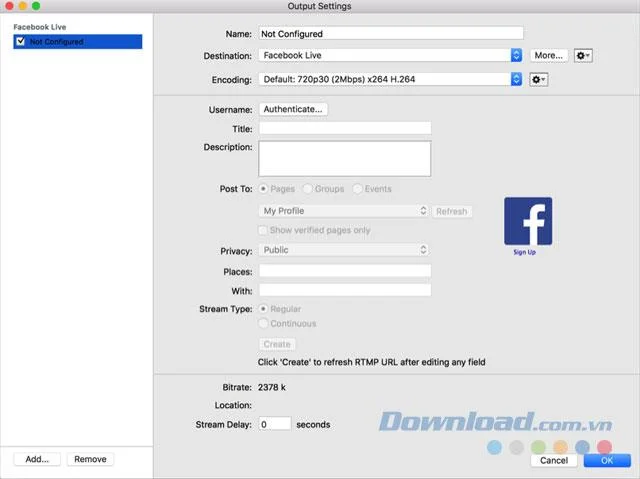
On the Output Settings screen , click Authenticate and enter your Facebook account username and password. If you regularly use this account to stream live to Facebook, you can tick the box Keep me logged in to Wirecast on the Login button .

So you have successfully logged into Facebook. Your Facebook account will appear in the Wirecast Output Settings screen.
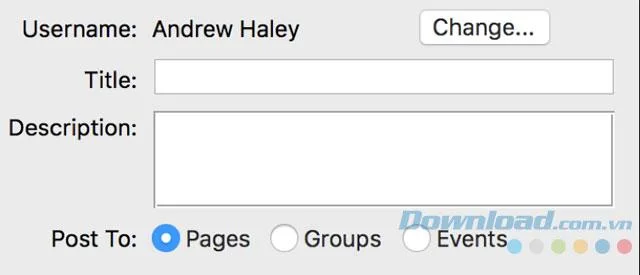
Step 5: Enter a title, description and choose the location of the stream
Choose a title and a brief but concise description. The title does not appear with the livestream post on the Facebook feed but is only present on the video page when viewers click to view it in full screen.

The first few sentences of the description are more important than the title. It appears on the Facebook feed during the stream session so viewers will see first if they want to join this livestream. You should choose attractive descriptive sentences to attract more viewers.

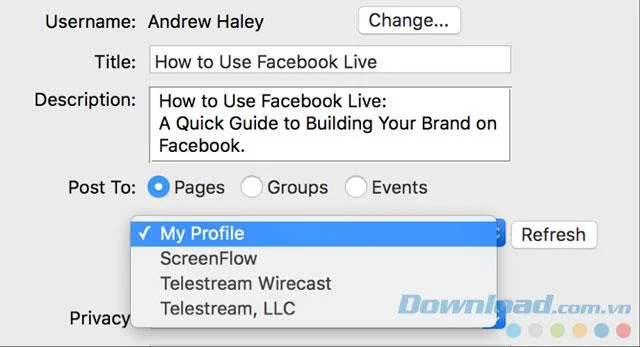
Then select Page, Group or Event you want to transfer the video to via the drop-down box below the Post To section. If you already own an authenticated Facebook page (the page with a green tick next to the name), Wirecast has a With field for you to broadcast sponsorship videos or promote your brand to Facebook Live.

Step 6: Set privacy and enter location (optional)
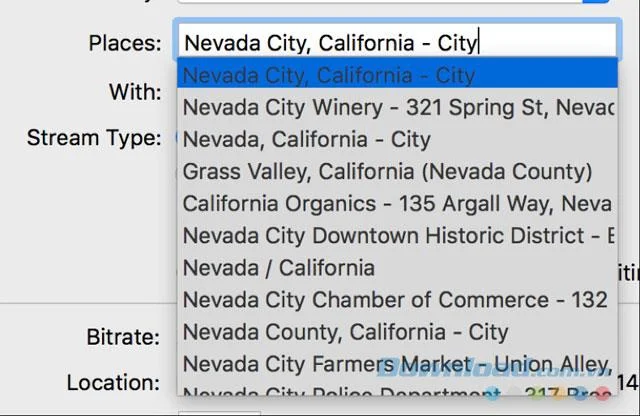
By default, the privacy setting is Public. But you can limit the number of viewers to friends or just yourself. It is not required to fill in the Place field but if you enter the location there, your video stream will be available in Facebook Live Map.

Step 7: Choose the type of stream
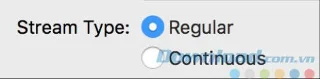
Select the stream type as Regular or Continuous . The difference lies in the total time Facebook allows you to stream videos, stream sessions recorded on Facebook or watch on demand.

Regular type means that you want Facebook to record live video and video sessions for no more than 4 hours in a row. The Continuous type allows for unlimited streaming, but your video portion is not recorded for viewing on demand. This type is suitable for reporting live traffic situation, outdoor scenes ...

Step 8: Set up the encoder
You can skip this step because it's quite complicated, not really necessary for streaming regular videos to Facebook from a personal computer. In fact, the default settings on Wirecast work quite well, ensuring a successful live stream with a moderate configuration PC.

Step 9: Click the Create button
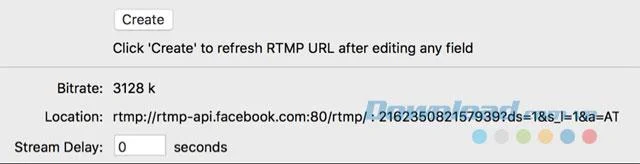
After you have set the basic options, click Create to get started. Wirecast will send any information you have entered to Facebook to create a new livestream. If everything looks normal, Facebook will return the RTMP address at the bottom of the Output Settings window.
If you are not ready, you can click Stream Delay to have more time to prepare before "airing", although this time is only 5 to 10 seconds.
Step 10: Set up video saving (optional) and click OK
If you do not select the Continuous stream type, Facebook will record a video for 4 hours. In some cases, users may want to record a copy for archiving or uploading to YouTube, for example. There is also an error section if you cannot record HD video.

If you want to save a copy, click the Add button in the lower left corner of the Output Settings screen. Then choose Record to Disk - MP4 from the drop-down list.
Do not save MOV videos because they are quite large, especially with short broadcasts or you need to edit videos in movie programs.
The procedure for setting up the next video is similar. You choose the encoding size, encoding quality, choose a location to save MP4 files and give a name for the live stream. Click OK to save all settings and destinations. If you press Cancel, you will return to the previous step.
Step 11: Save and stream (record video)
Wirecast videos should be saved at this step. Although Wirecast supports resuming the streaming session if there is a hang error, there are risks. If you save a copy, you can repeat it and store the copy on another device.
Click the Record button at the top of the screen to start recording. Then click Stream to start narrating the video directly on Facebook.

Step 12: Watch your video stream
At this point, the Stream and Record buttons are both green. If there is an error, the button will flash yellow, orange or red.
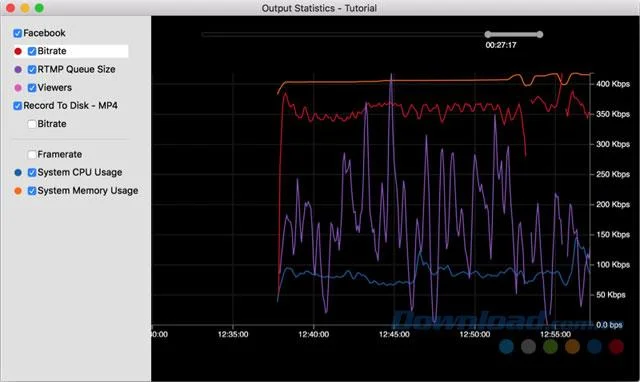
The advantage of Wirecast is that you always know your information and stream status, including computer activity, the number of people watching, commenting and clicking the Like button on Facebook.

Make sure the frame rate stays stable and the CPU maintains at or below 70%. If the screen lags, the system is not strong enough to play video online. In the Output Statistics window , you will see more information about the stream session via real-time graph.

So with the above 12 steps, you already know how to live stream Facebook videos on your computer with Wirecast software. With the ability to integrate well with the Facebook Live API, Wirecast is one of the better options if you want to play online video on the largest social network today.