Home
» Wiki
»
How to use Conversation Awareness and Live Listen on AirPods
How to use Conversation Awareness and Live Listen on AirPods
At first glance, AirPods look just like any other true wireless earbuds. But things changed when a few little-known features were discovered. Notably, Conversation Awareness and Live Listen have become groundbreaking features in many people's daily routines.
Stay in touch with conversations without taking off your AirPods
When you wear AirPods, you probably just want to enjoy your music or podcast without being distracted by the noise around you. Noise cancellation certainly helps with that. But there are times when you need to pay attention to what’s going on around you.
Maybe you want to have a quick chat with someone, or you're at the airport and don't want to miss a notification. In those cases, you don't have to take your AirPods out or constantly pause your media playback.
Man wearing AirPods Pro on the subway
Turning on Transparency mode on your AirPods lets outside sound in while keeping the audio going. This way, you can stay aware of your surroundings without interrupting your listening experience.
For example, if someone calls your name from across the room or an announcement comes through the speaker, you'll hear it instantly without having to fumble with your AirPods.
Switching to Transparency mode is easy, and you don't even need to pull out your iPhone to do it. Just press and hold the force sensor on the stem of either AirPod, and it will switch between Active Noise Cancellation and Transparency mode.
Bottom of Apple Airpods Pro 2
While Transparency mode is great for keeping conversations clear, it may not be ideal for listening to music or podcasts, especially in places with a lot of noise. Conversation Awareness on AirPods can help solve this problem.
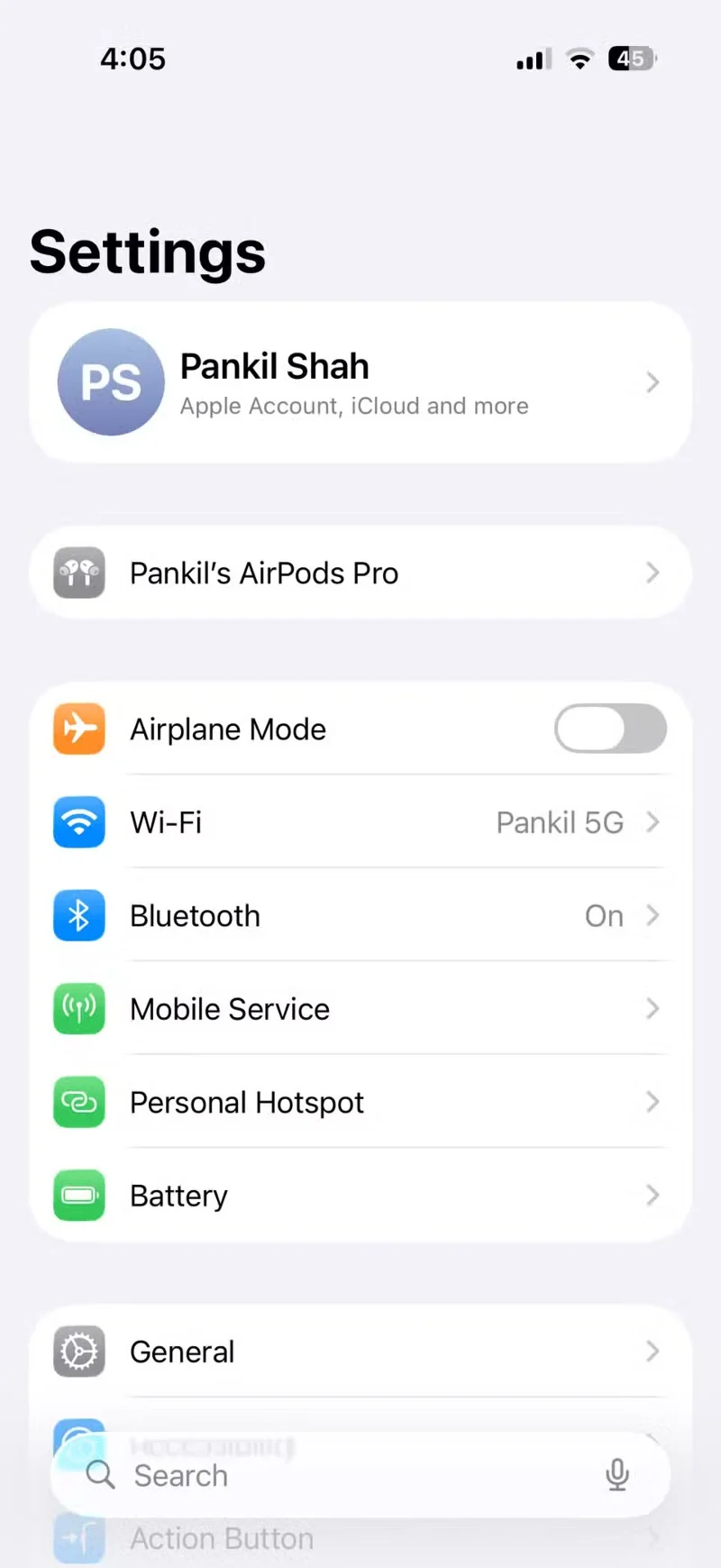
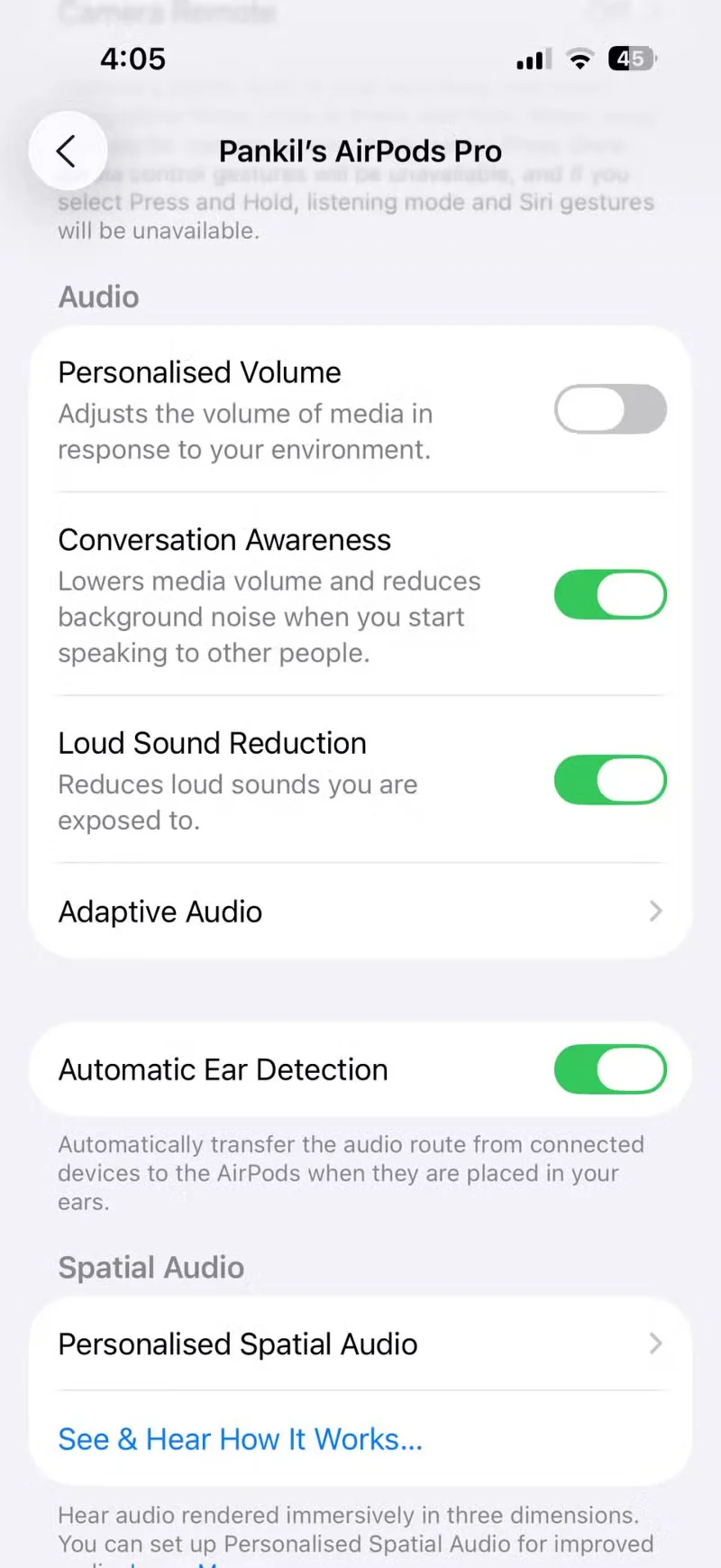
This mode automatically lowers the volume of your media and amplifies nearby voices when you start talking to someone. It also reduces background noise. When you stop talking, your media automatically returns to its previous volume. You can turn on Conversation Awareness by going to the AirPods settings on your iPhone.
Note : Conversation Awareness is only available on AirPods Pro (2nd generation) and AirPods 4 (with Active Noise Cancellation).
Conversation Awareness is convenient. Imagine you’re waiting in line at a coffee shop. When it’s your turn, you can order without pausing your music or taking out your AirPods.
Turn your iPhone and AirPods into a makeshift baby monitor
AirPods are great for listening to music and making calls, but that's not all they can do. One clever use they've found is turning them into baby monitors. It might sound counterintuitive, but it works — and, as any parent knows, quality baby monitors don't come cheap.
When your baby naps in another room, you don’t have to be around to make sure he’s okay. With just your iPhone and AirPods, you can keep an eye on him while you go about your day. To do this, you’ll need to enable the Live Listen feature on your AirPods.
The way it works is simple. The iPhone’s microphone picks up sound and streams it directly to the AirPods in real time. To use it as a baby monitor, all you have to do is place your iPhone near your baby’s crib, connect your AirPods, and turn on Live Listen. For the last part, you’ll need to use Control Center on your iPhone.
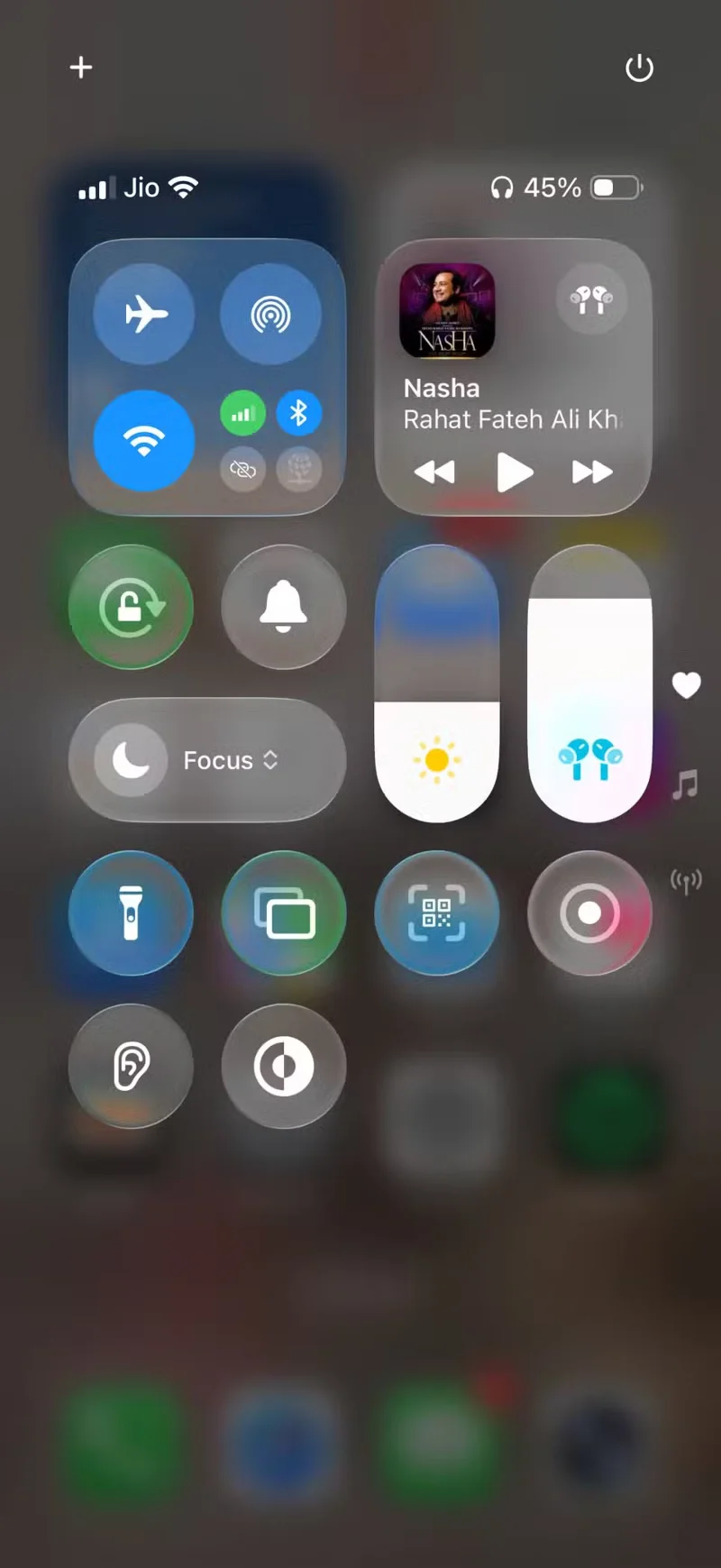
Open Control Center by swiping down from the top-right corner of your iPhone screen.
Click the plus button in the upper left corner and select Add a Control .
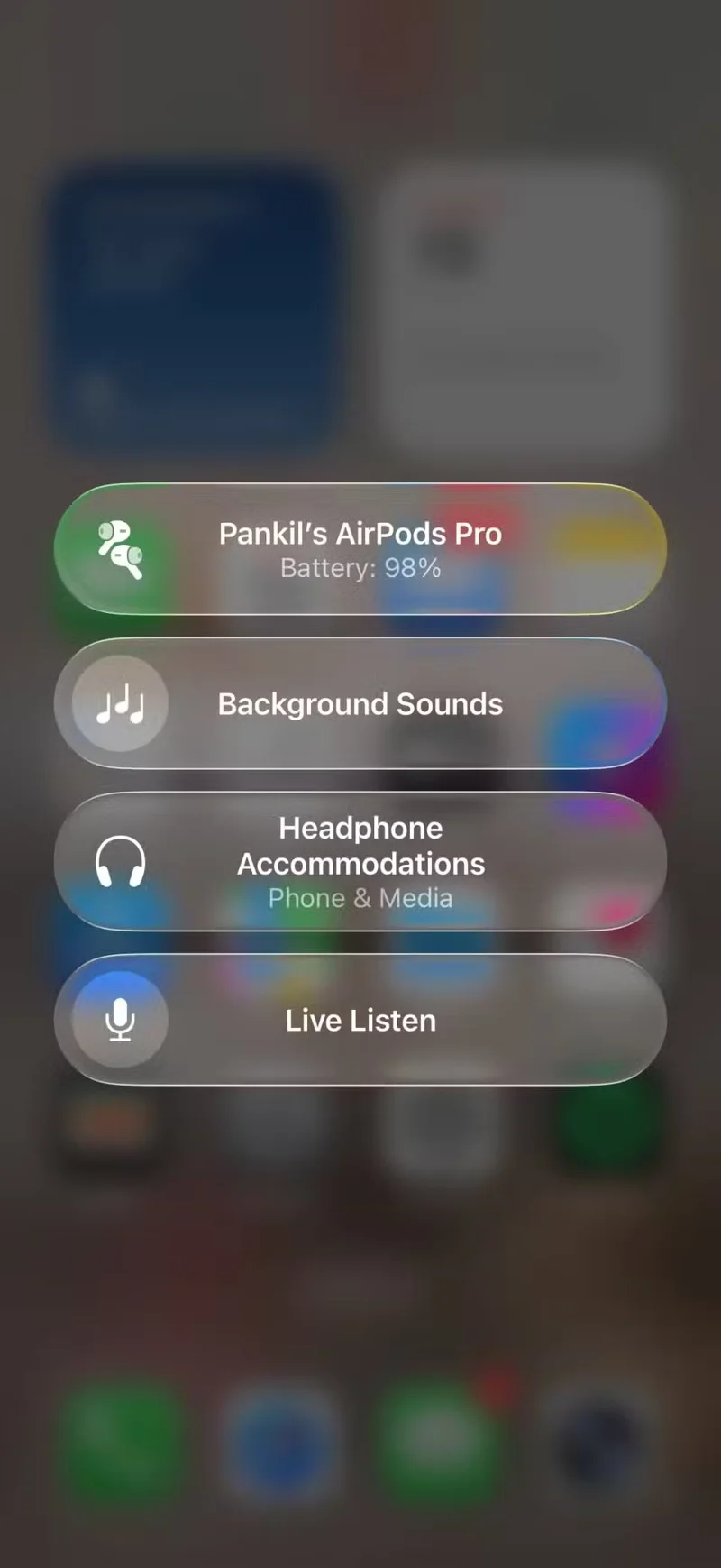
Go to Hearing Accessibility and tap Live Listen .
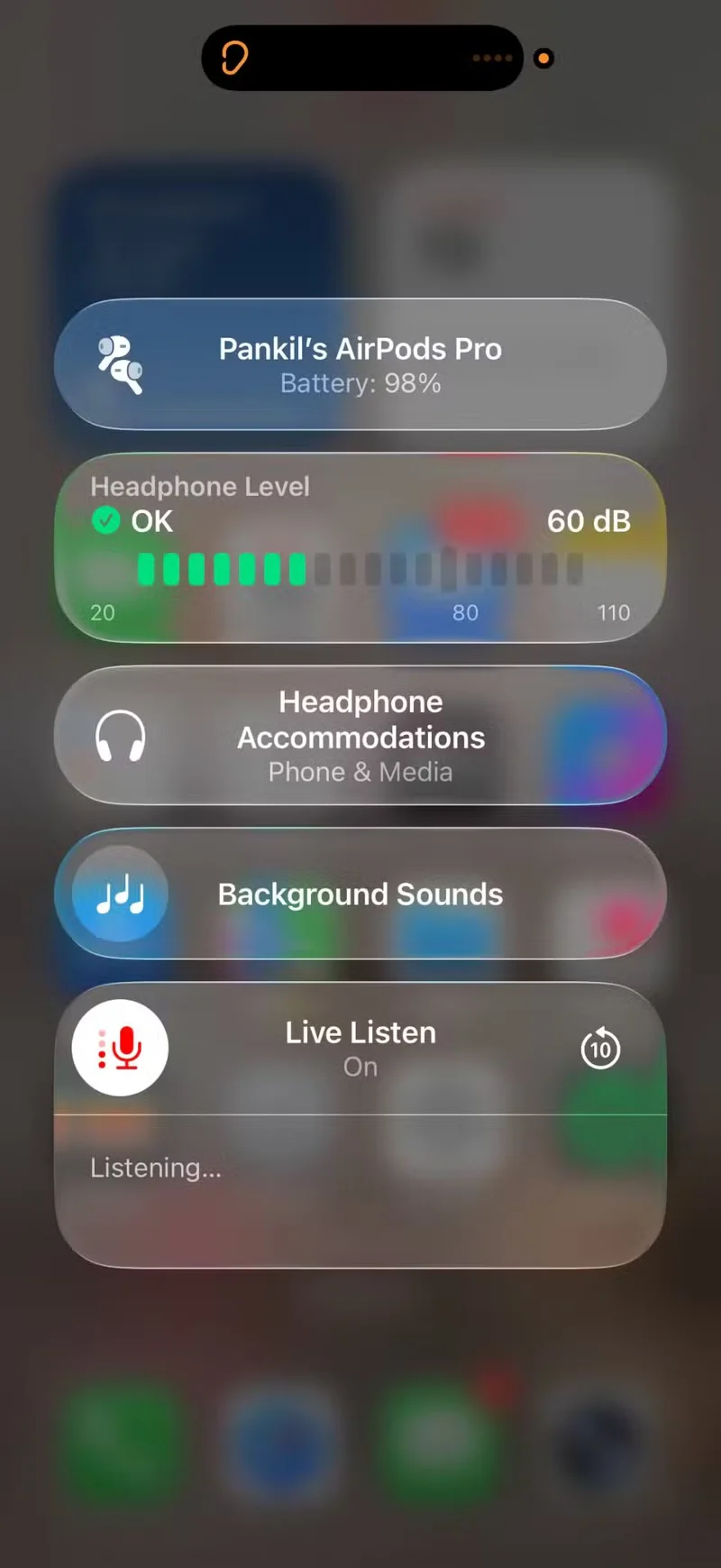
Now, with your AirPods in your ears, tap the Live Listen button in Control Center to start listening. You’ll hear everything your iPhone’s microphones pick up, loud and clear. Make sure your iPhone’s volume is turned all the way up.
You can even monitor your headphone volume levels in real time as you listen. It doesn’t record audio, but if you accidentally miss something, there’s an option to replay the last 10 seconds of audio. Live Listen also works when your iPhone is connected to an external wired microphone.
When I first got my AirPods, I didn’t know about the Live Listen feature. Discovering it has changed my life. Now I can move around the house, do chores, or read, all while listening to my little ones. It’s amazing how a simple feature can bring me such peace of mind.
Note: It's important to use the Live Listen feature responsibly. It's designed to be helpful, not for spying or eavesdropping.
At first glance, most earbuds look the same and work well, but the cheap ones often skimp on extra features. If you’ve invested in a pair of AirPods, it’s not just the sound quality that really matters. Knowing about their hidden features could change the way you use them every day.
Conversation Awareness and Live Listen are just a couple of examples. AirPods have a bunch of other features, from spatial audio to built-in hearing tests, that are worth checking out.