Induction stove is hot and how to fix it

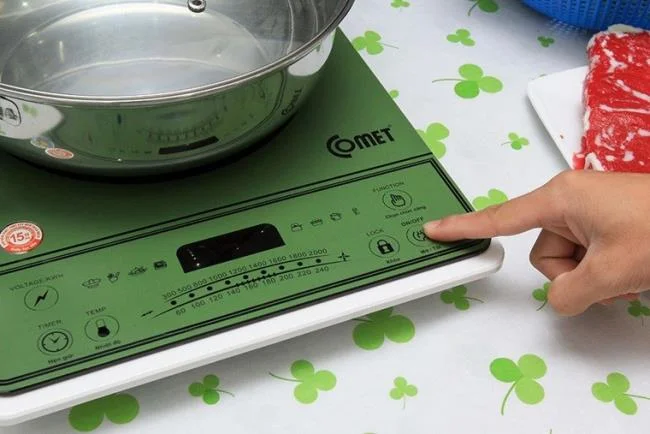
One of the advantages of induction cookers is that when cooking, the hot surface is only concentrated in the heat ring on the stove top due to contact with the bottom of the hot pot. However, when using sometimes, users touch the kitchen surface with their hands and feel hot. You wonder why the induction hob is hot and the most effective way to fix it, please see now in this article!

Cause the induction stove is hot

Induction stove is hot and how to fix it
Cooking at large capacity can cause the induction hob to heat up quickly, making it unsafe to use

- Cooking at high temperature, high capacity for a long time makes the induction hob overload, touching the stove will feel very hot. Usually, the error code E1 appears on the monitor screen to notify the user that the kitchen is too hot.

- Induction stove radiator fan is blocked, problematic, broken, around the kitchen is not ventilated.

- The cookware has a temperature higher than 280 degrees Celsius, the electric current to the stove is too high, making the induction hob heat up. This situation is usually accompanied by the E4 error code on the dashboard display.

- IGBT (sensor resistor) of the stove overheats also makes the stove hot, you will see error code E5 appear.

- The temperature sensor is turned off, loose or it could be because the temperature at the bottom of the pot is too high, it also increases the temperature of the induction hob, then the device will display the error code E6.

See more:

Common error codes of induction cookers

Effective remedy

Induction stove is hot and how to fix it
Turn off the heat to reduce heat when the induction hob is hot

- Handling when the cause is cooking with high capacity, large cookware temperature, overheating sensor resistance, problem with heat sensor. You need to quickly turn off the stove, cool it for at least 10 minutes, and lift the cooking utensils that are still on the stove top.

- You also need to review the current to the kitchen, make sure it is at a stable level, if you are not sure you should use a voltage stabilizer that will help quickly stabilize the power to the kitchen. Once the stove has cooled, you turn on the stove and see that no more error codes appear, cooking can continue.

Note that when restarting but the kitchen temperature still does not decrease, you need to turn off the stove, unplug the power cord and contact the service center, repair shop, do not open the appliance yourself if you are not a specialist. Karma.

- If the cause of the hot stove is due to a problem with the radiator fan, you need to turn off the stove, check the status of the radiator fan, remove all surrounding objects that obstruct the fan's operation, create ventilation around. around the kitchen. Replace when the radiator fan is damaged.

Jot down in your notebook how to avoid "fidgety" if you find the kitchen from your home is hot. Comment in the box below if you want to share more tips on how to overcome the hot kitchen situation!

WebTech360

Leave a Comment

National Voter Registration Day 2026 Is Today: How to Register or Check Your Status

National Voter Registration Day 2026 Is Today: How to Register or Check Your Status

National Voter Registration Day is September 15, 2026. Learn how to register online, by mail, or in person and verify your voter status.

Podcasting Trends You Need to Know in 2026: A Beginner’s Roadmap

Podcasting Trends You Need to Know in 2026: A Beginner’s Roadmap

New to podcasting? Learn the 2026 trends shaping video, discovery, transcripts, AI, analytics, monetization, and a practical launch plan.

UGC Masterclass: Build User-Generated Content That Earns Trust and Drives Action

UGC Masterclass: Build User-Generated Content That Earns Trust and Drives Action

A practical UGC masterclass for sourcing, permissioning, briefing, publishing, and measuring customer and creator content without losing authenticity.

Why Community Building Is the New Marketing — and When It Is Not

Why Community Building Is the New Marketing — and When It Is Not

Community building can deepen trust, retention, feedback, and advocacy, but it is not a replacement for every marketing channel. Compare the tradeoffs and choose the right model.

Navigating Social Media Algorithm Changes in 2026: What’s Confirmed, Contextual, and Still Unknown

Navigating Social Media Algorithm Changes in 2026: What’s Confirmed, Contextual, and Still Unknown

Learn what major social platforms have actually confirmed about ranking changes in 2026, what depends on context, and how to adapt without chasing myths.

Authentic Storytelling in Brand Marketing: How to Build Trust Without Sounding Scripted

Authentic Storytelling in Brand Marketing: How to Build Trust Without Sounding Scripted

Learn how to make brand storytelling feel credible, human, and specific—using proof, real tension, ethical customer stories, and a practical authenticity check.

Email Marketing Strategies for Q4 Success: What to Prioritize, Test, and Trade Off

Email Marketing Strategies for Q4 Success: What to Prioritize, Test, and Trade Off

Build a smarter Q4 email strategy by balancing reach, frequency, discounts, automation, deliverability, and measurement for profitable holiday growth.

How to Create Short-Form Video That Converts: A Practical Framework

How to Create Short-Form Video That Converts: A Practical Framework

Learn how to create short-form video that converts by balancing hooks, format, authenticity, CTA, platform fit, and testing across TikTok, Reels, and Shorts.

The Shift from Influencers to Key Opinion Consumers (KOCs): What Brands Need to Know in 2026

The Shift from Influencers to Key Opinion Consumers (KOCs): What Brands Need to Know in 2026

Why are brands testing KOCs instead of relying only on influencers? Learn what KOCs are, why social commerce favors them, common myths, and how to run a measurable pilot.

TikTok SEO in 2026: How to Rank Videos in Search Without Keyword Stuffing

TikTok SEO in 2026: How to Rank Videos in Search Without Keyword Stuffing

Learn a practical TikTok SEO workflow for 2026: find real search demand, match search intent, optimize each video, and measure what improves visibility.









