Home
» Wiki
»
Instructions for fixing Task Manager has been Disabled by your Administrator
Instructions for fixing Task Manager has been Disabled by your Administrator
Are you facing a problem of not being able to open Task Manager in Windows 10? Whenever you try to run this tool, an error message appears saying "Task Manager has been Disabled by your Administrator".
You may wonder why Task Manager is disabled? But don't worry! The following article will guide you through the best solutions to fix Task Manager when it is not working.
What causes the error "Task Manager has been Disabled by your Administrator"?
Windows Task Manager is an amazing tool that helps you easily close misbehaving programs. Additionally, it helps you check the details of the processes running on your PC.
You can access Task Manager in a variety of ways, such as pressing Ctrl + Shift + Esc . Alternatively, you can open the tool by pressing Win + R , typing taskmgr , and then pressing Enter.
Now, let's check the main cause of the "Task Manager has been Disabled by your Administrator" error:
1. Malware
While trying to use Task Manager, a third-party program, virus, or spyware may prevent you from using the tool. Often, Task Manager may fail to launch and all you see is the error message "Task Manager has been disabled by your administrator".
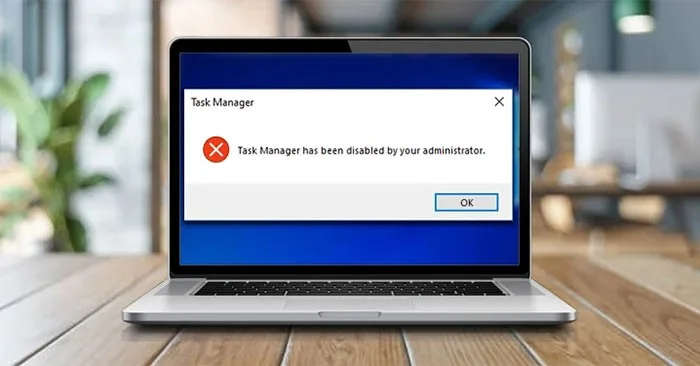
The Task Manager window has been disabled by your administrator
If Task Manager is malfunctioning due to a virus or malware, you can fix the tool using some of the methods in this article.
2. The PC administrator has disabled Task Manager
If you are not the PC administrator, it is also possible that your administrator has disabled Task Manager. In most cases, the administrator may do this to prevent you from closing important security programs, such as antivirus software.
But if you are facing this issue on your PC, you can solve the problem by signing in to Windows 10 with admin rights. If you are not a PC administrator, you can request admin privileges or ask your admin to enable Task Manager.
On the other hand, here are the 4 best solutions for the problem “Task Manager has been Disabled by your Administrator”.
Instructions for fixing Task Manager has been Disabled by your Administrator
1. How to fix Task Manager using Registry Editor
One of the best ways to fix this Task Manager issue is to use Registry Editor. This built-in tool is used to modify the registry keys that control how Windows works.
To fix Task Manager using Registry Editor, follow these steps:
3. Next, click Yes on the User Account Control window.
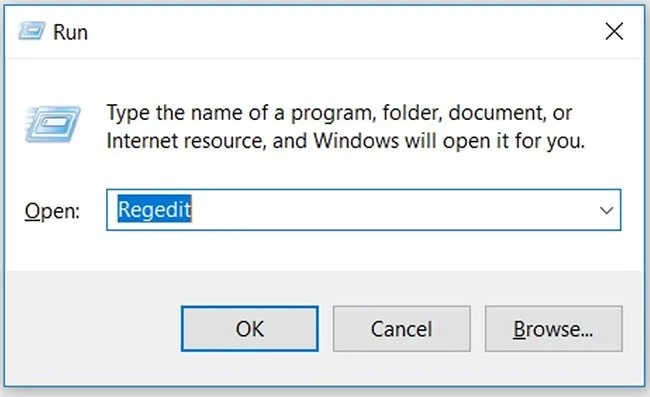
Open Registry Editor in Windows 10
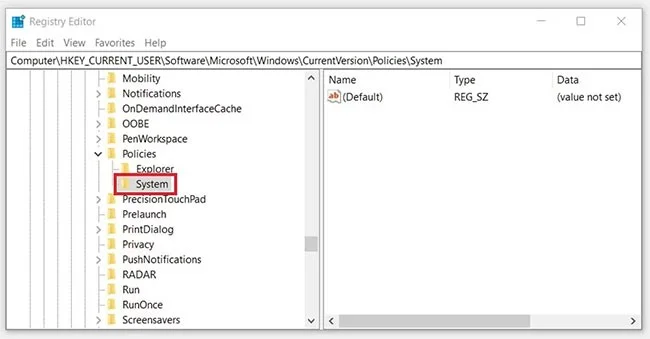
Locate the navigation pane on the left side and open the System key :
HKEY_CURRENT_USER > Software > Microsoft > Windows > CurrentVersion > Policies > System
Navigate to the System key in Registry Editor
If you have a System key , you can move on to the next step. But if this key is missing, here's how you can create it:
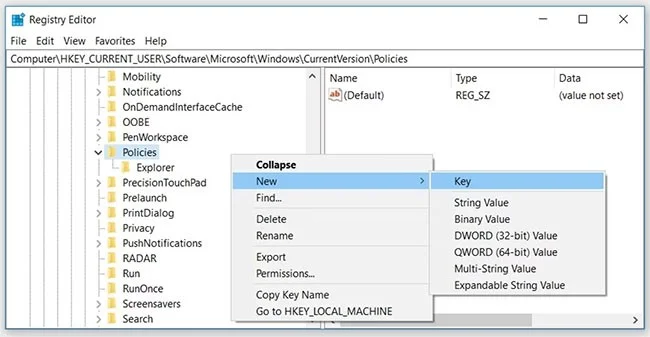
1. Right-click on the Policies key > New > Key .
2. Name the new key System.
Create System key in Registry Editor
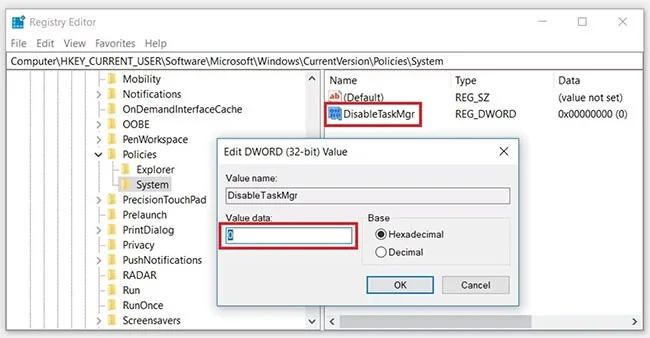
Now, click on the System key. You should see a value named “DisableTaskMgr” on the right-hand side. Again, if this value is not available, you will need to create it. But if the value is already available, you can move on to the next step.
Now, here's how you can create the DisableTaskMgr value:
1. Right-click the System key , click New , and then select DWORD (32-bit) Value.
2. Name this newly created DWORD value DisableTaskMgr and press Enter.
Create DisableTaskMgr value in Registry Editor
Next, double-click on the DisableTaskMgr value. From there, set the Value data to 0 (zero) and click OK to finish.
Enable Task Manager in Registry Editor
The "Task Manager has been Disabled by your Administrator” issue on Windows 10 should now be resolved. If not, restart your PC to save these changes.
2. How to fix Task Manager using registry file
If you're not comfortable editing the Registry, you can create a registry file manually. This will automatically configure the settings in Registry Editor and fix your Task Manager.
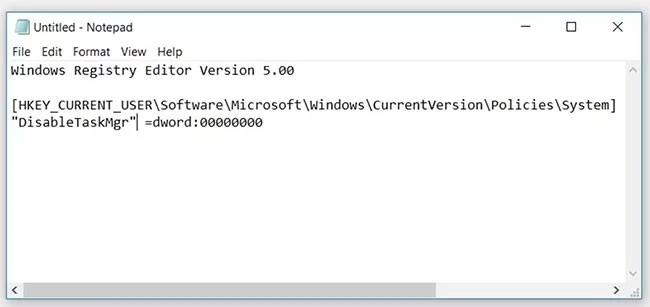
To create the Registry file, open Notepad or any other text editor and enter the following command:
Windows Registry Editor Version 5.00

[HKEY_CURRENT_USER\Software\Microsoft\Windows\CurrentVersion\Policies\System]
"DisableTaskMgr" =dword:00000000
Create a Registry file in Notepad
Save the document as "DisableTaskMgr.reg". Now, double-click the DisableTaskMgr.reg file to open it. Next, click Yes on the User Account Control prompt.
The Task Manager issue should now be resolved. Restart your PC and see if you still have this issue.
3. How to fix Task Manager using Local Group Policy Editor
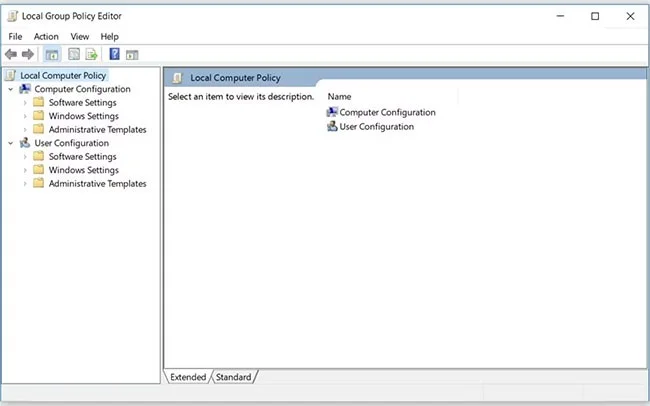
Local Group Policy Editor is a reliable Windows feature that you can use to edit local policy settings. However, you can only edit Local Group Policy if you own Windows 10 Pro, Education, and Enterprise editions.
So if you have Windows 10 Home, you’ll need to try the other solutions in this article. Alternatively, you can try one of the Group Policy fixes on Windows 10 Home.
On the other hand, here is how to enable Task Manager in Windows 10:
1. Press Win + R to open the Run command dialog box.
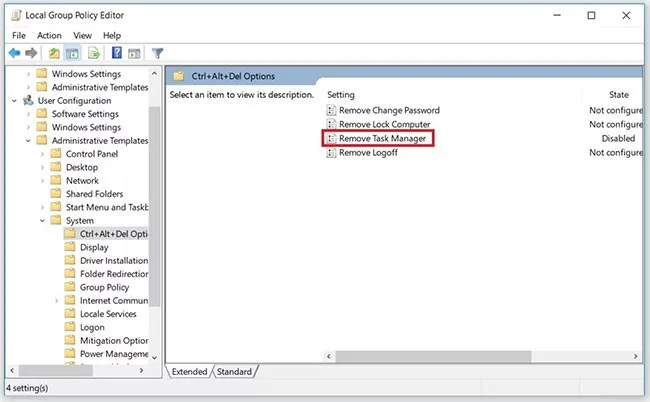
In the left pane, navigate to User Configuration > Administrative Templates > System > Ctrl+Alt+Del Options . From there, double-click the Remove Task Manager option in the right pane.
Double-click the Remove Task Manager option
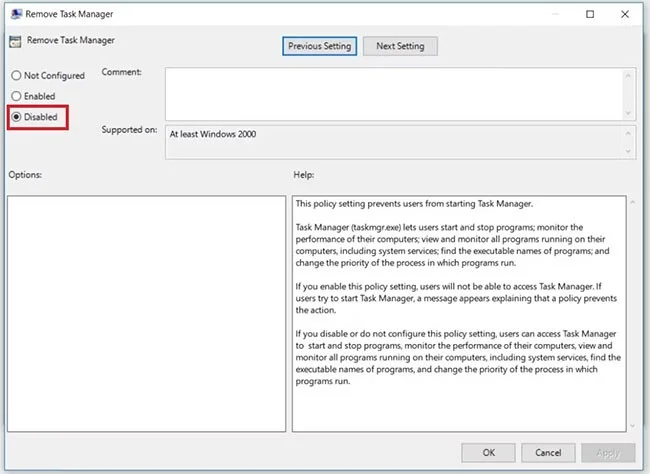
In the next window, select the Disabled or Not Configured option. From there, click Apply > OK .
Select Disabled or Not Configured
Close Local Group Policy Editor and restart your device. Your Task Manager issues should be resolved once you complete applying these steps.
In case this doesn't solve your problem, there is still another method that might help you out.
4. How to fix Task Manager errors using Command Prompt
When you enter the right commands in Command Prompt, you can easily fix most of your Windows 10 PC problems. You will be happy to know that you can also use Command Prompt to fix your Task Manager.
Now, here is how you can fix Task Manager errors via Command Prompt:
1. Press Win + R to open the Run command dialog box.
2. From there, type CMD and press Ctrl + Shift + Enter .